


ZenCommunity Live Chat delivers instant, fully customizable real-time messaging—always-on, mobile-friendly, with file sharing, optional visitor info, and branded styling. Engage visitors 24/7, even offline, with auto-replies and seamless agent control.
Installation
- Log in to your WordPress admin panel.
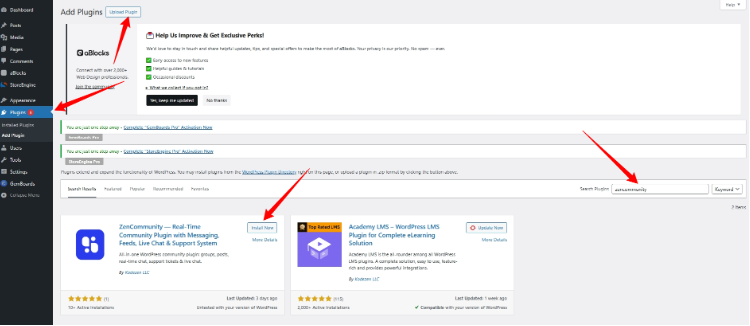
- Go to Plugins → Add New.
- Search for ZenCommunity in the plugin search box.
- Click Install Now once it appears.
- After installation, click Activate.
Setup & Configuration
Step 1: Access Community Settings
- In the admin sidebar, click ZenCommunity.
- You’ll see all community settings.
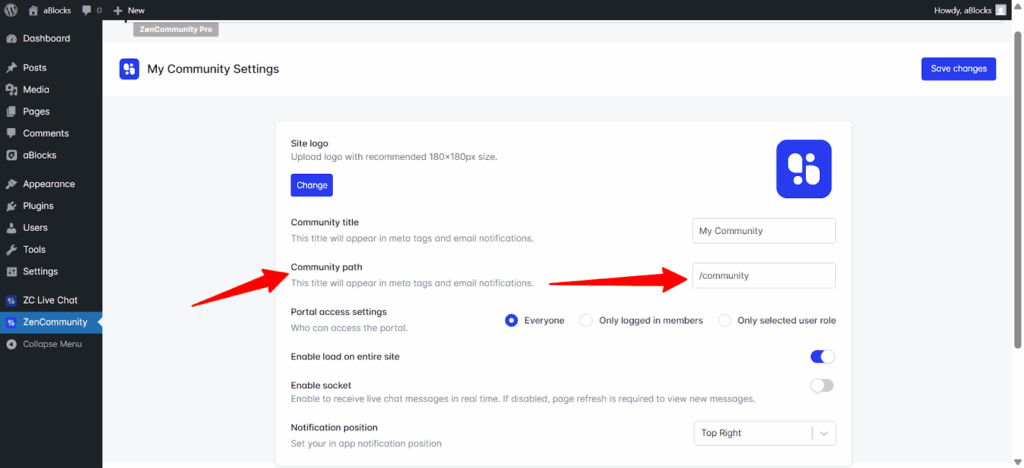
- Under Community Path, note the default slug /community (e.g., yoursite.com/community).
- Change it if needed (e.g., /support) and click Save Changes.
Step 2: Enable Live Chat Add-on
- From the frontend (click View Community)
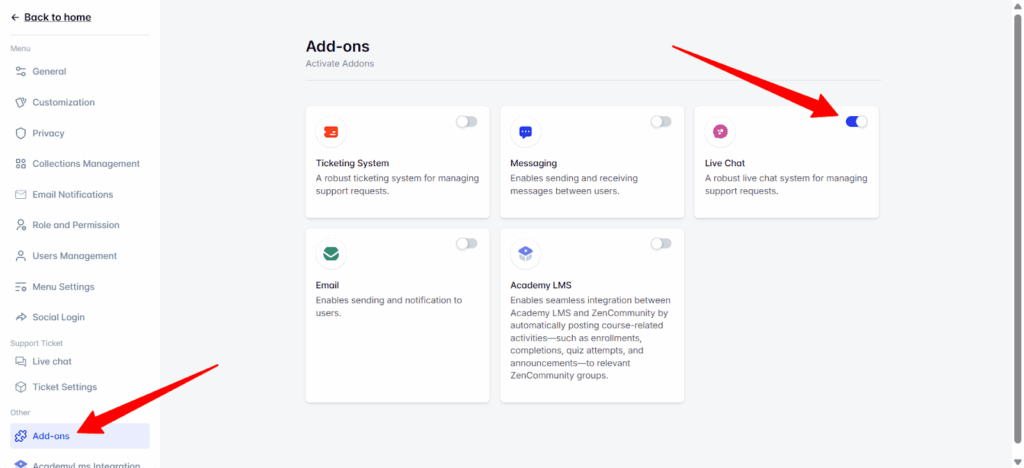
- Go to ZenCommunity > Add-ons.
- Toggle Live Chat to ON.
Step 3: Create Live Chat Widget
- Click Live Chat in the sidebar.
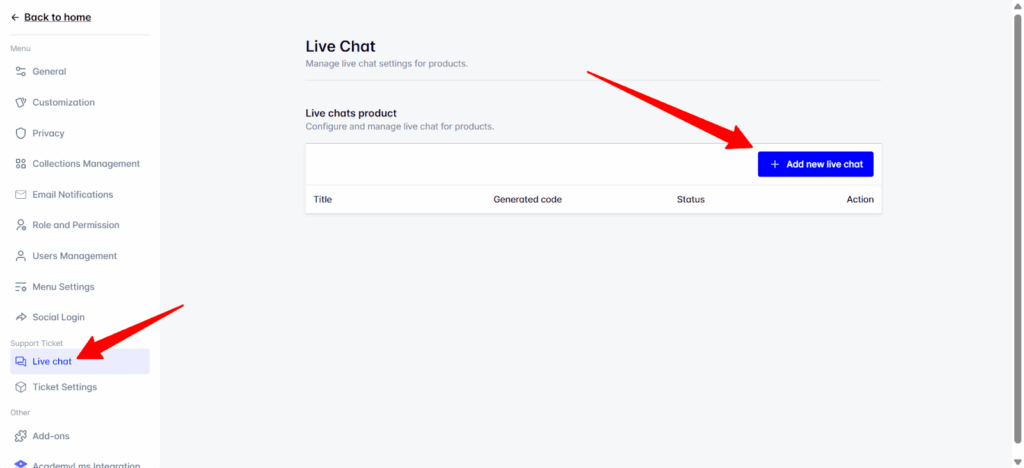
- Click Add New Live Chat.
- A 4-step setup wizard opens:
1. Basic Info
- Logo: Upload brand logo (recommended: 180×180px).
- Title/Name: Set display name (e.g., “Branding Name”).
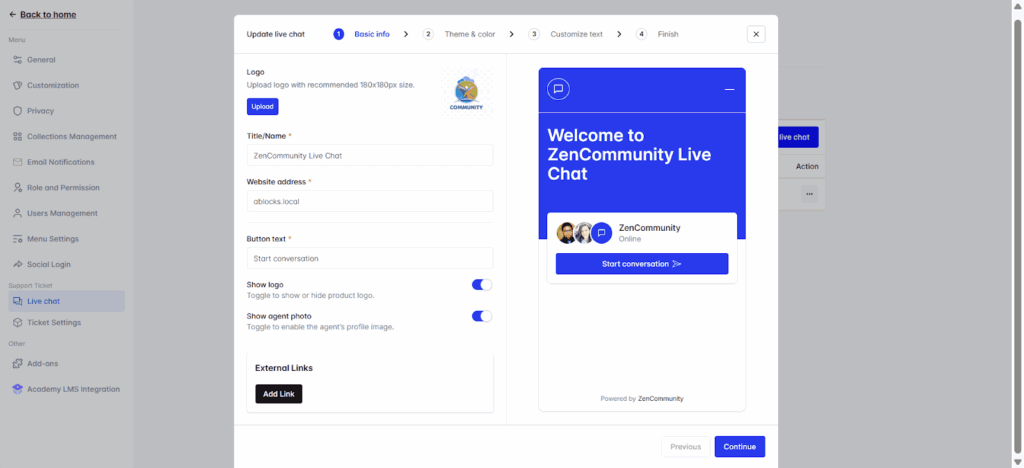
- Website Address: Your website domain name, where you want to add the live chat.
- Show Logo: Toggle on/off.
- Show Agent Photo: Toggle to display the agent image.
2. Theme & Color
- Theme: Choose Light or Dark.
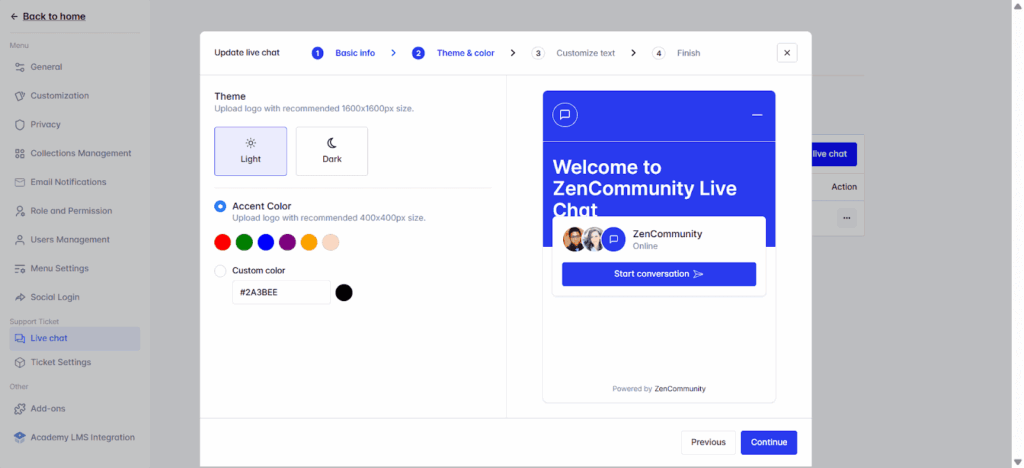
- Accent Color: Pick or enter custom hex.
- Upload Logo: Optional secondary logo (400×400px recommended).
3. Customize Text
- Welcome Text: e.g., “Hi! How can we help you?”
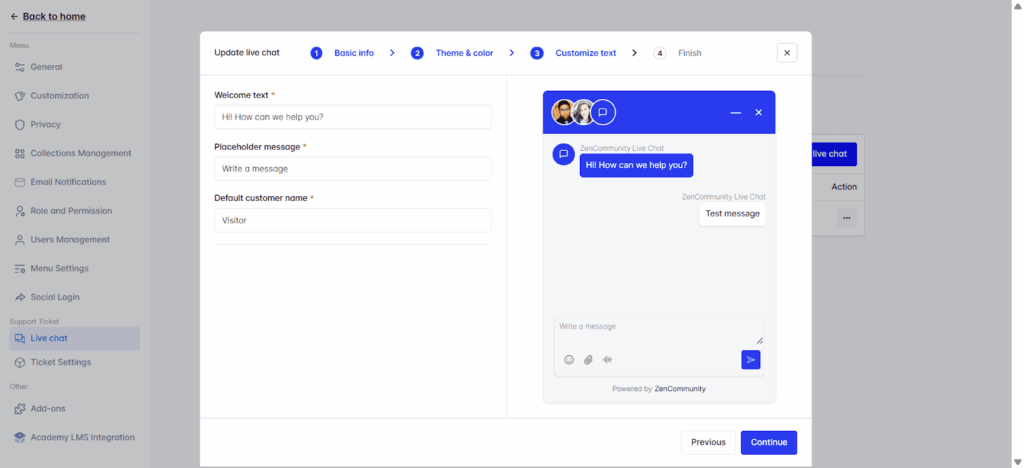
- Placeholder Message: e.g., “Write a message”
- Default Customer Name: e.g., “Visitor”
4. Finish
- Select Platform: Choose WordPress Installation or Third Party Websites.
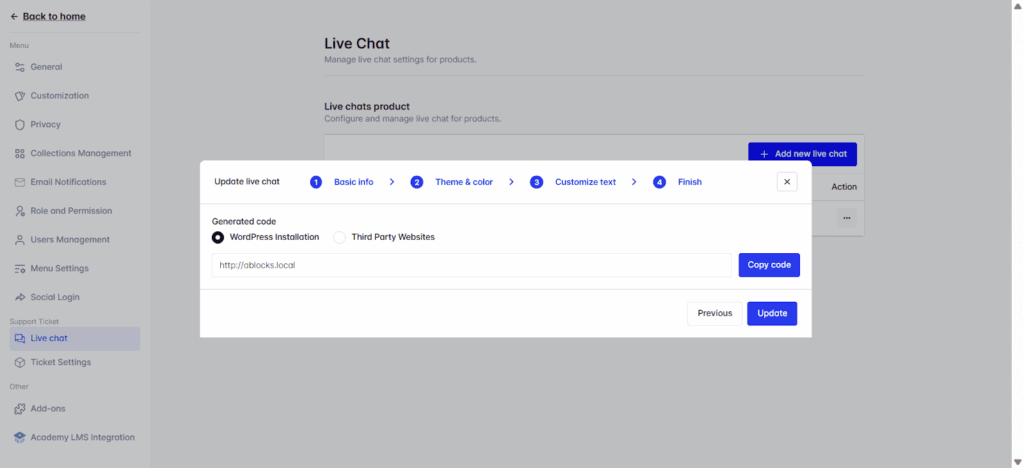
- Generated Code: Copy the provided embed code.
Click Create.
Step 4: Embed the Chat Widget
The generated code must be added to your site’s header to load the chat widget globally. For seamless integration, we recommend using the ZC Live Chat plugin (free). Alternatively, you can manually insert the code using other methods.
Option 1: Using ZC Live Chat Plugin (Recommended)
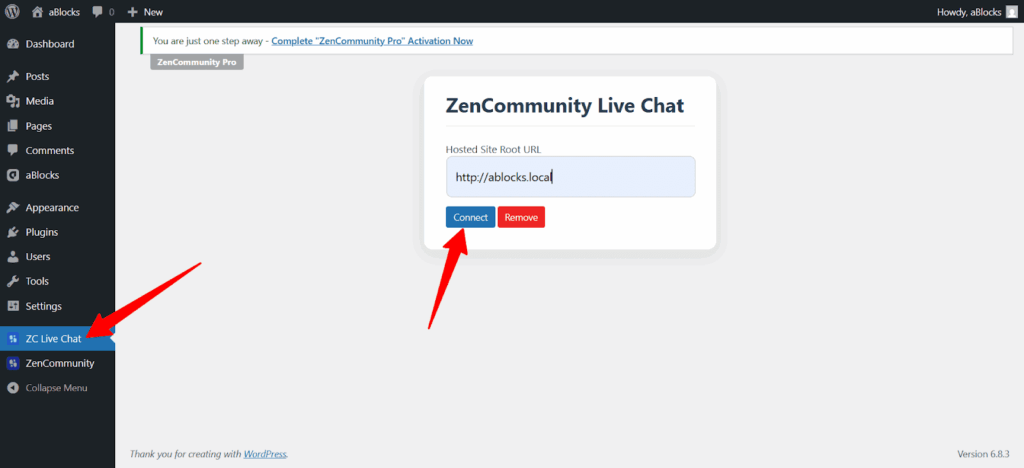
- Download, install, and activate ZC Live Chat (Download from Here)
- Go to ZC Live Chat in the admin menu.
- In Hosted Site Root URL, paste the embed code copied from Step 3 into the provided field.
- Click Connect.
Step 5: Go Live

- Refresh your website.
- The fully functional, customized Live Chat widget appears in the bottom corner.
- Visitors can now chat instantly—even when offline (messages saved with auto-reply).
Conclusion
Your ZenCommunity Live Chat is now live and ready to connect with visitors in real time. If you face any issues during setup or enabling the chat, our support team is here to help.