


ZenCommunity includes a powerful Email Notification system that helps you stay connected with your users in real time. With this feature, you can automatically send emails for important activities like new tickets, ticket replies, and community feed updates — keeping everyone informed and engaged.
Enable Email Notification Addon
Before using the email notification features, you need to enable the Email Addon.
To do this:
- Navigate to Settings from your Community Feeds.
- Inside the settings, click on the Addons menu.
- Locate the Email Addon and toggle it ON.
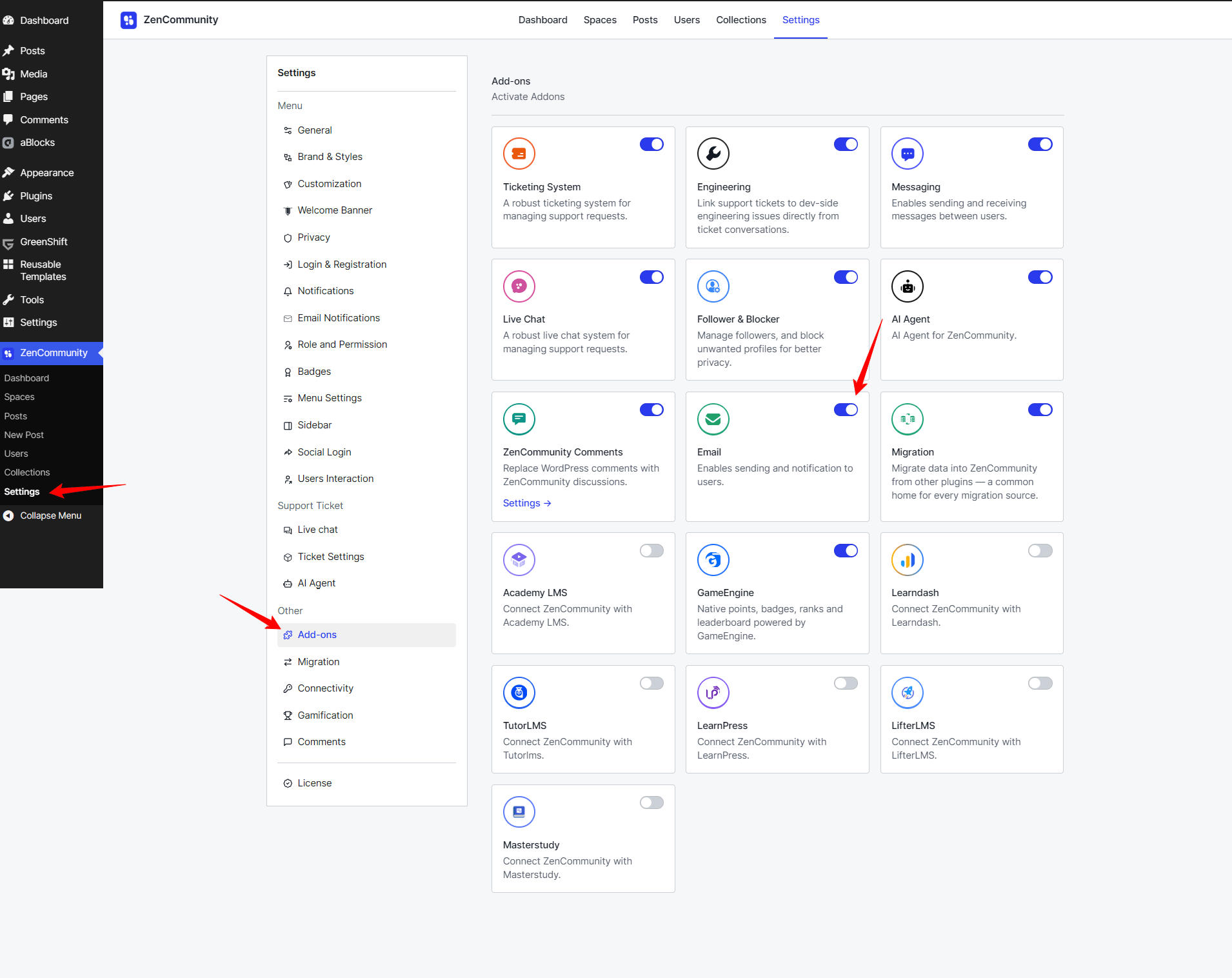
Once the addon is enabled, a new Email Notification Settings option will appear. Click on it to configure your email settings.
Customize Email Settings
In the Email Settings area, you can personalize the sender details and footer information for your outgoing emails.
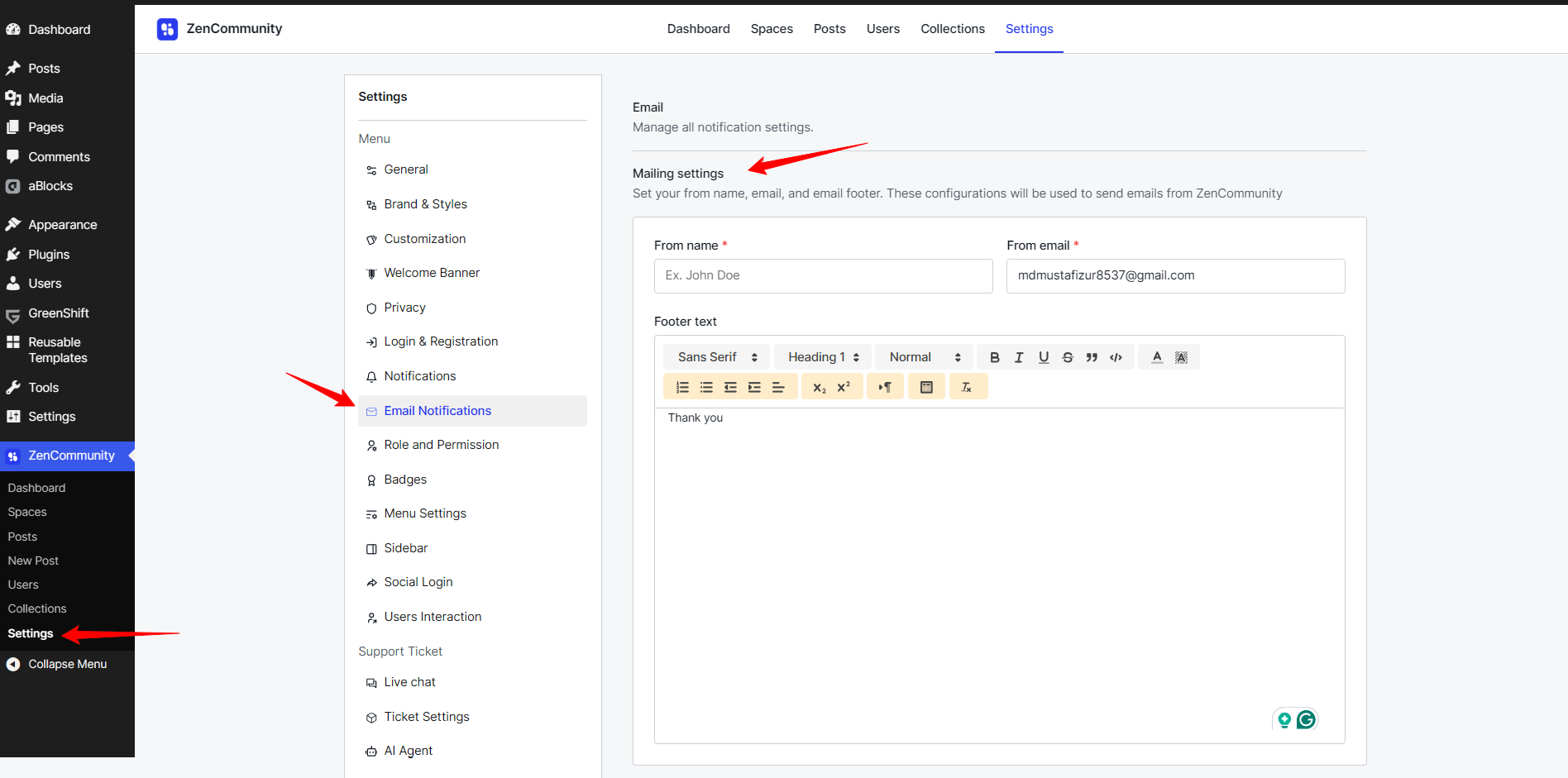
- From Name: The name that will appear as the email sender.
- From Email: The email address used to send notifications.
- Email Footer: Add a custom footer for all your outgoing emails. You can use the Visual Editor for formatted text or switch to the Code Editor for HTML customization.
These settings ensure all ZenCommunity emails maintain your brand’s voice and identity.
Customize Ticket Emails and Feed Emails
ZenCommunity allows you to customize the email templates for both Ticket notifications and Community Feed notifications.
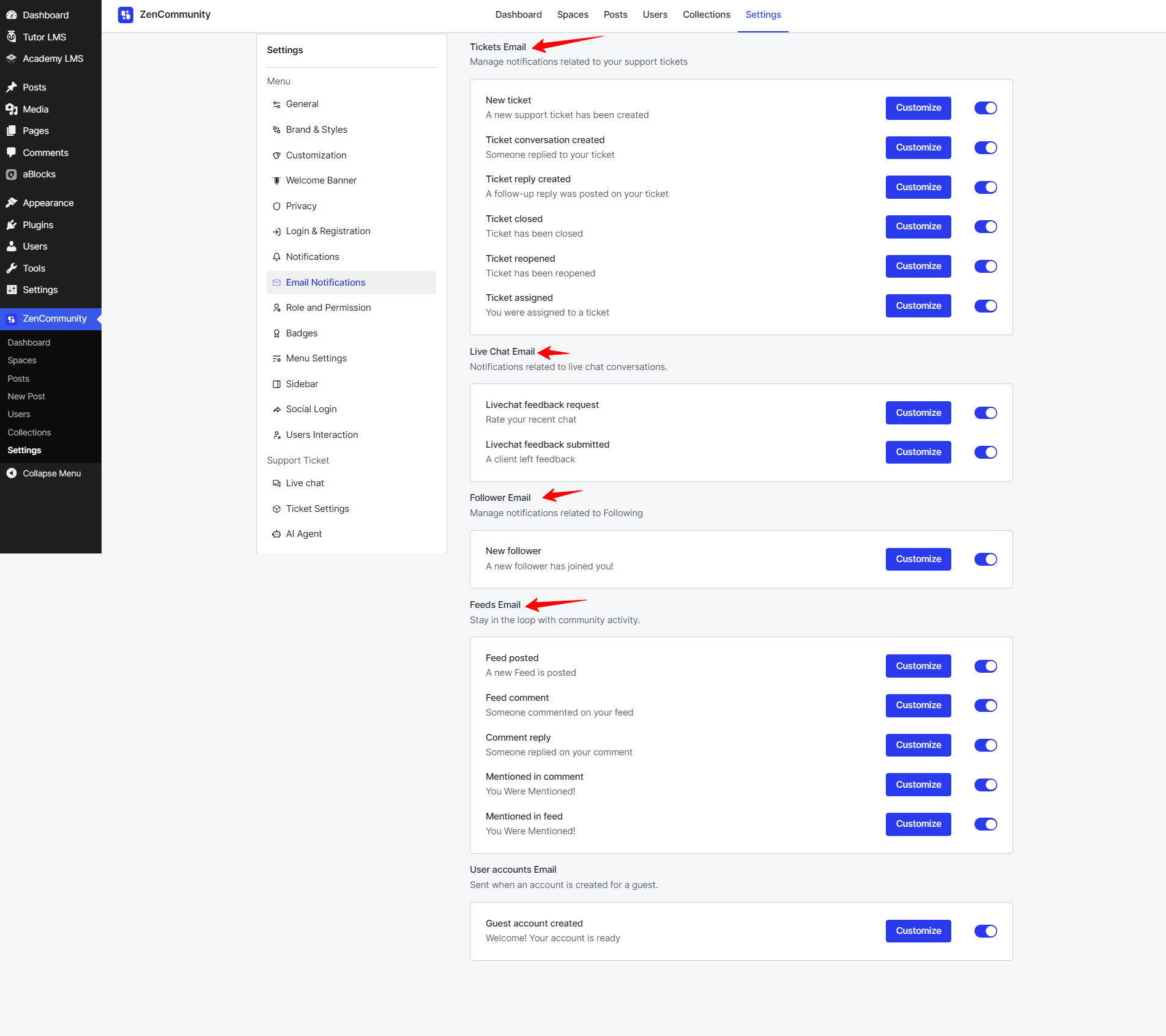
Ticket Email Notifications
Under the Ticket Email section, you’ll find three types of notification templates:
- New Ticket Created
- Ticket Conversation Created
- Ticket Reply Created
You can enable or disable each of these notifications using the toggle switch beside them.
To edit a specific email template, click the Customize button.
Let’s take the New Ticket template as an example:
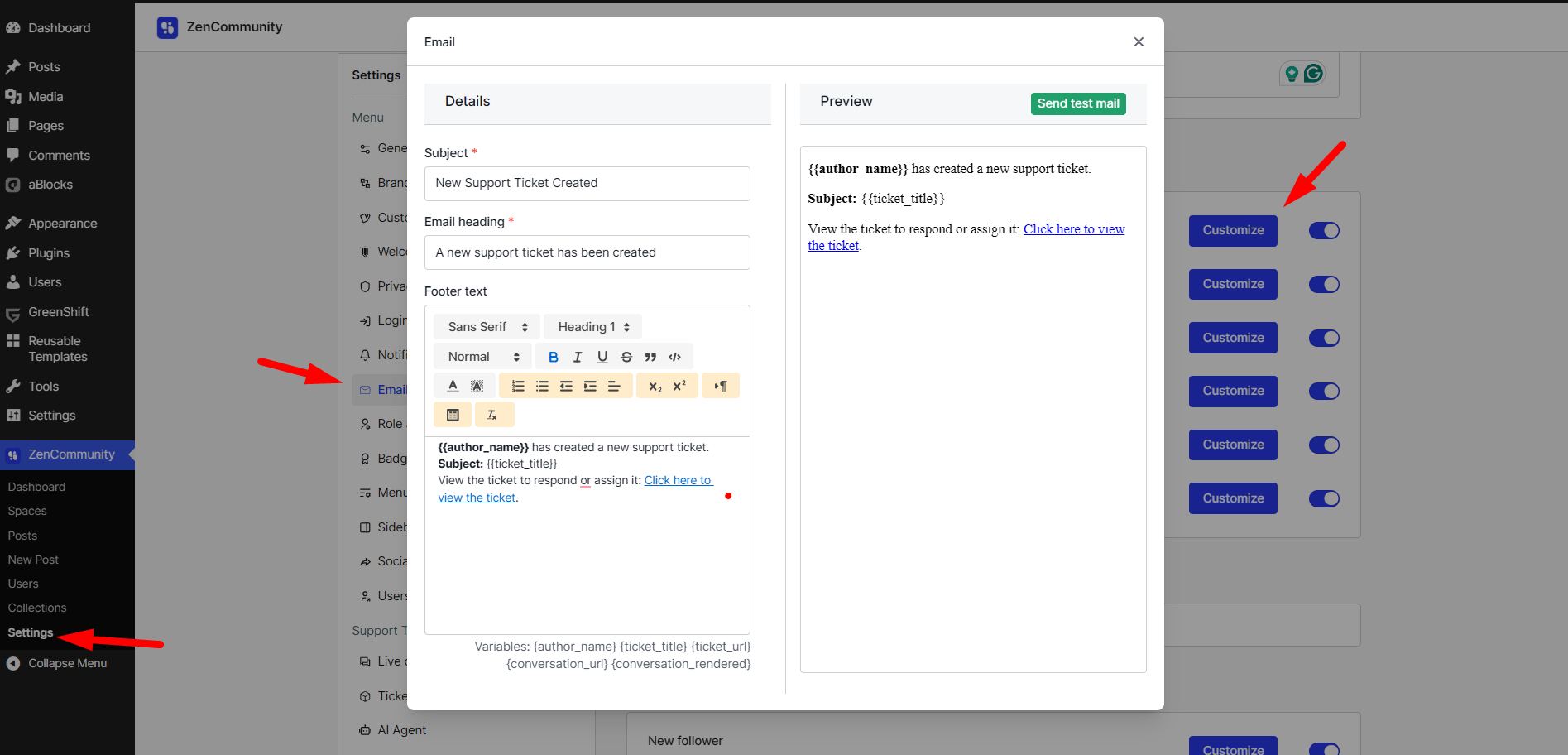
This email is triggered when a user creates a new ticket. It notifies your support team instantly. You can customize the following fields:
- Subject: The email subject line shown in recipients’ inboxes.
Example: “New Support Ticket Created”
- Email Heading: The main heading displayed in the email body.
Example: “A new support ticket has been created”
- Email Body: The content of the email, where you can use dynamic tags such as:
- {{author_name}} – Displays the name of the user who created the ticket.
- {{ticket_title}} – Displays the title of the ticket.
On the right side, you’ll see a live preview panel showing exactly how your email will look once sent.
At the bottom, you’ll find the Footer Text Section, where you can include additional notes, branding, or links.
Before saving, click the Send Test Mail button to verify your formatting and layout.
Feed Email Notifications
ZenCommunity also allows you to customize email notifications for activities within community feeds. These notifications help members stay informed and engaged with what’s happening in the community.
You can customize the following Feed Email Templates:
- Feed Posted – Triggered when a new post is created in the community.
- Feed Comment – Sent when someone comments on a post.
- Comment Reply – Notifies users when someone replies to their comment.
To modify any of these templates, click the Customize button next to each one. You can update the Subject, Email Heading, and Email Body content to match your preferred communication style.
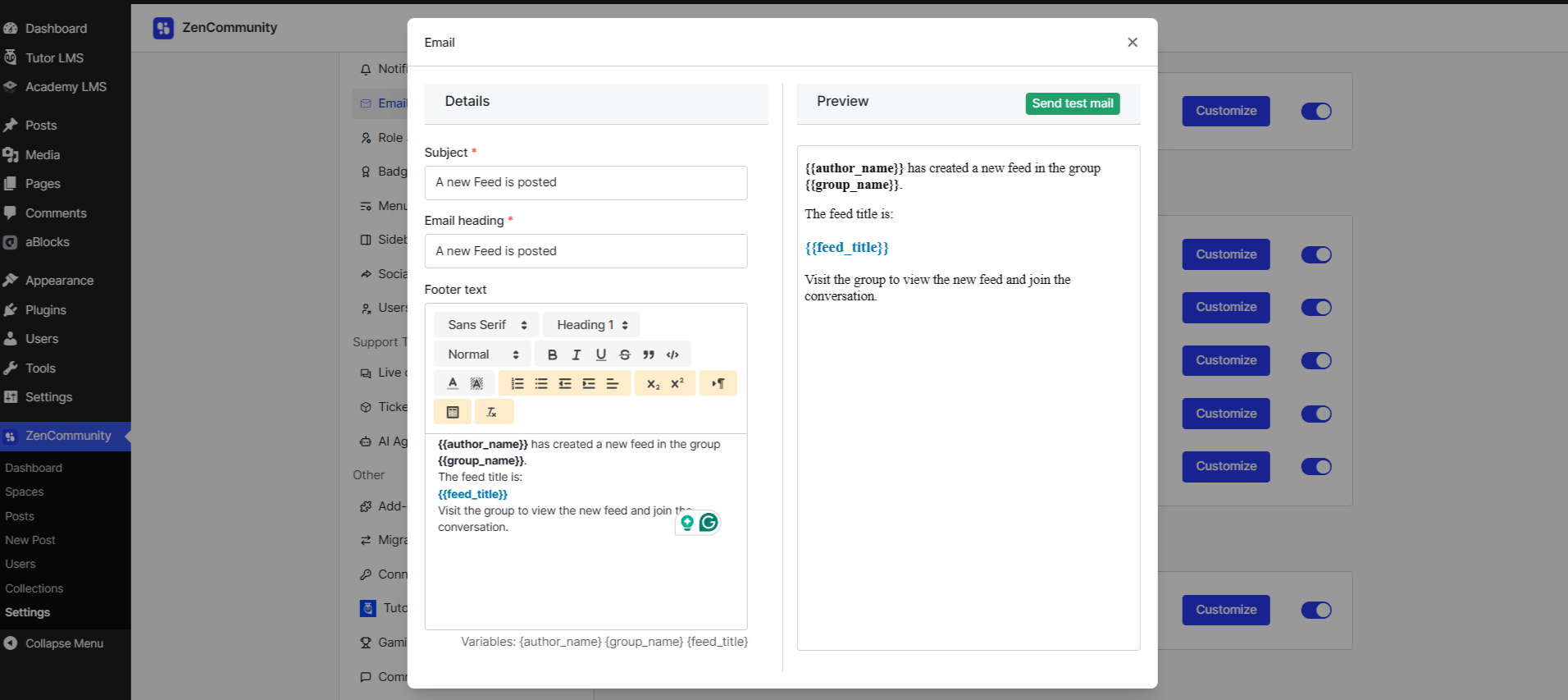
Use dynamic tags (like {{author_name}} or {{feed_title}}) to personalize each message, and view your edits instantly using the Live Preview Panel.
Once satisfied, click Save to apply your customizations globally across all feed-related notifications.
That’s it! You’ve now set up and customized Email Notifications in ZenCommunity. With this feature, you can keep your users, moderators, and support agents up-to-date on important community activities — automatically and professionally.