


Sidebar widgets let you control what appears in your community’s right-hand sidebar — from trending posts to important member info. This helps highlight key content and improve navigation for your users.
This guide explains how to add, edit, and manage sidebar widgets.
Overview
The sidebar appears on the community Feed page and displays selected widgets.
What you can do:
- Add new widgets
- Reorder widgets
- Enable or disable widgets
- Customize widget content
Default Widgets
New communities start with:
- Trending Posts
- Recent Activities
Available Widget Types
- Content List → Shows trending or latest posts
- Recent Activities → Displays recent community actions
- Info Box → Custom text or announcements
- Key People → Highlight important members
Opening Sidebar Settings
- Go to your community
- Open Settings
- Click the Sidebar tab
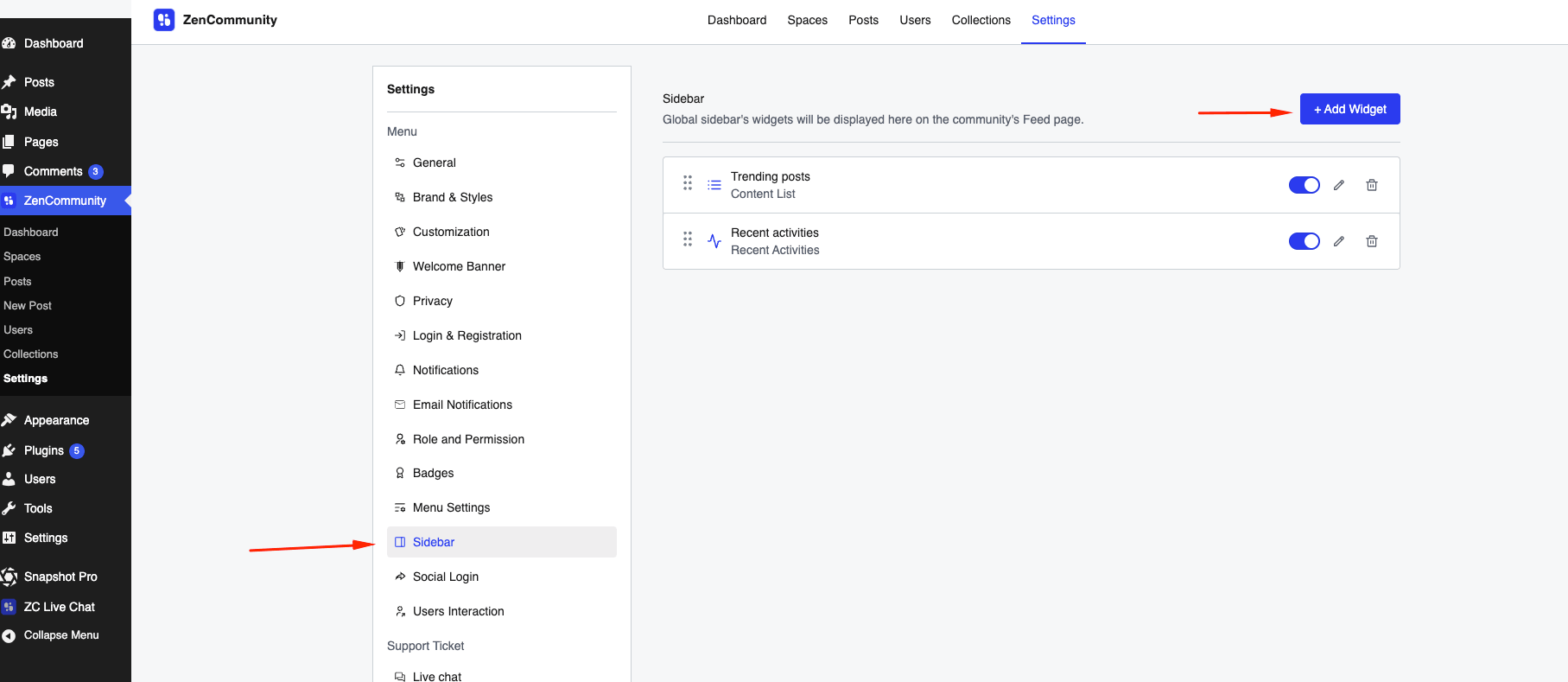
You’ll see a list of all active widgets.
Adding a Widget
- Click + Add Widget
- Select one or more widget types
- Click Add Selected

⚠️ Each widget type can only be added once.
Editing a Widget
- Click the ✏️ Edit icon
- Update settings
- Click Save
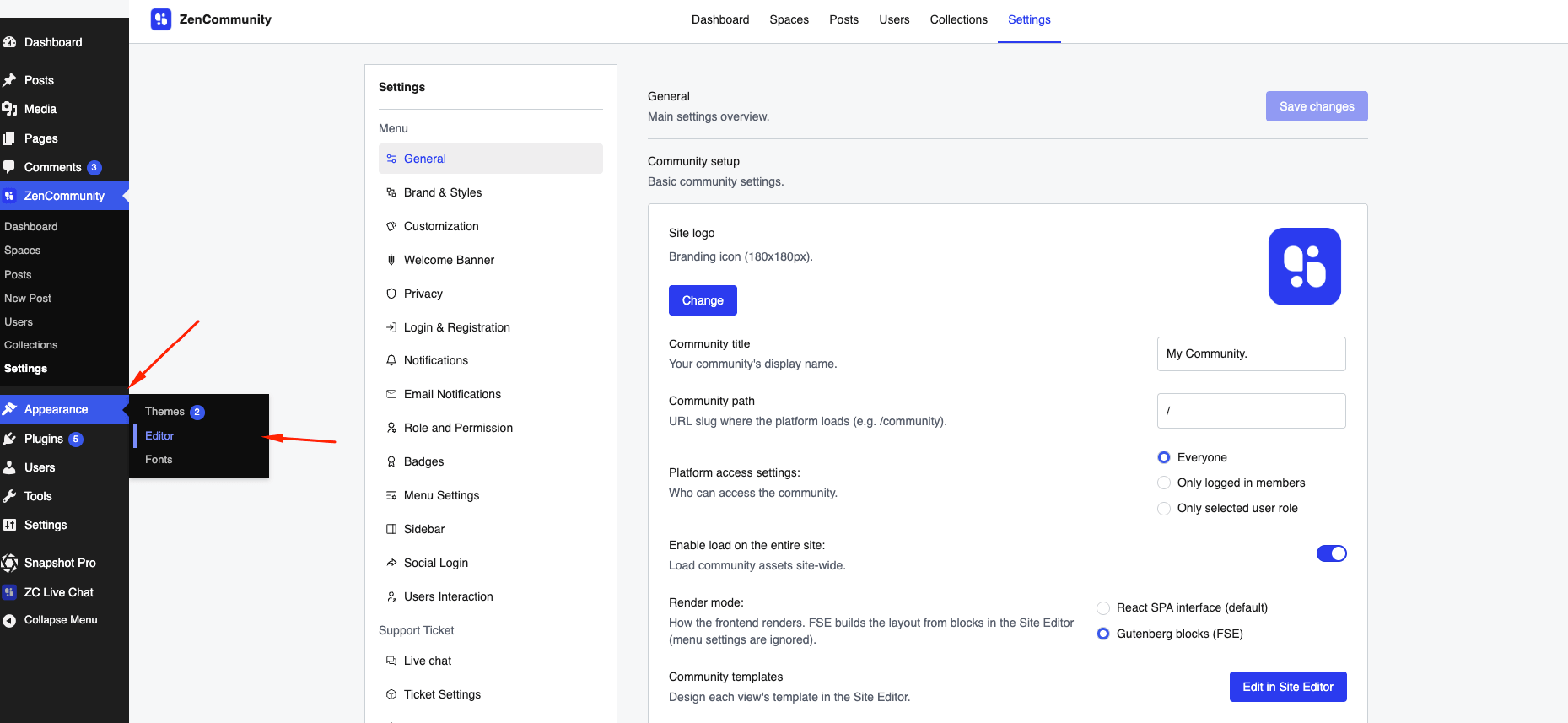
Widget Settings by Type
Content List
- Show: Trending or Latest
- Number of posts: 1–10
Recent Activities
- Number of activities: 1–10
Info Box
- Content: Custom text (supports basic HTML)
Key People
- People: Search and add members
Reordering Widgets
- Drag widgets using the handle (☰)
- Drop in desired position
- Order saves automatically
Enable / Disable Widgets
- Use the toggle switch
- Disabled widgets remain saved but hidden
Removing a Widget
- Click the 🗑️ Remove icon
- Widget is deleted
- Can be added again later
Best Practices
- Keep sidebar clean and focused
- Highlight important content first
- Use Info Box for announcements
- Feature moderators in Key People
Tips
- Use Trending Posts to boost engagement
- Keep Recent Activities short (5–7 items)
- Add helpful links in Info Box
- Showcase active members in Key People
Important Notes
- Sidebar appears on Feed page only
- Widget changes apply instantly
- Each widget type is unique (no duplicates)
Related Documentation
- Community Navigation Menus
- FSE Blocks and Portal Presets
- Creating and Managing Posts