


The AI Knowledge Base is where you define what content your AI Agent learns from. By selecting and syncing the right content, you ensure the AI can provide accurate, relevant answers to users.
This guide walks you through selecting content, configuring settings, syncing data, and verifying everything works properly.
Overview
By default, the AI Agent does not have access to your site’s content. You must choose what it should read and learn from.
From the Knowledge Base tab, you can:
- Select content types (posts, pages, products, docs, etc.)
- Choose which fields and metadata to include
- Apply filters to refine content
- Sync selected data to your AI Agent
Once synced, the AI uses this content to generate responses.
⚠️ This is a ZenCommunity Pro feature and requires the AI Agent Addon.
Before You Start
Make sure the following are set up:
- ZenCommunity Pro is installed and active
- AI Agent Addon is enabled
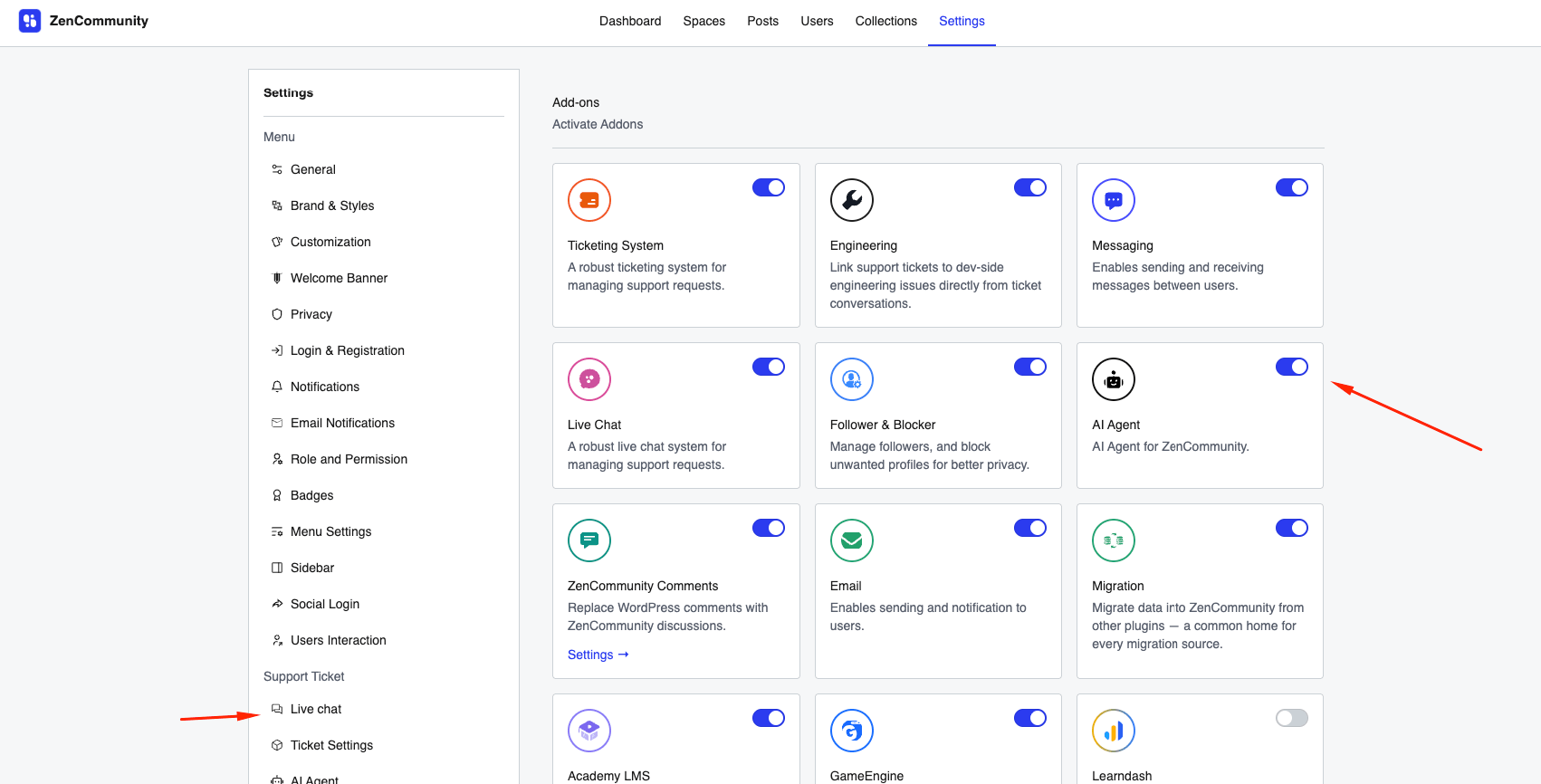
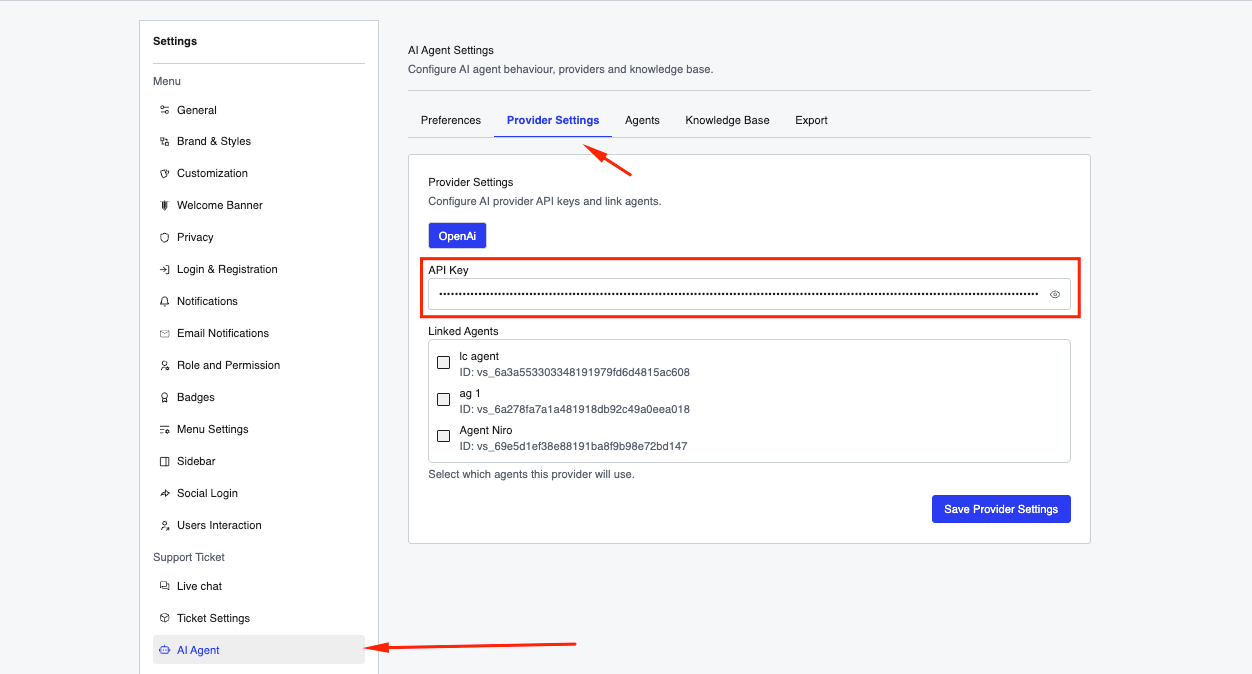
- OpenAI API key is connected
- An AI Agent is selected:
- Global Agent, or
- Dedicated Agent
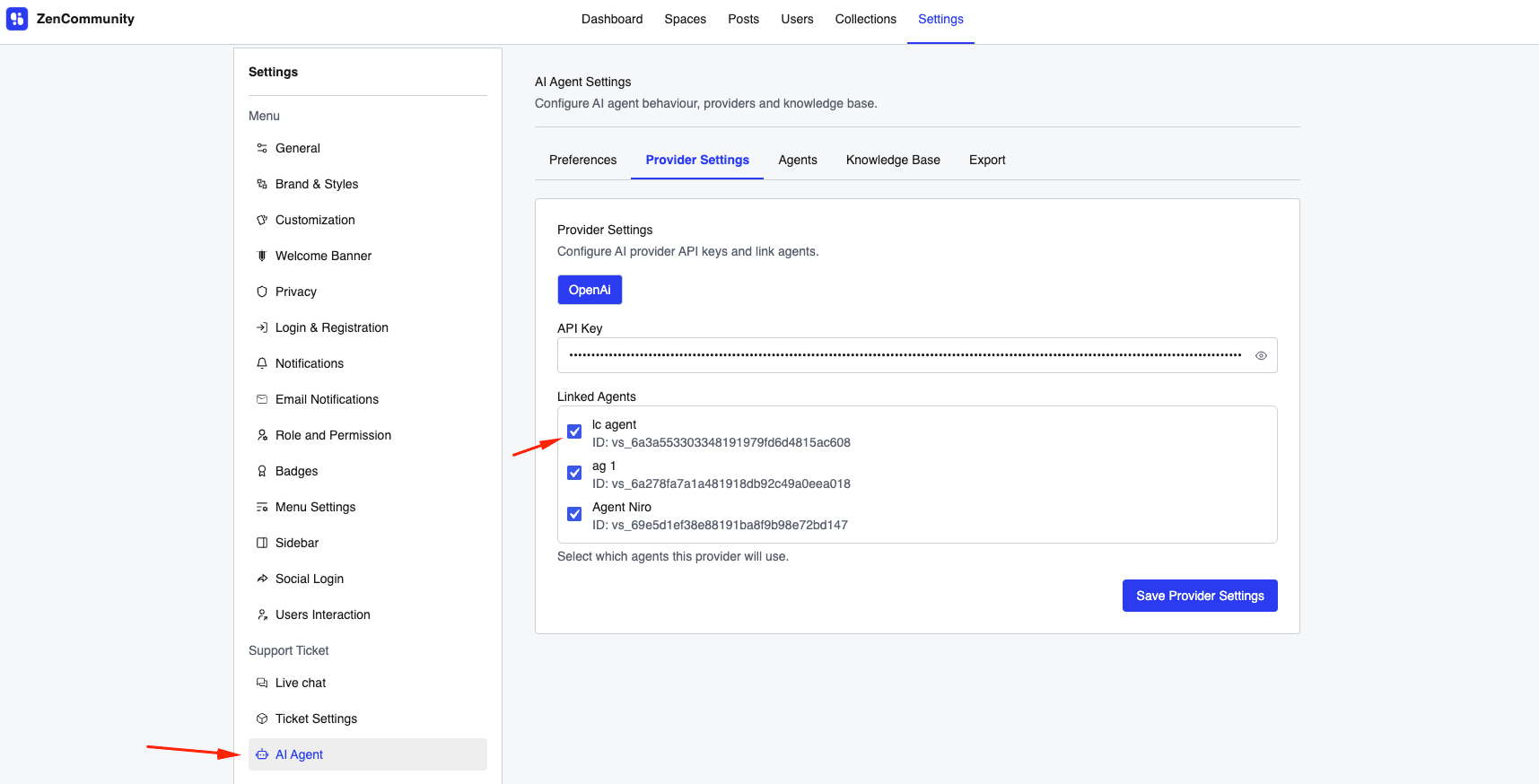
❗ You cannot sync the knowledge base without selecting an agent.
Accessing the Knowledge Base
- Go to ZC Live Chat → AI Settings
- Open the Knowledge Base tab
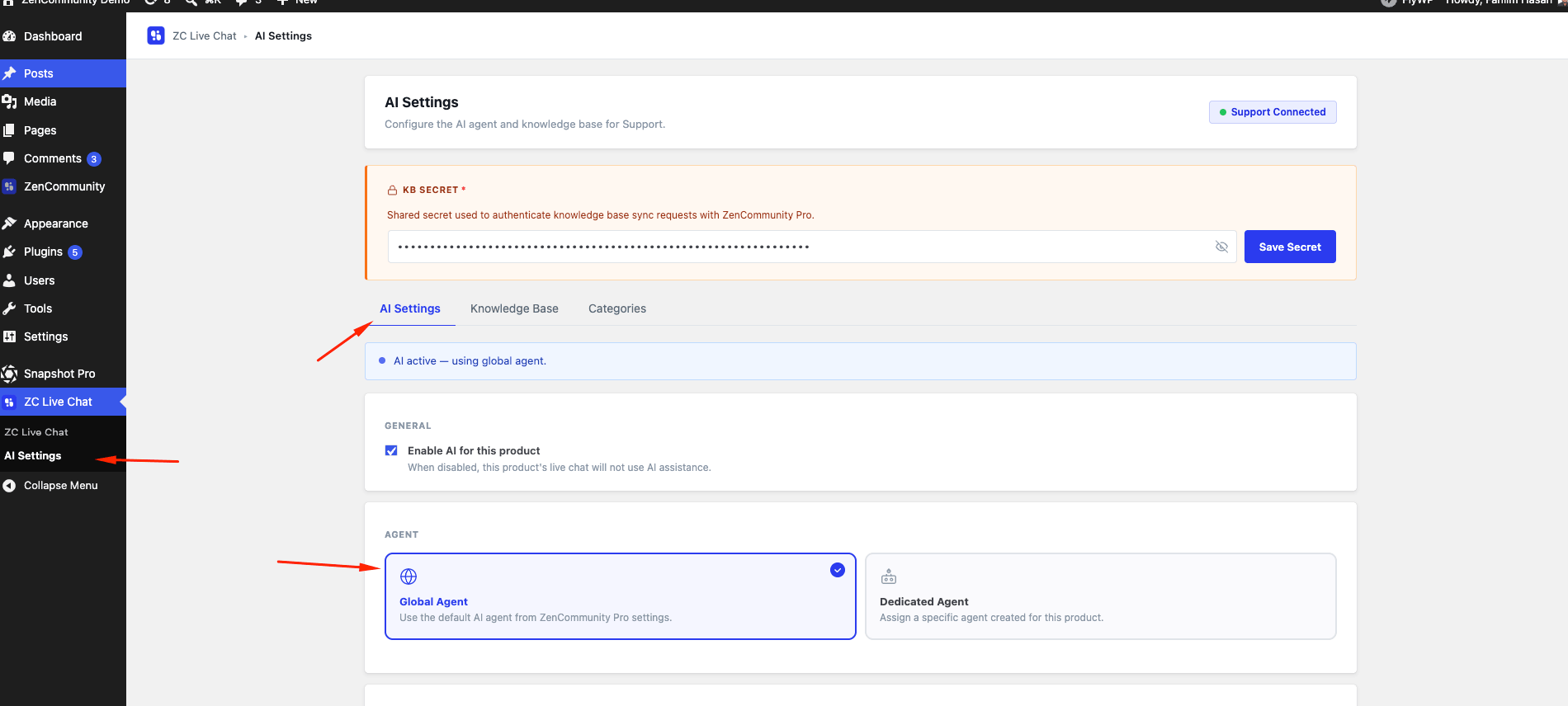
At the top, you’ll see:
- Active AI settings

- Total Entries
Below that, all available content types are listed.
Selecting Content Types
Each content type appears with a checkbox.
To include content:
- Check the box next to a content type (e.g., Posts, Docs)
- Repeat for all relevant types
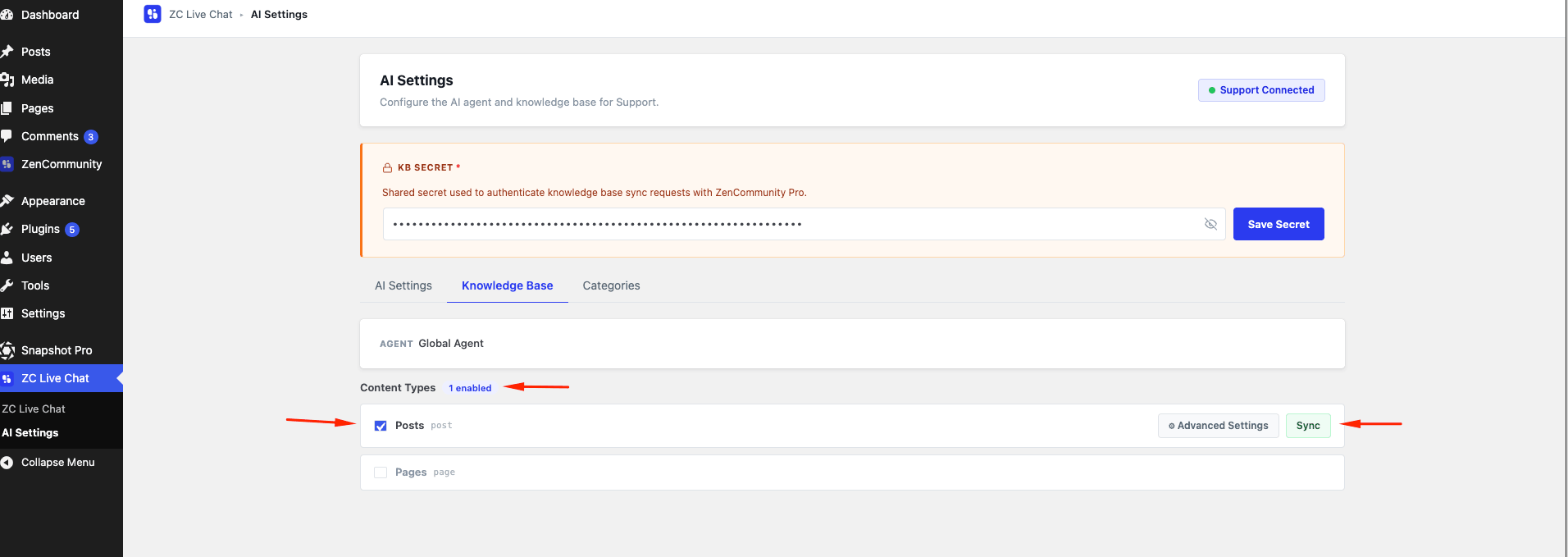
Once enabled:
- You’ll see Advanced Settings
- A Sync button becomes available
💡 Tip: Only include useful content like docs, FAQs, and product details. Avoid unnecessary data for better AI accuracy.
Advanced Settings (Optional)
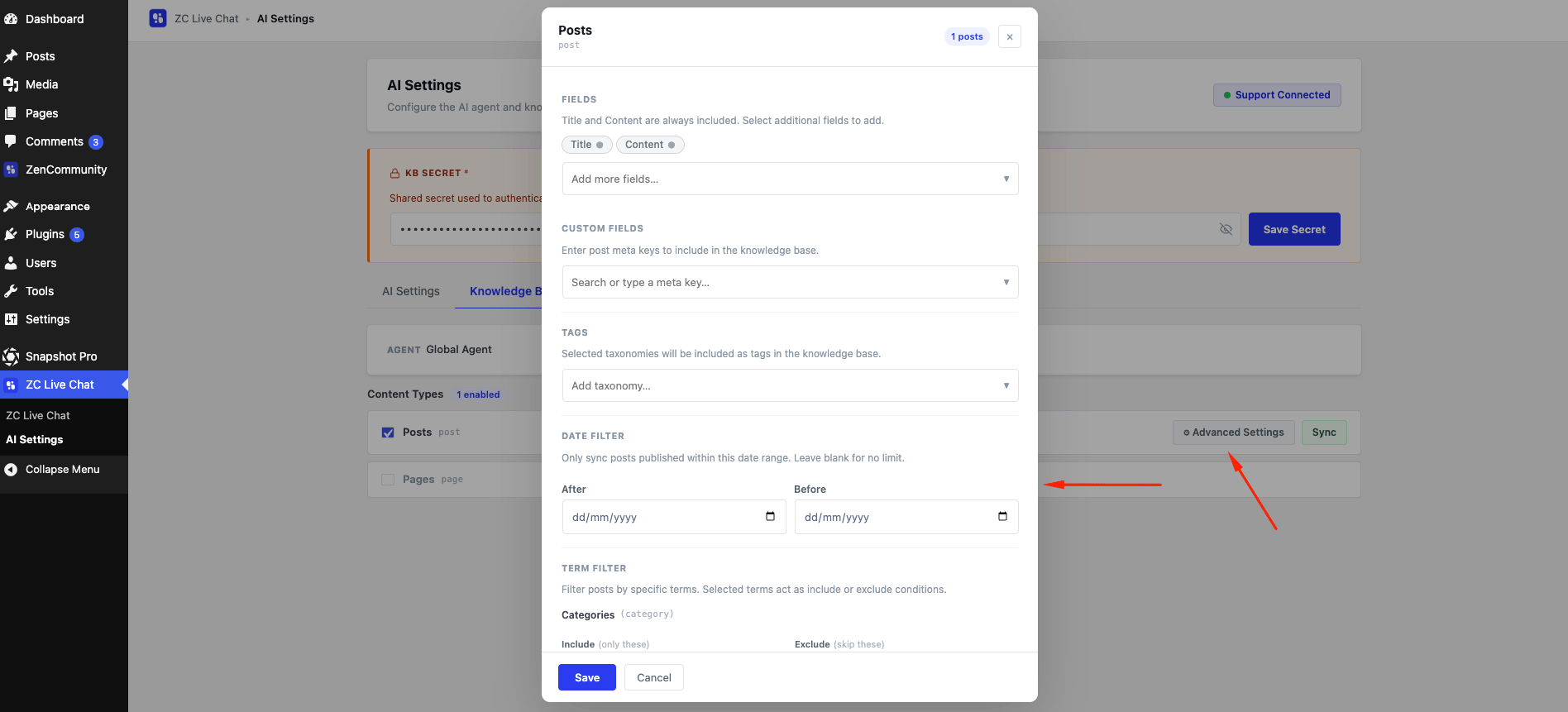
Click Advanced Settings to refine what gets synced.
A live post count updates as you configure filters.
Available Options
Fields
- Title and Content are always included
- Add extra fields if needed
Custom Fields
- Include specific meta keys
- Select from suggestions or enter manually
Tags
- Attach taxonomy terms (categories, tags, etc.)
Date Filter
- Sync content within a date range
- Leave empty for all content
Term Filter
- Include or exclude specific taxonomy terms
- Useful for narrowing down content (e.g., only Help Docs)
Click Save to apply changes or Cancel to discard.
Syncing Content
Syncing sends selected content to the AI.
Steps:
- Click Sync on a content type
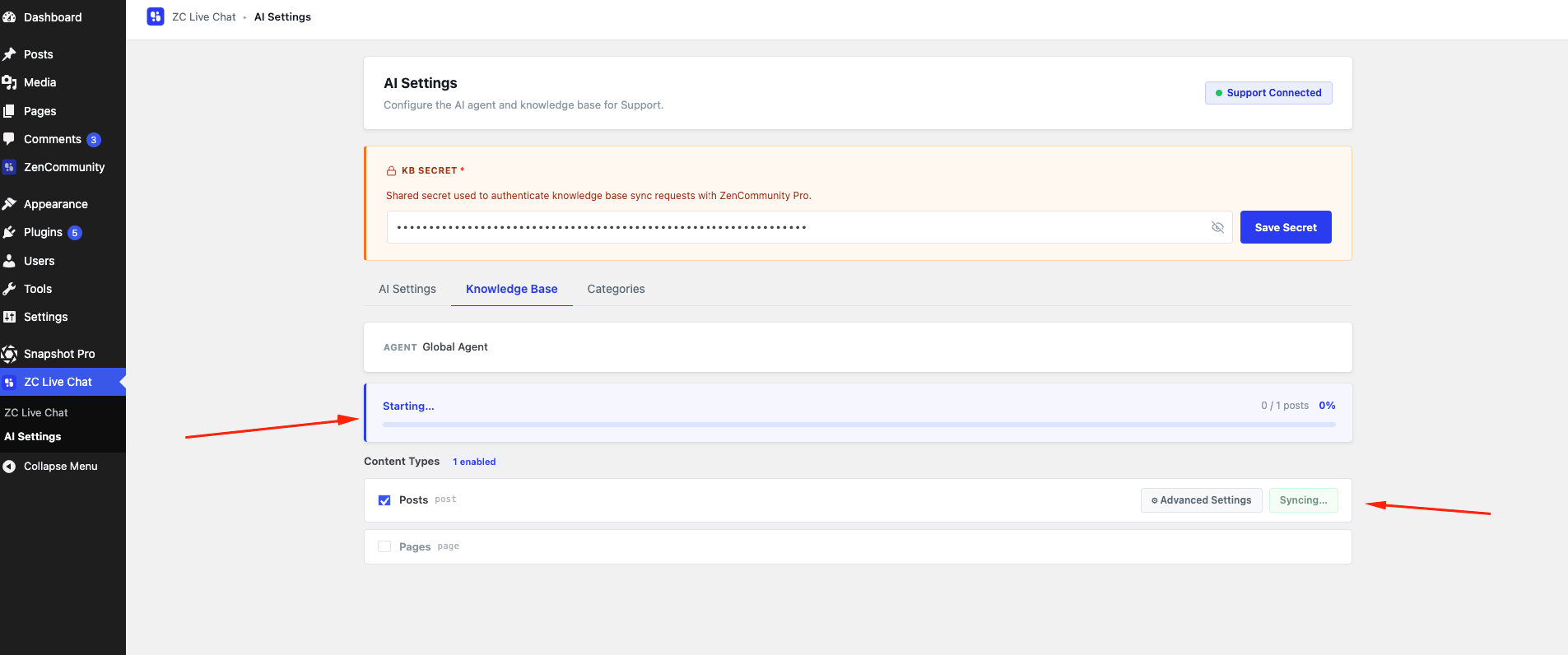
- A progress panel will appear
- Wait for completion
The panel shows:
- Current sync stage
- Progress percentage
- Number of processed items (e.g., 120 / 450)
🔄 Re-sync whenever content is updated to keep AI responses accurate.
Important Notes
- Switching between Global and Dedicated Agent requires re-sync
- Large content sets take longer to process
- Better content quality = better AI responses
Best Practices
- Keep your content clean and well-structured
- Use clear titles and meaningful descriptions
- Avoid syncing unnecessary or duplicate content
- Regularly update and sync your knowledge base
Related Documentation
- Setting Up the AI Agent for Tickets & Live Chat
- Live Chat Categories and AI vs Human Routing
- Creating and Managing Posts
- Creating and Managing Collections