


The AI Agent answers your visitors automatically, replying to support tickets and live chats using OpenAI. This guide is for site owners who want AI to handle first-line support before a human steps in.
The AI Agent is a ZenCommunity Pro addon. Once connected to an OpenAI account, it can reply automatically to new support ticket comments and handle live chat conversations in real time, handing off to a human when needed.
Follow the steps below to connect and configure the AI Agent in ZenCommunity.
Before You Begin
- ZenCommunity Pro must be installed and your license activated. See License Activation.
- The AI Agent addon must be enabled in ZenCommunity Pro.
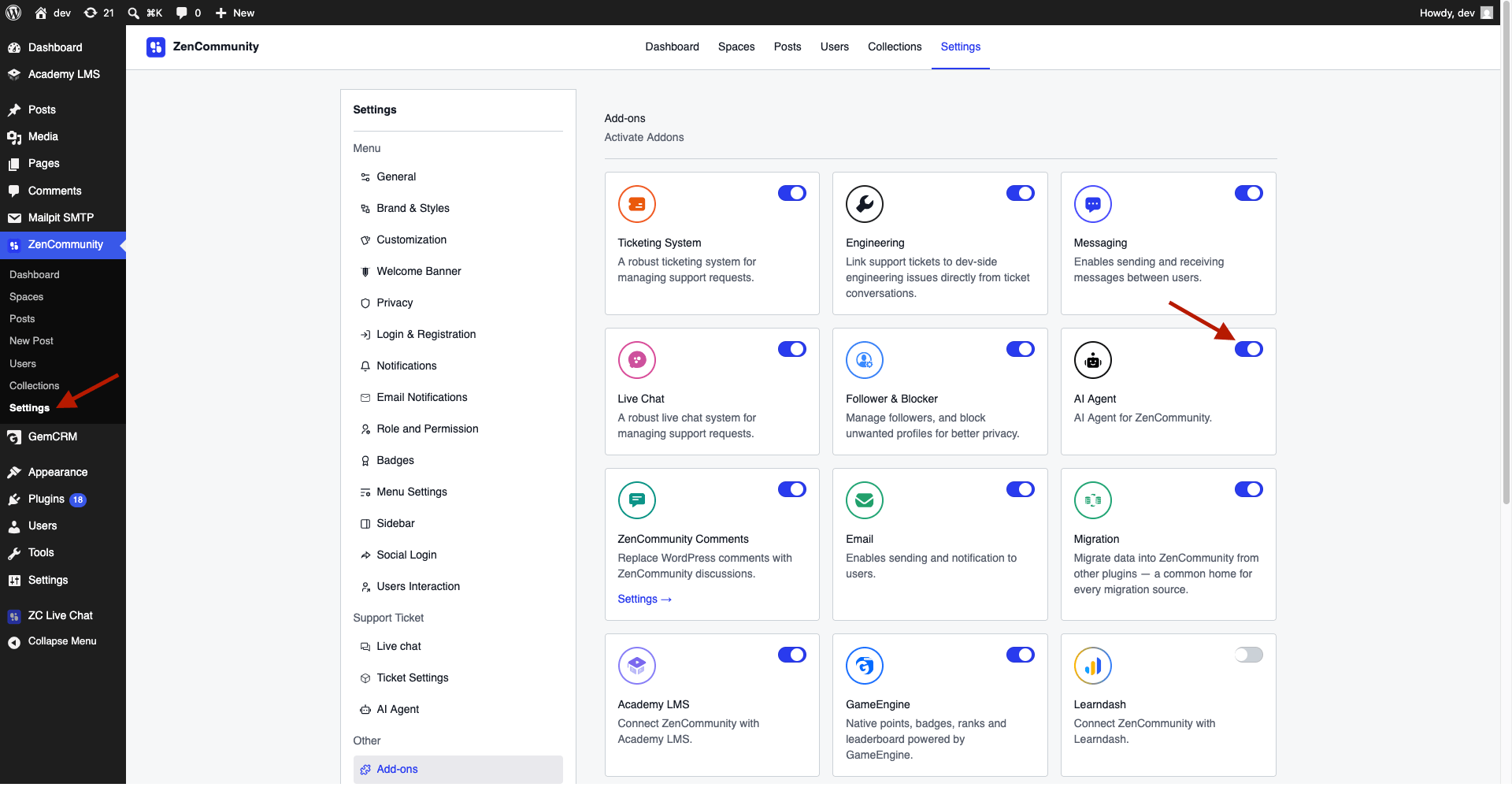
- You need an OpenAI API key. You create this in your own OpenAI account — ZenCommunity does not provide it.
- For live chat AI, the Live Chat addon and the Live Chat companion plugin must be set up and connected. See Enable Live Chat.
Steps to Connect OpenAI
Step 1: Open AI Agent Settings
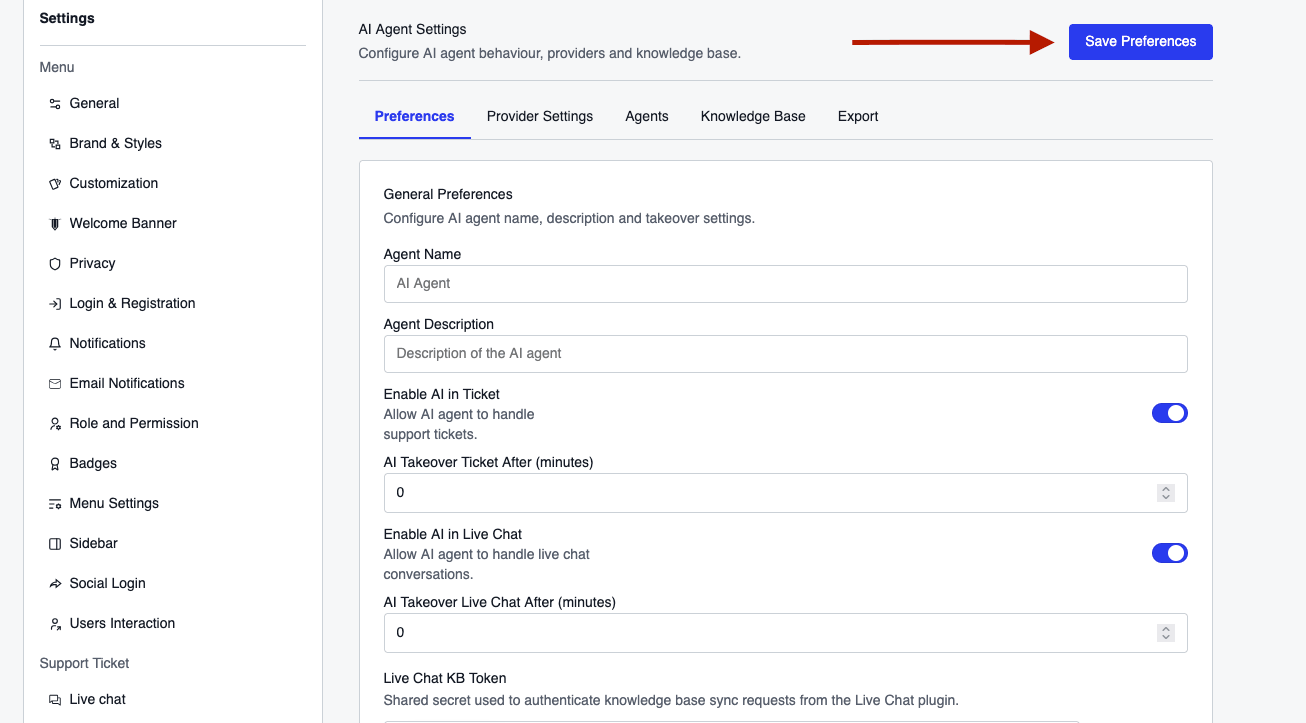
From your WordPress dashboard, go to ZenCommunity Pro → AI Agent settings.
Step 2: Enter Your API Key
- Paste your OpenAI API key into the provider field.
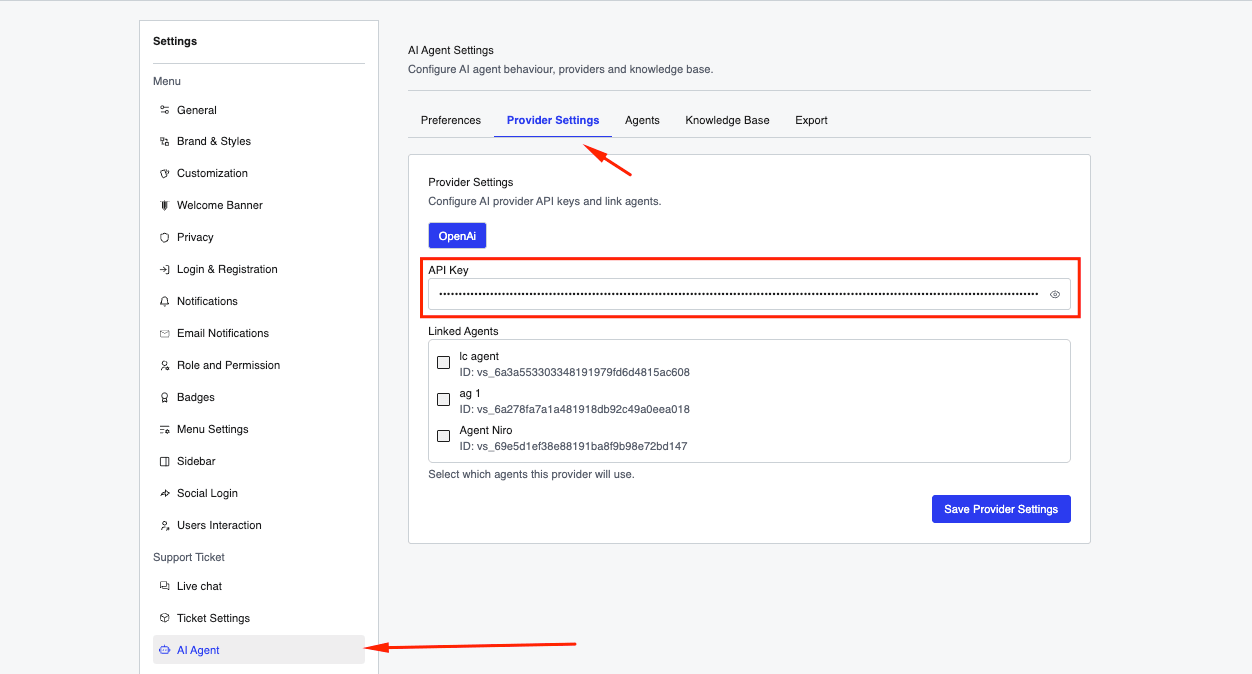
ZenCommunity tests the key by contacting OpenAI. If the key is wrong or has no access, the save is rejected — double-check the key and try again.
Tip: Until a valid key is saved, the live chat AI screens show a warning like “AI provider not configured in ZenCommunity Pro.” Connecting the key clears it.
Steps to Configure the Agent
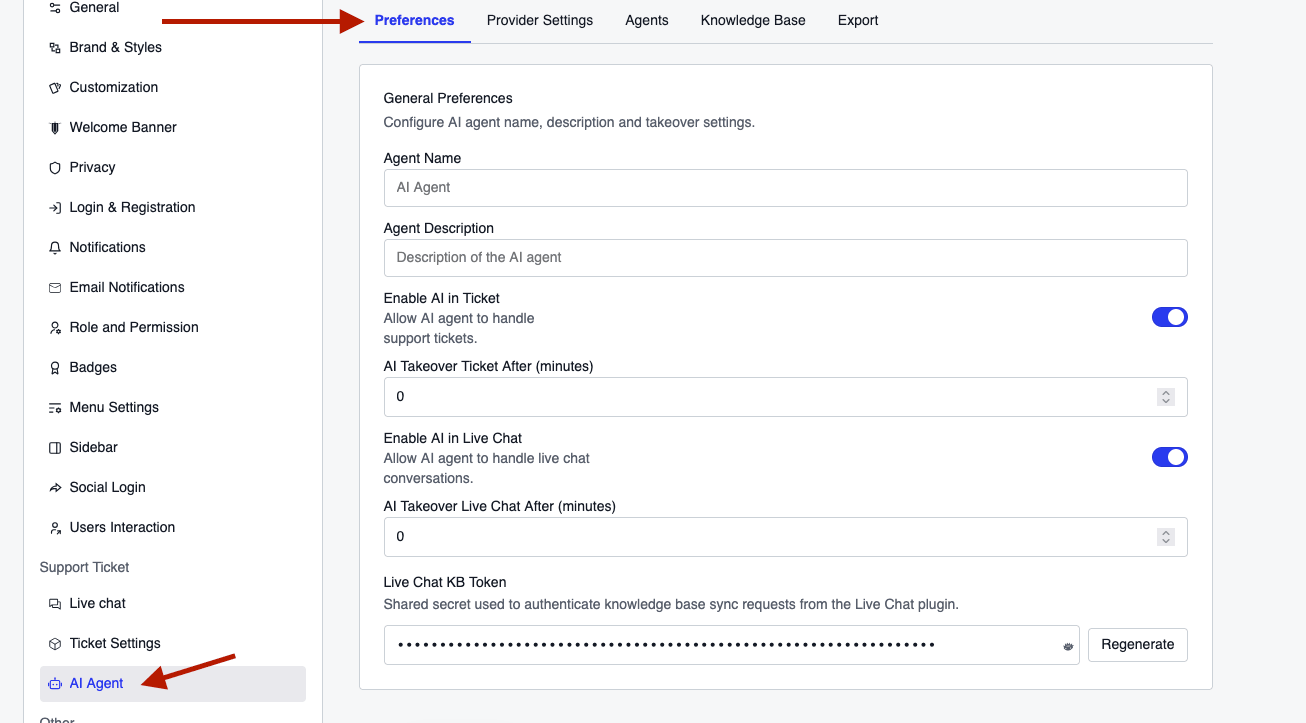
Step 1: Set the Agent Identity
- Set the Agent Name — this is the name your visitors see on AI replies (for example, ZenCommunity AI Agent).
- Optionally add a short Description and an Avatar Image.
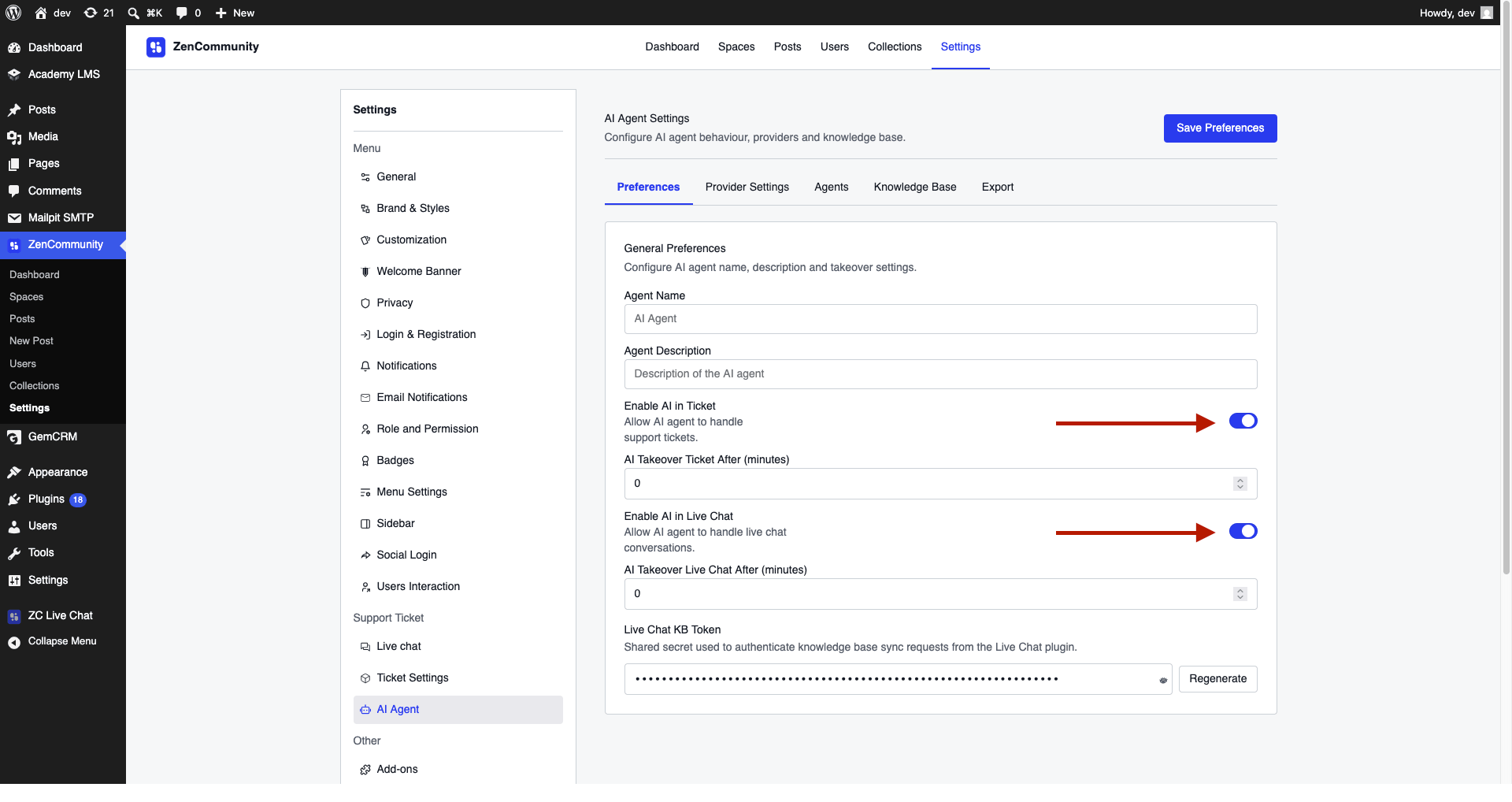
Step 2: Choose Where AI Is Used
- Turn AI for Tickets on or off.
- Turn AI for Live Chat on or off.
Step 3: Set a Takeover Delay (Optional)
- Set a Takeover Delay in minutes for tickets and for live chat.
- Leave it at 0 for the AI to respond immediately.
Step 4: Save Your Changes
Steps to Configure Live Chat AI (Per Product)
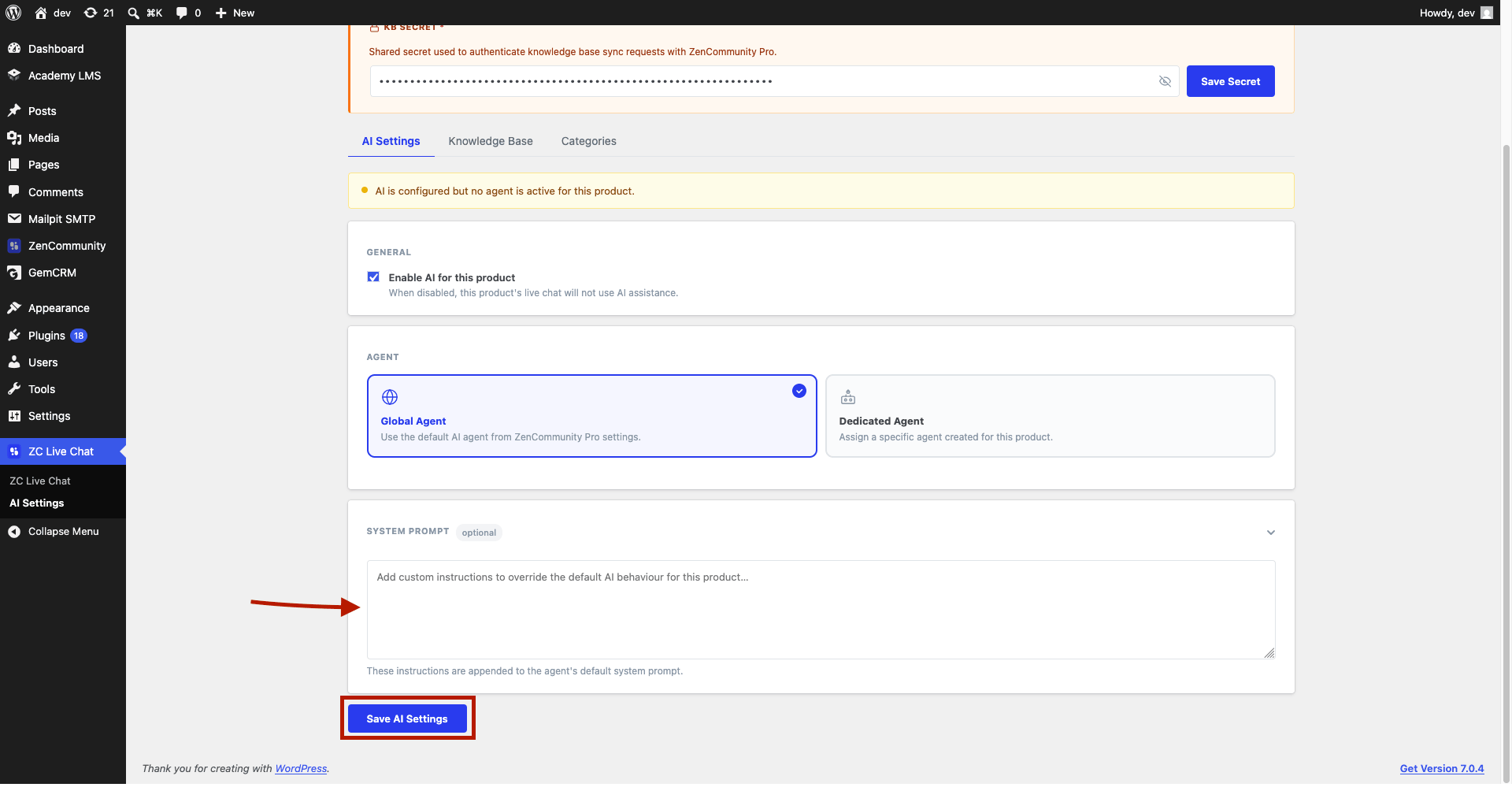
Each product you connect to live chat can use either a shared global agent or its own dedicated agent. You set this on the AI Settings tab of the Live Chat plugin.
Step 1: Open AI Settings
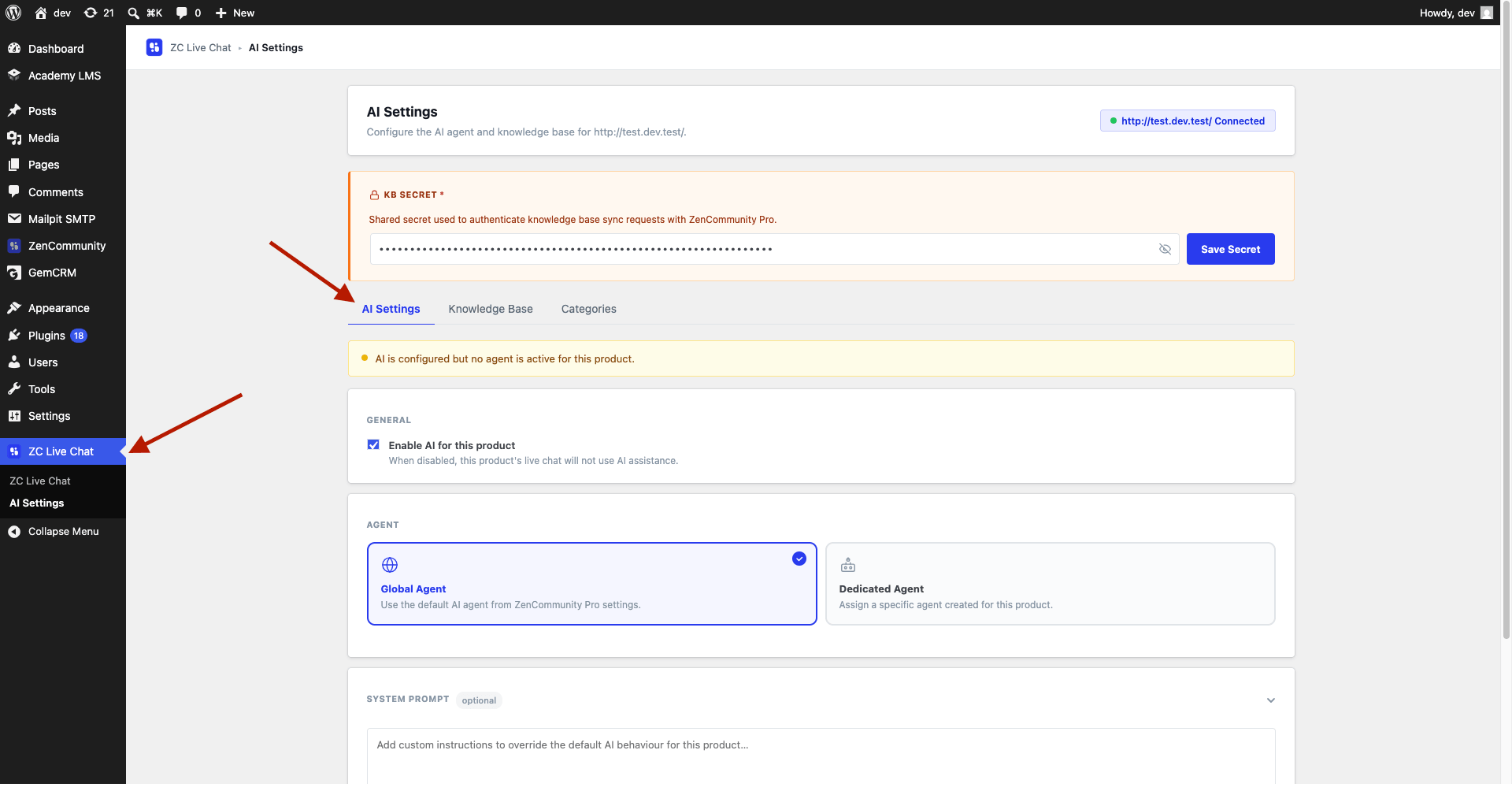
Go to ZC Live Chat → AI Settings.
Step 2: Enable AI for the Product
Under General, tick Enable AI for this product.
- Untick it to keep this product’s live chat human-only.
Step 3: Choose an Agent Type
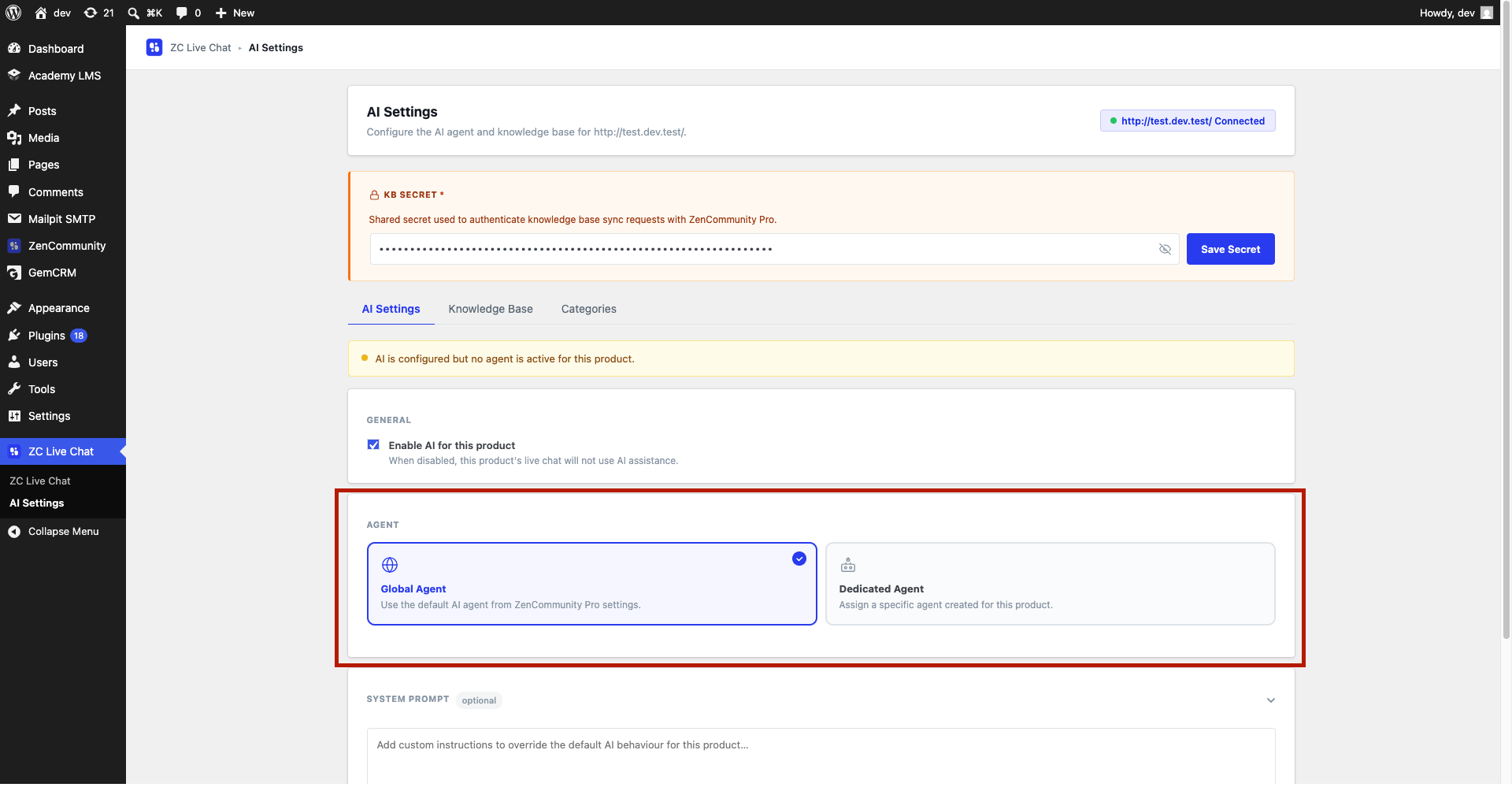
Under Agent, choose one of:
- Global Agent — uses the default AI agent from your ZenCommunity Pro settings. Best when one shared setup works for everything.
- Dedicated Agent — uses a specific agent created just for this product. Best when a product needs its own knowledge and behaviour.
Step 4: Create a Dedicated Agent (If Needed)
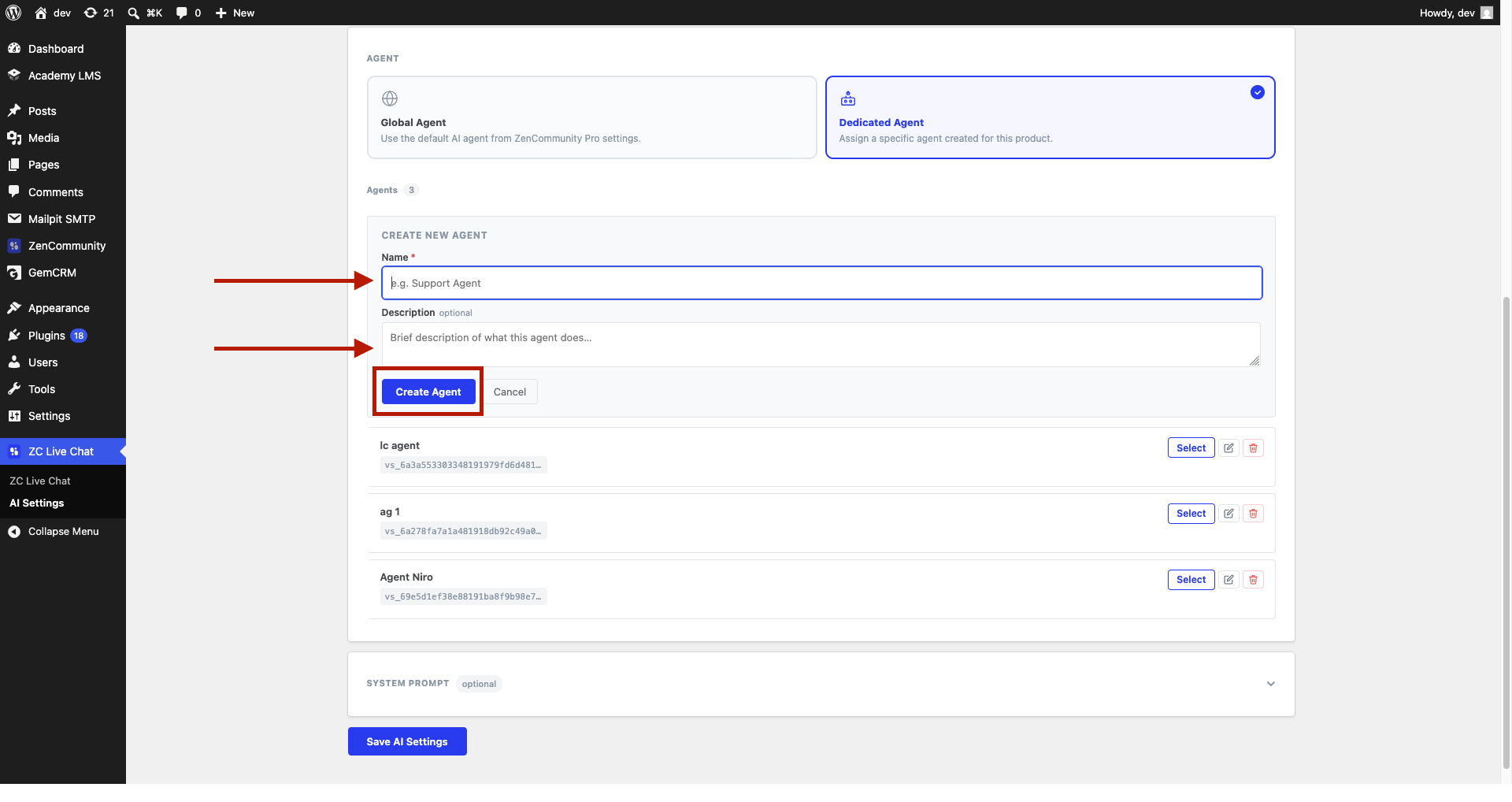
If you chose Dedicated Agent:
- Click New Agent.
- Enter a Name and an optional Description.
- Click Create Agent.
- Click Select on the agent you want this product to use.
Step 5: Add a System Prompt (Optional)
- Open the System Prompt section (it’s collapsed and marked optional).
- Type custom instructions — for example, tone of voice, things to always mention, or topics to avoid.
- These instructions are added on top of the agent’s built-in behaviour.
Tip: Keep the system prompt short and specific. Broad rules belong in the global agent; product-specific quirks belong here.
Step 6: Save AI Settings
Click Save AI Settings.
A status banner at the top of the tab always shows the current state, such as “AI active — using global agent” or “AI active — using dedicated agent for this product.”
How It Works: Tickets
When AI for tickets is enabled, the AI Agent watches for new replies and answers automatically when all of these are true:
- The ticket is set to use AI.
- No human agent is assigned to the ticket yet.
- The new comment came from the customer (not a staff reply, and not another AI message).
The AI reads the ticket and the latest comment, then posts a helpful reply. If it decides it cannot resolve the issue, it steps aside so a human can take over.
Tip: As soon as you assign a human agent to a ticket, the AI stops auto-replying on that ticket.
For managing tickets by hand, see Manage Support Tickets.
How It Works: Live Chat
When a visitor starts a live chat, ZenCommunity first checks the issue category they selected:
- If the category has AI support turned off, the chat goes straight to a human — the AI is skipped.
- If the category allows AI, the AI assesses the visitor’s message. If it can help, it starts answering. If not, the visitor is routed to a human or offered a support ticket instead.
During an AI chat, the visitor can ask to speak with a person at any time, and the conversation is handed to a human agent.
Category routing is covered in detail in Live Chat Categories and AI-vs-Human Routing.
Tips & Good to Know
- If AI is enabled but no agent is active for a product, the AI won’t reply — the status banner will say so. Pick a Global or Dedicated agent to fix it.
- Turning off Enable AI for this product immediately routes that product’s chats to humans, without deleting your agent or knowledge base.
- The AI can only answer well if it has been given content to learn from. Build the knowledge base before relying on AI. See Building the AI Knowledge Base.