


Collections in ZenCommunity help you organize your community groups more effectively. By grouping related discussions under specific collections, you can maintain a clean and structured community experience. This feature is especially useful when managing multiple groups across different topics or purposes.
Create and Manage Collections
To create and manage collections, follow these simple steps:
- Navigate to Settings
From your Community Feeds, click on Settings. You’ll find several configuration options available here to customize your community.
- Access Collection Management
In the settings area, select Collection Management. This will open the dedicated management panel for collections.
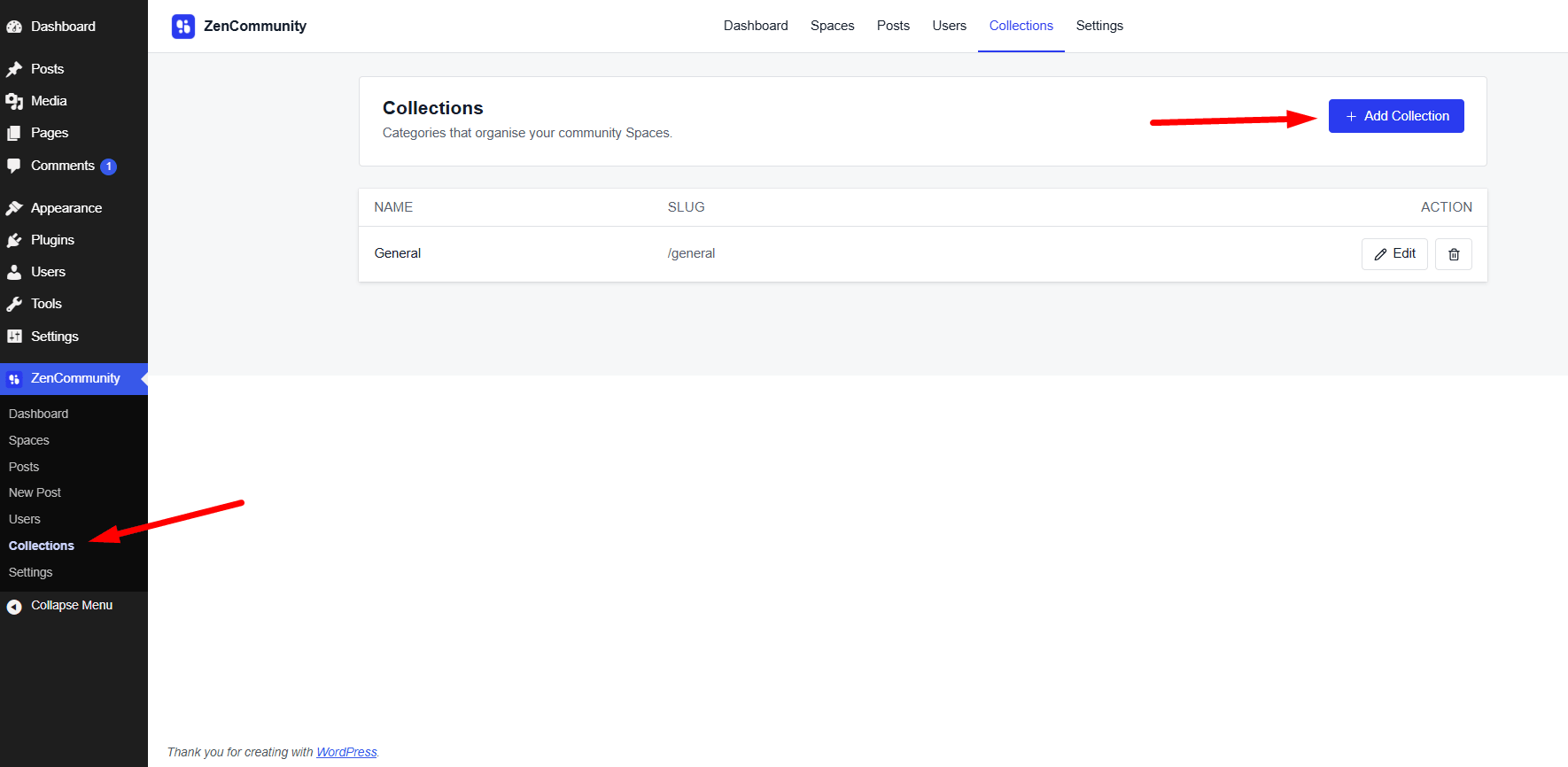
- Add a New Collection
Click on Add New Collection to create one.
- Enter your Collection Name, Slug, and Description.
- Once done, click Save to create your new collection.
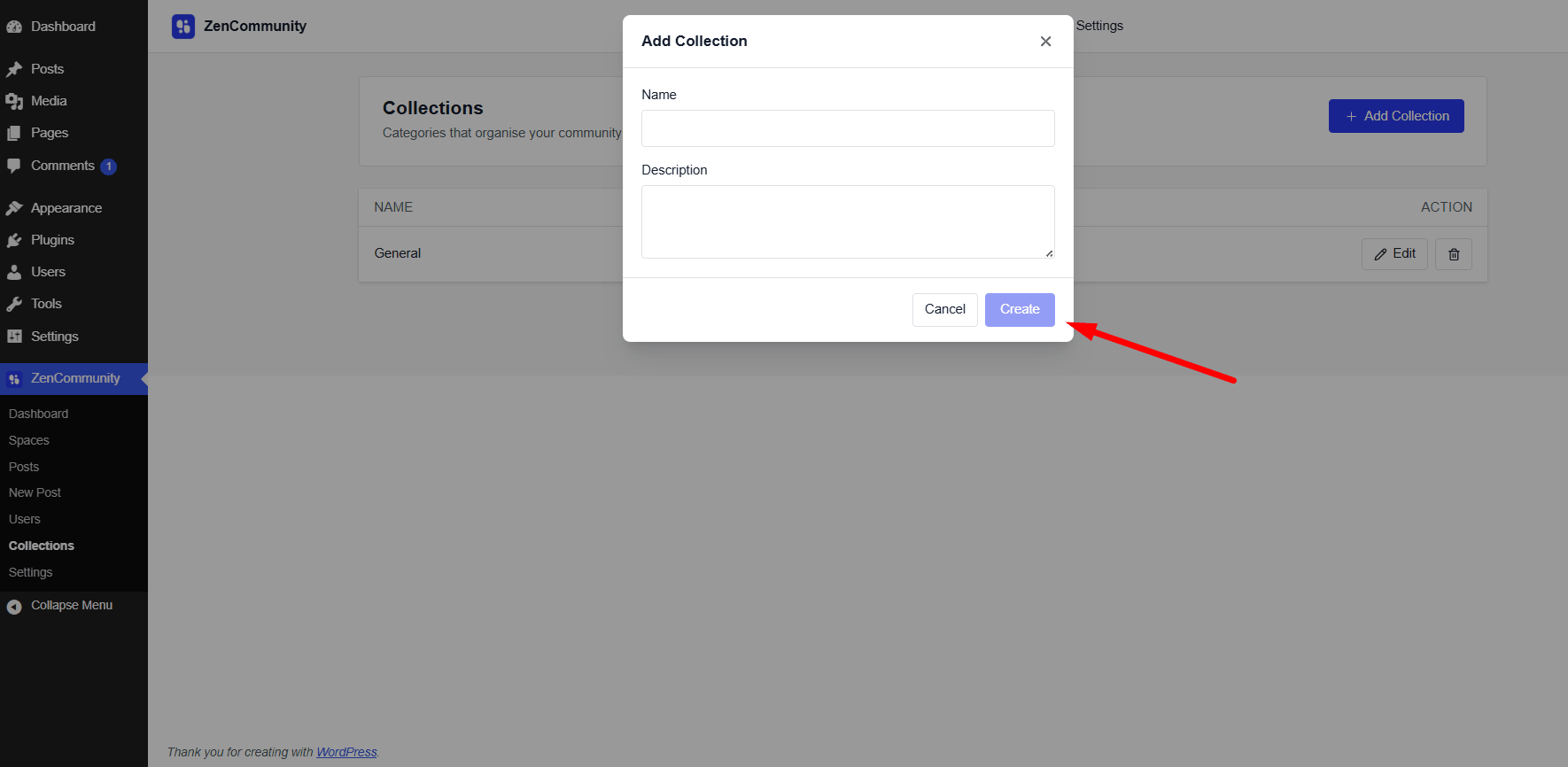
Congratulations! You’ve successfully created a collection in ZenCommunity.
Managing Your Collections
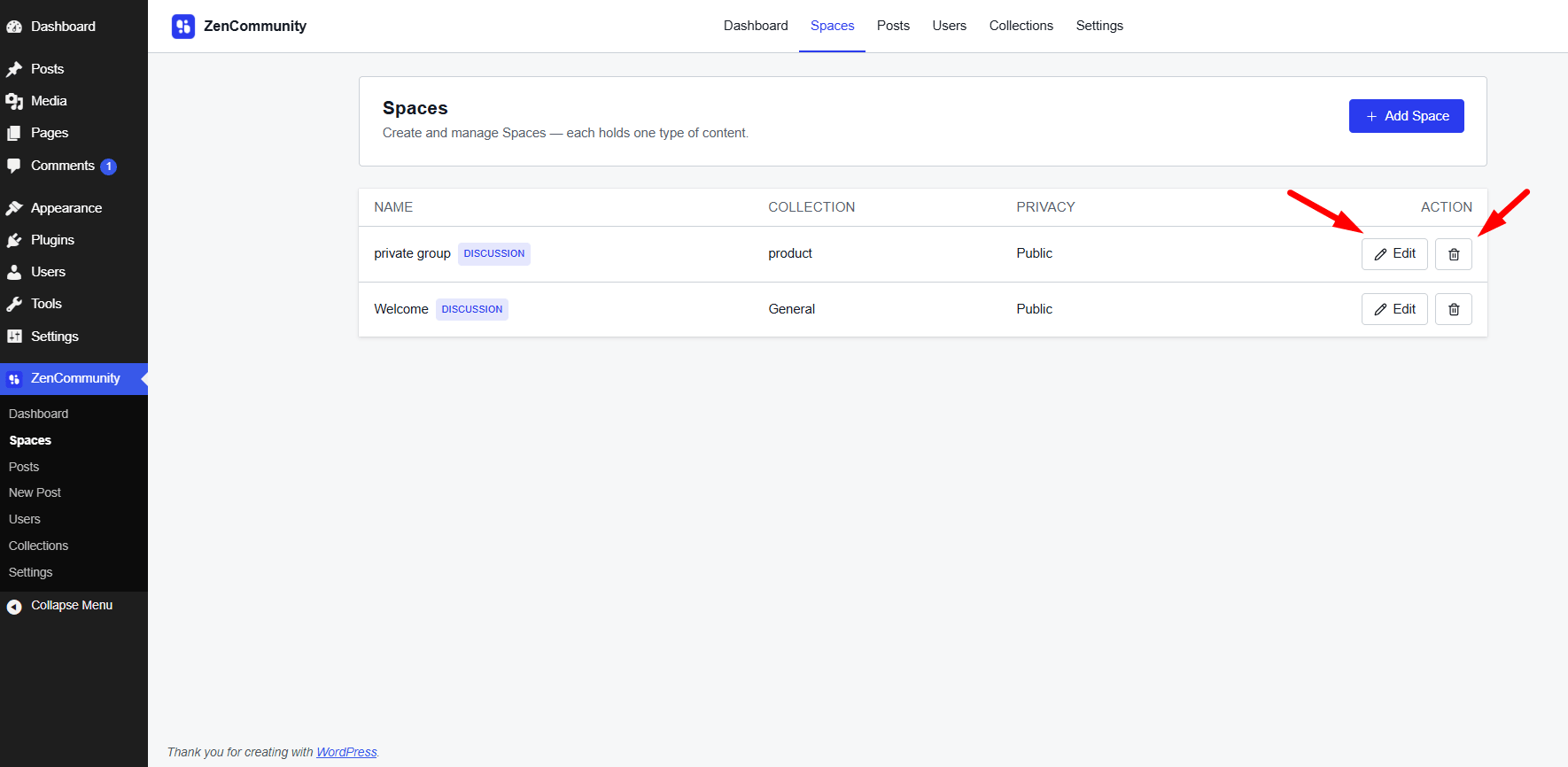
Once your collection is created, you can easily organize and customize it for better community structure.
Add Groups to Collections
You can see all your assigned groups organized collection-wise, making it easier to manage and track them efficiently.
You can also view all the groups assigned to each collection right from this area. If any group hasn’t been assigned to a collection yet, you’ll find them listed under the “Unsorted Groups” section.
Reorder Collections or Groups
Use click-and-drag to change the placement of collections. You can also drag and reposition your added groups within a collection to maintain a preferred order.
Edit a Collection
Click on the pen icon ✏️ next to a collection to edit its name, slug, or description.
Delete a Collection
If you need to remove a collection, simply click on the delete icon 🗑️ and confirm your action to permanently delete it.
Edit Group
If you click on the pen icon beside the group, it will redirect you to the group settings page, where you can modify all group information.
With these options, managing your community collections becomes effortless. Properly organized collections not only make your community visually appealing but also enhance user engagement by making navigation intuitive and clear.