


Posting in ZenCommunity is the best way to share ideas, updates, and discussions with your community. You can create engaging posts, mention other members, and organize your content under specific groups for better visibility. ZenCommunity provides a flexible editor and management tools that help you keep your posts active, interactive, and well-organized.
How to Post in the Community?
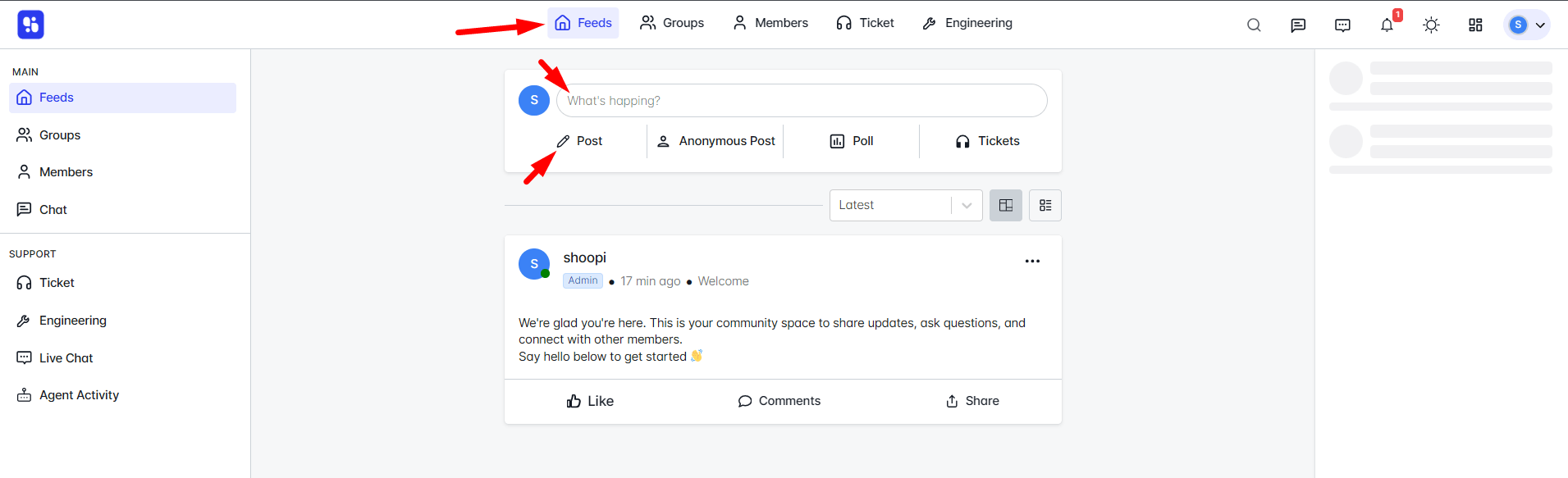
To start creating a post, click on the “Post” button or the “What’s happening?” area from your community feed. This will open the post editor.
Now, write your post and use the available editor options to format your content, add links, and make it more engaging. You can also use @mentions to tag other community members directly in your post.
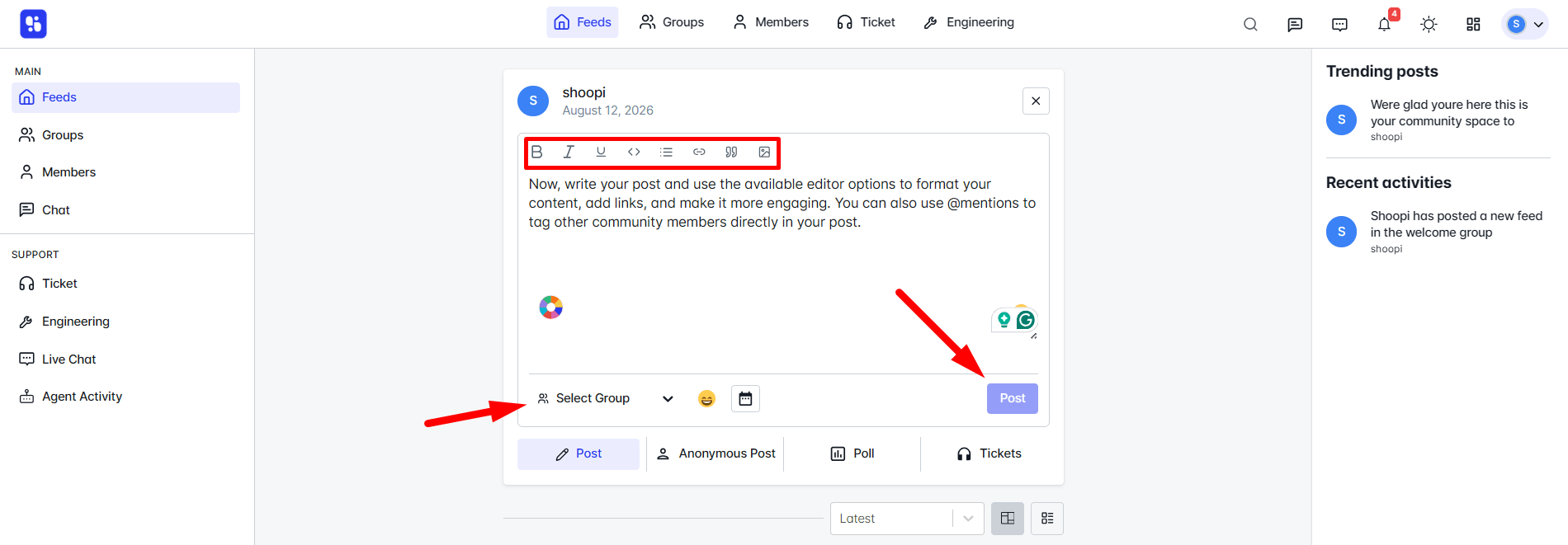
Once you’re done writing, select a Group where your post will be published — selecting a group is mandatory for every post.
After selecting the group, click on the Post button to share your content with the community.
Manage Post
Once your post is published, you can easily manage it from your community feed. Click on the three-dot (⋯) menu beside your post to access several management options:
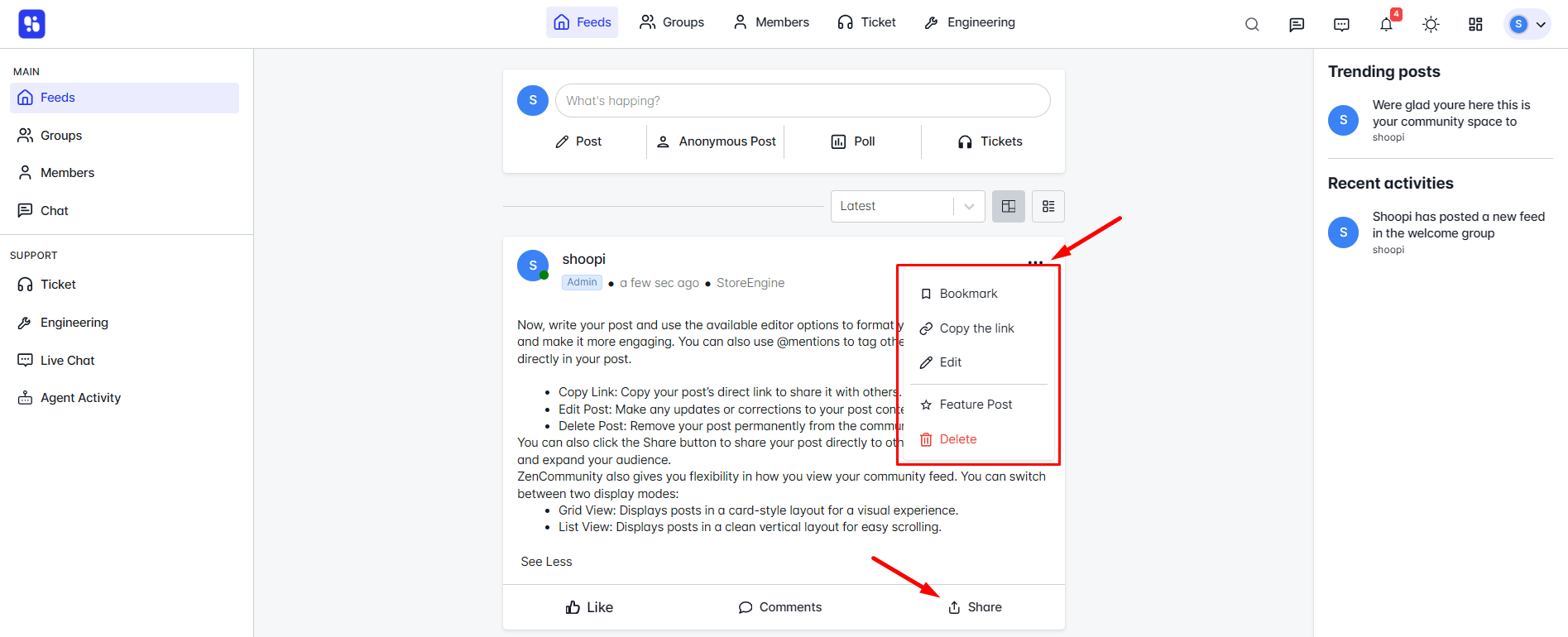
- Copy Link: Copy your post’s direct link to share it with others.
- Edit Post: Make any updates or corrections to your post content.
- Delete Post: Remove your post permanently from the community.
You can also click the Share button to share your post directly to other social media channels and expand your audience.
ZenCommunity also gives you flexibility in how you view your community feed. You can switch between two display modes:
- Grid View: Displays posts in a card-style layout for a visual experience.
- List View: Displays posts in a clean vertical layout for easy scrolling.
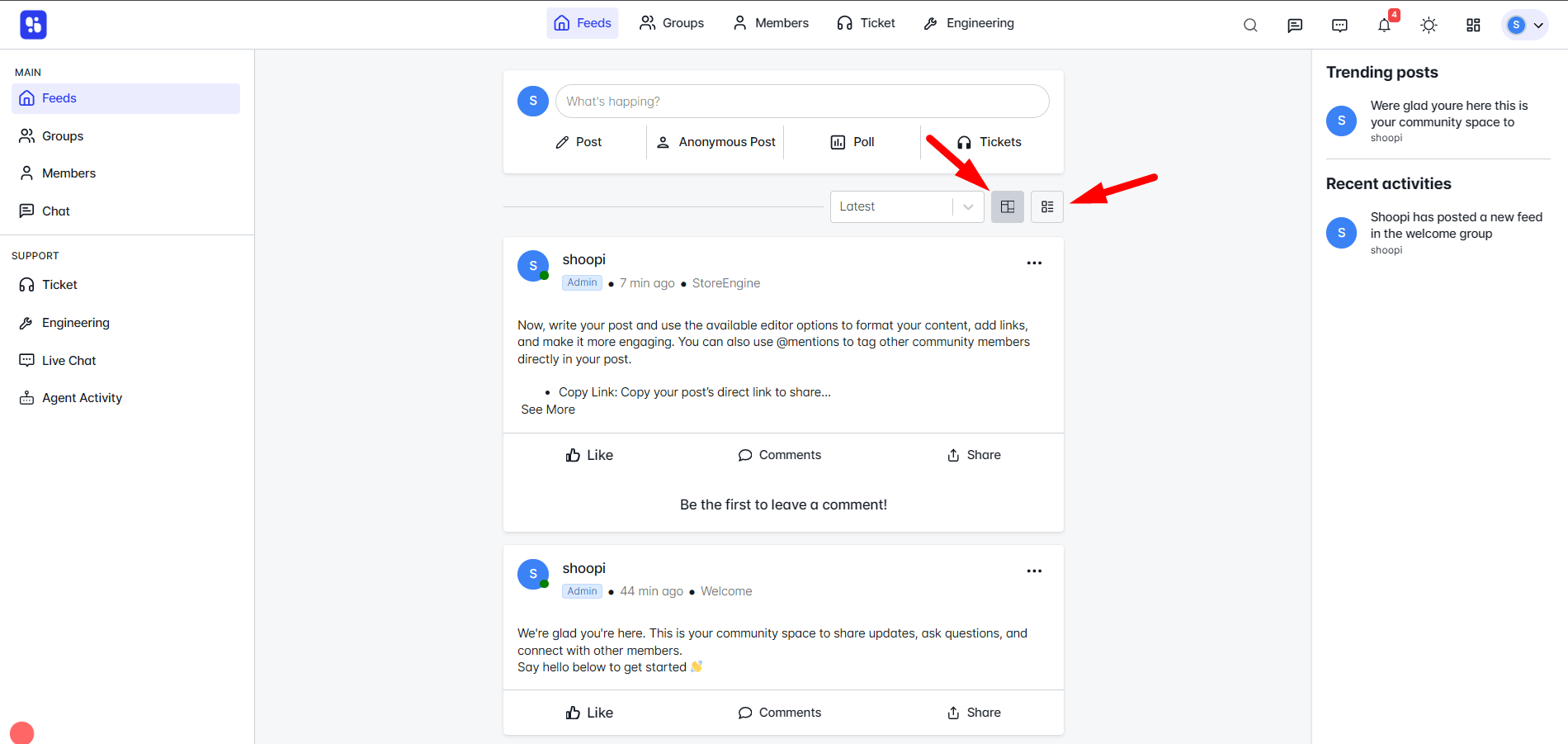
To switch between these modes, simply click on the view icons at the top of your feed.
That’s it! You’ve successfully learned how to create, publish, and manage posts in ZenCommunity. With the built-in editor, post management tools, and flexible viewing options, you can easily engage with your community and keep your content well-organized.