


Managing your group members effectively is key to maintaining a healthy and organized community. ZenCommunity makes it easy to view, filter, and control member activities within each group. Whether you want to assign roles, approve requests, or communicate directly, everything is accessible in one place.
How to Manage Group Members
To manage group members, start by navigating to Groups from your community feed. Once you’re on the Groups page, select the specific group you want to manage.
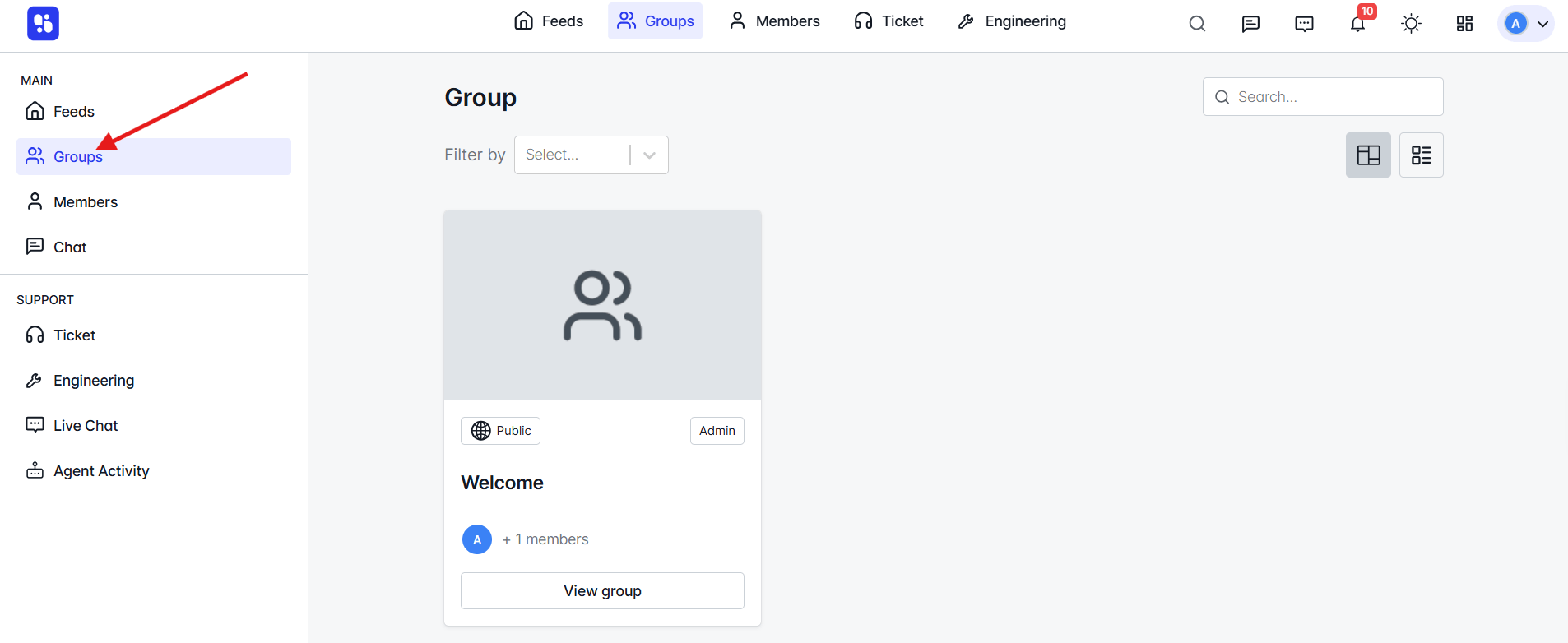
Inside the group, you’ll find a Members menu — click on it to open the Group Members Management area.
Group Members Management
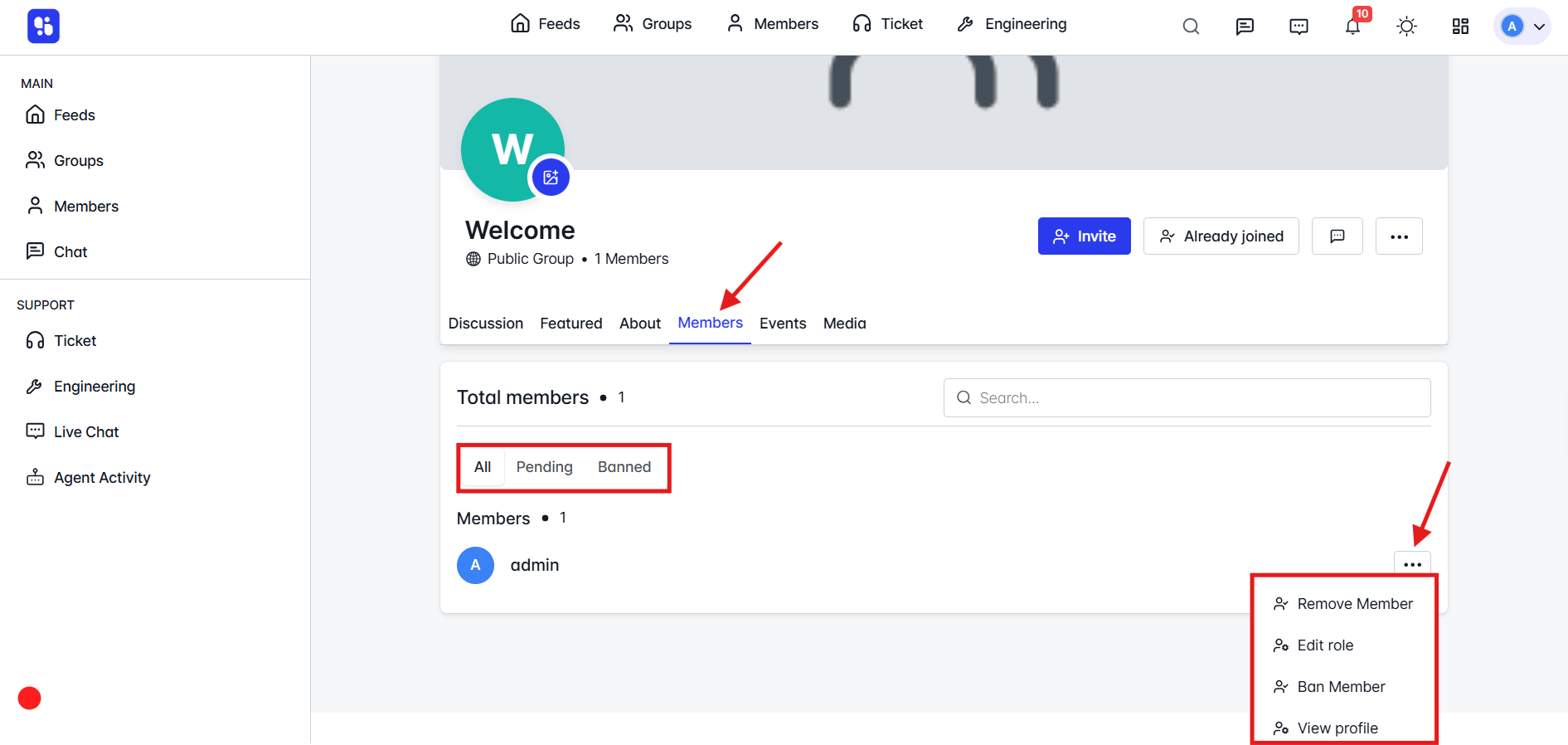
Here’s how you can efficiently manage all your group members:
- View Members:
Click on the Members tab to see a complete list of all members in your group.
- Filter Members:
Use the filter options — All, Pending, or Banned — to quickly sort members based on their current status.
- Member Actions:
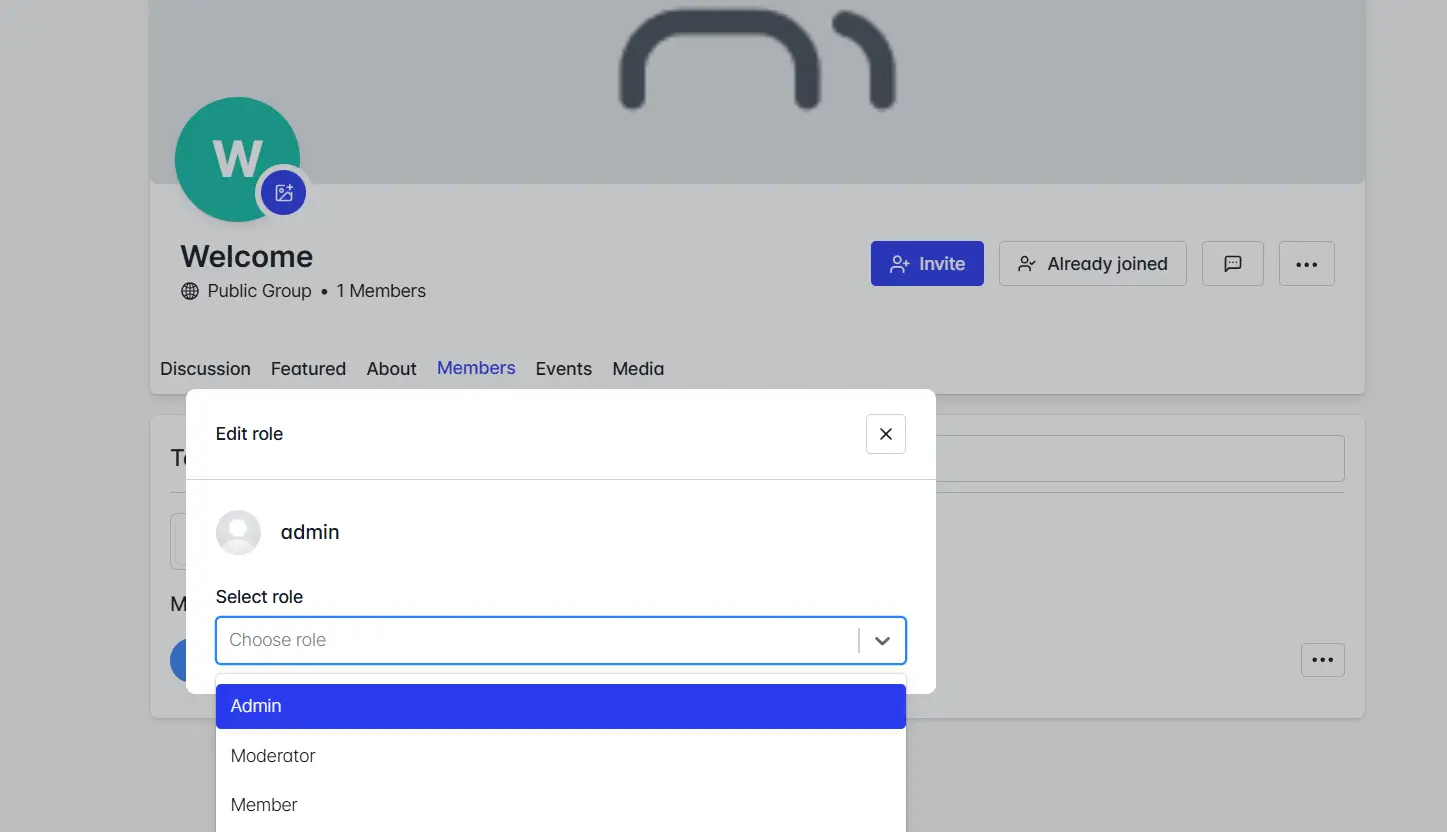
Click the three-dot menu (⋯) beside a member’s name to perform actions like:
- Remove Member from the group
- Edit Role to update their permissions
- View Profile to check member details
- Approval Requests:
For private groups, new join requests will appear in this section. You can easily Approve or Reject each request.
- Invite Members:
Click the Invite button to add new community members to your group.
- Search Members:
Use the search box to find specific members quickly and easily.
- Send Messages:
Click the Messages button to start a direct conversation with any group member from this panel.
That’s how you can manage your group members in ZenCommunity. With easy role management, filtering, and direct communication options, you have full control over how your group interacts and grows.