


The Ticketing System in ZenCommunity makes it easy to manage user queries, requests, or issues right inside your WordPress community. With just a few clicks, you can create, assign, and track tickets to keep your support workflow organized and efficient.
Follow the steps below to create your first ticket in ZenCommunity.
Steps to Create a Ticket
Step 1: Enable the Ticketing System
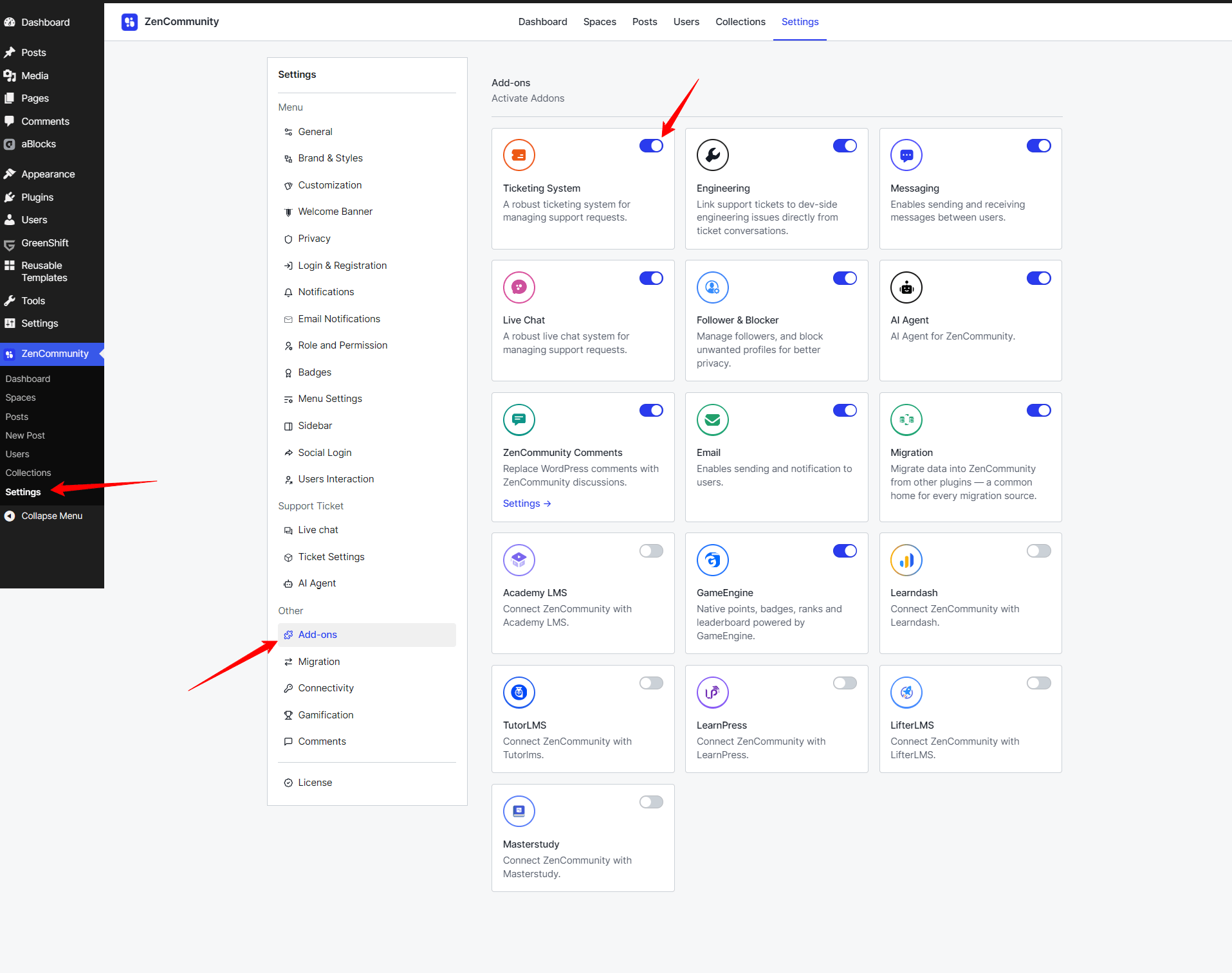
Open your ZenCommunity feeds Settings. Go to the Addons menu. From the addon options, enable the Ticketing System.
Step 2: Access the Ticket Page
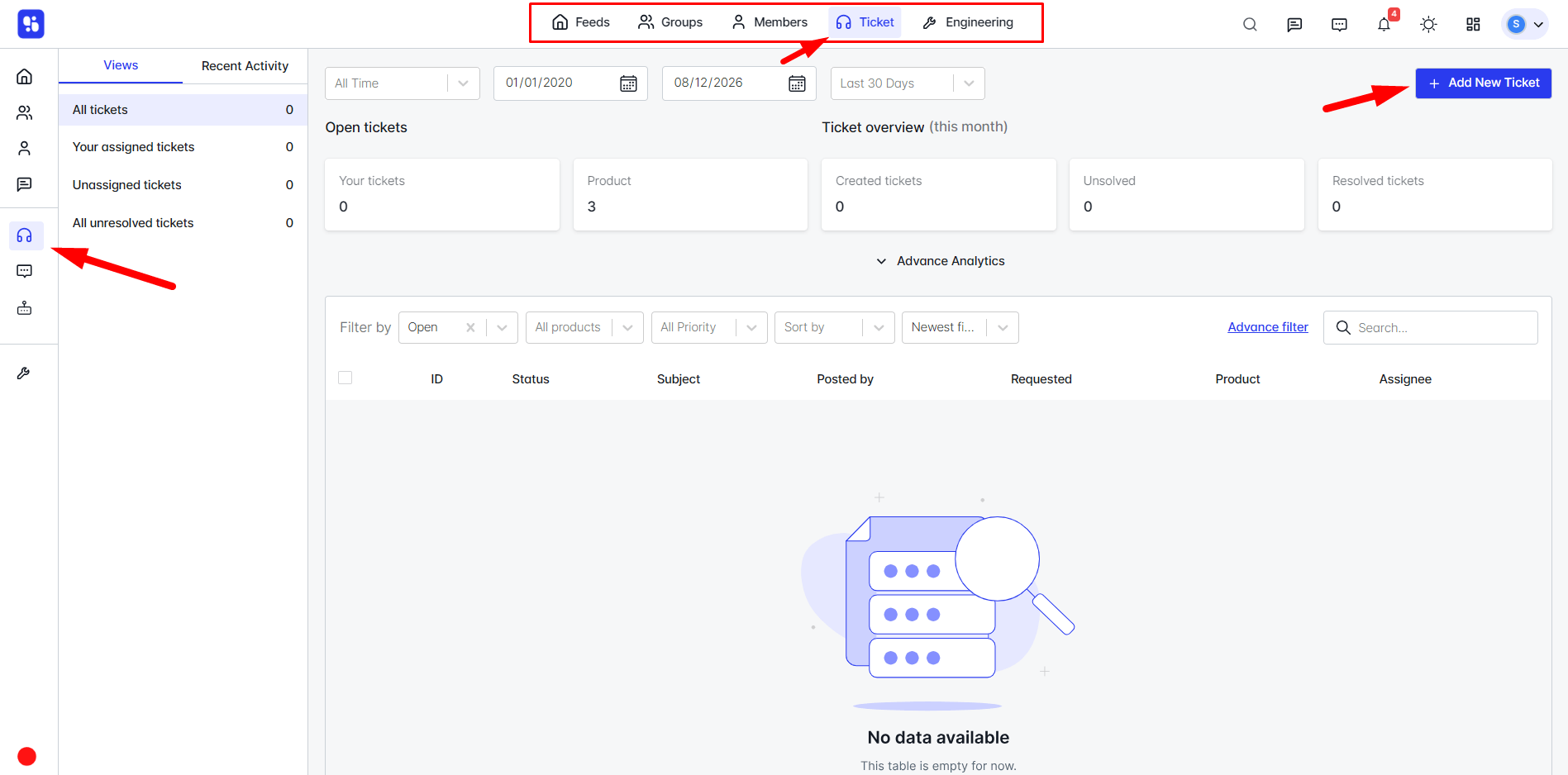
Go back to your community site. From the main navigation menu, click on Tickets. This will take you to the Ticket Management page.
Step 3: Create a New Ticket
On the Ticket Management page, click the Add New Ticket button. A side window will appear where you can fill in the ticket details:
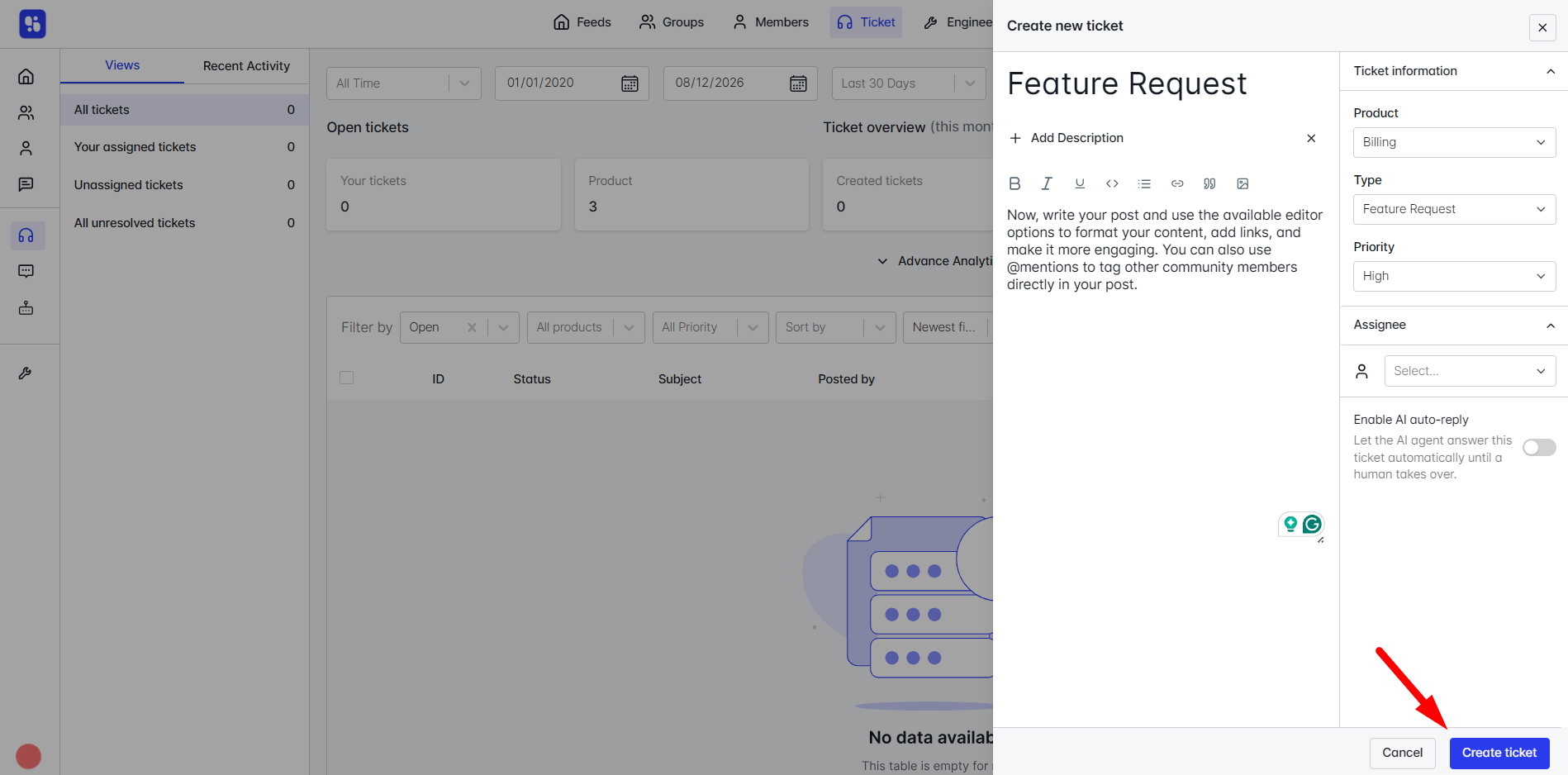
- Title: Give your ticket a clear name.
- Description: Add details about the issue or request.
- Product: Select the related product for this ticket.
- Type: Choose the type of ticket (e.g., bug, feature request, query).
- Priority: Set the priority (Low, Medium, or High).
- Assignee: Assign the ticket to a specific team member.
Once all fields are complete, click Create Ticket.
Step 4: View Your Ticket
After submitting, your new ticket will appear in the Ticket Management page. From here, you can track, update, and manage it as needed.
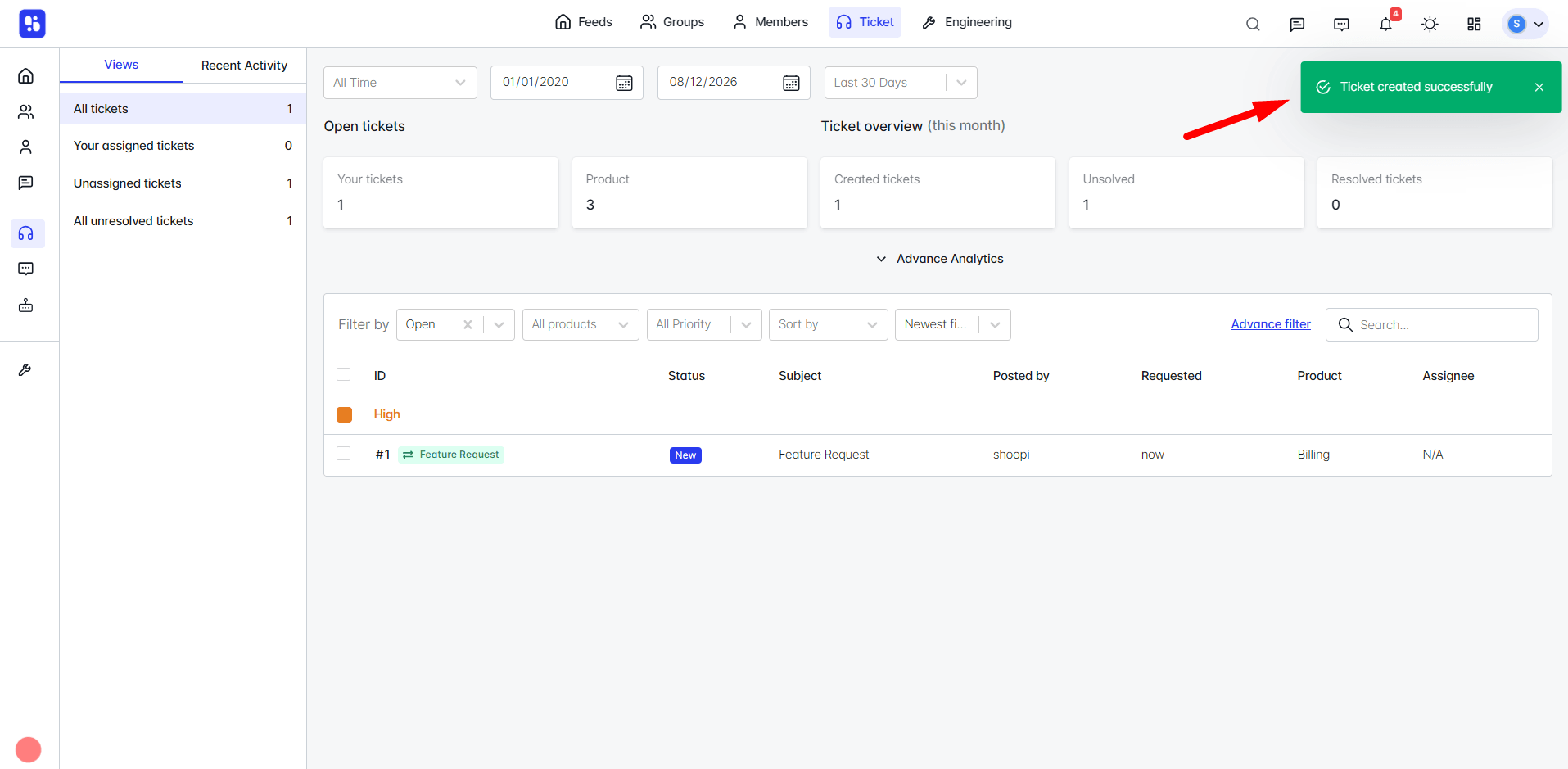
That’s it! You’ve successfully created a ticket using the ZenCommunity Ticketing System.