


Live chat categories help you understand what a conversation is about before it begins—and decide whether AI or a human agent should handle it first.
This guide explains how to create categories and control chat routing.
Overview
When a visitor opens live chat, they are asked to choose an issue category.
Each category controls how the chat is handled:
- AI Support Enabled → AI responds first, then hands off if needed
- Human Only → Chat goes directly to a human agent
This lets you automate common queries while keeping sensitive issues human-led.
Before You Start
Make sure the following are set up:
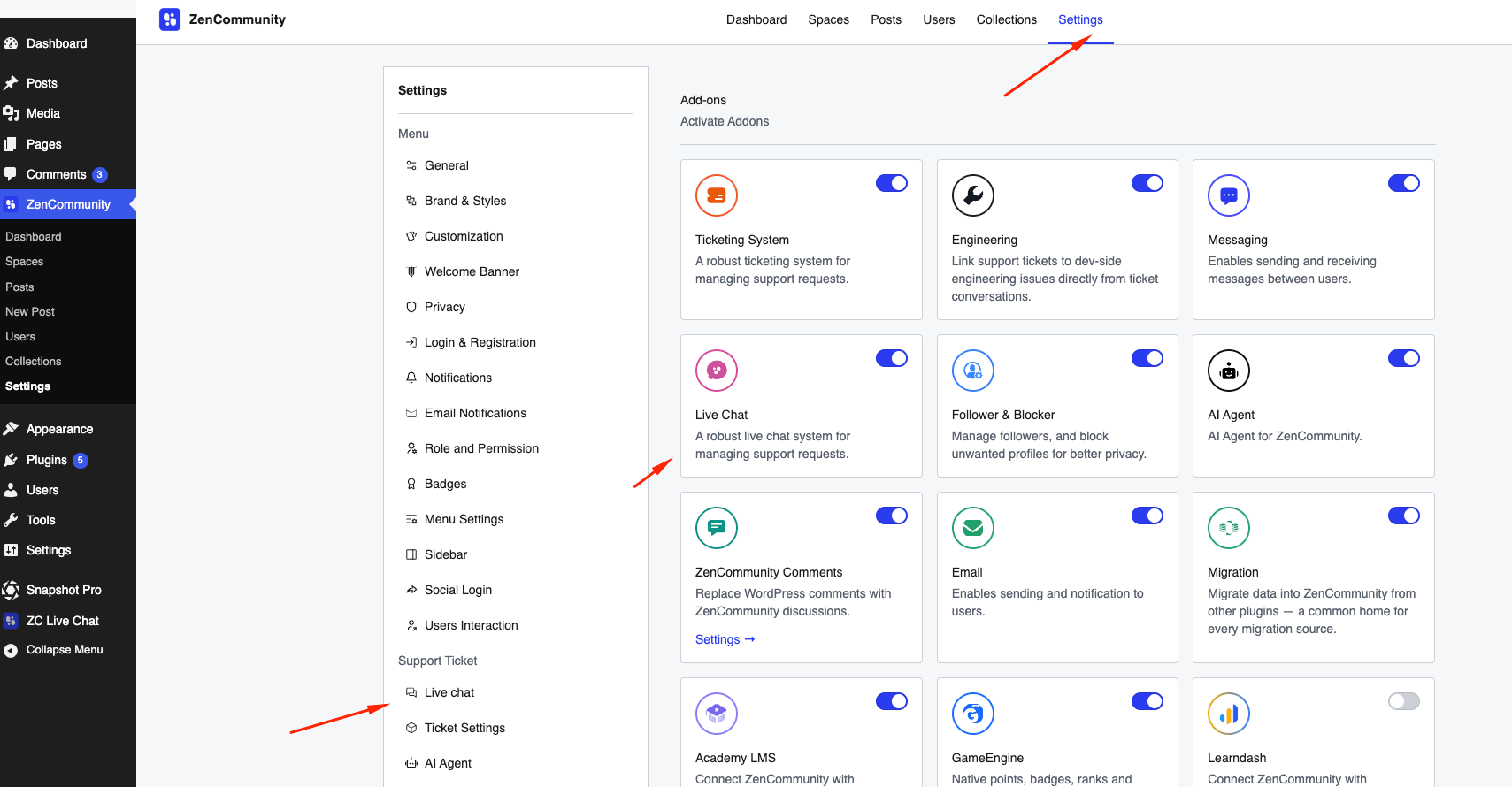
- Live Chat addon is installed and active
- Live Chat companion plugin is connected
For AI Routing:
- ZenCommunity Pro is active
- AI Agent addon is enabled and connected
⚠️ Without an AI Agent, all chats will go to human agents even if AI is enabled in categories.
Creating a Category
- Go to ZC Live Chat → AI Settings
- Open the Categories tab
- Click Add Category
- Enter a Category Name (e.g., Billing, Technical Support)
- Choose routing:
- Keep AI Support Enabled ON for AI-first
- Turn it OFF for human-only
- Click Add Category
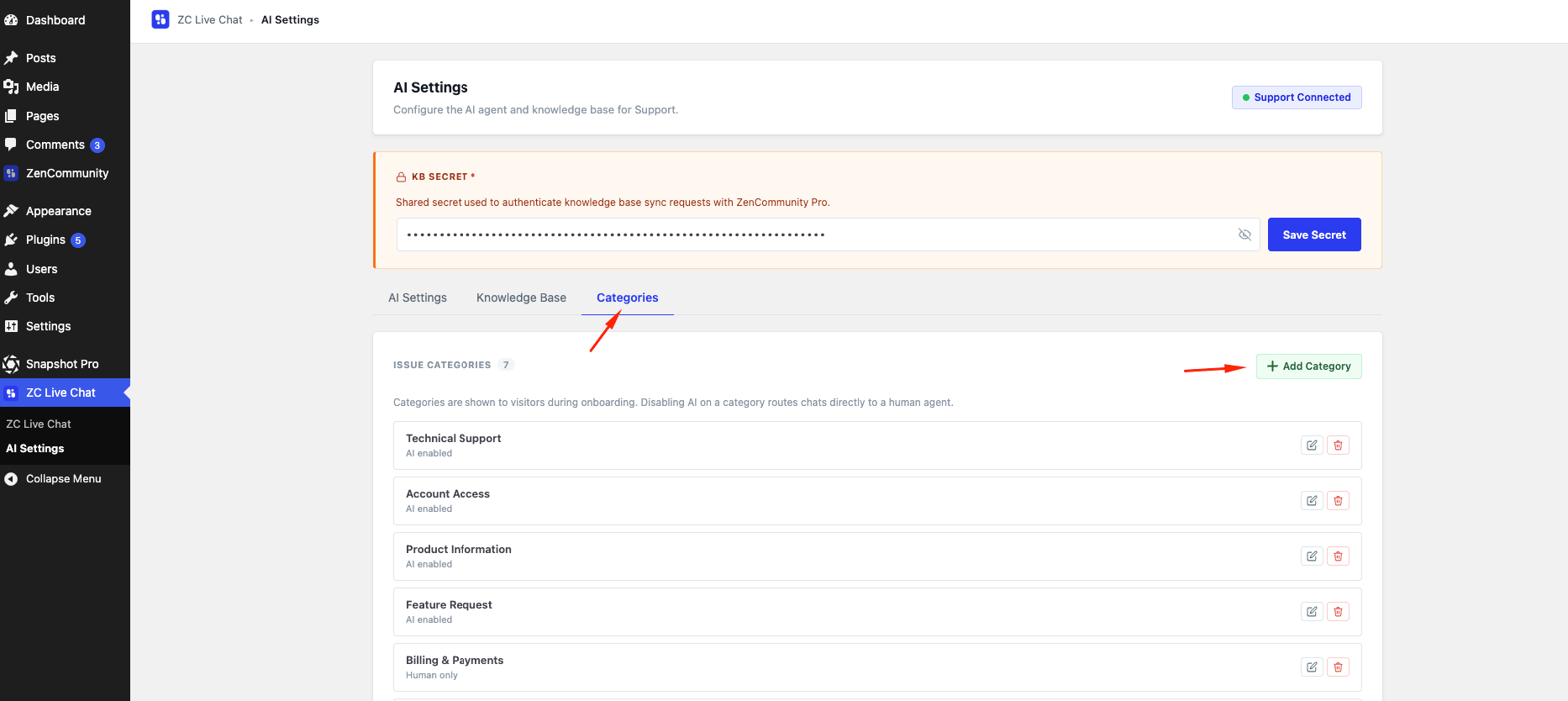
Each category will show:
- Name
- Routing status (AI enabled / Human only)
Edit or Delete Categories
Edit:
- Click the Edit (✏️) icon
- Update name or routing setting
- Click Update
Delete:
- Click the Delete (🗑️) icon
- Confirm removal
⚠️ Deleted categories cannot be recovered.
How Routing Works
After selecting a category, routing happens automatically.
Human-Only Category
- Chat is assigned directly to a human agent
- Agents are notified immediately
AI-Enabled Category
- AI tries to answer first
If AI can help:
- Conversation continues with AI
If AI cannot help:
- Chat is transferred to a human
- Or user is prompted to create a support ticket
Manual Handoff
- Users can request a human anytime
- Chat is instantly transferred
Important Behavior
- Category routing applies only to new chats
- Existing conversations are not affected by changes
- AI availability depends on product-level AI settings
⚠️ If AI is disabled globally, all categories act as human-only.
Best Practices
- Use clear, simple category names
- Enable AI for common queries (FAQs, general help)
- Use human-only for:
- Billing issues
- Account security
- Complaints
- Regularly review category performance
Tips
- Keep category list short and focused
- Update routing as your support needs evolve
- Combine with AI Knowledge Base for better responses
Related Documentation
- Setting Up the AI Agent for Tickets & Live Chat
- Building the AI Knowledge Base
- Live Chat OTP & Feedback (CSAT)
- Enable Live Chat
- Chatting