


In ZenCommunity, every Space is built around a single content type. You choose this type when creating the Space, and it defines how members interact with it.
Overview
A Space is a dedicated area inside your community. Instead of every Space working the same way, ZenCommunity allows each one to serve a specific purpose.
For example:
- One Space can host discussions
- Another can display a single page
- Another can manage events or resources
You select the content type during creation, and it shapes the entire experience of that Space.
There are six available content types:
- Discussion — Threaded conversations between members
- Single Page — A single piece of static content
- External Link — Redirects users to another website
- Event — Manage events with RSVP functionality
- Course — Display structured learning content
- Resource Library — Share files and downloadable resources
Note: Once a Space is created, its content type cannot be changed. If you need a different type, create a new Space.
How to Choose a Content Type
Follow these steps when creating a Space:
- Go to ZenCommunity → Spaces in your WordPress dashboard
- Click Add Space
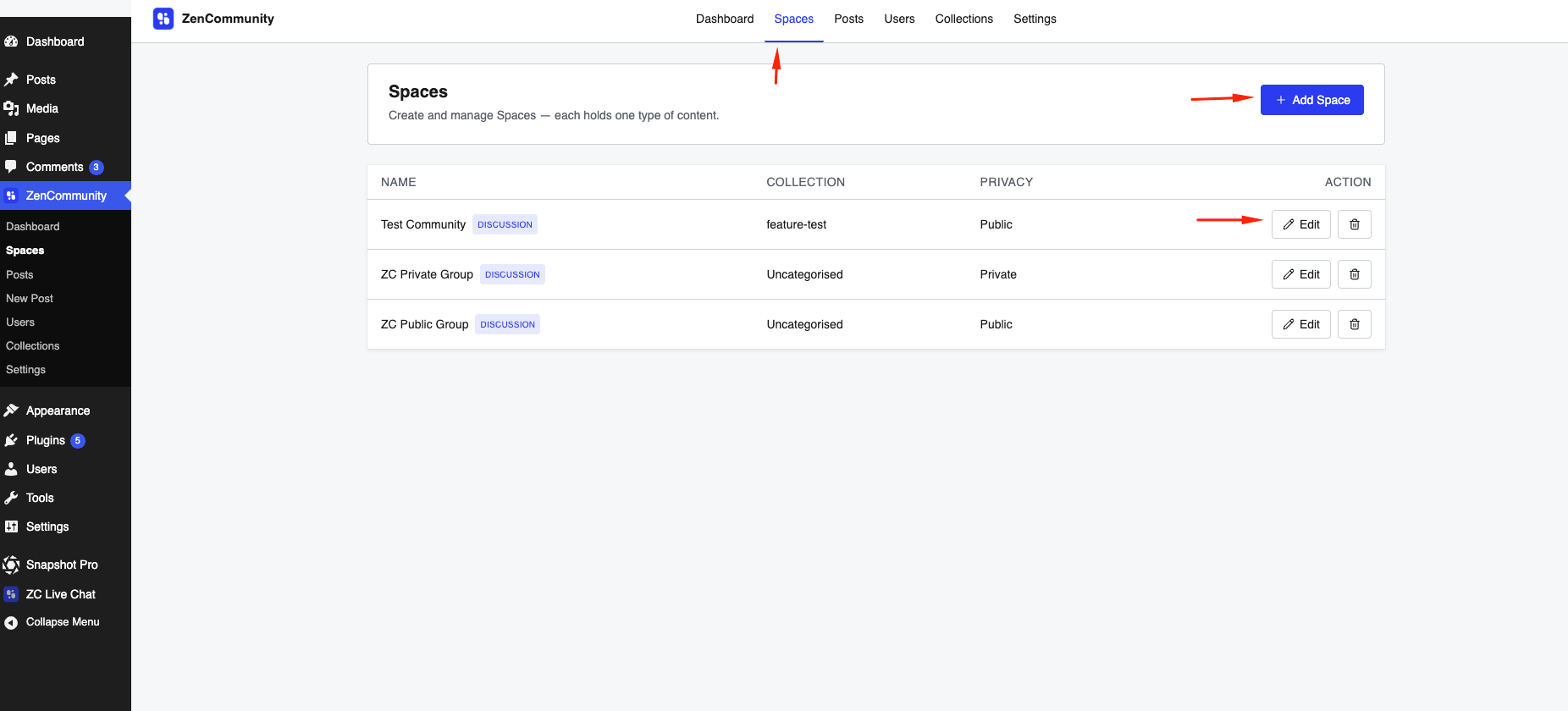
- Enter Name, Slug, and Description
- Select a Space Content Type from the available options
- Fill in any additional fields based on the selected type
- Set Collection, Privacy, and Member Visibility
- Add a thumbnail and other settings
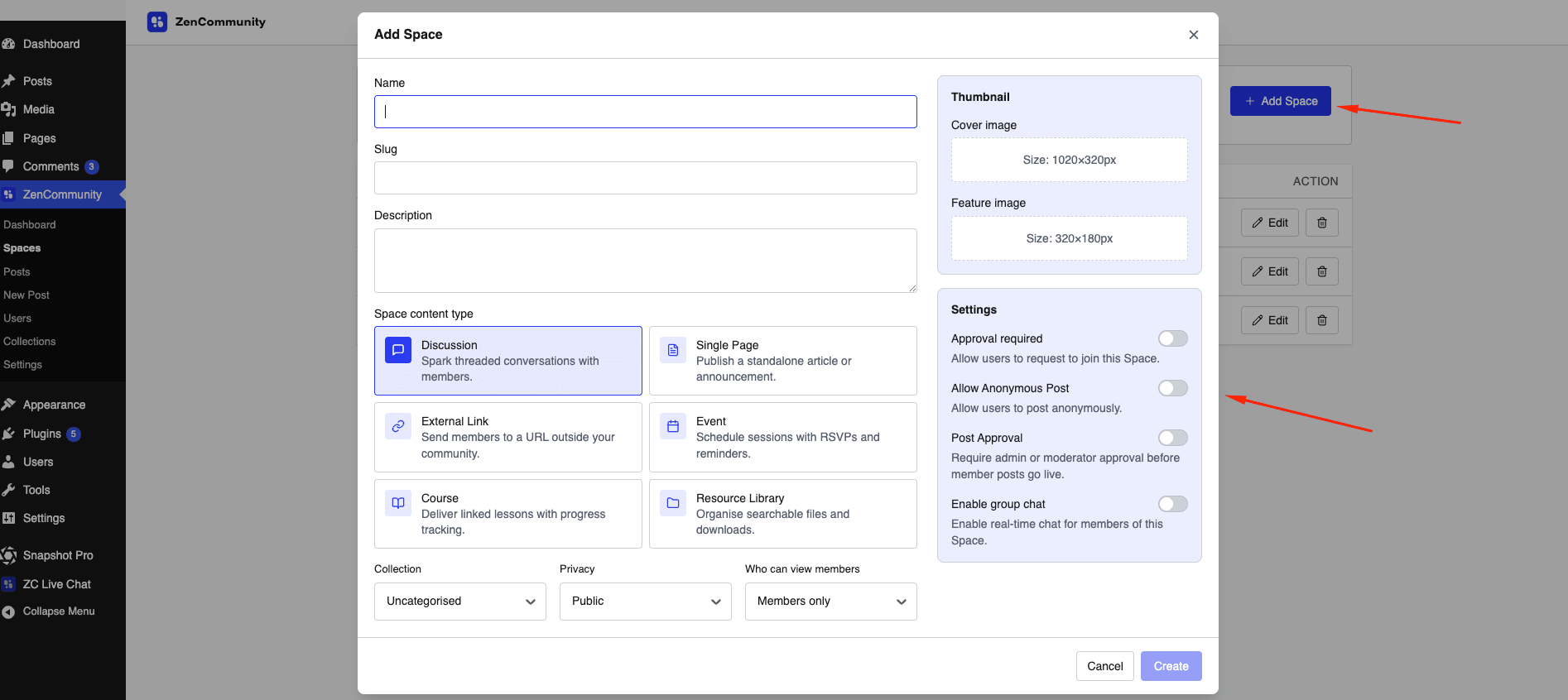
- Click Create
Tip: You can edit most Space settings later, but the content type will remain fixed.
Content Types Explained
Discussion
This is the default and most flexible option.
Members can:
- Create posts
- Reply to others
- Start conversations
Best for: Community discussions, Q&A, feedback, and general engagement
Single Page
This type allows you to publish a single piece of content inside the Space.
You will get a Page Content field to add your content (basic HTML supported).
Best for:
- Welcome messages
- Community guidelines
- Announcements
- About pages
External Link
This type redirects users to another URL instead of showing content inside the community.
You can configure:
- External URL
- Open in new tab option
Best for:
- Linking to external tools or websites
- Signup pages
- Partner platforms
Event
This type turns your Space into an event hub.
Members can:
- View upcoming and past events
- RSVP to events
- Get reminders
After creating the Space, events can be added from the frontend.
Best for:
- Webinars
- Meetups
- Office hours
- Scheduled sessions
Course
This type connects a course to your Space.
Features include:
- Structured lessons
- Progress tracking
- LMS integration
Note: This requires a supported LMS plugin to be installed and active.
Best for:
- Online courses
- Training programs
- Educational communities
Resource Library
This type creates a searchable list of resources.
You can add:
- Title
- File or external URL
Members can browse and download resources easily.
Best for:
- Documents
- Templates
- Media files
- Downloadable assets
Tips & Best Practices
- Choose carefully before creating
Content type cannot be changed later - Start with Discussion if unsure
It’s the most flexible option - Use focused Spaces
Each Space should have a clear purpose - Control access with privacy settings
All types support Public, Private, and Hidden options - Simpler UI for content-focused Spaces
Some types (like Single Page or Resource Library) show fewer tabs
Related Docs
- How to Create a Group
- Create and Manage Collections
- Creating Events and Managing RSVPs
- Using the Resource Library
- Adding Polls and Surveys to Posts