


ZenCommunity allows you to design your community layout visually using WordPress blocks (Full Site Editor) instead of the default interface. This gives you full control over how your community looks and where each element appears.
This guide explains how to switch to block-based rendering, use presets, and build custom layouts.
Overview
ZenCommunity supports two frontend rendering modes:
1. React SPA (Default)
- Pre-built community interface
- No design customization needed
- Works out of the box
2. Gutenberg Blocks (FSE)
- Build layouts using WordPress blocks
- Fully customizable design
- Use templates and presets
Switching to Gutenberg (FSE) unlocks:
- ZenCommunity blocks
- Portal presets
- Editable templates for each community view
⚠️ FSE mode requires a block-based WordPress theme.
Before You Start
Make sure:
- You are using a block theme
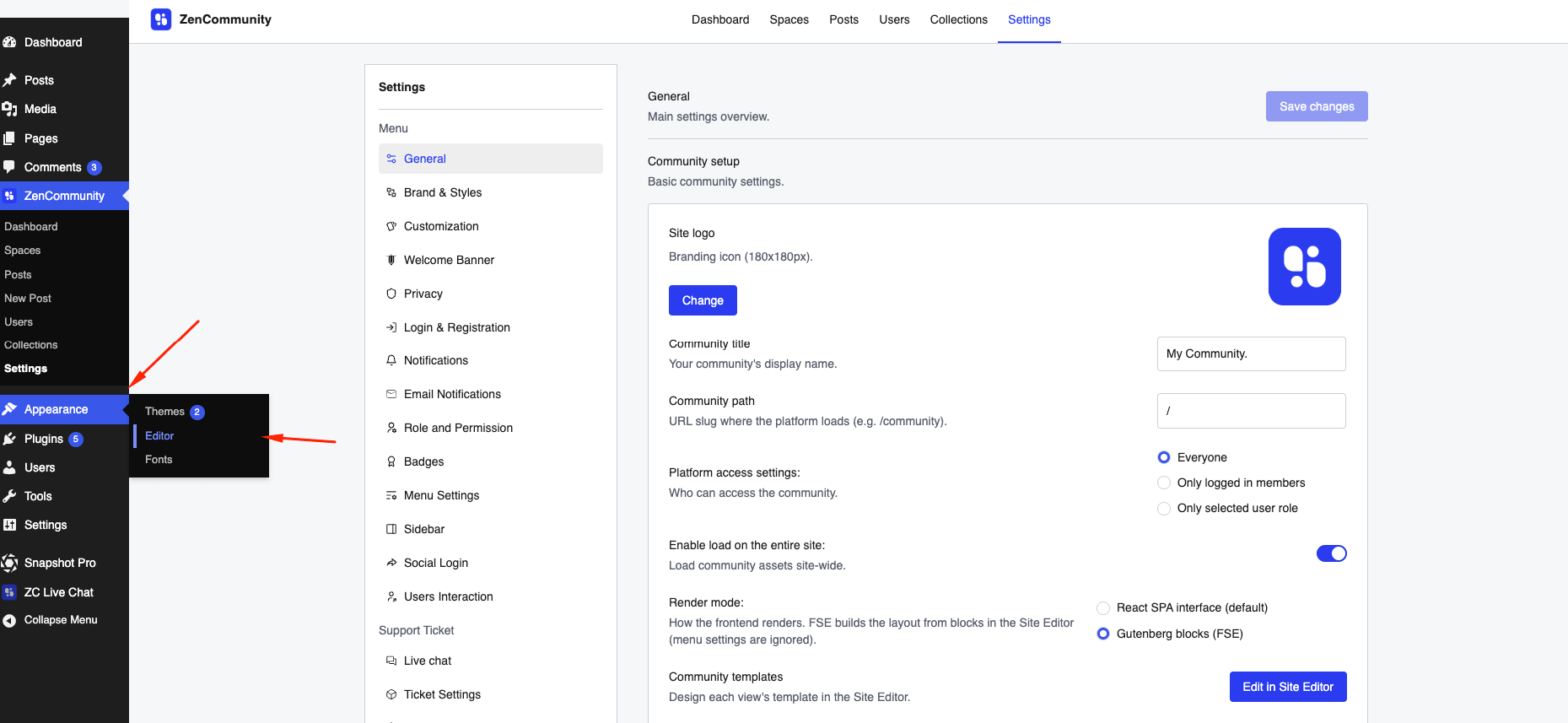
- You have access to Site Editor (Appearance → Editor)
- You have administrator permissions
❗ Without a block theme, FSE mode will remain disabled.
Enable Gutenberg (FSE) Mode
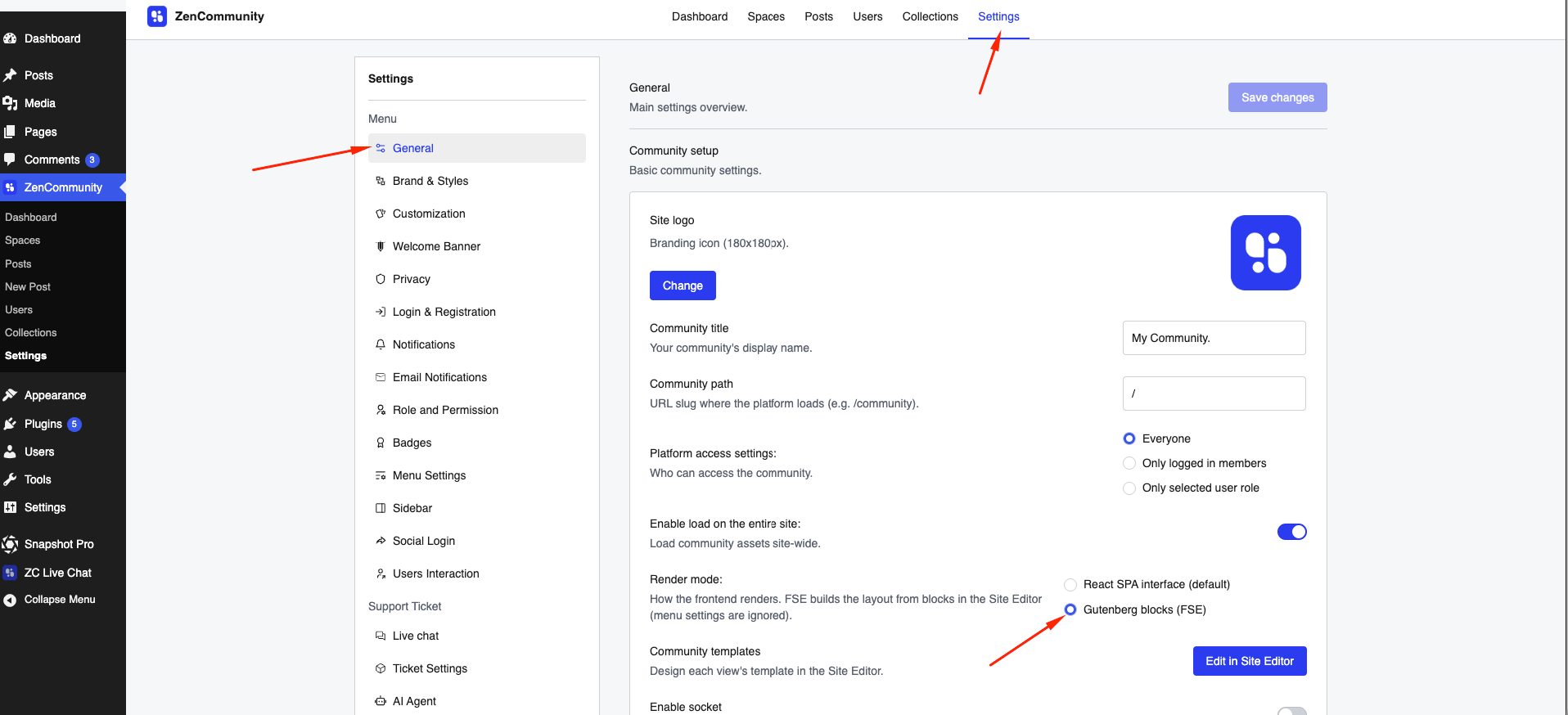
- Open your community
- Go to Settings → General
- Find Render Mode
- Select Gutenberg Blocks (FSE)
- Click Save Changes
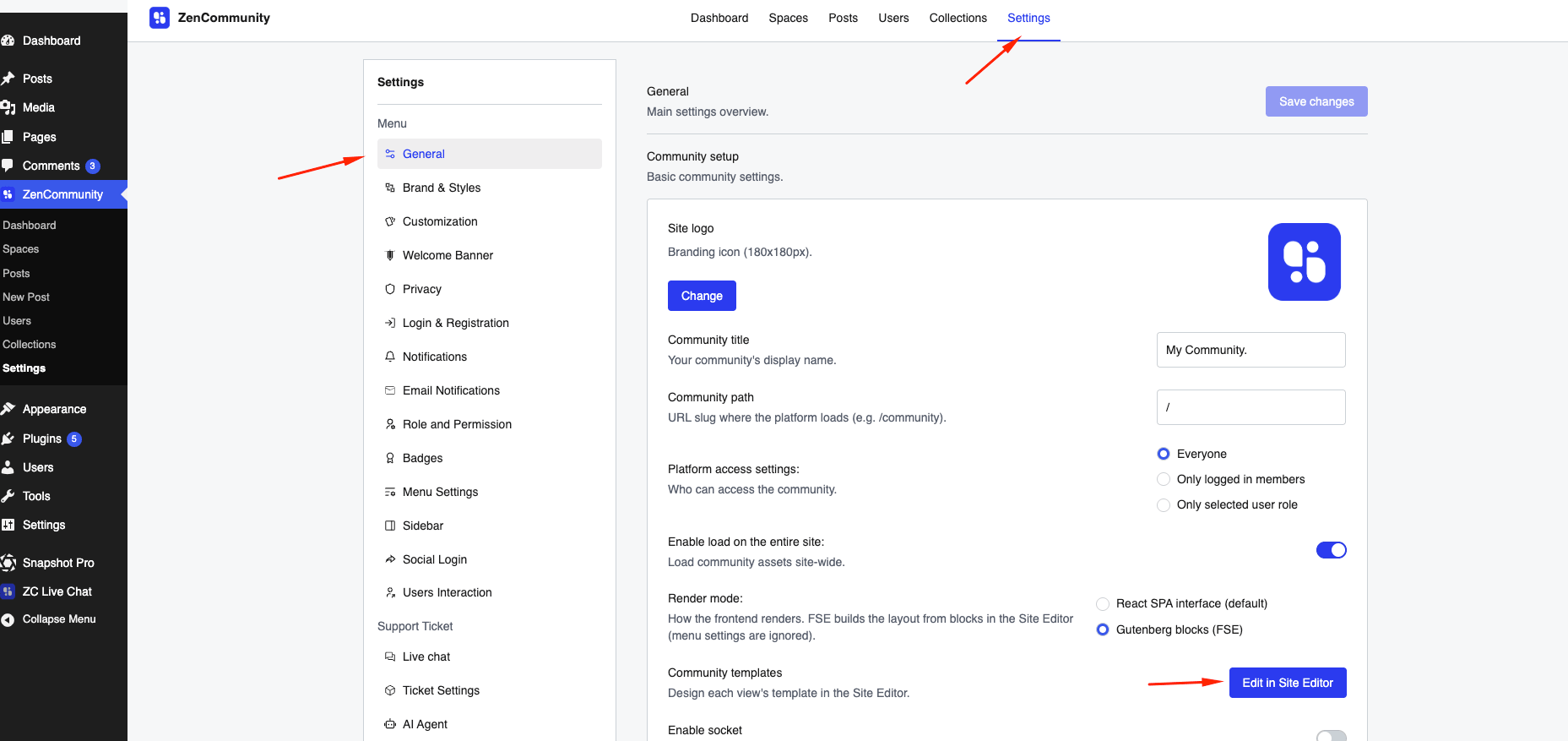
After enabling:
- A Community Templates section will appear
- You can edit layouts via the Site Editor
💡 Menu settings are ignored in FSE mode. Use navigation blocks instead.
Using Community Templates
ZenCommunity provides ready-made templates to customize different parts of your community layout.
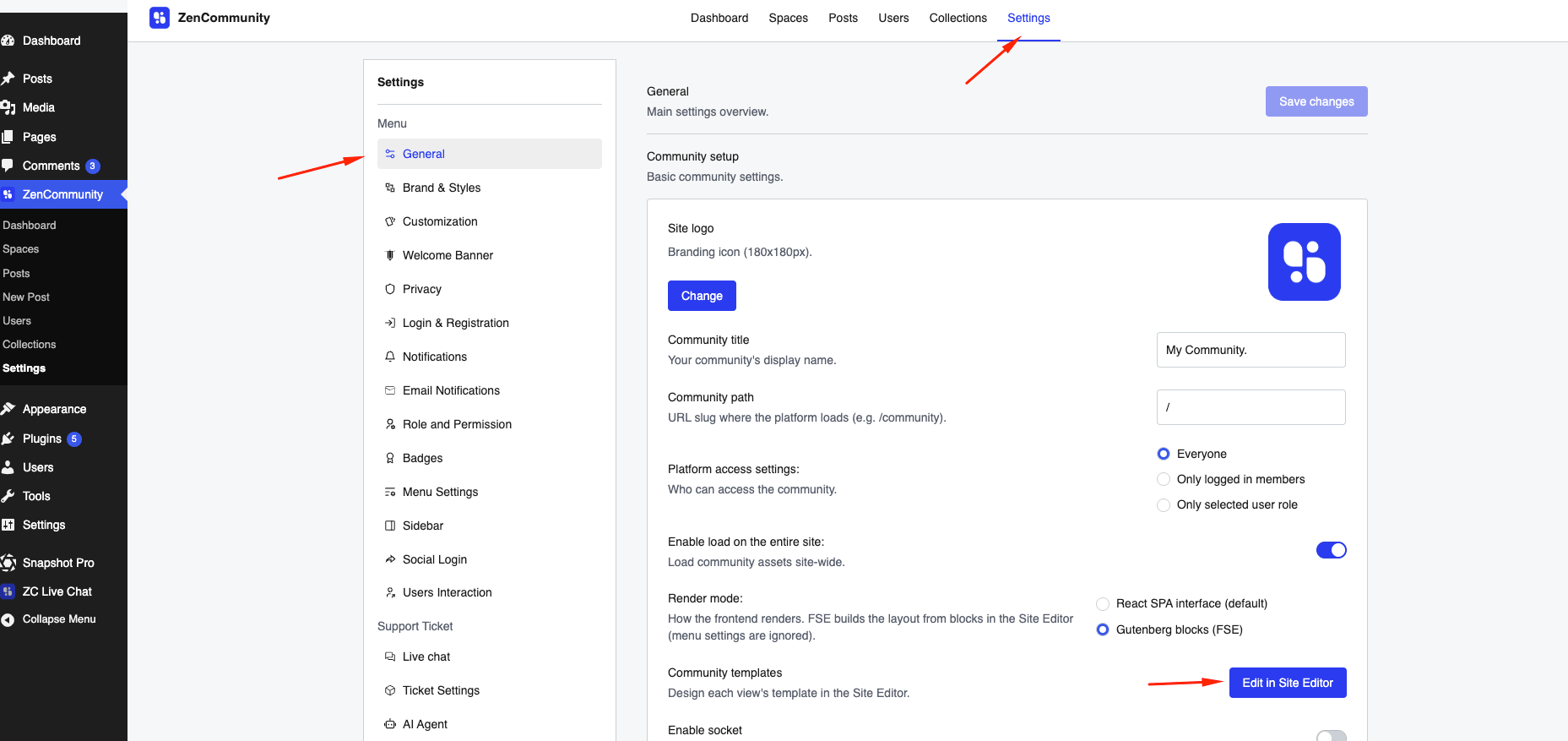
Steps:
- Go to ZenCommunity → Settings
- Navigate to General
- Scroll down to the Community screens section
- Click Edit in Site Editor
- Customize the layout using blocks
- Click Save to apply your changes
Available Templates:
- Community (main layout)
- Members
- Groups
- Member Profile
- Single Post
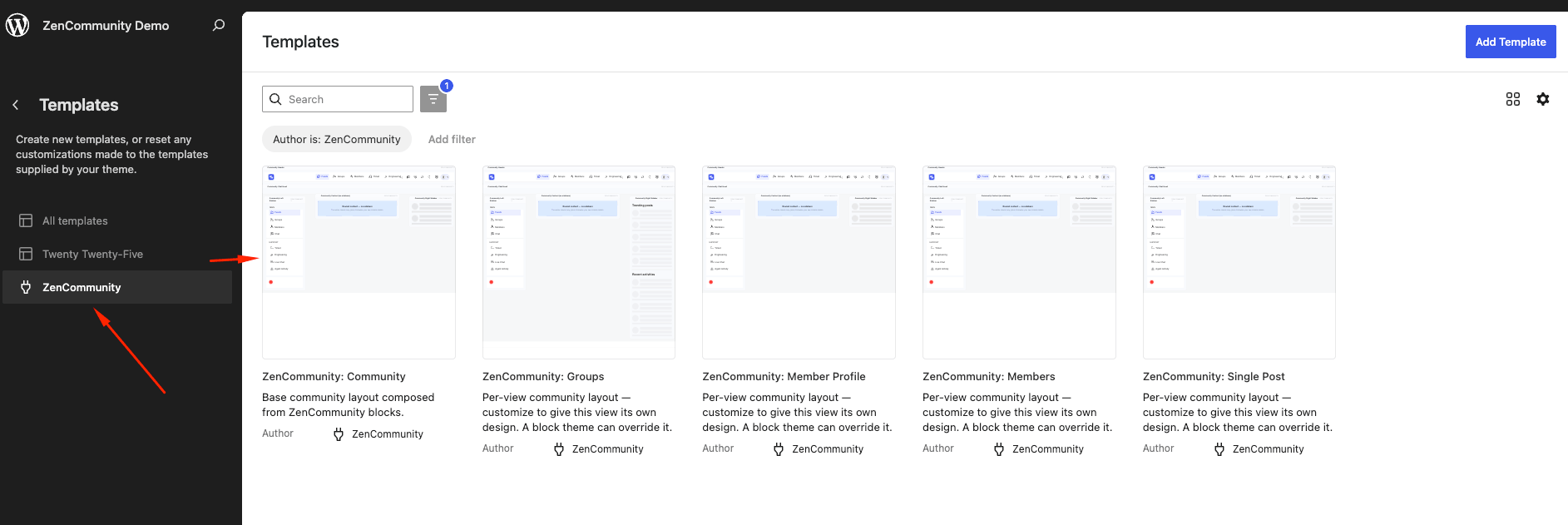
💡 Templates only override the default once you customize them.
Add Community to Any Page
You can embed your community into any page or post.
Steps:
- Edit a page
- Click the + (Add Block) button
- Search for ZenCommunity
- Insert:
- Community App, or
- A portal preset
- Publish the page
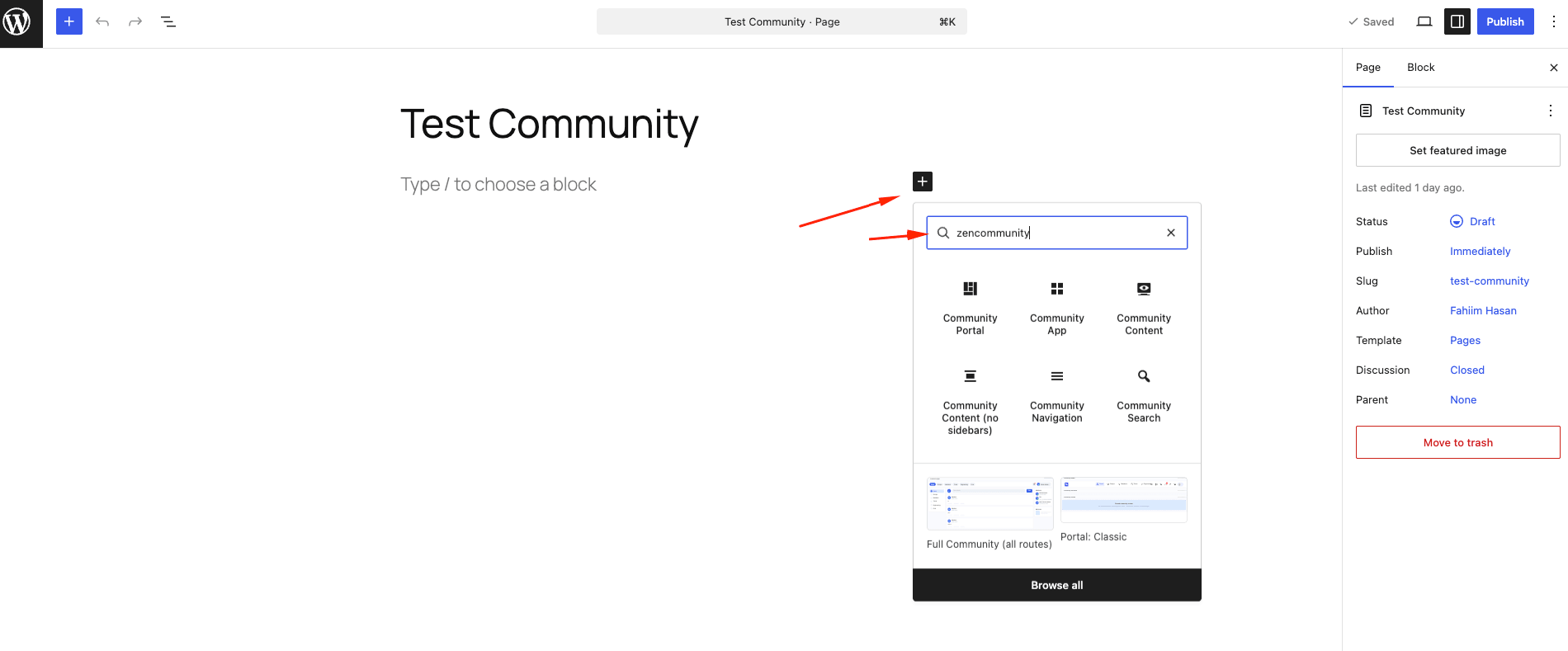
🚀 The Community App block is the fastest way to launch a full community.
Portal Presets
Portal presets are ready-made layouts you can use instantly.
Available Presets:
Full Community
- Complete community with navigation
- Best for quick setup
Portal: Classic
- Standard header + content layout
Portal: Modern
- Custom top bar with:
- Navigation
- Search
- Notifications
- Profile
Portal: Application
- Minimal app-style layout
💡 You can customize any preset after inserting it.
ZenCommunity Blocks
You can build layouts from scratch using these blocks.
All-in-One Blocks
- Community App → Full community system
- Community Portal → Layout container
Content Blocks
- Community Content → Dynamic content area
- Community Content (No Sidebar) → Content only
Navigation & Header
- Community Navigation
- Community Search
- Notifications
- Identity (Profile/Login)
- Light/Dark Toggle
- Community Header
- Community Chat Head
Layout Components
- Left Sidebar
- Right Sidebar
- Feed Stream
- Post Composer
- Welcome Banner
- Guest Sign-in CTA
Full Views
- Groups Directory
- Members Directory
- Leaderboard (requires GameEngine plugin)
Customize Block Design
Each block can be styled from the editor sidebar.
Common Options:
- Alignment (wide/full)
- Spacing (margin & padding)
- Minimum height
- Background colors & gradients
How It Works
- The Community Content block dynamically updates based on navigation
- Headers and sidebars remain static
- Navigation controls what content is shown
Best Practices
- Use Community App for quick setup
- Use Portal presets for structured layouts
- Use individual blocks for full control
- Always keep the Community Content block in your layout
- Test layouts across different pages
Important Notes
- Switching back to React SPA restores the default UI
- Your block templates are محفوظ and can be reused
- Navigation must be built using blocks in FSE mode
Related Documentation
- ZenCommunity Overview
- Building Community Navigation Menus
- Configuring Sidebar Widgets