


Transform your blog comment section into a full community experience. The ZenCommunity Comments addon replaces default WordPress comments with interactive community discussions—so conversations live inside your community, not in isolated comment threads.
This guide explains how to enable, configure, and manage this feature.
Overview
Once enabled, every new post automatically creates a corresponding discussion inside your community.
Instead of using native WordPress comments:
- Discussions are embedded directly on the post
- Users reply within the community system
- Conversations appear both on the post and inside the community
You can control:
- Which content types create discussions
- Where discussions are published (spaces/groups)
- How discussions appear on the frontend
Before You Start
Make sure the following requirements are met:
- ZenCommunity Pro is installed and activated
- ZenCommunity Comments addon is enabled
- At least one community space (group) is created
Enable the Add-on
- Go to ZenCommunity → Settings → Add-ons
- Enable ZenCommunity Comments
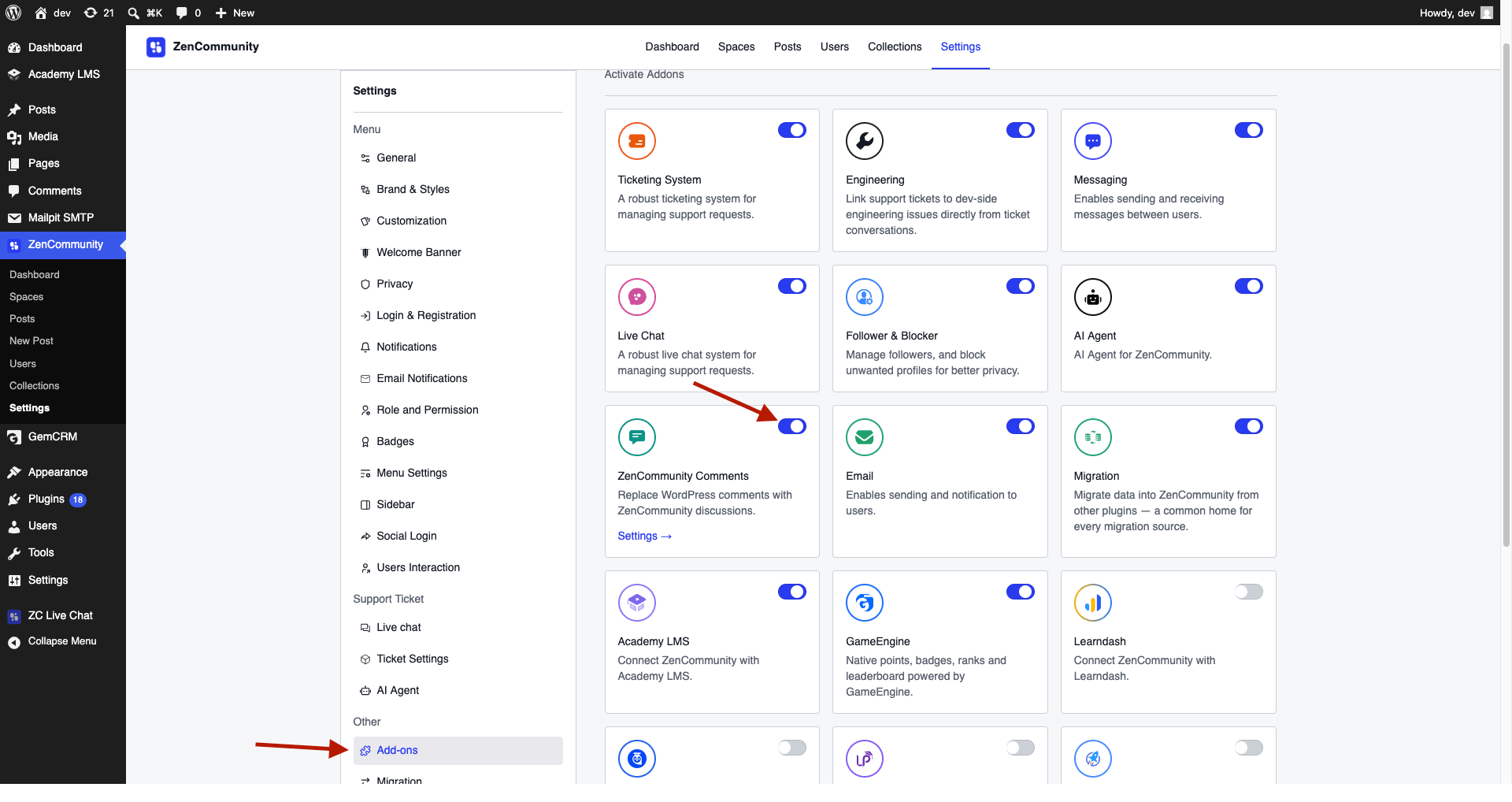
⚠️ A valid Pro license is required to use this feature.
Enable Comments & Choose Content
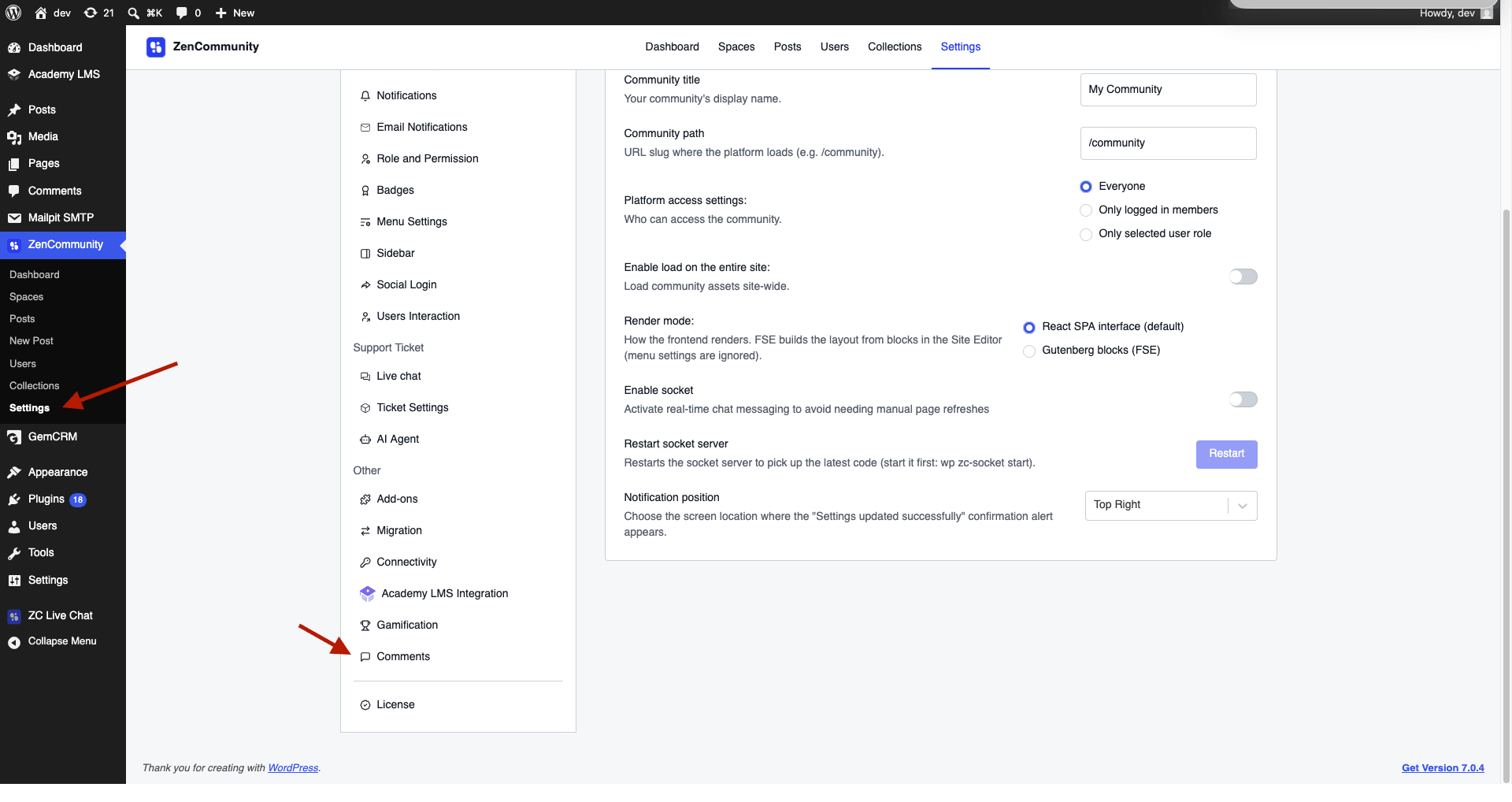
- Go to ZenCommunity → Settings
- Click Comments from the sidebar
- Open the General tab
Configure the following:
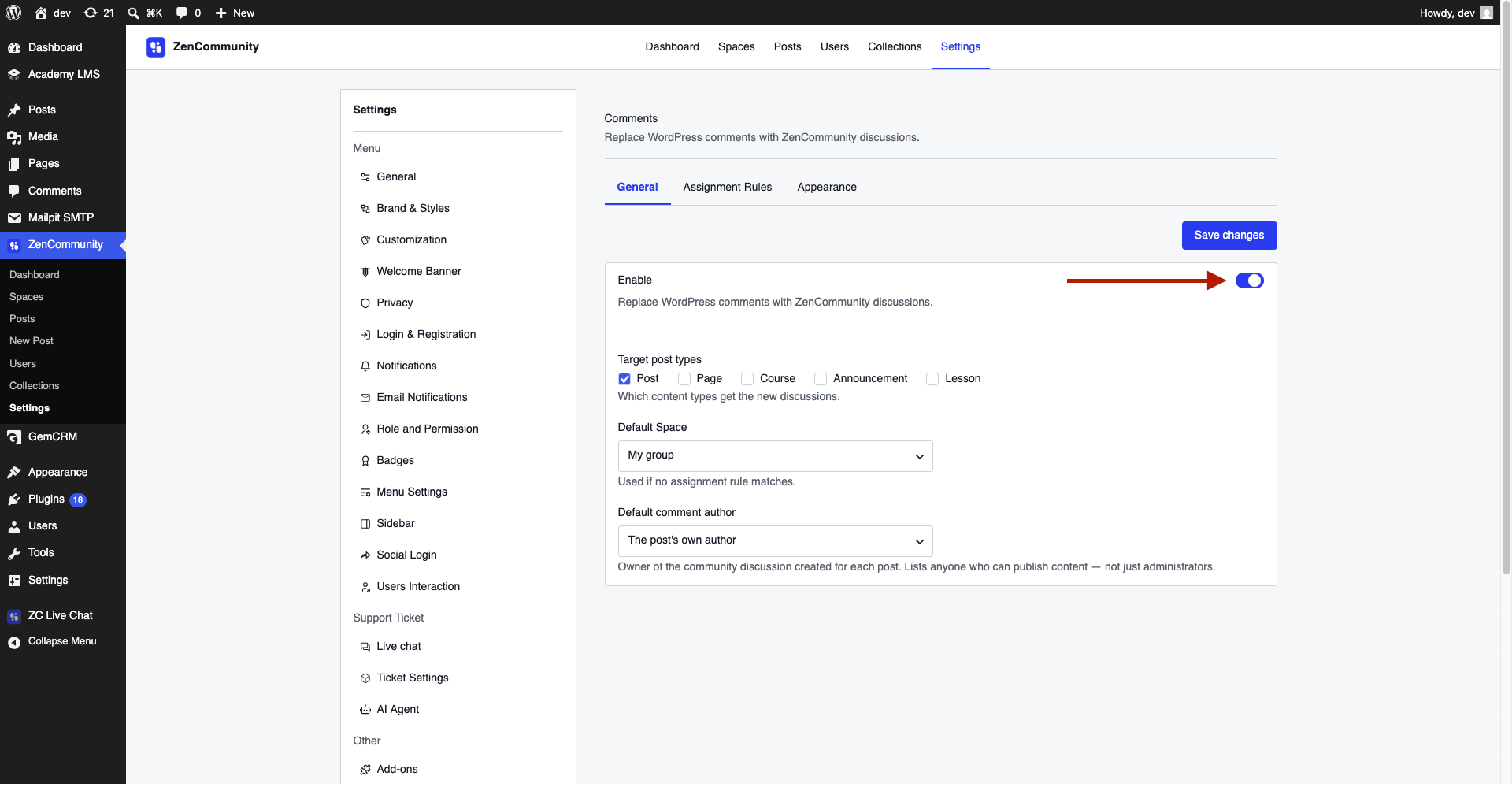
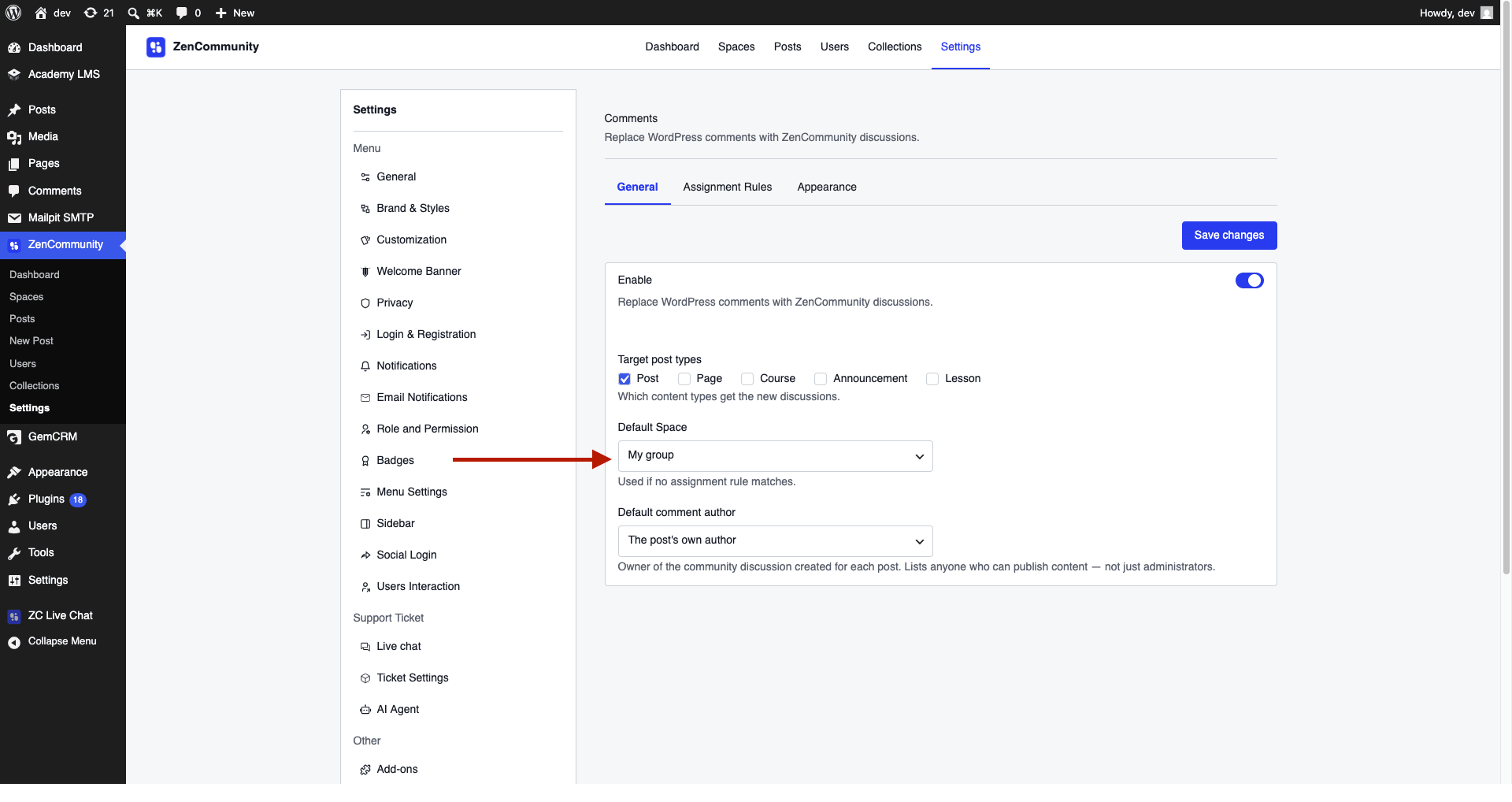
Enable
- Turn the feature ON
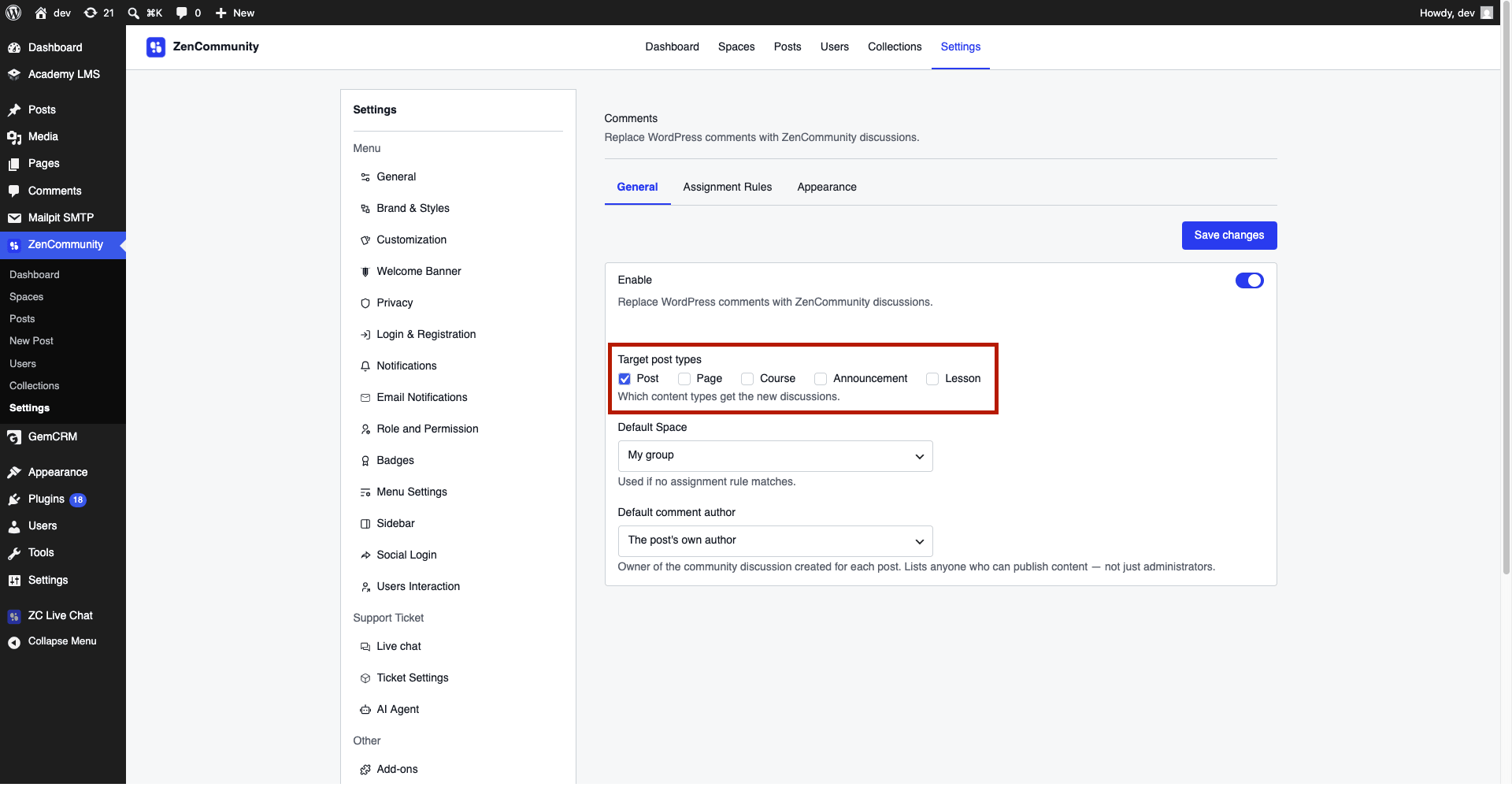
Target Post Types
- Select which content types should create discussions (e.g., Posts)
Default Space
- Choose where discussions go by default
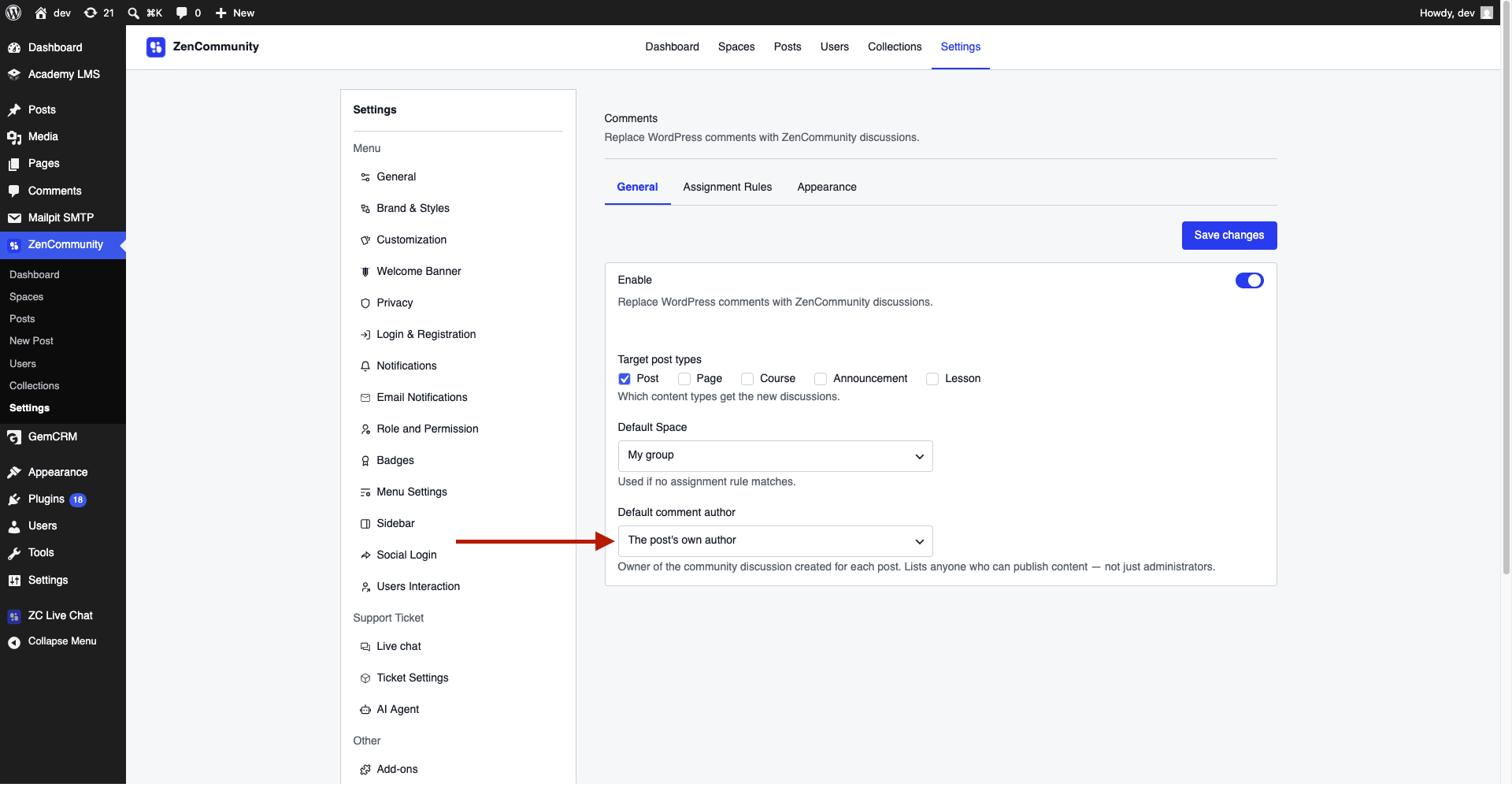
Default Comment Author
- Select who owns the discussion:
- Post author
- Or a specific user account
- Click Save Changes
💡 Only newly published posts will automatically create discussions.
Assignment Rules (Auto Routing)
You can route different content to different spaces using rules.
Steps:
- Go to Comments → Assignment Rules
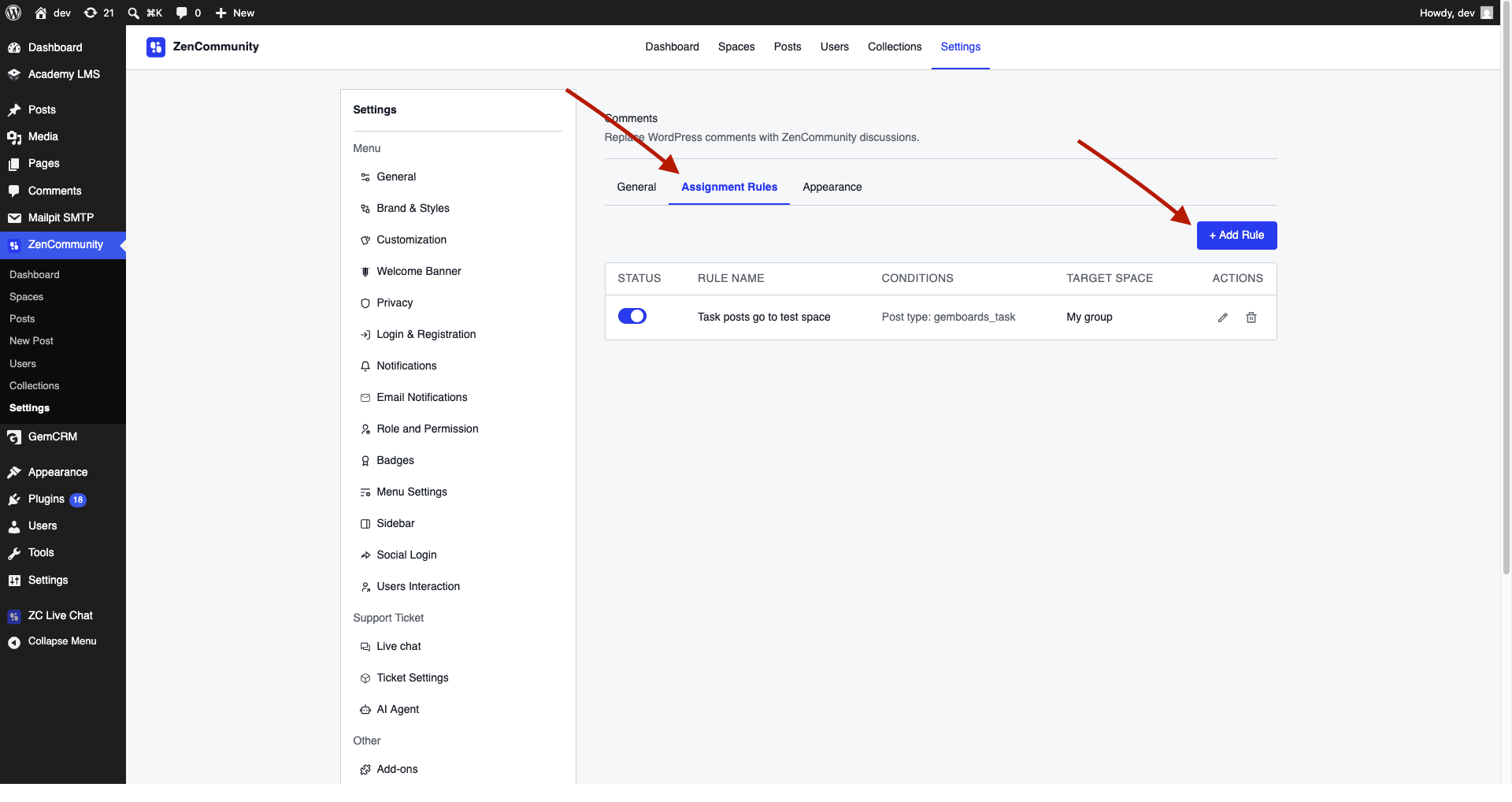
- Click + Add Rule
- Set:
- Rule Name
- Target Space
- Condition type (All or Any)
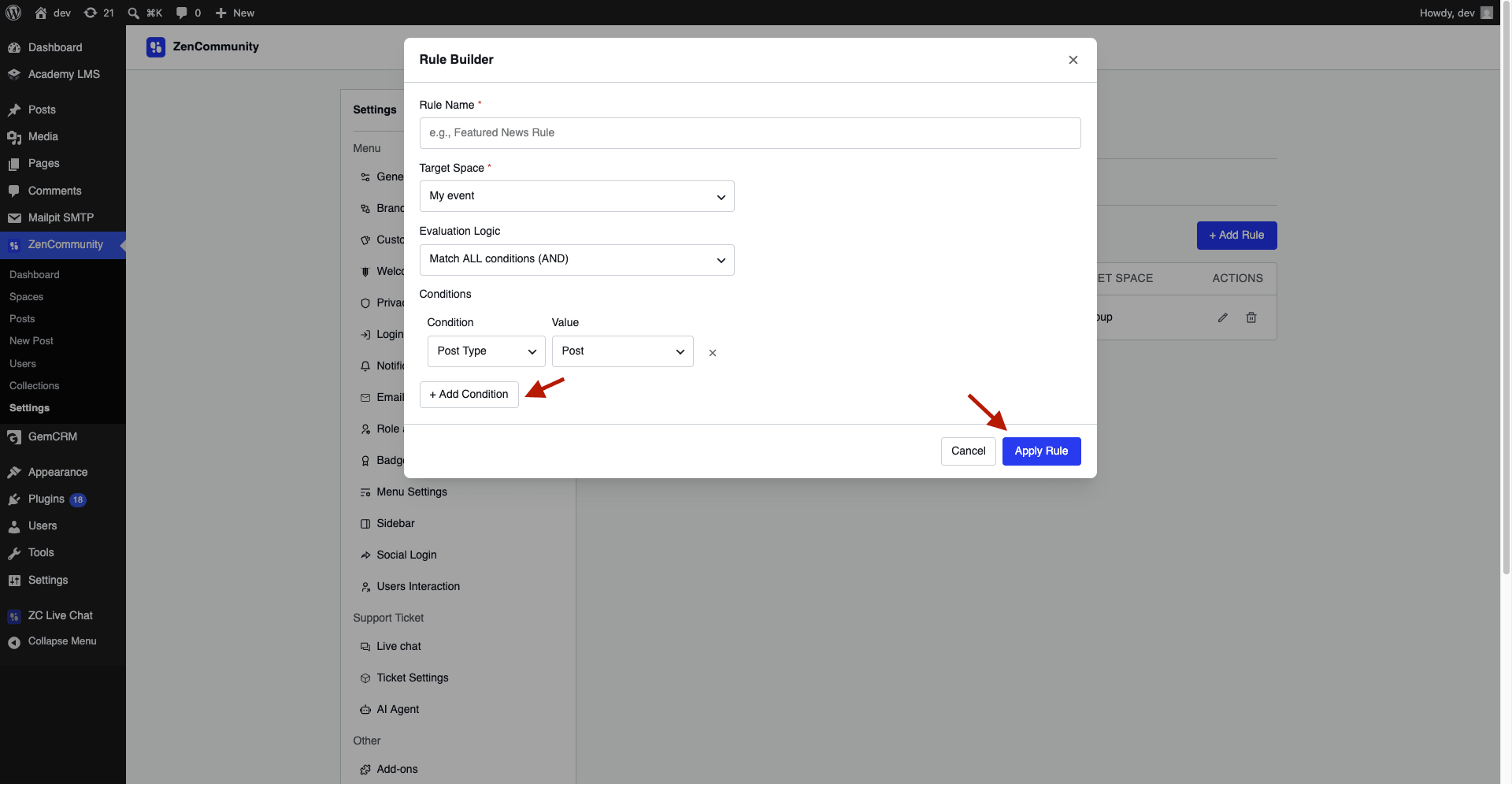
- Add conditions:
- Post type
- Taxonomy (category, tag, etc.)
- Save the rule
Rule Behavior:
- Rules run in priority order
- First matching rule is applied
- If no rule matches → Default Space is used
You can:
- Reorder rules
- Enable/disable them
- Edit or delete anytime
Override Individual Posts
Each post editor includes a ZenCommunity settings box.
Options:
Assign Space for Comments
- Manually choose a space for that post
Disable Comments
- Prevent discussion creation for that post
⚠️ Post-level settings override rules and default settings.
Import Existing Posts (Backfill)
The addon only applies to newly published posts by default.
To include older posts:
- Run the backfill process
- It scans published posts and creates discussions
Key Notes:
- Runs in the background
- Processes posts in batches
- Safe to run multiple times (no duplicates)
Customize Appearance
You can adjust how discussions appear on posts.
Go to Comments → Appearance
Options:
Widget Title
- Heading above the discussion (e.g., “Join the conversation”)
Comments Display Limit
- Number of replies shown
- Set 0 for unlimited
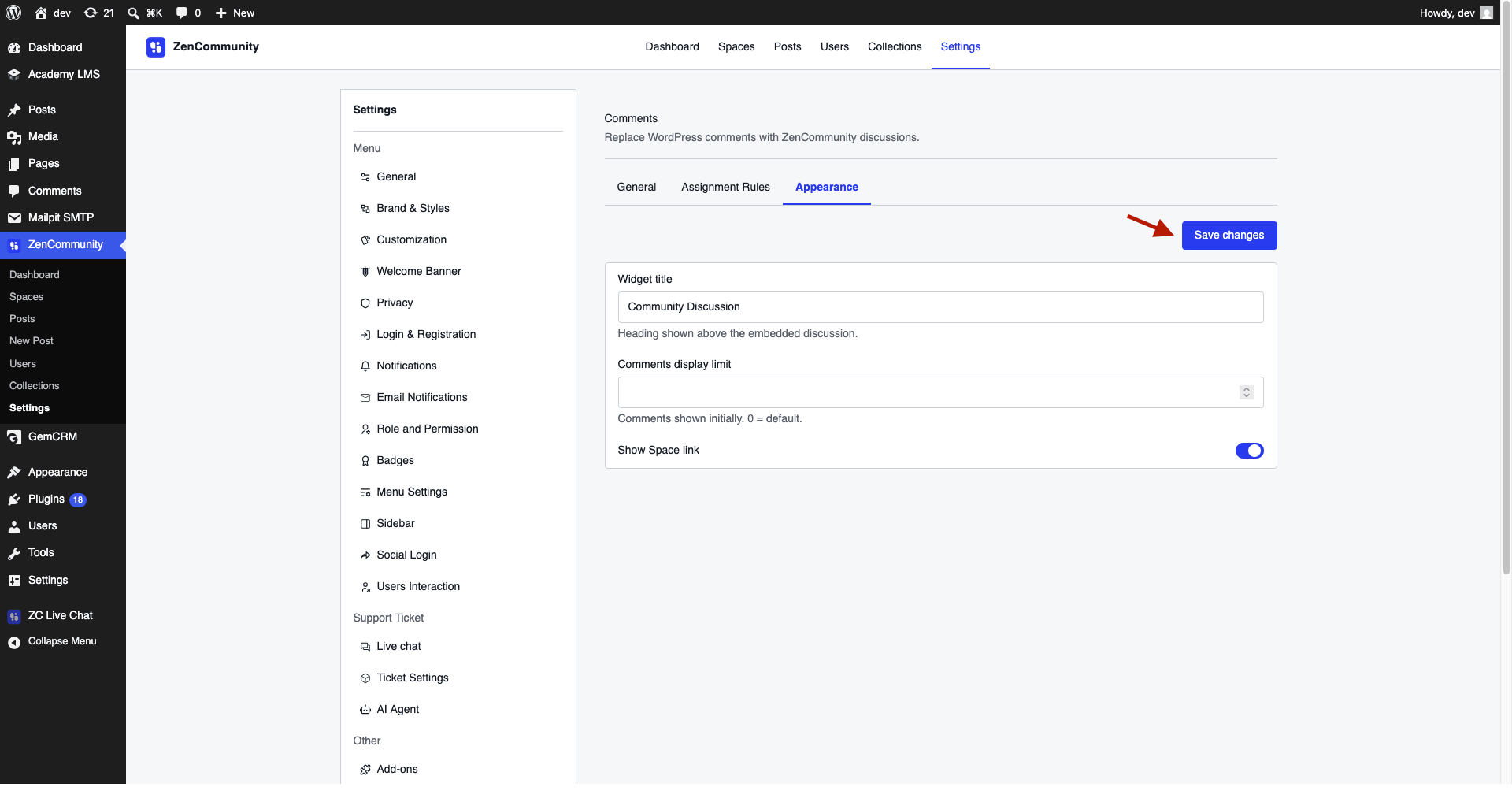
Show Space Link
- Adds a link to the full community space
Click Save Changes when done.
How It Works
- Each post creates a discussion with:
- Title
- Short excerpt
- Link to full post
- Featured image is included on first sync
- Editing a post updates its discussion
- Changing rules can move discussions to a new space
- Deleting a post removes its discussion
Important Notes
- Discussion author is automatically added to the target space
- No duplicate discussions are created during sync
- Community moderation and reactions apply to all discussions
Best Practices
- Organize spaces clearly before enabling
- Use assignment rules for better structure
- Keep content categories consistent
- Regularly review discussion placement
Related Documentation
- Create Group
- Creating and Managing Posts
- License Activation
- ZenCommunity Overview