


The Groups feature in ZenCommunity allows you to bring people together under shared interests, products, or topics. Groups can be organized into collections, making it easier to manage communities of different types. Each group comes with powerful options like discussions, media sharing, and member management to keep your community active and engaged.
Follow the steps below to create your first group in ZenCommunity.
Steps to Create a Collection
Collections help you organize groups more effectively within your community.
Step 1: Open Collection Management
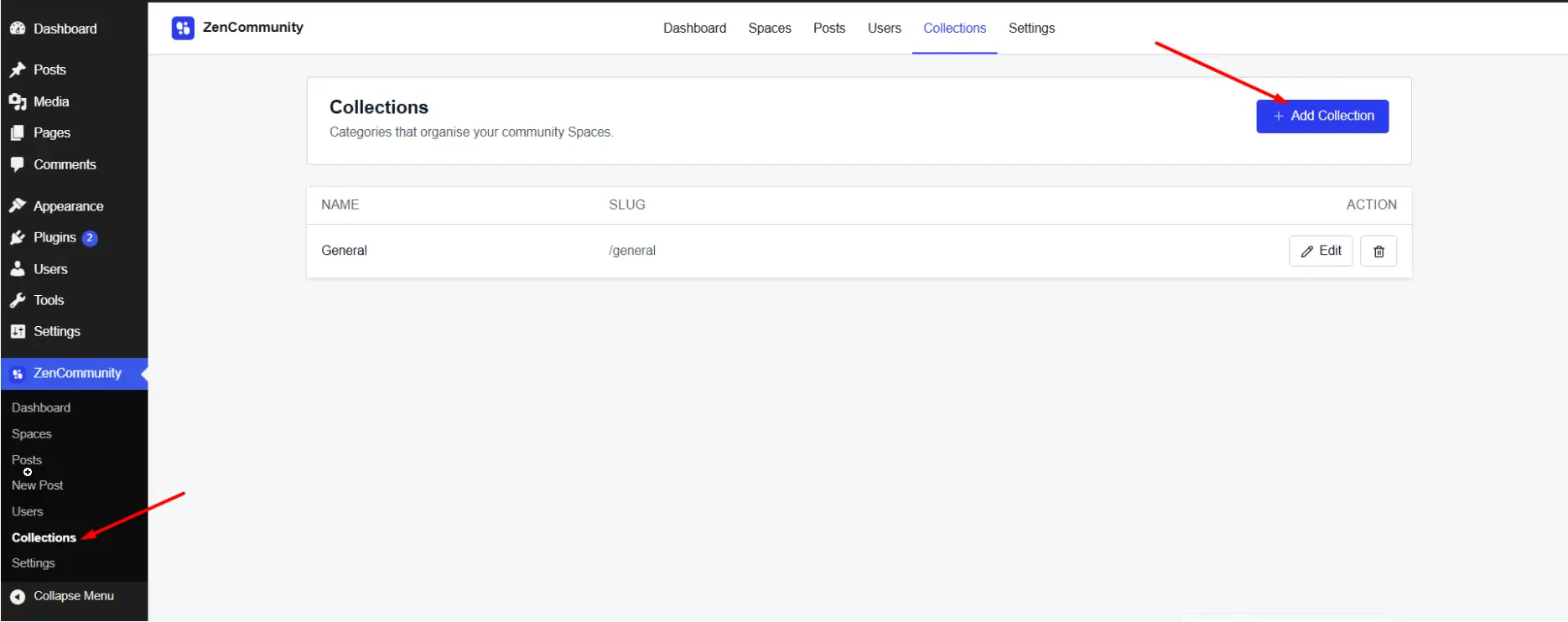
From your WordPress dashboard, go to ZenCommunity > Settings. Navigate to Collection Management. Click on Add New Collection.
Step 2: Add Collection Details
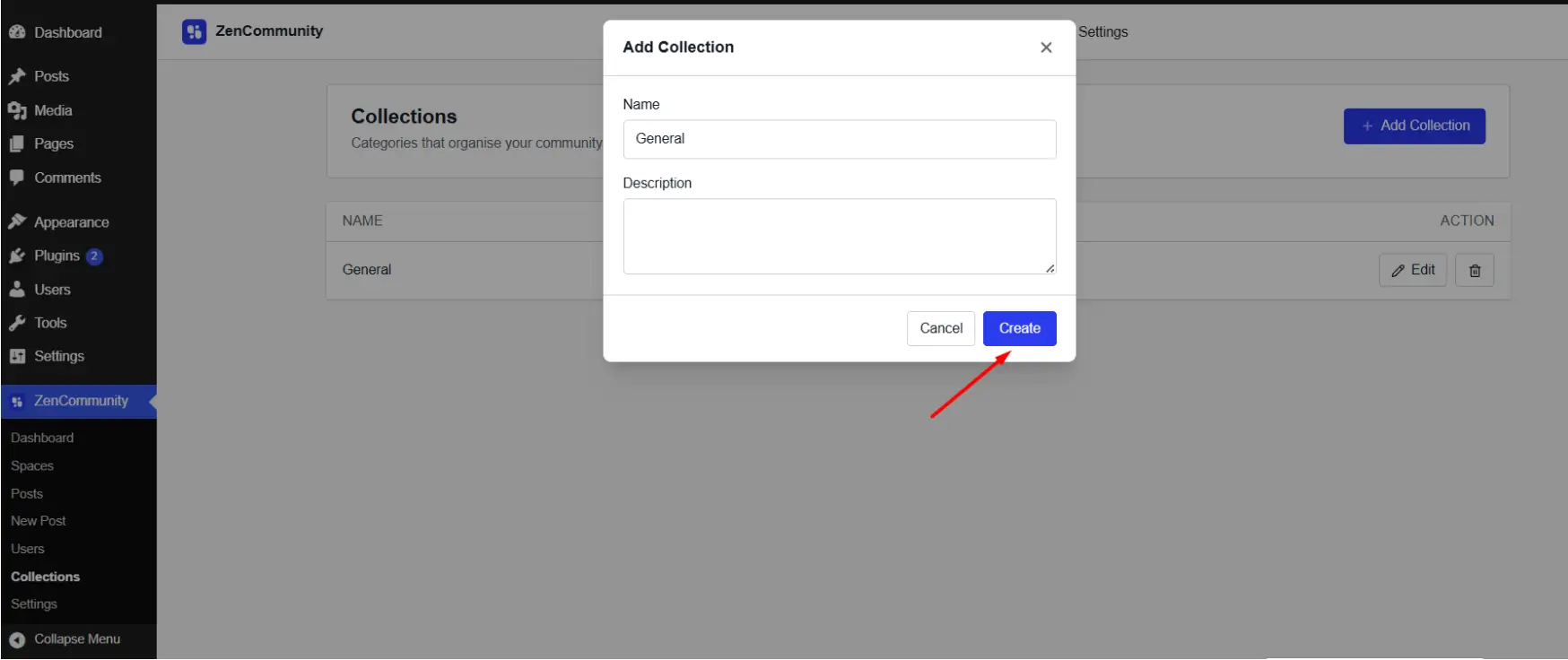
- Enter a Name for the collection.
- Add a Slug (unique URL-friendly identifier).
- Write a short Description.
- Click Save.
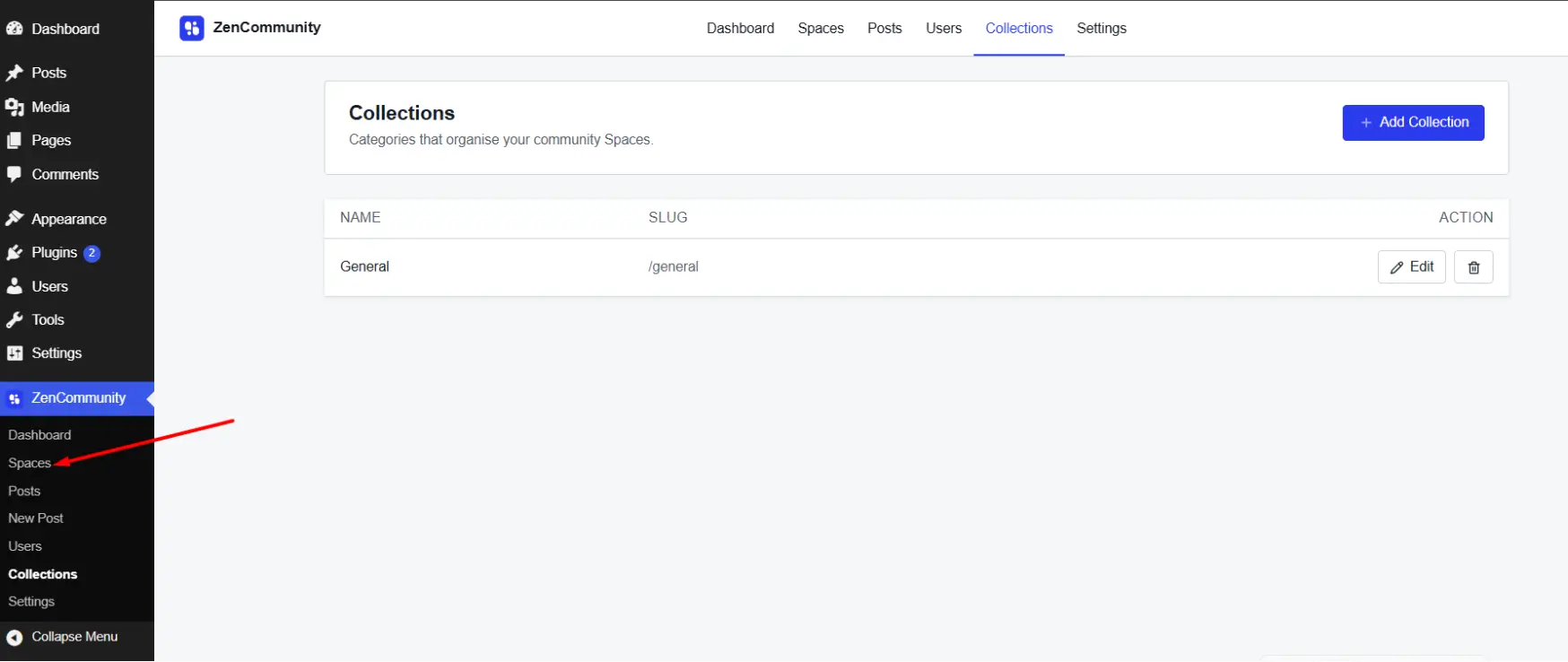
Your collection will now appear on the Collection Management page.
- Use the Pen icon to edit the collection.
- Use the Delete icon to remove it.
Steps to Create a Group
Step 1: Access Groups
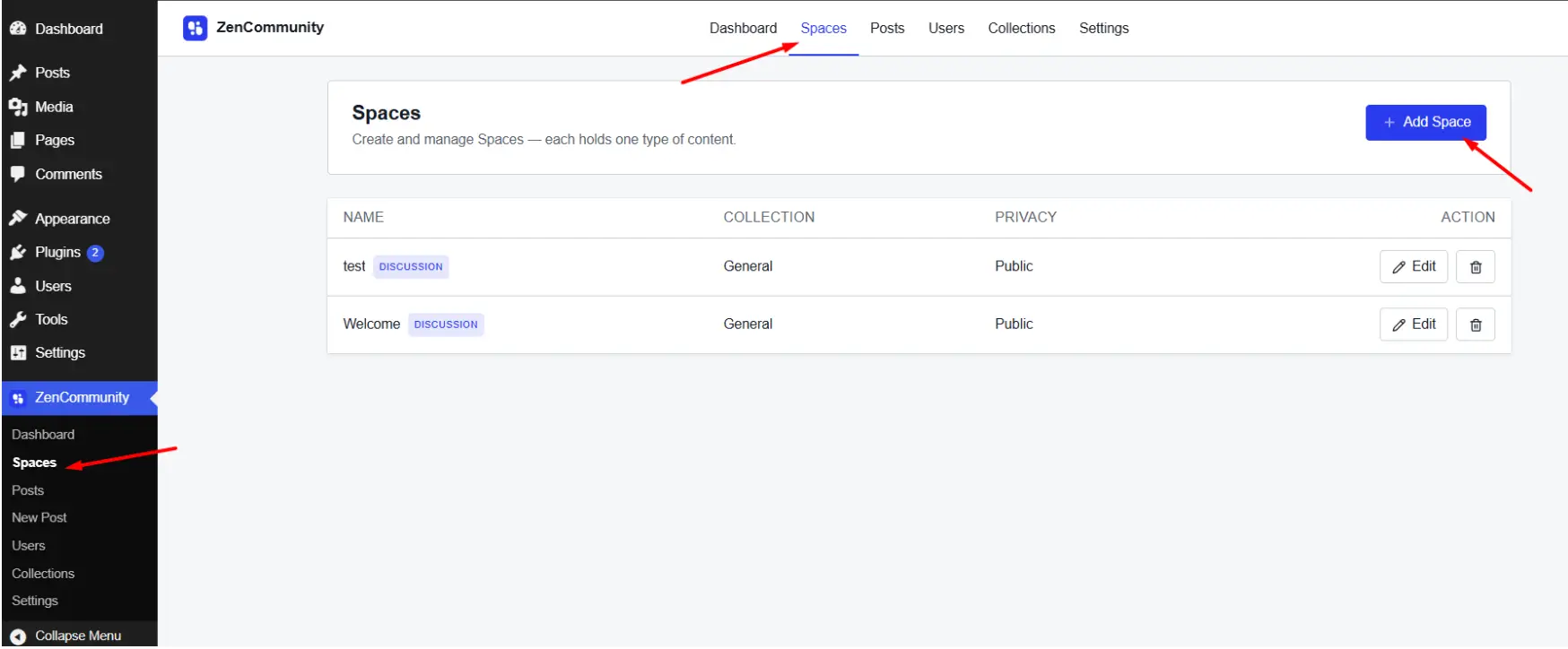
From Collection Management, click Back Home. From the navigation or community menu, select Groups. You’ll see a list of all existing groups. Click Add New Group.
Step 2: Fill in Basic Information
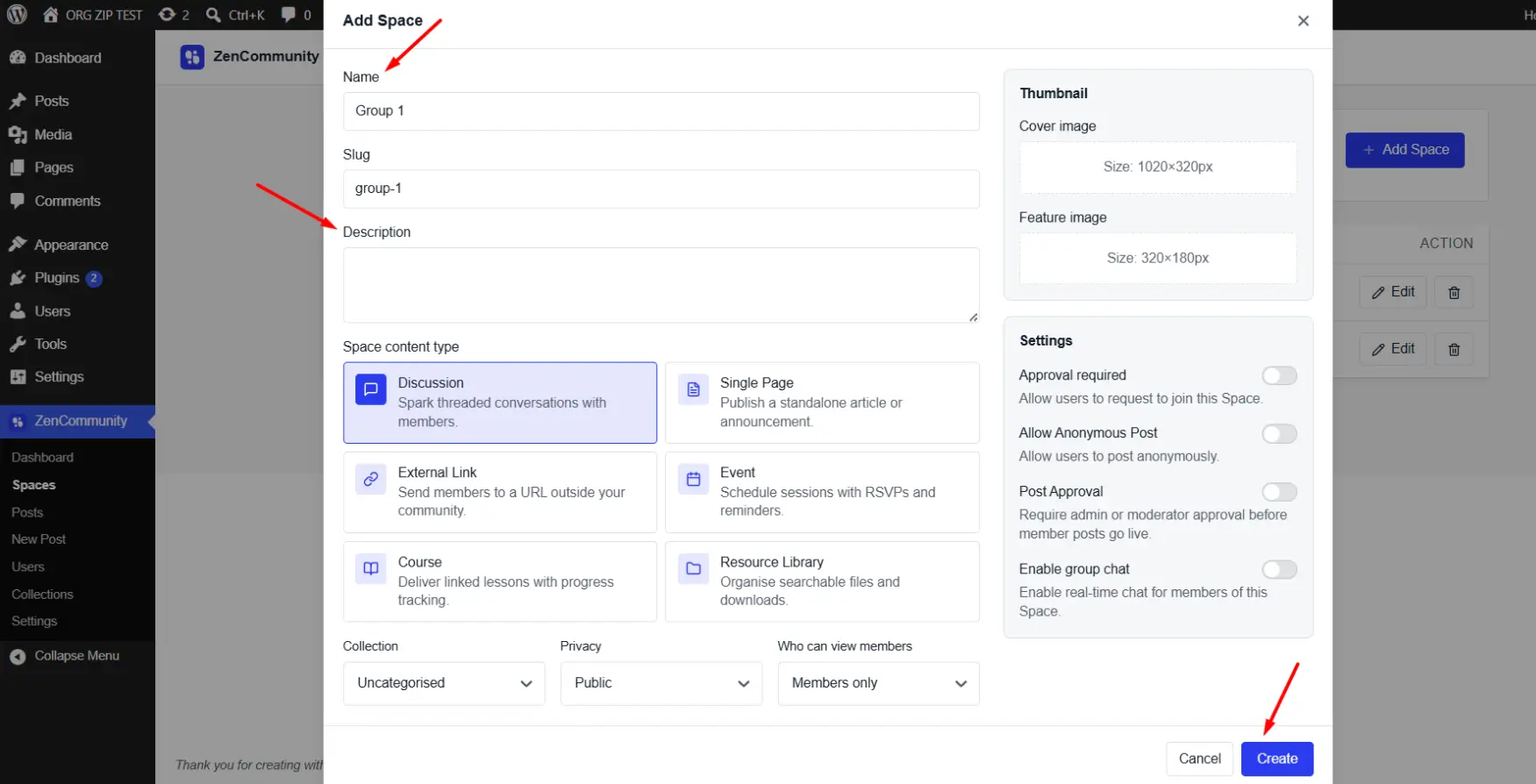
- Set a Name for your group.
- Add a Slug.
- Write a Description.
- Choose the Collection this group belongs to.
- Click Continue.
Step 3: Add Group Images
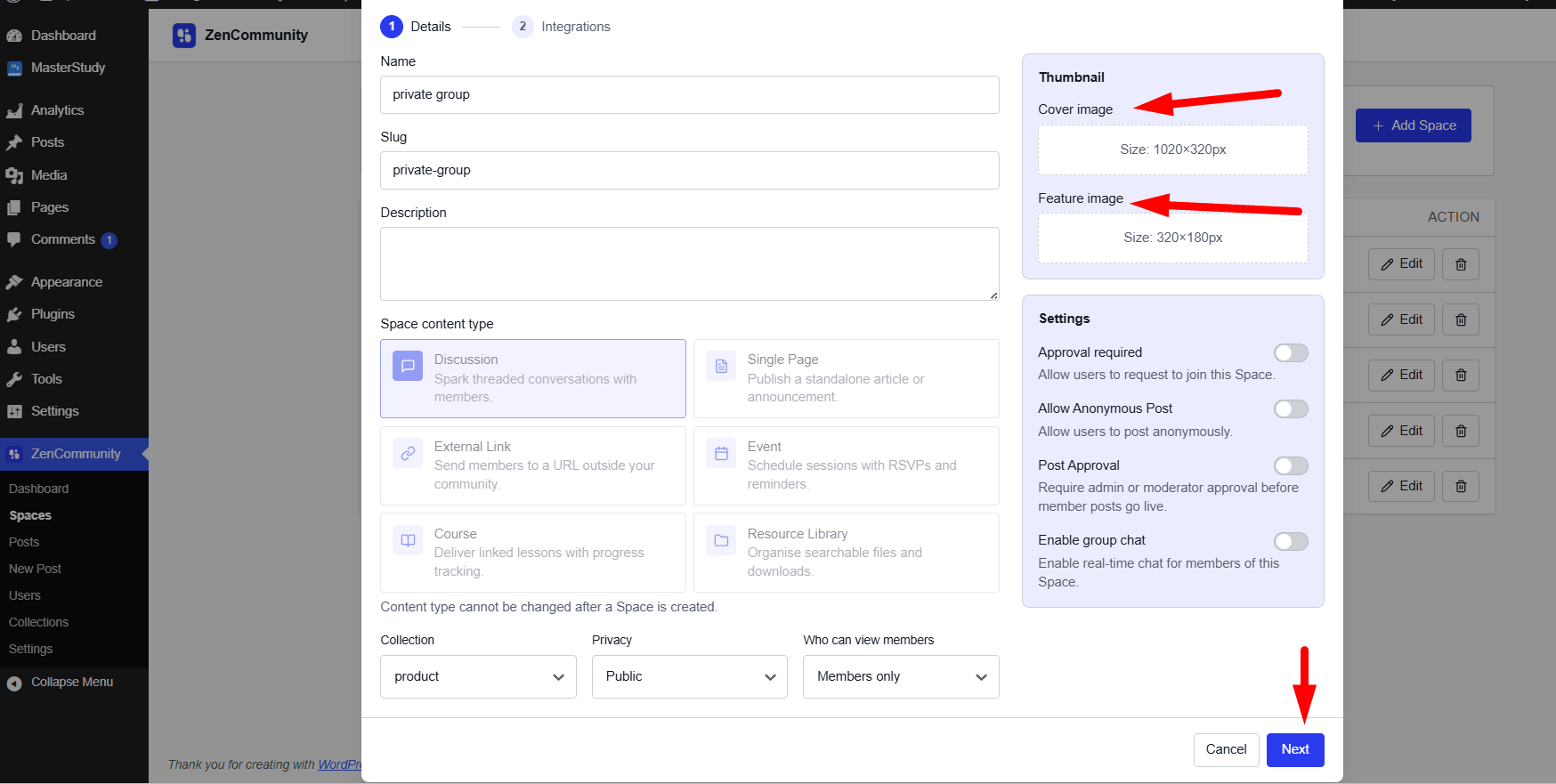
- Select an Icon for your group.
- Upload a Cover Photo.
- Upload a Featured Image.
- Click Continue.
Step 4: Configure Privacy Settings
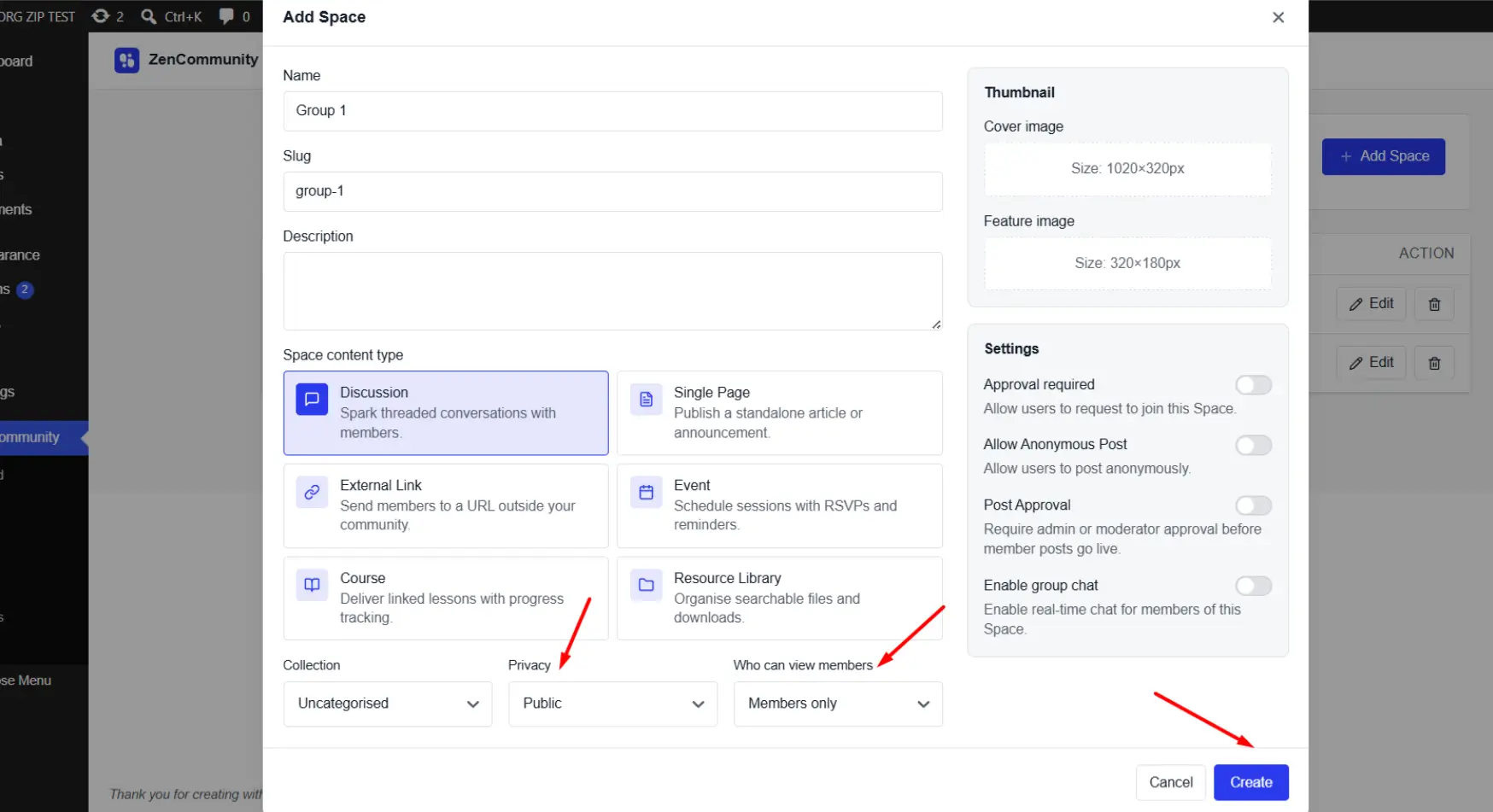
- Select a Group Type: Public, Private, or Hidden.
- Choose Who Can View Members of the group.
- Click Create Group.
- Your group is now created successfully!
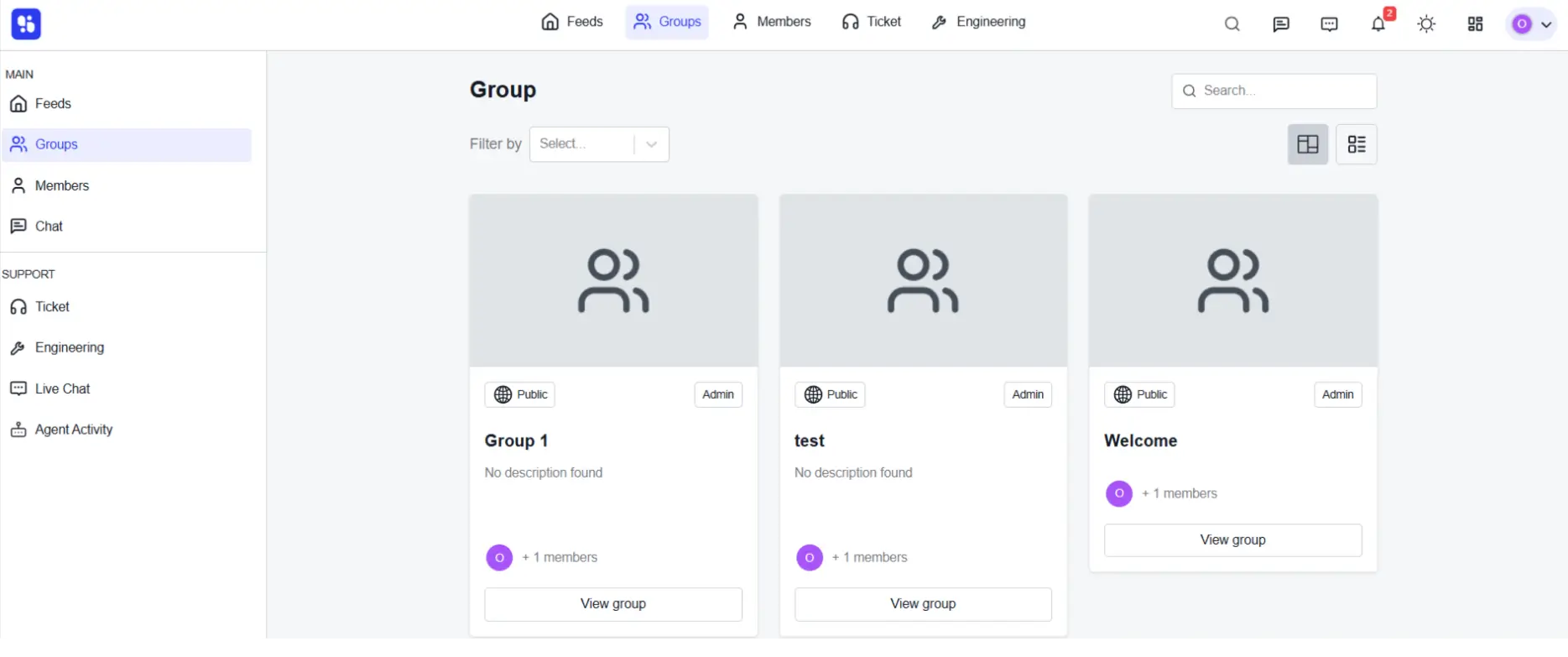
Group Management
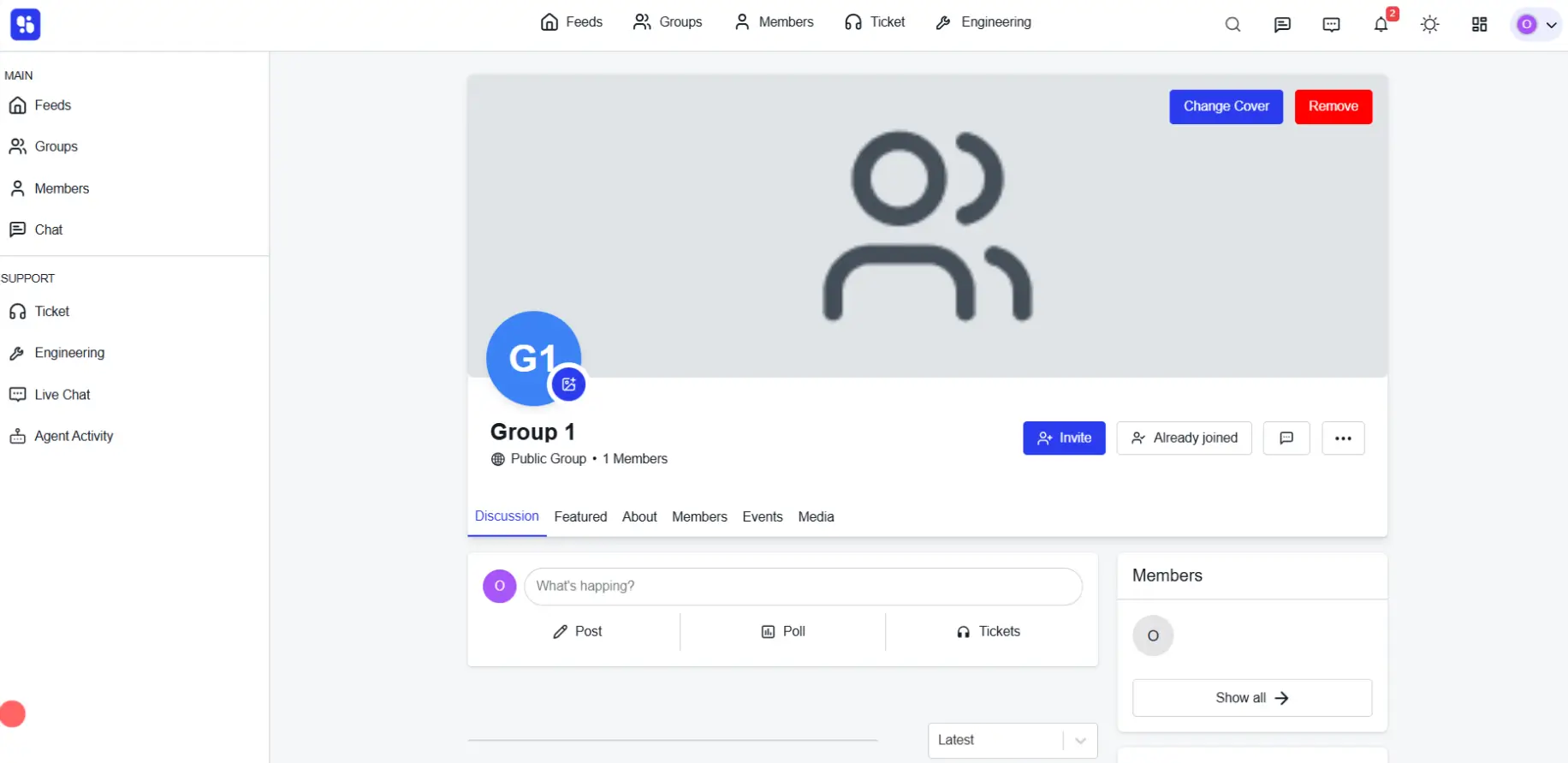
Once your group is created, you can manage it easily with the following options:
- Invite Members – Add people to your group
- Members Count – See how many members are part of the group.
- Group Post – You can post your discussion from here.
- Discussions – View and manage all posts created inside the group.
- Featured Section – Highlight important posts for quick visibility.
- About – Display details about the group.
- Members Tab – Browse and manage all members in the group.
- Media Tab – Access all uploaded media shared within the group.
- From here you can also change your images.
With these tools, you can keep your group active, organized, and engaging for all members.