


Social login allows members to sign in using their Google account — no need to create or remember a separate password. This makes onboarding faster and improves user experience.
This guide walks you through setting up Google login in ZenCommunity.
Overview
When Google login is enabled:
- A “Sign in with Google” button appears on the login screen
- Existing users are logged in automatically if emails match
- New users get an account created instantly
Before You Start
Make sure:
- ZenCommunity Pro is active
- You have a Google account
- You can access the Google Cloud Console
- You know your community login page URL
👉 See: License Activation if needed
Step 1 — Create Google OAuth Credentials
Set this up in Google Cloud Console:
- Create or select a project
- Go to APIs & Services → Credentials
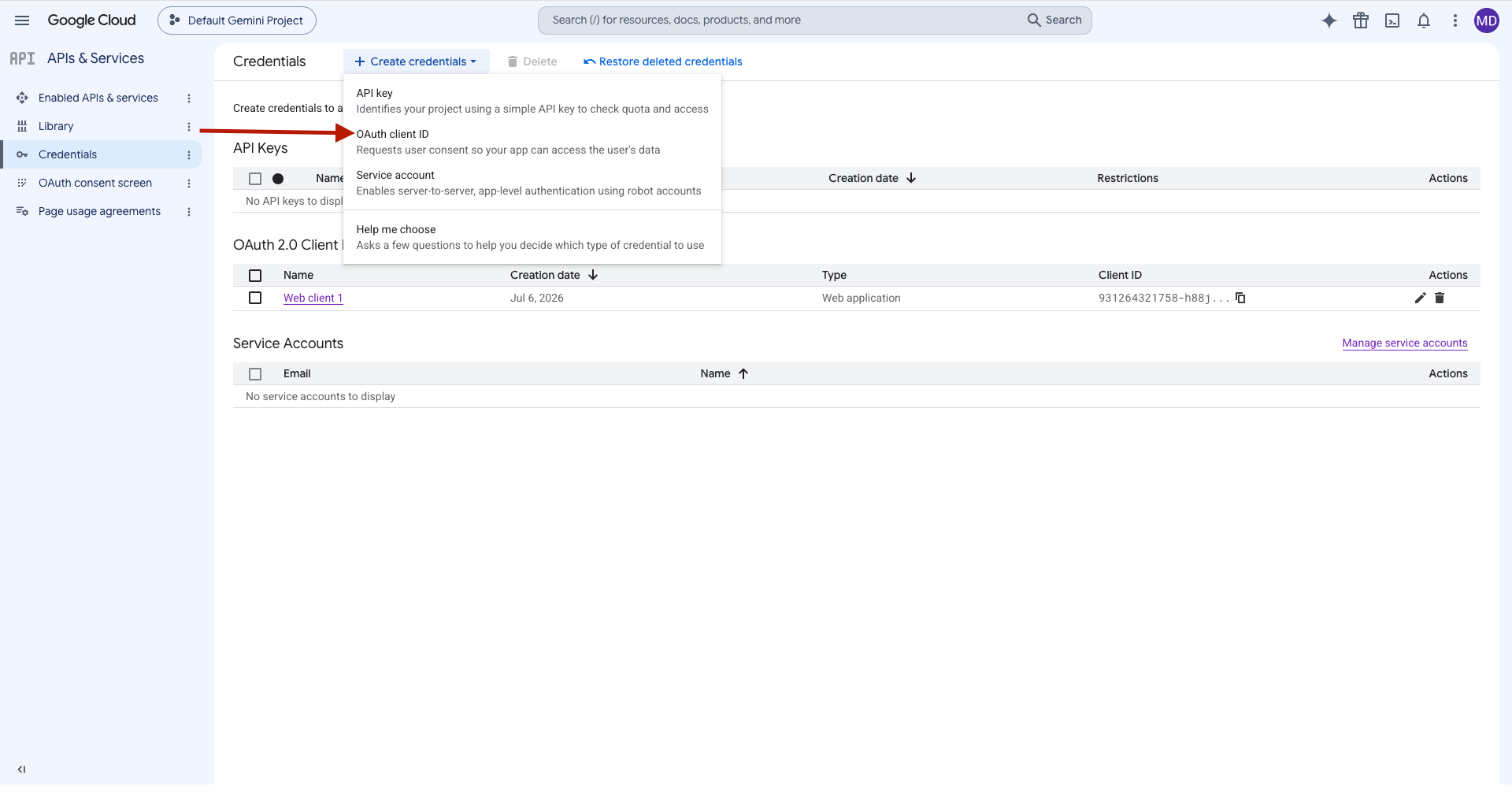
- Click Create Credentials → OAuth Client ID
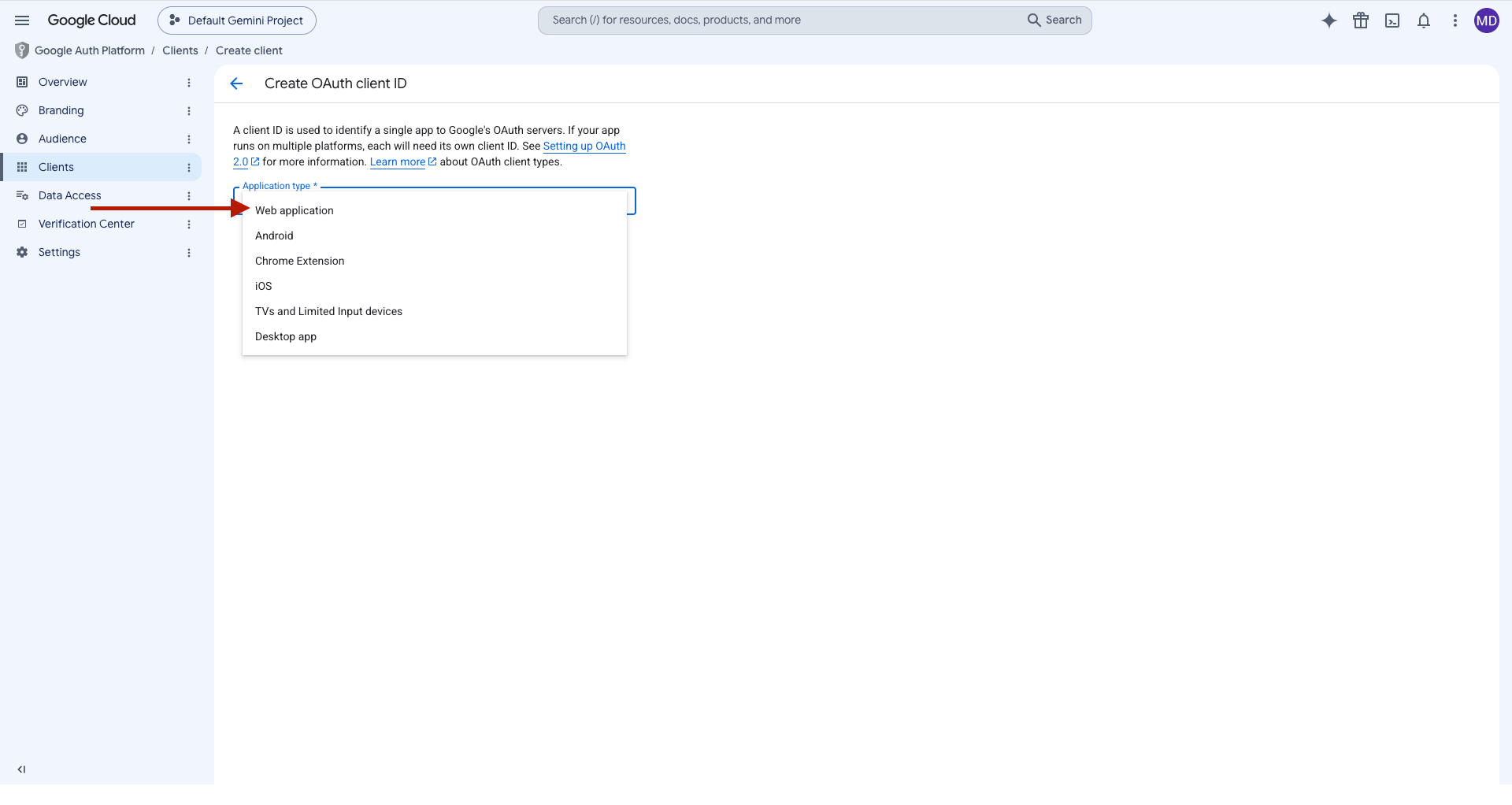
- Choose Web Application
- Add your Authorized Redirect URI
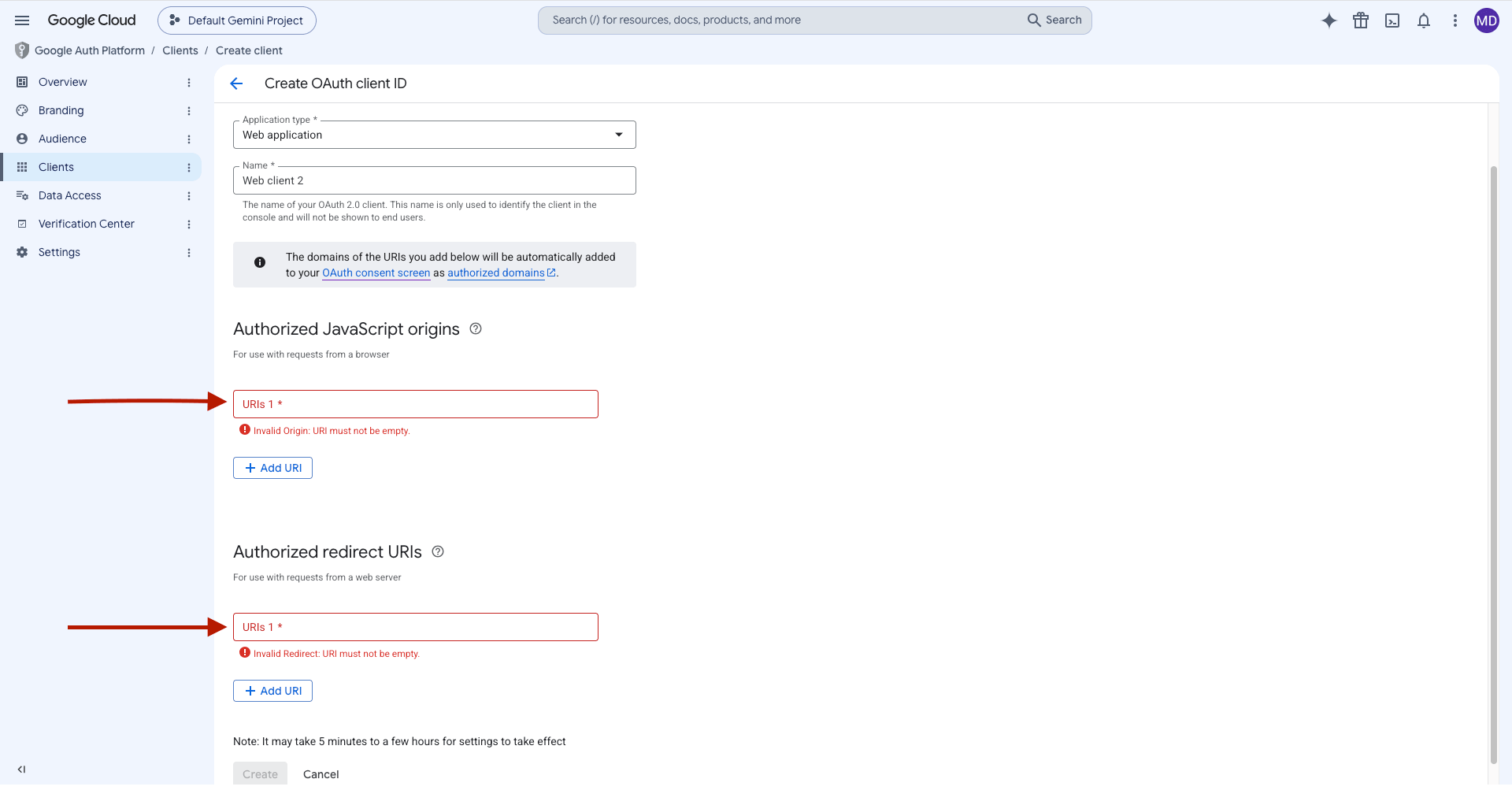
Example Redirect URL:
- https://yoursite.com/signin
- or https://yoursite.com/community/signin
- Click Create
- Copy:
- Client ID
- Client Secret
Step 2 — Configure in ZenCommunity
- Go to ZenCommunity → Settings
- Click Social Login
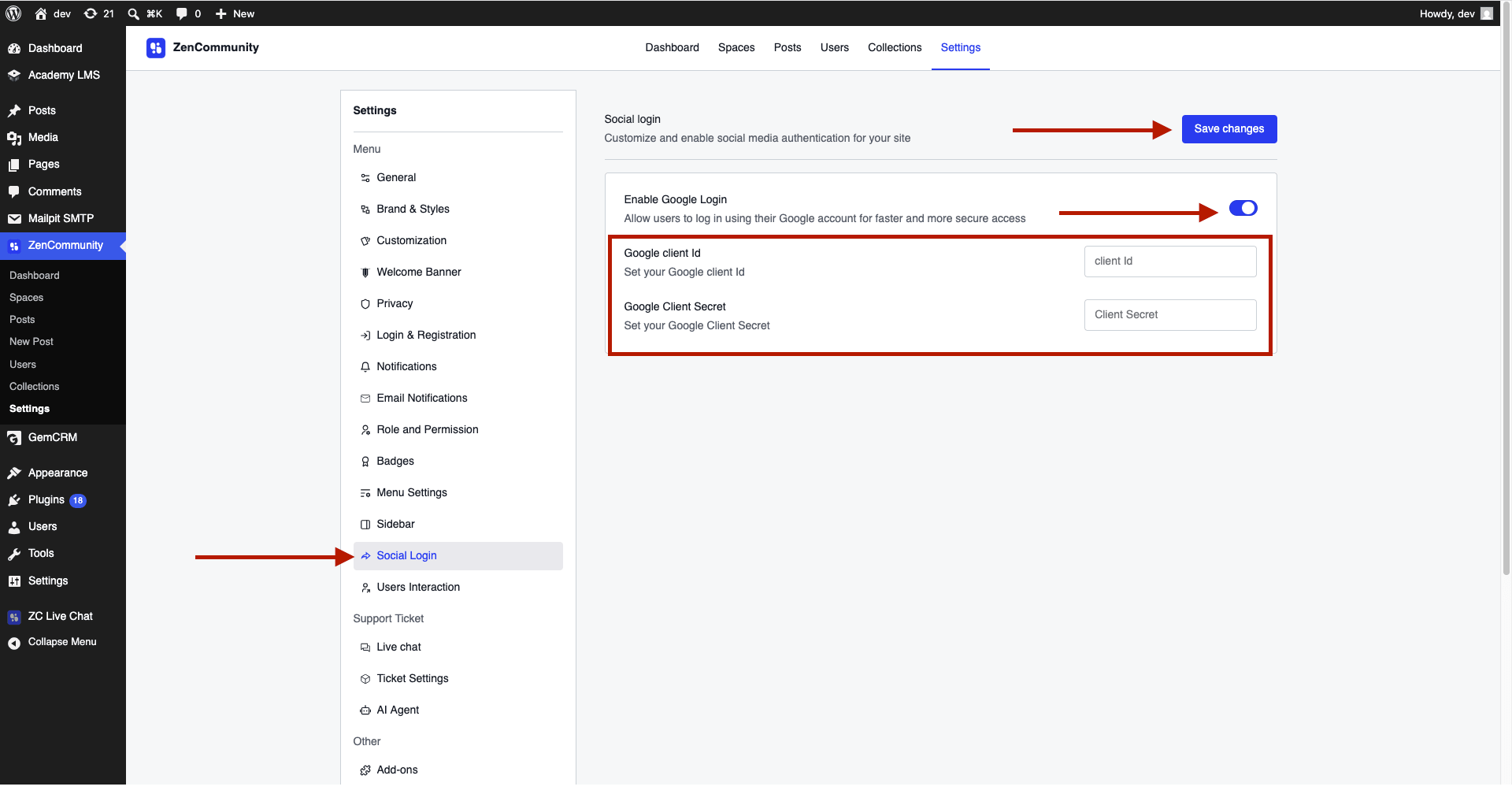
- Enable Google Login
- Enter:
- Google Client ID
- Google Client Secret
- Click Save Changes
Result
- Google login button appears on login page
- Users can sign in instantly
- New accounts are created automatically
Customizing Login & Registration Pages
You can control login and registration behavior:
- Go to Settings → Login & Registration
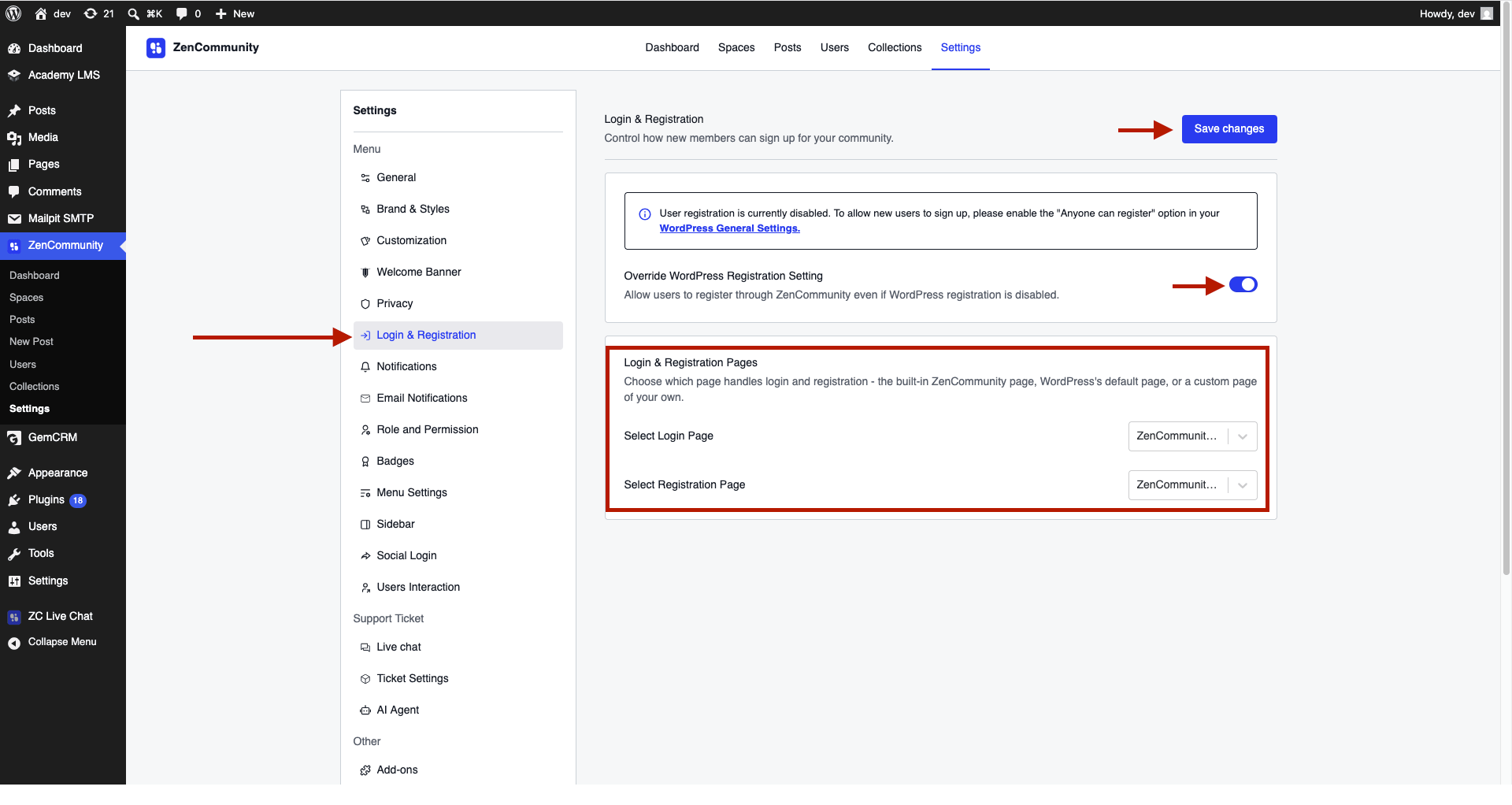
Options:
- Select Login Page:
- ZenCommunity (default)
- WordPress default
- Custom page
- Select Registration Page:
- Same options as above
- Enable Override WordPress Registration
- Allows registration even if WP registration is disabled
Important Notes
- Keep your Client Secret private
- Redirect URL must match exactly
- Disabling Google login hides the option but keeps credentials saved
Troubleshooting
If login doesn’t work:
- Check Client ID and Secret
- Verify redirect URL matches exactly
- Ensure credentials are saved correctly
- Confirm Google project is active
Best Practices
- Always test login after setup
- Use HTTPS for secure authentication
- Keep credentials safe
- Provide fallback login option
Tips
- Use social login to reduce signup friction
- Combine with email login for flexibility
- Keep login page simple and clear
Related Documentation
- License Activation
- ZenCommunity Overview
- Community Navigation Menus