


Reward engagement and motivate your community members with built-in gamification. ZenCommunity turns everyday actions—like posting, commenting, and reacting—into points, ranks, and badges, all displayed through a live leaderboard and achievements system.
This guide explains how gamification works and how to configure it.
Overview
ZenCommunity gamification is powered by the GameEngine addon.
It transforms community activity into:
- Points (earned through actions)
- Ranks (progression levels)
- Badges (achievements)
- Leaderboard (member rankings)
How it works:
- GameEngine plugin manages rules:
- Points system
- Rank levels
- Badge logic
- ZenCommunity settings control:
- What users see
- Where gamification appears
- How achievements are announced
💡 A default setup is automatically created when you enable gamification.
Before You Start
Ensure the following:
- GameEngine plugin is installed and active
- GameEngine addon is enabled
Enable Addon:
- Go to ZenCommunity → Settings → Add-ons
- Enable GameEngine
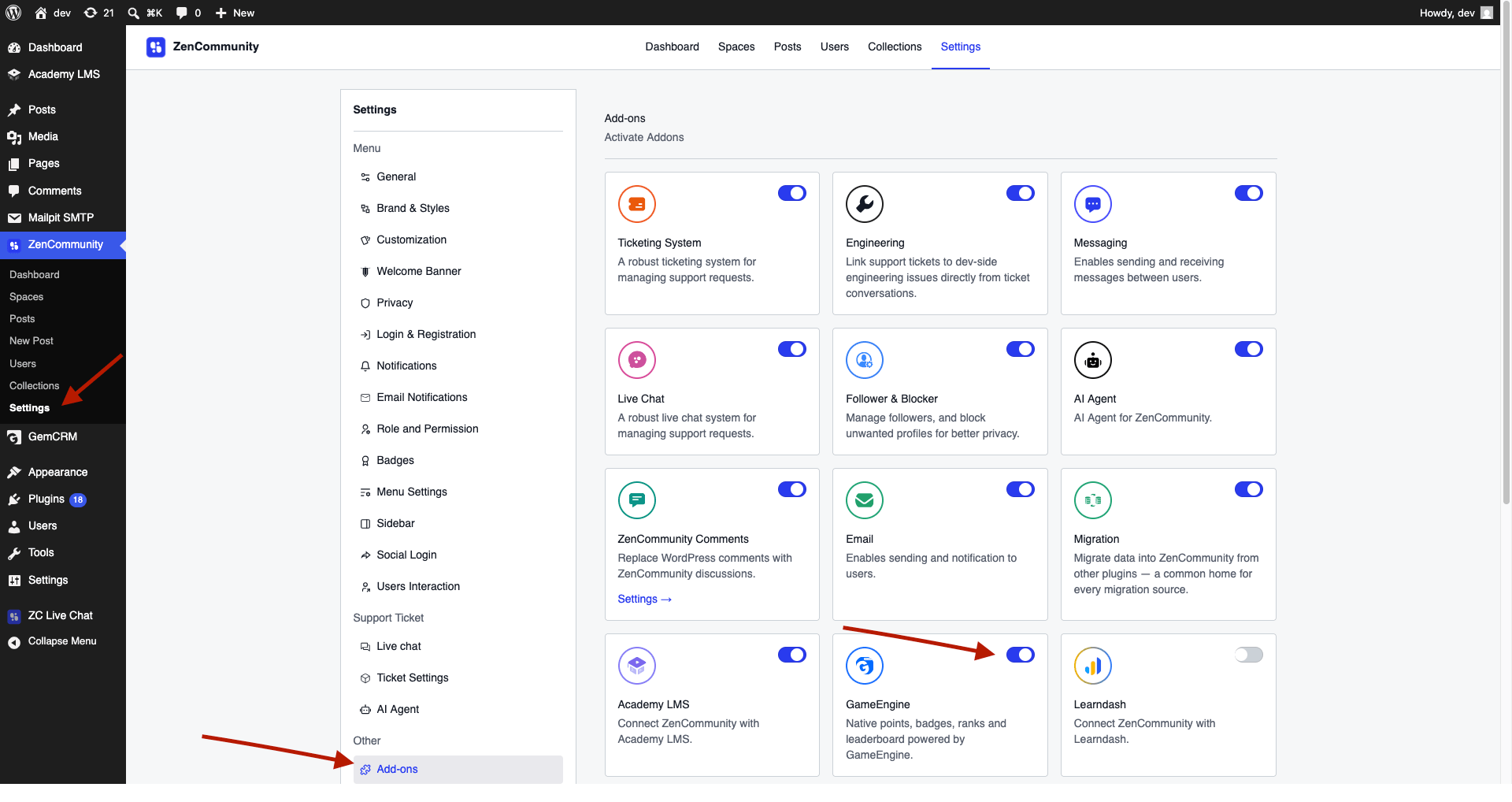
⚠️ Without GameEngine, gamification features will not work.
Default Setup (Auto Created)
When first enabled, a starter gamification system is created.
Points Type
- Community Points
Rank System
| Rank | Points Required |
| Newcomer | 0 |
| Contributor | 100 |
| Regular | 300 |
| Veteran | 700 |
| Leader | 1,500 |
Starter Badges
- First Post
- Welcomed
Default Actions & Points
| Action | Points |
| Create a post | +10 |
| Write a comment | +5 |
| Receive a reaction | +2 |
| Join a space | +15 |
💡 All values can be customized inside GameEngine.
Configure Gamification Display
- Go to ZenCommunity → Settings → Gamification
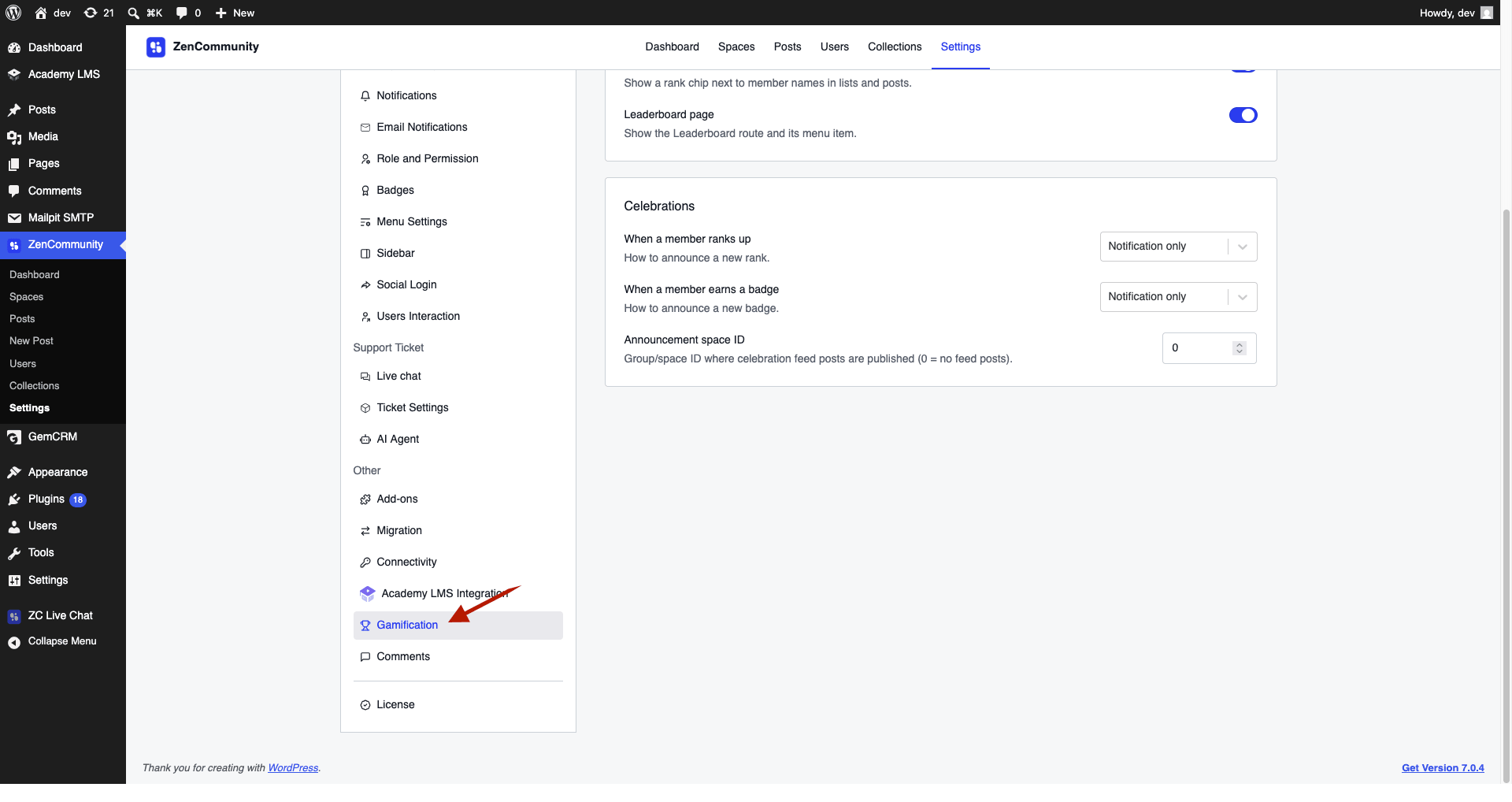
Display Options
- Enable Gamification → Master switch
- Profile Panel → Shows rank, points, badges
- Inline Rank Chips → Show rank beside usernames
- Leaderboard Page → Enables leaderboard view
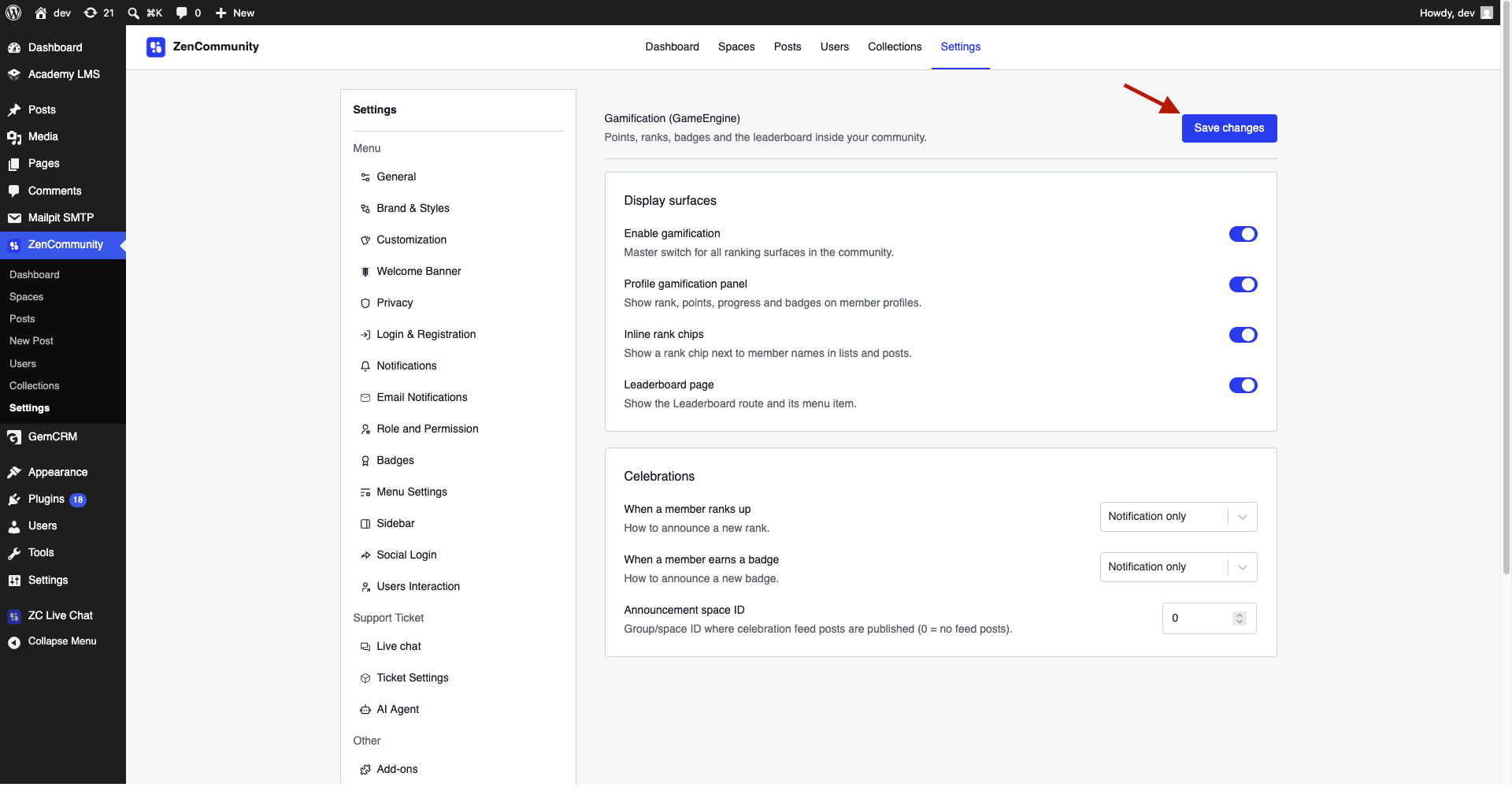
Click Save Changes after adjusting settings.
Configure Celebrations
You can announce achievements when users progress.
Rank Up Options:
- Notification + Feed Post
- Notification Only
- Feed Post Only
- No Announcement
Badge Earned Options:
- Same options as above
Announcement Space:
- Choose where public posts appear
- Set space ID (0 = disabled)
Click Save Changes to apply.
What Members See
Rank Chips
- Displayed beside usernames
- Shows current rank instantly
Achievements Page
Each member has a dedicated achievements section.
Includes:
- Rank and total points
- Badge progress
- Community ranking position
- Rank ladder progression
- Badge collection (earned vs locked)
- Points history log
Leaderboard
Displays top members ranked by points.
Filters:
- This Week
- This Month
- All Time
Features:
- Ranking position
- Member name and rank
- Points total
- Trend tracking (weekly/monthly)
Top members are highlighted, and users can view profiles directly.
Celebrations
When enabled:
- Members receive notifications
- Achievements can be posted publicly
- Encourages engagement and visibility
Advanced Features
Content Unlocking
Gamification can restrict content access based on:
- Points
- Rank
- Achievements
Users may see a progress indicator until requirements are met.
Important Notes
- Disabling gamification does not delete data
- Earned points, ranks, and badges are محفوظ
- ZenCommunity manual badges (Admin/Moderator) are separate from gamification badges
Best Practices
- Keep point values balanced
- Avoid overly easy or overly difficult progression
- Use celebrations to boost engagement
- Highlight leaderboard regularly
- Customize badges to match your community
Related Documentation
- ZenCommunity Overview
- Create Group
- Creating and Managing Posts
- Migrating Data into ZenCommunity