


You can personalize the text shown in your live chat widget to match your brand voice. This includes the greeting tooltip, delay timing, and messages shown while users wait for a response.
This guide walks you through how to customize each part.
Overview
The live chat widget displays:
- A greeting tooltip near the chat button
- Waiting messages when users are queued for a human agent
All messages are editable and can be reset to default anytime.
💡 These settings are available in the Live Chat companion plugin.
Before You Start
Make sure:
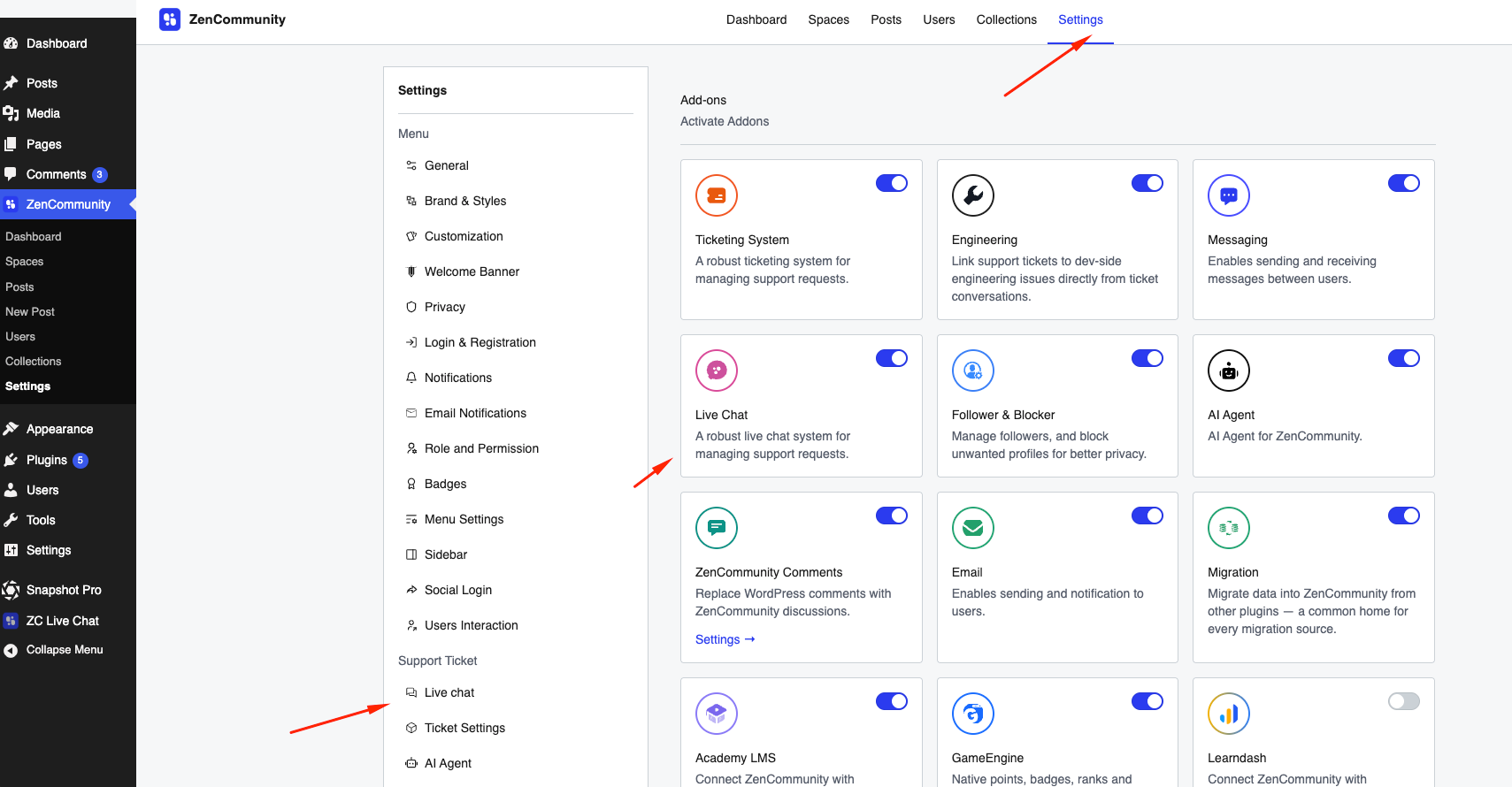
- Live Chat plugin is installed
- Plugin is connected to your ZenCommunity site
⚠️ Settings will only appear after a successful connection.
Open Live Chat Settings
- Go to ZC Live Chat in your WordPress dashboard
- Open the Live Chat Connection page
- Confirm the status shows Live chat is active
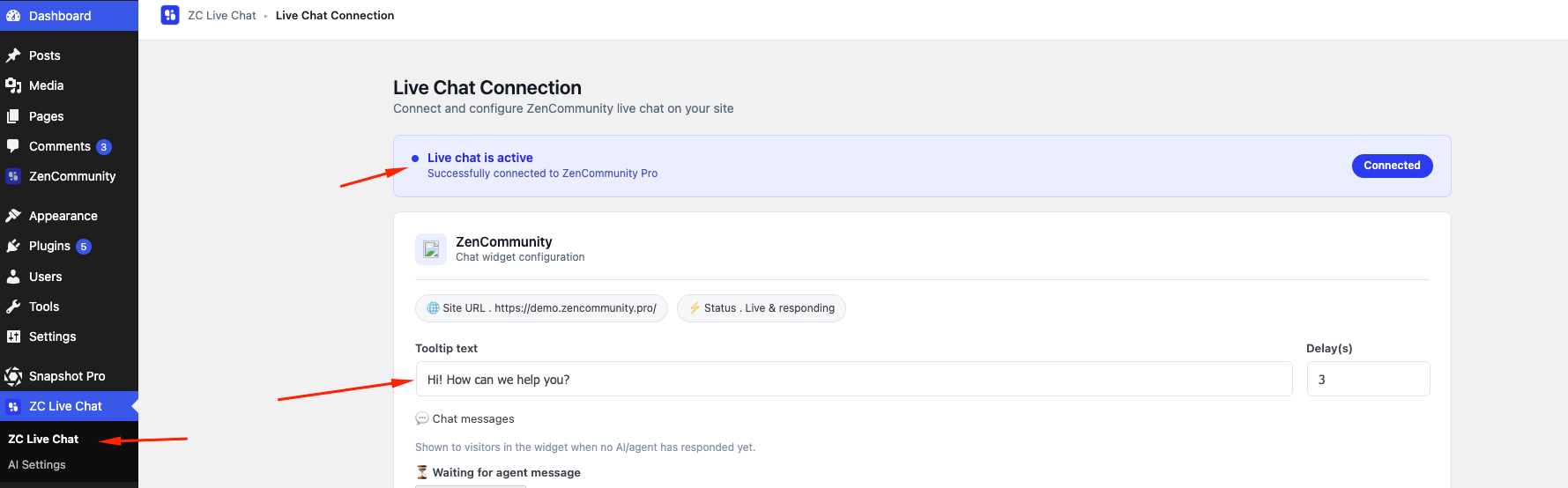
You’ll now see all message customization fields.
Customize Greeting Tooltip
The tooltip appears near the chat button to invite users.
Settings:
Tooltip Text
- Default: “Hi! How can we help you?
- Edit to match your tone
Delay (seconds)
- Controls when the tooltip appears
- Default: 3 seconds
Steps:
- Enter your custom message
- Set delay time
- Click Update
💡 Use friendly, short greetings for best engagement.
Customize Waiting Messages
These messages appear when users are waiting for a human agent.
1. Waiting for Agent Message
Shown immediately when chat is assigned to a human.
Default:
“Welcome! Our support team has received your message and will respond shortly.”
2. All Agents Busy Message
Shown if the response takes longer.
Default:
“All agents are currently busy. You may create a support ticket if you prefer not to wait.”
Steps to Edit:
- Click inside the message field
- Enter your custom text
- Click Update
⚠️ Each message has a 500-character limit.
Reset Messages to Default
Each message field includes a reset option.
Steps:
- Click Reset to Default
- Original text will be restored
- Click Update to save
💡 The reset button is only active if changes were made.
Additional Options
On the same page, you may also see:
- Refresh Connection → Re-syncs with ZenCommunity
- Disconnect → Removes connection
⚠️ These are for connection management, not message editing.
Best Practices
- Keep messages clear and friendly
- Match tone with your brand voice
- Avoid overly long messages
- Adjust delay timing for better UX
- Regularly review and improve messaging
Important Notes
- Changes are not saved until you click Update
- Tooltip delay affects user engagement
- Waiting messages only appear for human-routed chats
Related Documentation
- Enable Live Chat
- Live Chat Categories and Routing
- Live Chat OTP & Feedback (CSAT)
- Chatting