


The Chatting Feature in ZenCommunity lets community members communicate through personal and group messages — all inside the platform. It’s fast, secure, and built to help members stay connected.
Enabling the Chat Feature
To start using the chat system, you’ll first need to activate the Message Addon. Go to Settings from your Community Feed.
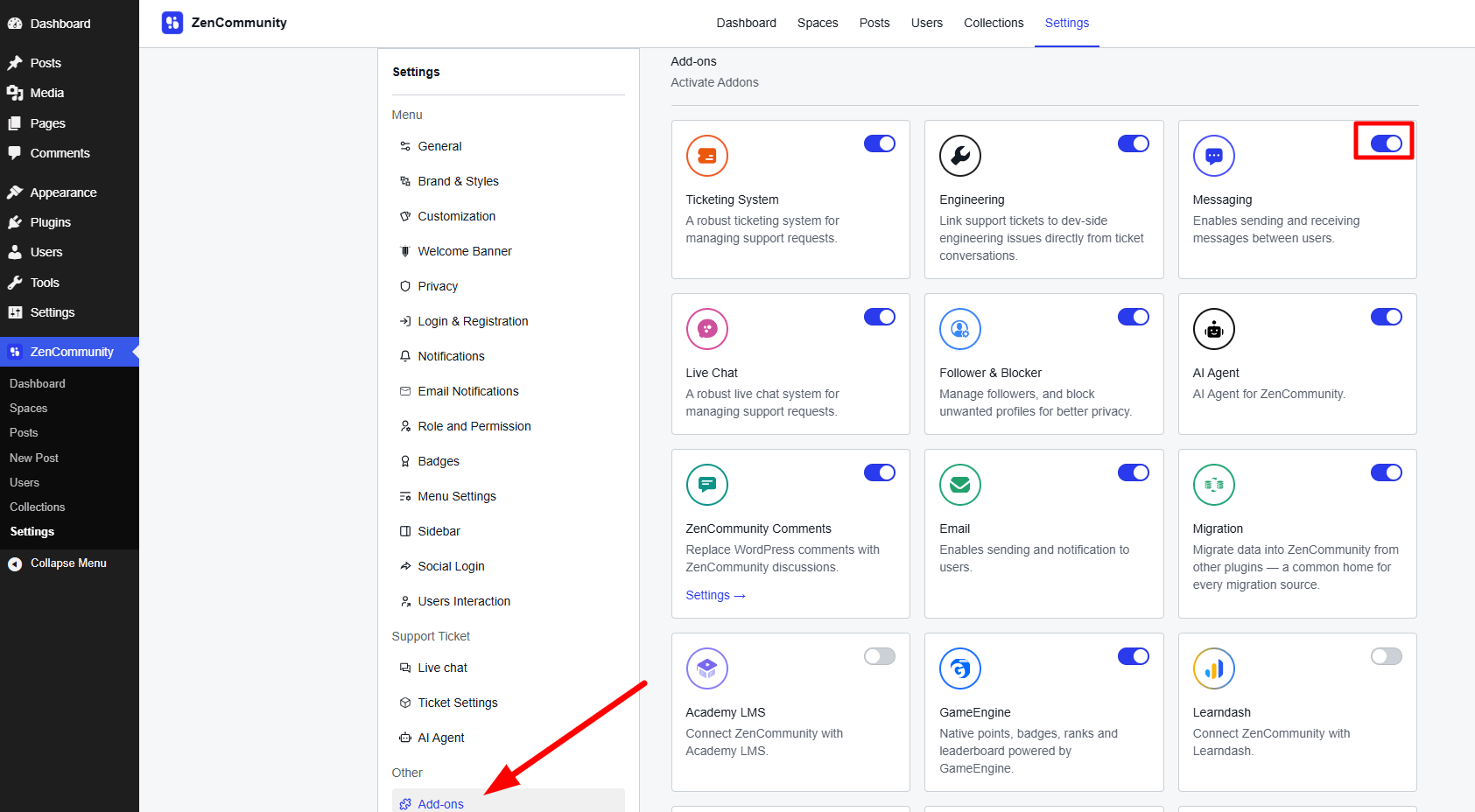
Scroll down and open the Addons section. Find the Message Addon and turn it ON. Once enabled, go back to your Feed. A new Chat menu will now appear in the left sidebar navigation.
Accessing the Chat Area
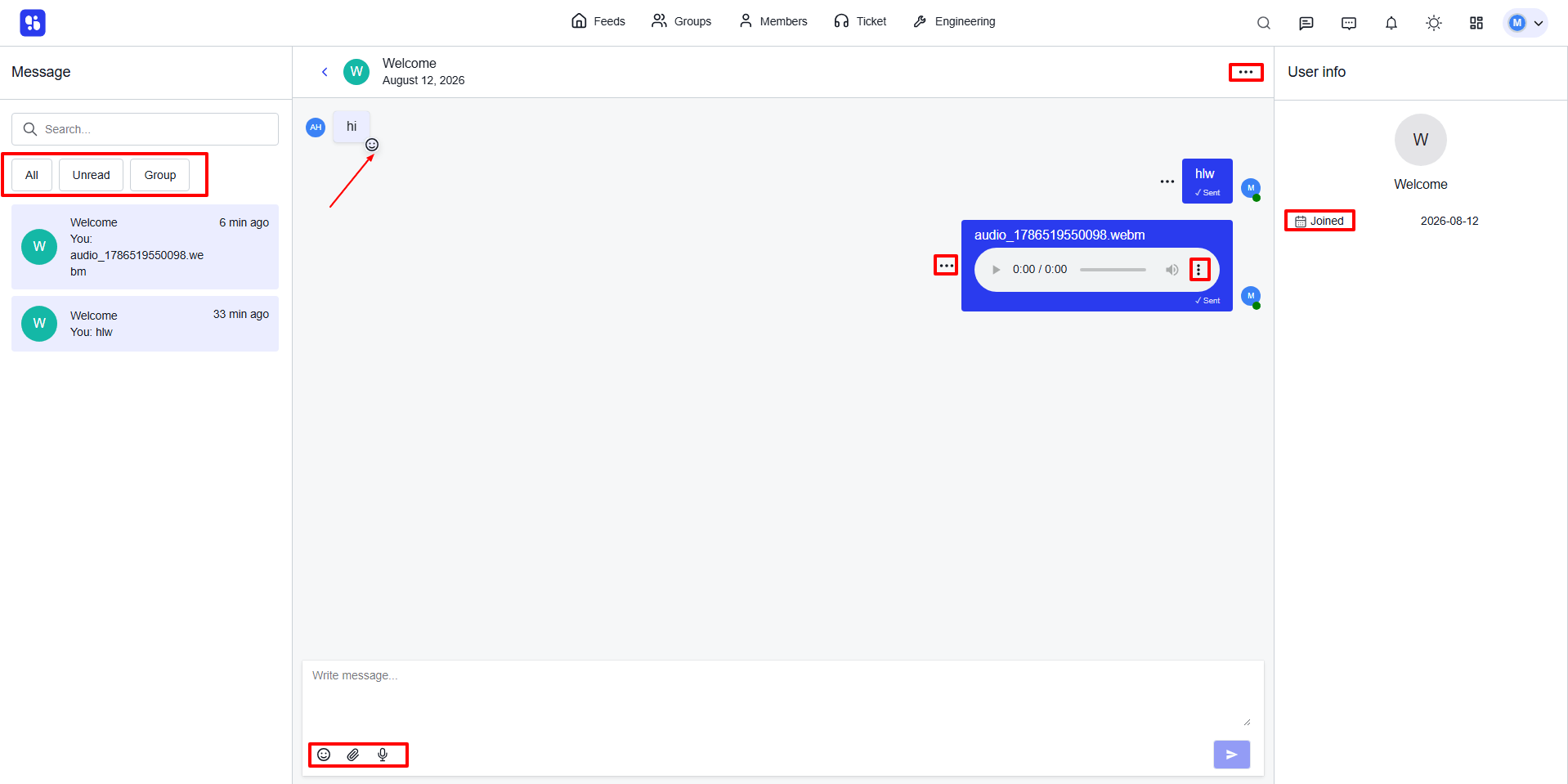
Click on Chat from the sidebar menu to open the messaging area. Here, you’ll see all your conversations categorized into three sections:
- All – Displays every conversation.
- Unread – Shows unread messages only.
- Group – Lists all group chat conversations.
You can also use the search bar to find users or groups for chatting.
Note: To join a group chat, you must be a member of that group.
Sending and Managing Messages
Inside a conversation, you can:
1. Send text messages easily.
2. Add emoji reactions to any message.
3. Use icons below the chat box to:
- Insert emojis
- Attach files
- Send voice messages
Voice Message Options
After sending a voice message:
- Click the three dots (⋯) on the right to download or control playback speed.
- Use the left-side dots (⋯) to edit or update the message.
- Left side dots features same as for normal message.
Blocking and Reactions
Click the three-dot menu (⋯) beside the user’s profile on the top right to block the user.
Hover over any received message to react with an emoji.
User Info Panel
On the right side of the chat interface, you’ll find a User Info section that displays:
- Joined: The date when the user joined the community.
- Last seen: The user’s last active time.
This helps you identify the user’s engagement history quickly.
Realtime Communication (Optional)
If you want to see new messages instantly without needing to reload or refresh the page,
make sure to enable the Realtime Communication feature from your ZenCommunity Settings.
This ensures a smooth and live chat experience across all conversations.