


Roles control what members can do in your community — from posting content to managing groups and other members. ZenCommunity includes built-in roles and lets you create custom ones for more flexibility.
This guide explains how roles work and how to manage them effectively.
Overview
A role is a collection of permissions (capabilities).
Types of Roles:
- Group Roles → Apply within a group
- Global Roles → Apply across the entire community
Built-in Group Roles:
- Admin → Full control within a group
- Moderator → Content and member management
- Member → Basic participation
You can modify their permissions, but:
- ❌ Cannot rename
- ❌ Cannot delete
Custom Roles:
- Fully configurable
- Group-specific
- Ideal for specialized responsibilities
Before You Start
- You must be a site admin
- Custom roles apply only within groups
Viewing Roles
- Go to Settings → Role and Permission
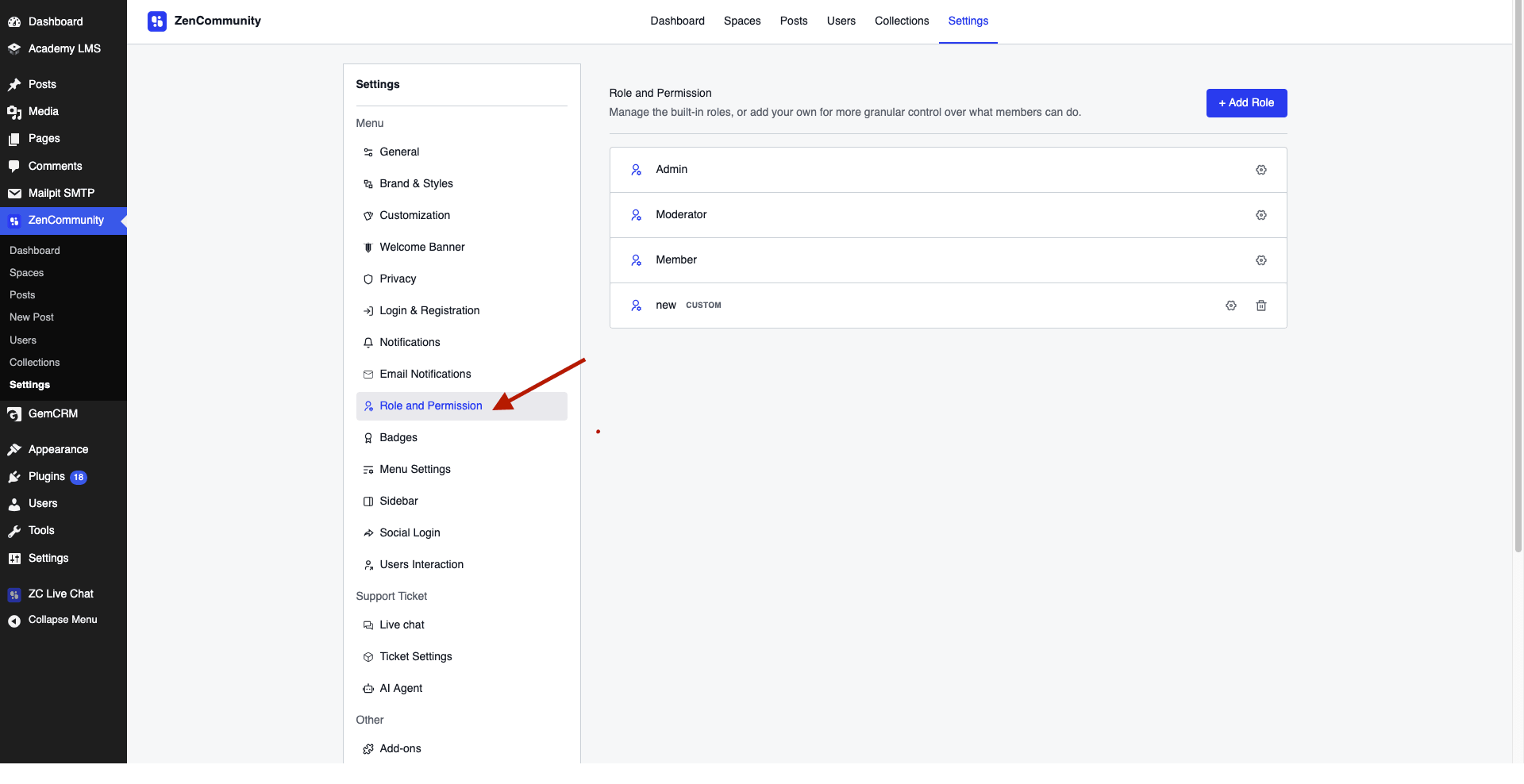
- View all roles in one list
- Built-in roles → Default roles
- Custom roles → Marked as Custom
Editing Built-in Role Permissions
- Go to Settings → Role and Permission
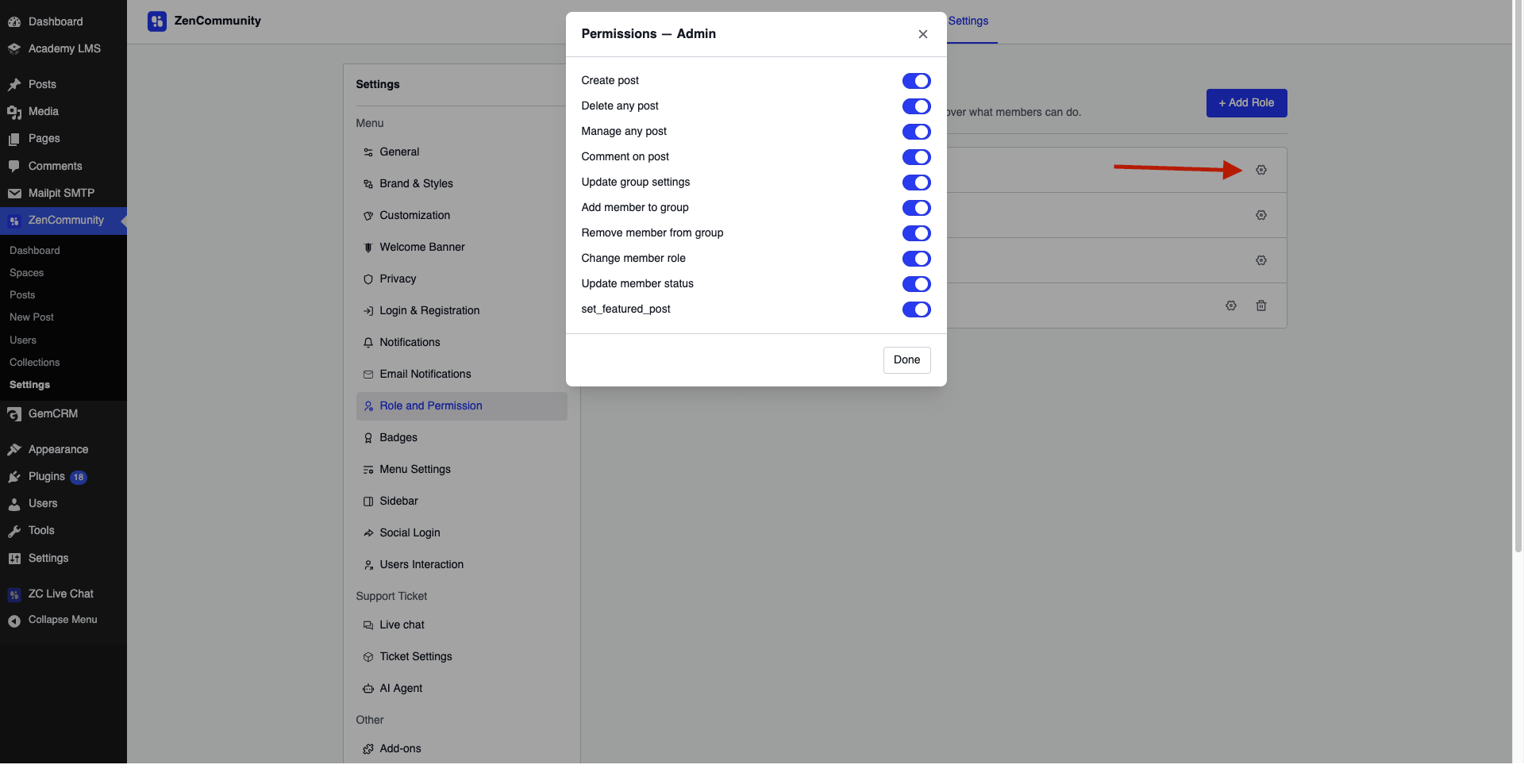
- Toggle permissions ON/OFF
- Click Done
⚠️ You cannot add new permissions to built-in roles — only enable/disable existing ones.
Creating a Custom Role
- Go to Settings → Role and Permission
- Click + Add Role
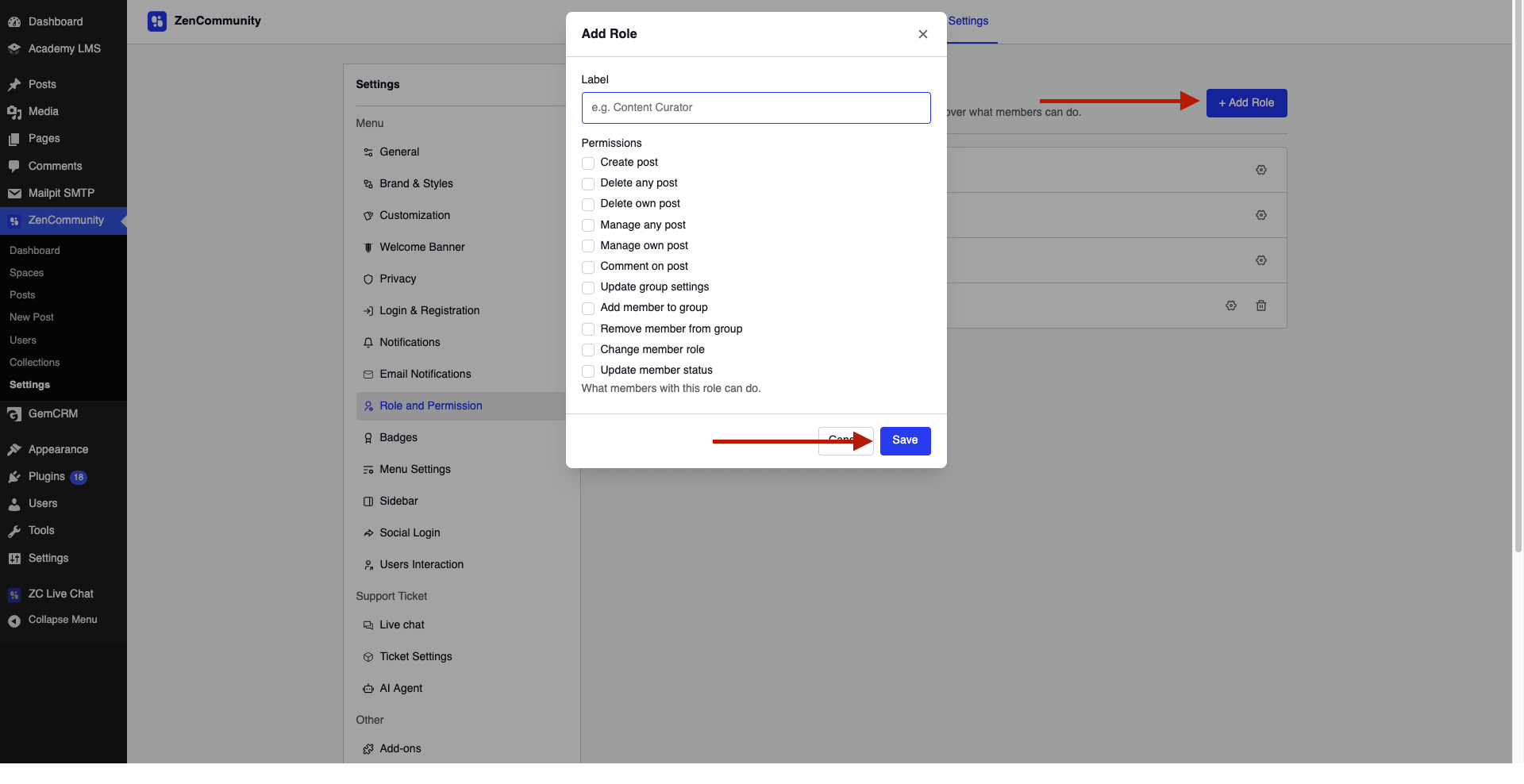
- Enter a Role Name
Assign Permissions:
Choose from:
- Create post
- Delete any post / own post
- Manage any post / own post
- Comment on post
- Update group settings
- Add/remove group members
- Change member roles
- Update member status
- Click Save
Editing or Deleting Custom Roles
- Edit: Click ⚙️ Manage → Update → Save
- Delete: Click 🗑️ Delete
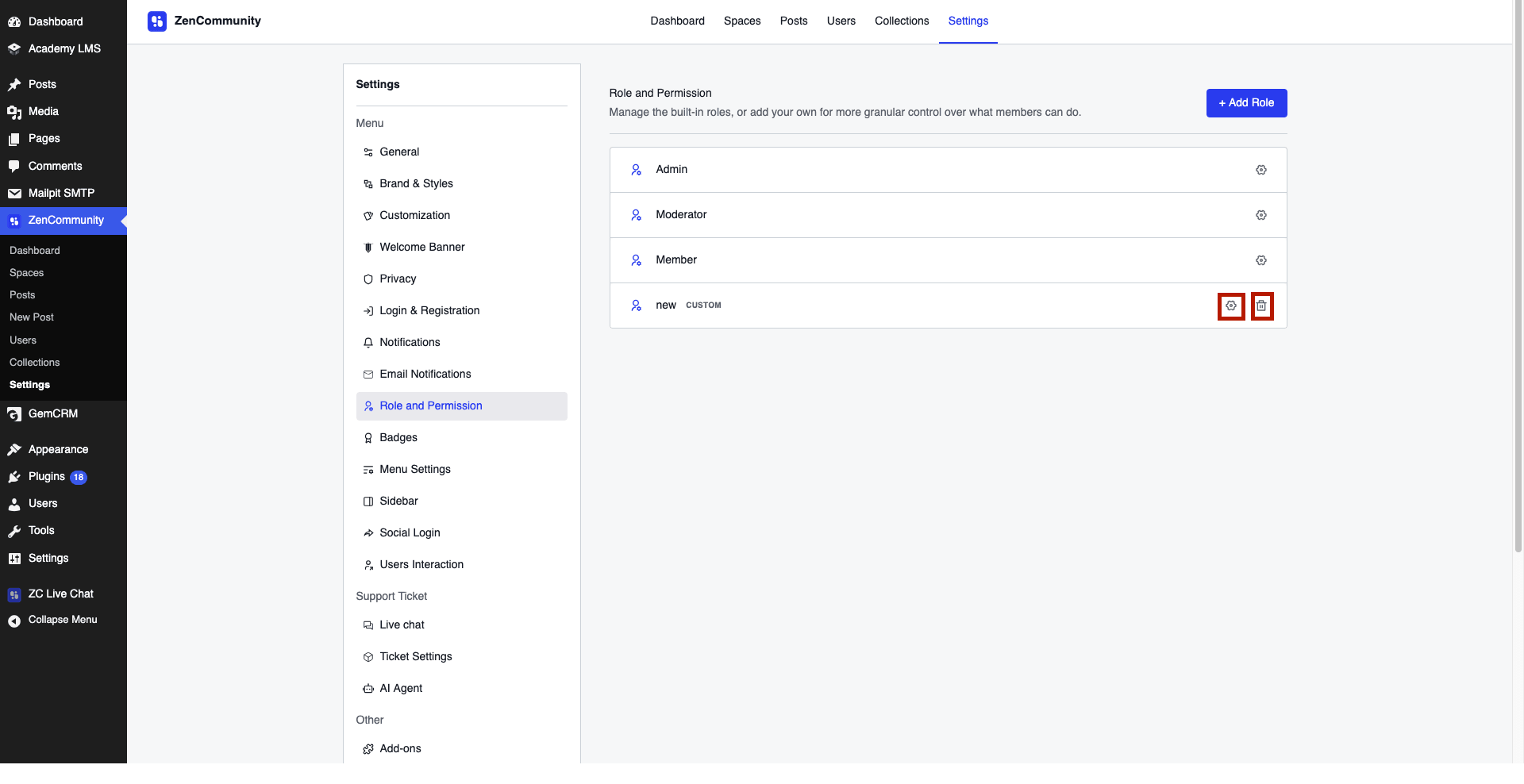
❗ Built-in roles cannot be deleted.
Assigning Roles to Members
Group Roles:
- Assigned within each group
- Managed from group settings
👉 See: Manage Group Members
Global Roles:
- Assigned from ZenCommunity → User Management
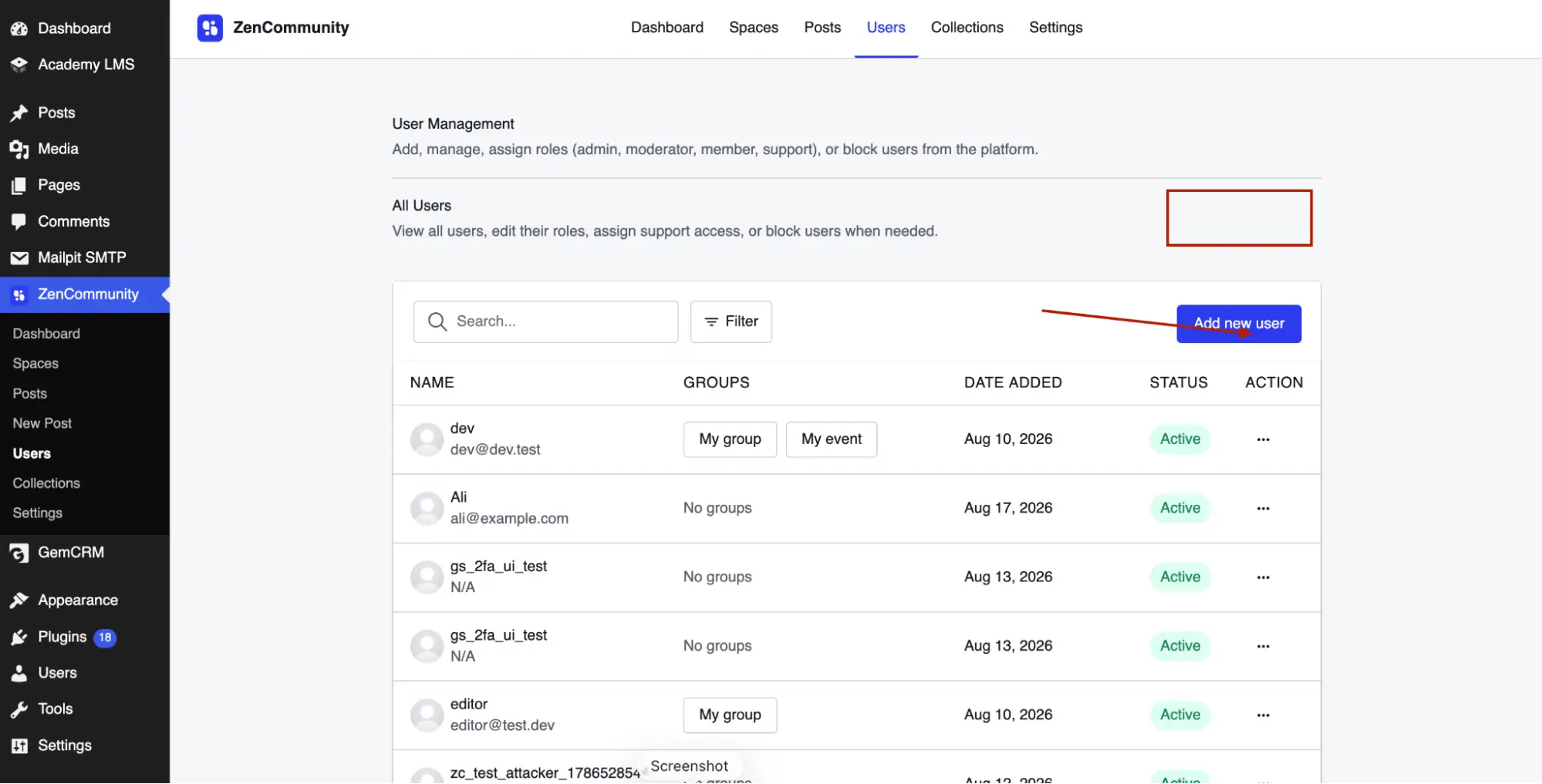
- Apply across the whole community
Examples:
- Support Agent
- Developer
Best Practices
- Use built-in roles for most users
- Create custom roles only when needed
- Avoid giving too many permissions
- Review roles regularly
Important Notes
- Role changes apply instantly
- Custom roles are group-specific
- Global roles are managed separately
Tips
- Create roles like “Content Curator” or “Community Manager”
- Limit admin-level permissions
- Keep permissions simple and clear
Related Documentation
- Moderating Content and Members
- Manage Group Members
- Member Directory and Profiles
- Create a Group