


A Resource Library Space helps you organize and share files with your community in a clean, searchable way. Members can easily browse, search, and download resources from one central place.
This guide explains how to create a Resource Library, add files, and how members interact with it.
Overview
The Resource Library is a special Space type designed for file sharing instead of discussions.
Key Features:
- Centralized file storage
- Searchable resource list
- Download-ready links
- Clean and simple interface
Each resource includes:
- Title
- Optional description
- Download button
Before You Start
Make sure:
- You have a Space set to Resource Library
- You have admin access to manage resources
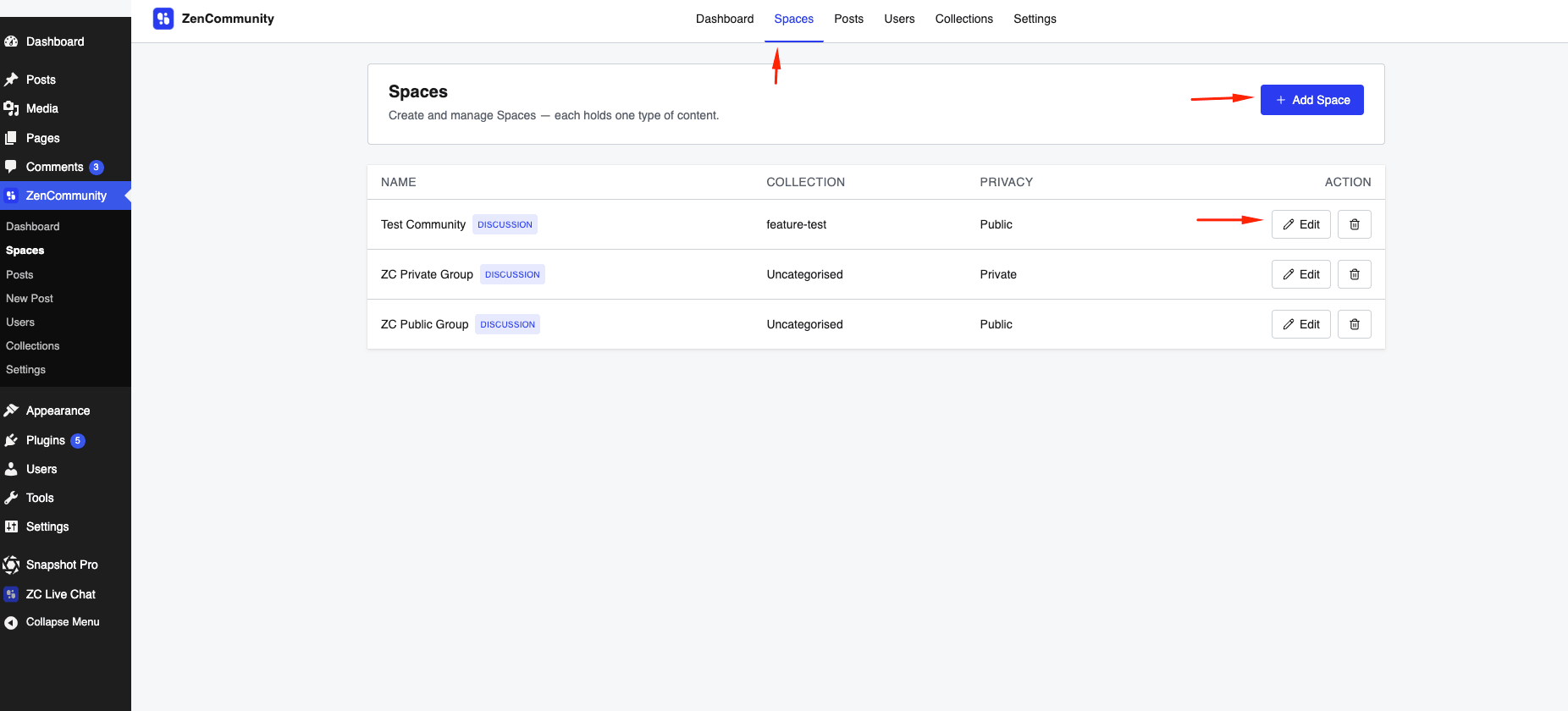
👉 See: Space Content Types to create one
Creating a Resource Library Space
- Go to ZenCommunity → Spaces
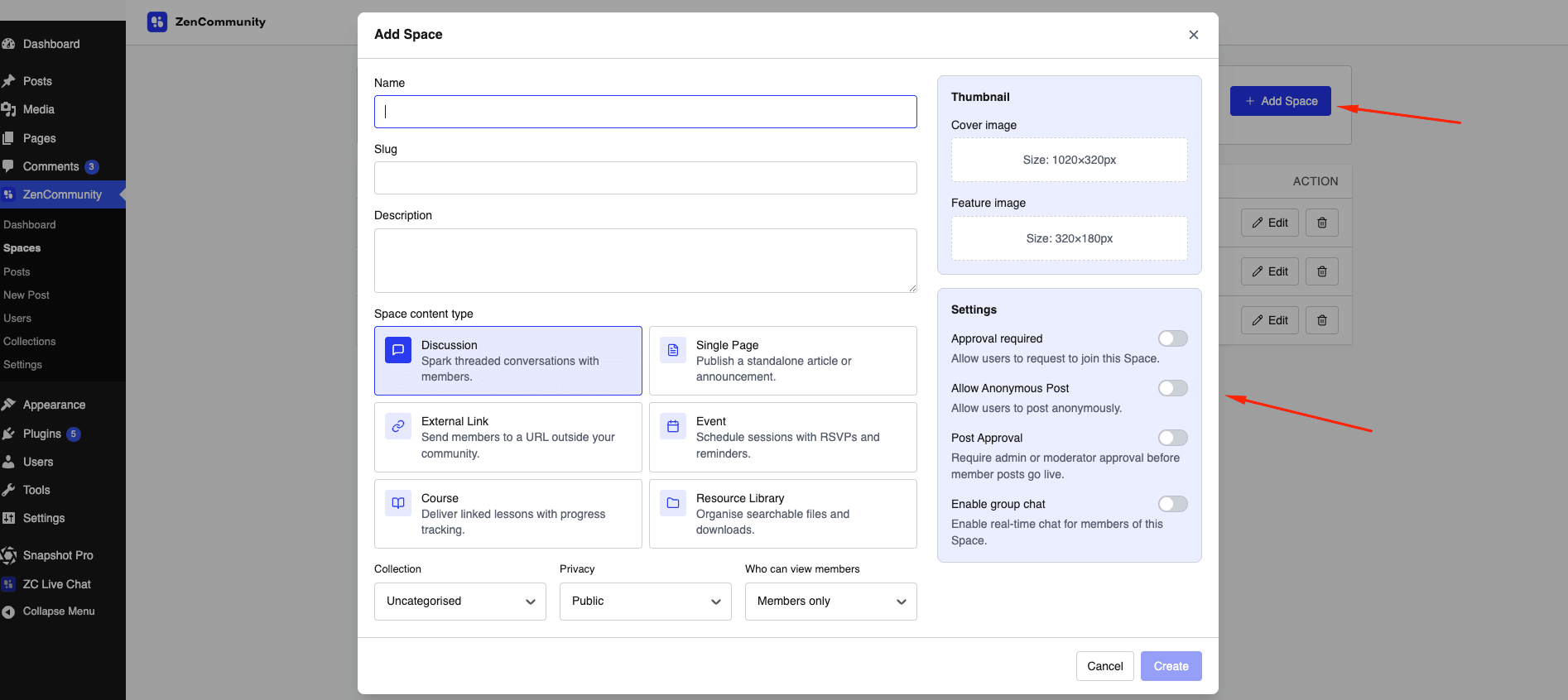
- Click Add Space
- Enter:
- Name
- Slug
- Description
- Select Resource Library as content type
- Add resources (optional at this stage)
- Click Create
Adding Resources
You can add or manage resources from the Space settings.
Steps:
- Go to ZenCommunity → Spaces
- Create or edit a Resource Library Space
- Find the Resources section
- Click Add Resource
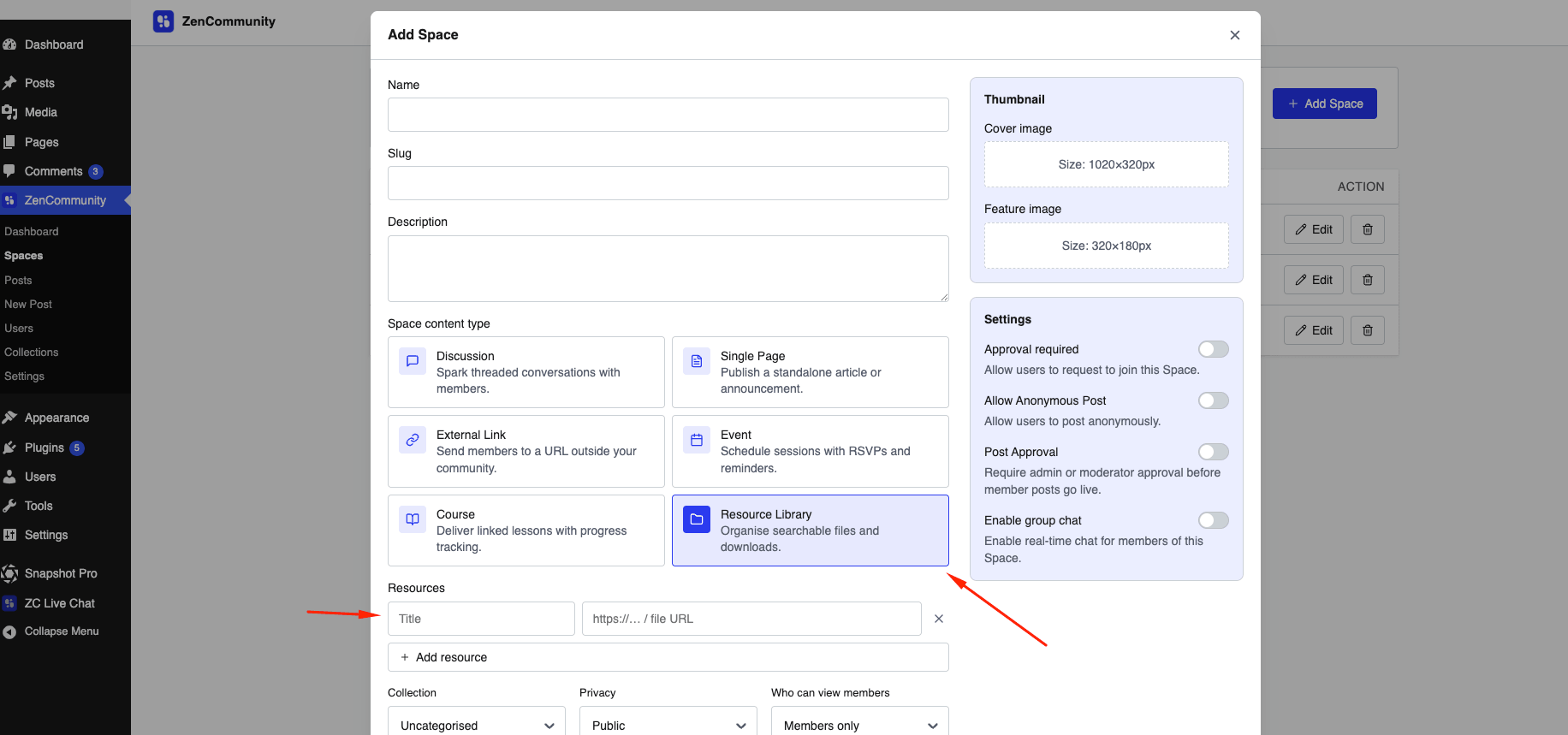
Fill in:
- Title → File name (visible to members)
- URL → File link or uploaded file URL
- Repeat for multiple resources
- Click Update or Create
Removing a Resource
- Click the ❌ icon next to any resource
- Save changes
How Members Use the Library
When members open the Resource Library Space:
What they can do:
- Browse all resources in a list
- Search using the Search resources… field
- Click Download to access files
Behavior:
- Files open in a new tab
- Search filters results instantly
Empty States
- No resources → “No resources yet”
- No search match → “No matching resources”
Best Practices
- Use clear, descriptive titles
- Add descriptions for better searchability
- Keep the library organized and focused
- Regularly update outdated resources
Important Notes
- File type is detected automatically from the URL
- Search works on titles and descriptions
- Resource Library Spaces are minimal and distraction-free
Tips
- Group related files under one library
- Use naming consistency for better search results
- Add helpful descriptions to improve discoverability
Related Documentation
- Space Content Types
- Create a Group
- Manage Collections
- Events and RSVPs