


ZenCommunity keeps members informed with real-time in-app notifications — alerts that appear directly inside your community. This guide explains how notifications work, how members manage them, and how admins control them globally.
Overview
In-app notifications alert members about important activity, such as:
- New posts in their groups
- Comments and replies
- Mentions
- Reactions
- Group updates
- Messages and support activity
A bell icon in the community header shows an unread count, helping members quickly spot new activity.
Note: These are in-app notifications only. Email notifications are handled separately — see How to Use Email Notification.
Reading Notifications
Steps:
- Click the 🔔 Bell icon in the header
- Open the Notifications page
- Browse your notifications list
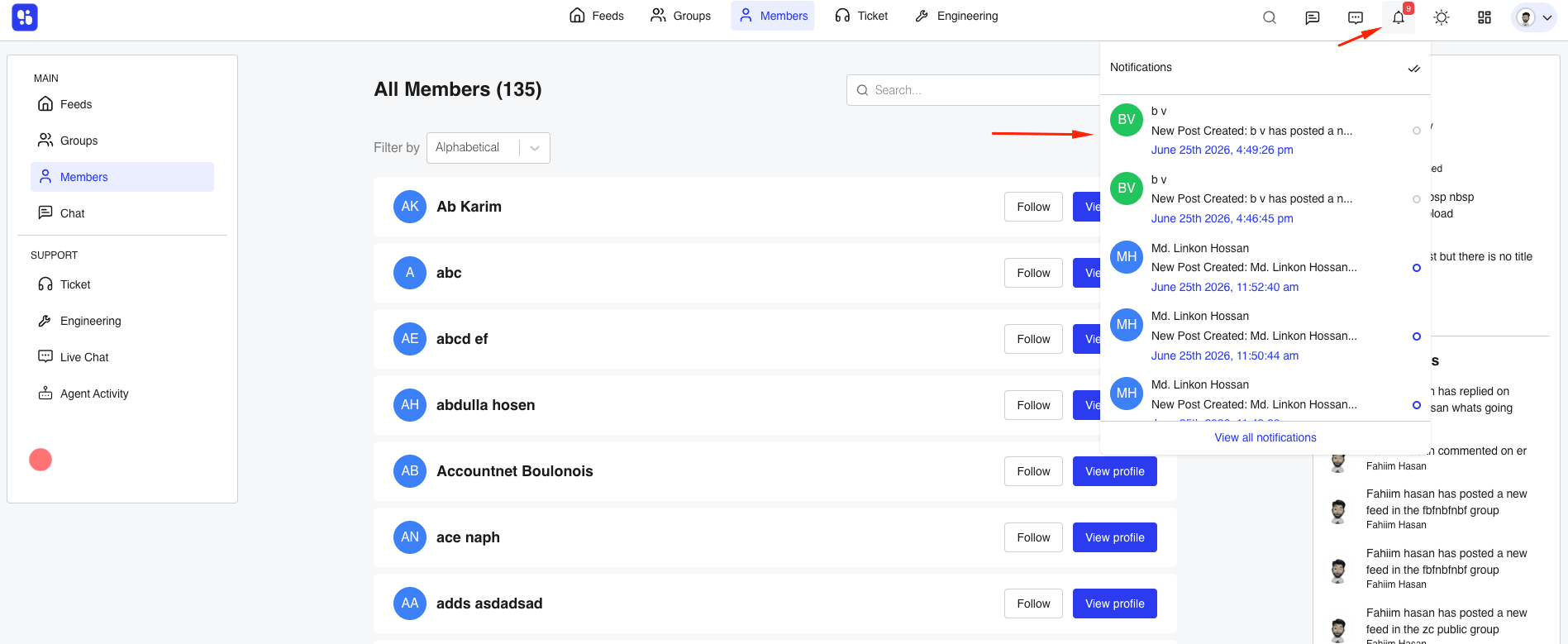
Each notification shows:
- Who triggered it
- A short message
- Time since it happened
Clicking a notification:
- Opens the related content
- Marks it as read automatically
Filtering & Managing Notifications
Available actions:
- All / Unread → Filter notifications
- Mark as read/unread → Toggle using the dot icon
- Mark all as read → Clear all unread notifications
- Load more → View older notifications
Notification Preferences (For Members)
Each member controls what notifications they receive.
Steps:
- Go to Preferences
- Open the Notifications section
- Toggle categories ON/OFF
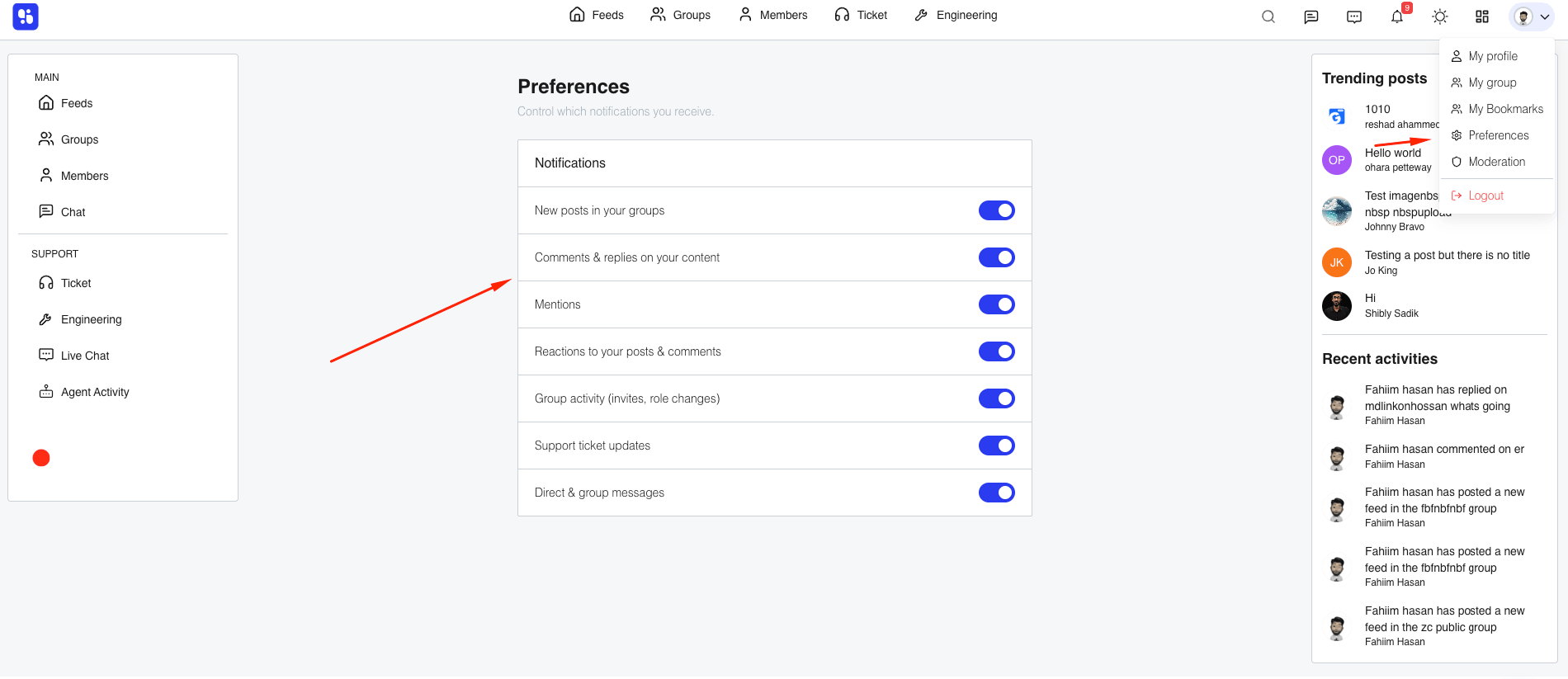
Changes save instantly.
Available Categories:
- New posts in your groups
- Comments & replies
- Mentions
- Reactions
- Group activity (invites, role updates)
- Support ticket updates
- Direct & group messages
💡 New categories are enabled by default when introduced.
Site-Wide Notification Control (Admins)
Admins can disable entire notification categories for all users.
Steps:
- Go to Settings → Notifications
- Toggle categories ON/OFF
- Click Save changes
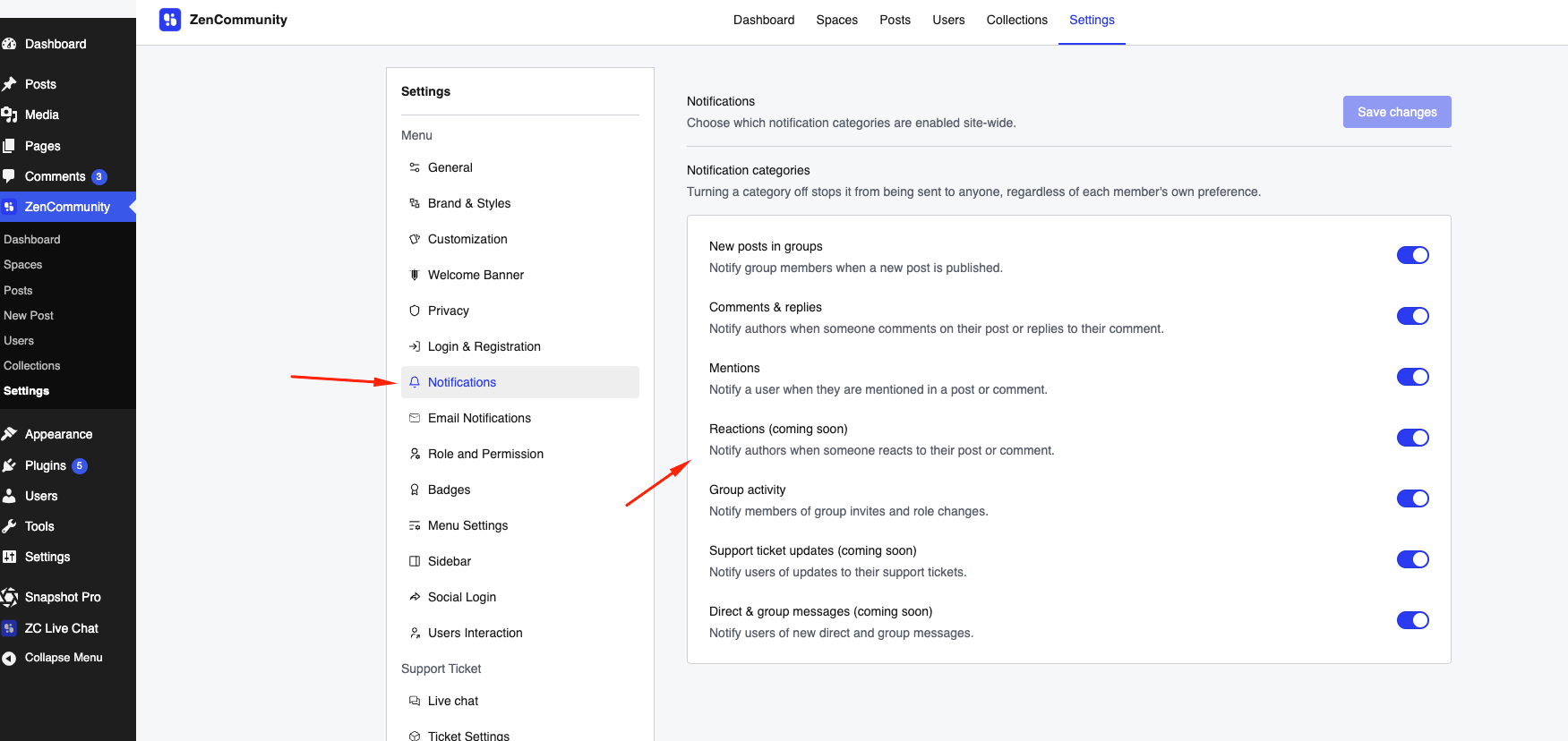
Important:
- Admin settings override user preferences
- If disabled globally, no one receives that notification
- Some categories may be marked Coming Soon
Best Practices
- Encourage members to customize preferences
- Keep only important notifications enabled globally
- Avoid overwhelming users with too many alerts
- Monitor new categories after updates
Tips
- Use Mark all as read to clean up quickly
- Keep mentions enabled for direct engagement
- Turn off less important categories for a cleaner experience
Related Documentation
- How to Use Email Notification
- Member Directory and Profiles
- Searching Your Community
- Creating and Managing Posts