


ZenCommunity includes a built-in member directory and profile system that helps users discover each other, connect, and explore activity across the community.
This guide explains how to browse members, understand profiles, and manage your own profile.
Overview
The All Members page acts as your community’s directory.
From here, users can:
- Browse all members
- Search for specific people
- Sort members by activity or name
- Open full user profiles
Each profile brings together a member’s activity, connections, and personal details in one place.
💡 By default, only active members are visible to regular users.
Browsing and Searching Members
Steps:
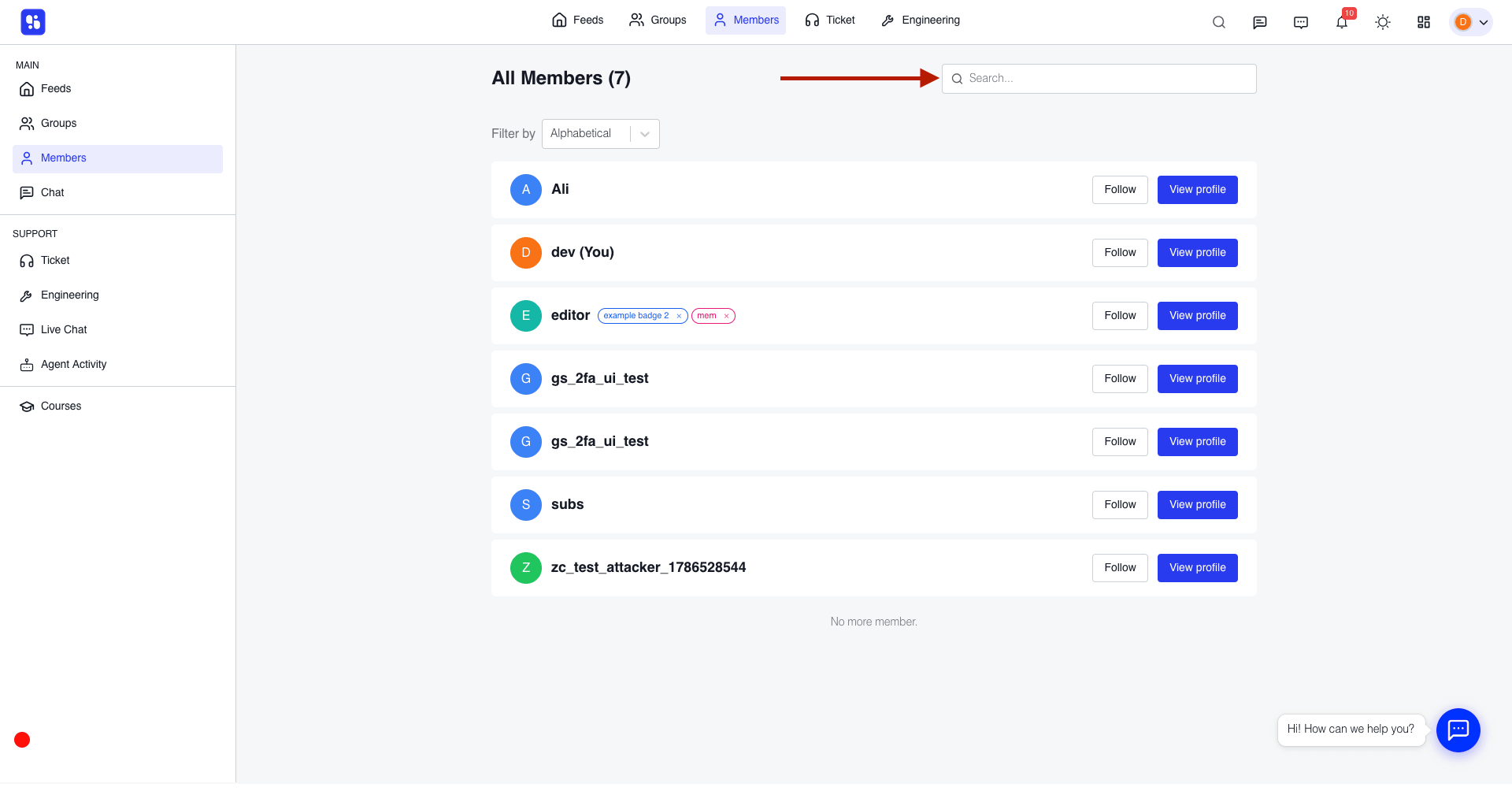
Filter Options:
- Active → Most active members first
- Alphabetical → A–Z order
- Date → Newest members first
Each member listing shows:
- Profile picture (avatar)
- Name
- Rank (if gamification is enabled)
- Earned badges
Additional Actions:
- Follow / Unfollow (if enabled)
- Blocked tag (if applicable)
- View Profile button
⚠️ Regular users only see active members. Admins can view all statuses.
Control Member Directory Visibility
Admins can control who can access the directory.
Steps:
- Go to Settings → Privacy → Who can view all members page
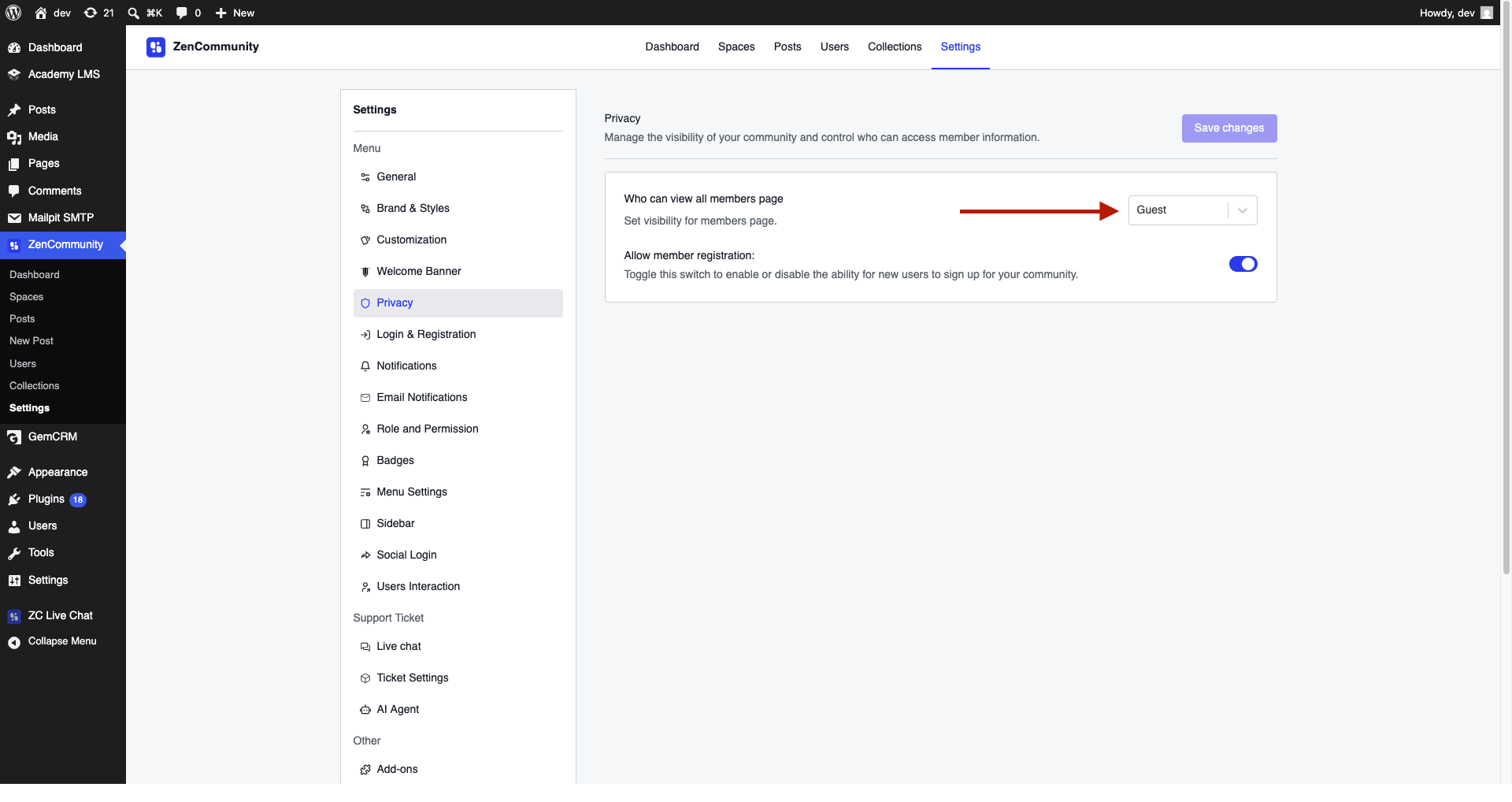
- Choose who can view the directory:
- Everyone (including guests)
- Logged-in members only
- Admins and moderators only
- Optionally control:
- Who can view member groups on profiles
- Click Save Changes
Understanding User Profiles
A member profile displays key information and activity.
Profile Header Includes:
- Cover image
- Avatar
- Name and @username
- Badges and rank
Action Buttons (for other users):
- Follow / Unfollow
- Message (if enabled)
- Block / Unblock
Profile Tabs
Available tabs may vary depending on active features.
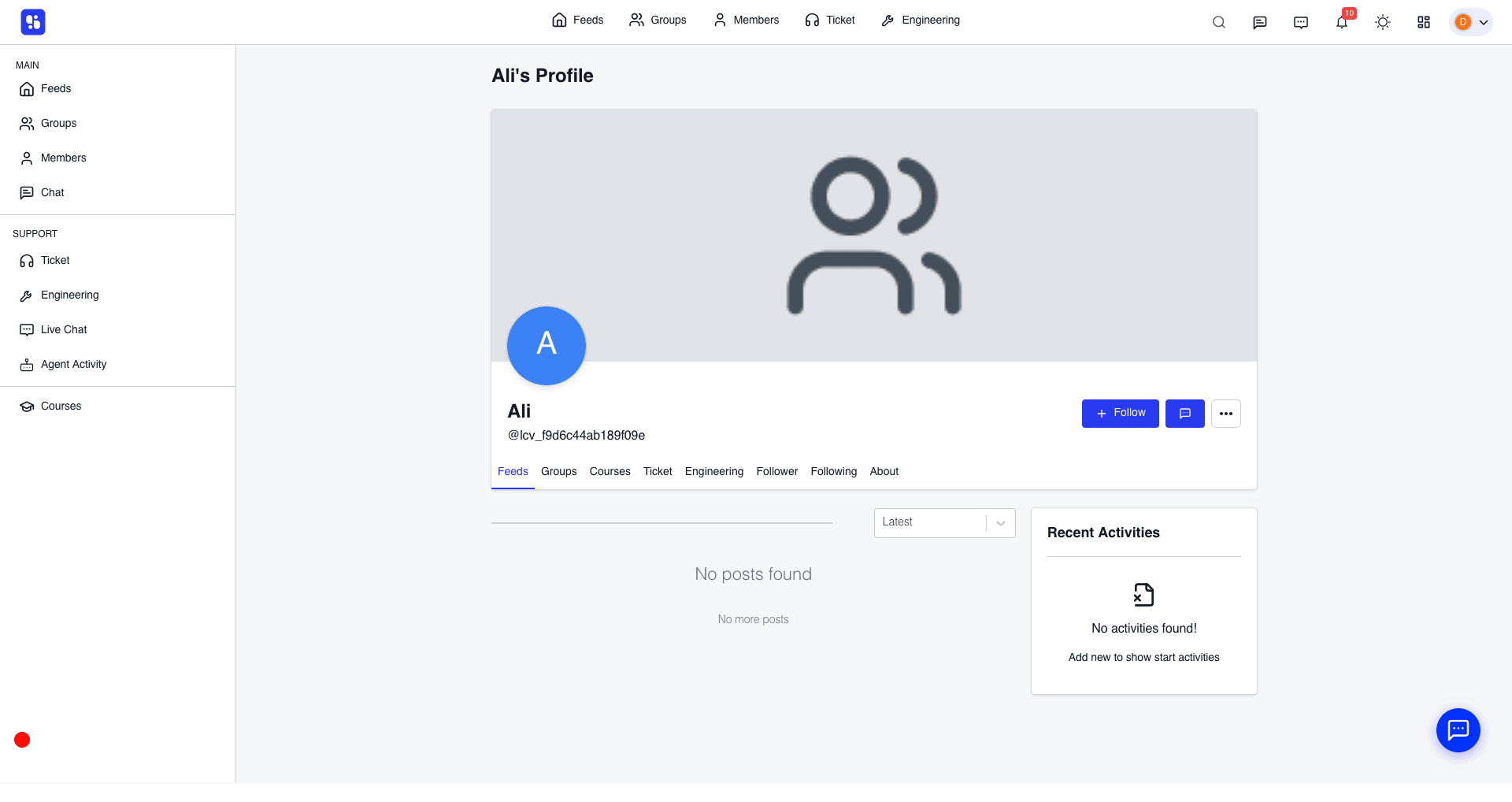
Common Tabs:
- Feeds → User’s posts
- Groups → Groups they joined
- Courses → Enrolled courses
- Leaderboard → Ranking position
- Followers / Following → Social connections
- Tickets → Support tickets
- Saved → Bookmarked posts (own profile only)
- About → Personal details
Additional Panel:
- Recent Activities → Latest actions in the community
Edit Your Profile
Users can update their profile from My Profile.
Change Cover & Avatar
- Open My Profile

- Click the avatar icon to update the profile image
Edit Profile Details
- Go to the About tab
- Click Edit
- Update fields:
- First Name (required)
- Last Name
- Website URL
- Bio
- Social links (Facebook, Instagram, LinkedIn, etc.)
- Username (@handle)
- Click Save Changes
💡 A complete profile helps members connect and builds trust.
Best Practices
- Encourage members to complete profiles
- Use real names and profile images
- Keep bios short and clear
- Enable follow feature for better engagement
- Regularly review member activity
Important Notes
- Email address cannot be changed from profile
- Some features depend on add-ons (Followers, Messaging, etc.)
- Profile visibility depends on admin settings
Related Documentation
- Moderating Content and Members
- Notifications and Preferences
- Searching Your Community
- Follower & Blocker Addon
- Manage Group Members