


The ZenCommunity integration with MasterStudy LMS bridges the gap between learning and community engagement on your WordPress site. With this integration, you can bring your learners closer together by sharing course-related activities directly within community groups.
It allows users to see updates such as course enrollments, completions, announcements, and quiz activities—all inside ZenCommunity feeds. This connection encourages collaboration, boosts learner motivation, and builds an interactive learning environment.
Prerequisite
Before you begin, make sure you have:
- Installed and activated MasterStudy LMS on your WordPress site.
- Installed and activated ZenCommunity on your WordPress site.
Both plugins must be active for the integration to function properly.
Activate MasterStudy LMS Add-on from the ZenCommunity Add-on Section
To enable the integration between ZenCommunity and MasterStudy LMS, follow these steps:
- From your WordPress dashboard, go to the ZenCommunity settings.
- Click on Settings from your ZenCommunity feeds.
- Locate the Addons menu in the ZenCommunity navigation panel and click on it.
- In the list of available addons, find the MasterStudy LMS Add-on.
- Toggle the switch to turn it on.
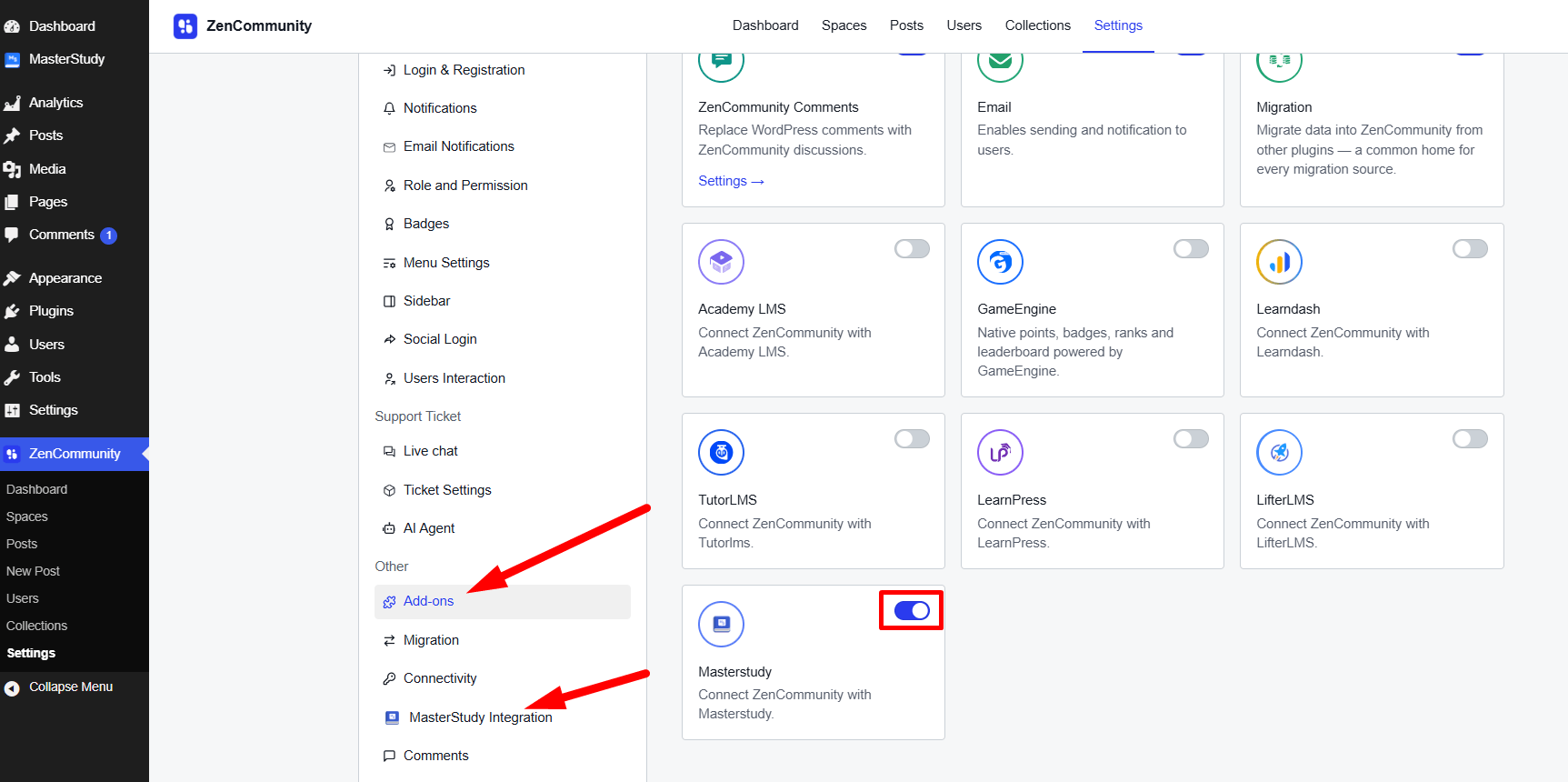
Once activated, a new navigation tab will appear in your ZenCommunity settings named MasterStudy LMS Integration. Click on this tab to proceed with configuring the integration.
Configure MasterStudy LMS Events from the ZenCommunity Platform
After activation, you can choose which MasterStudy LMS activities will appear on your ZenCommunity feed.
You’ll find 6 available events to connect between MasterStudy LMS and ZenCommunity:
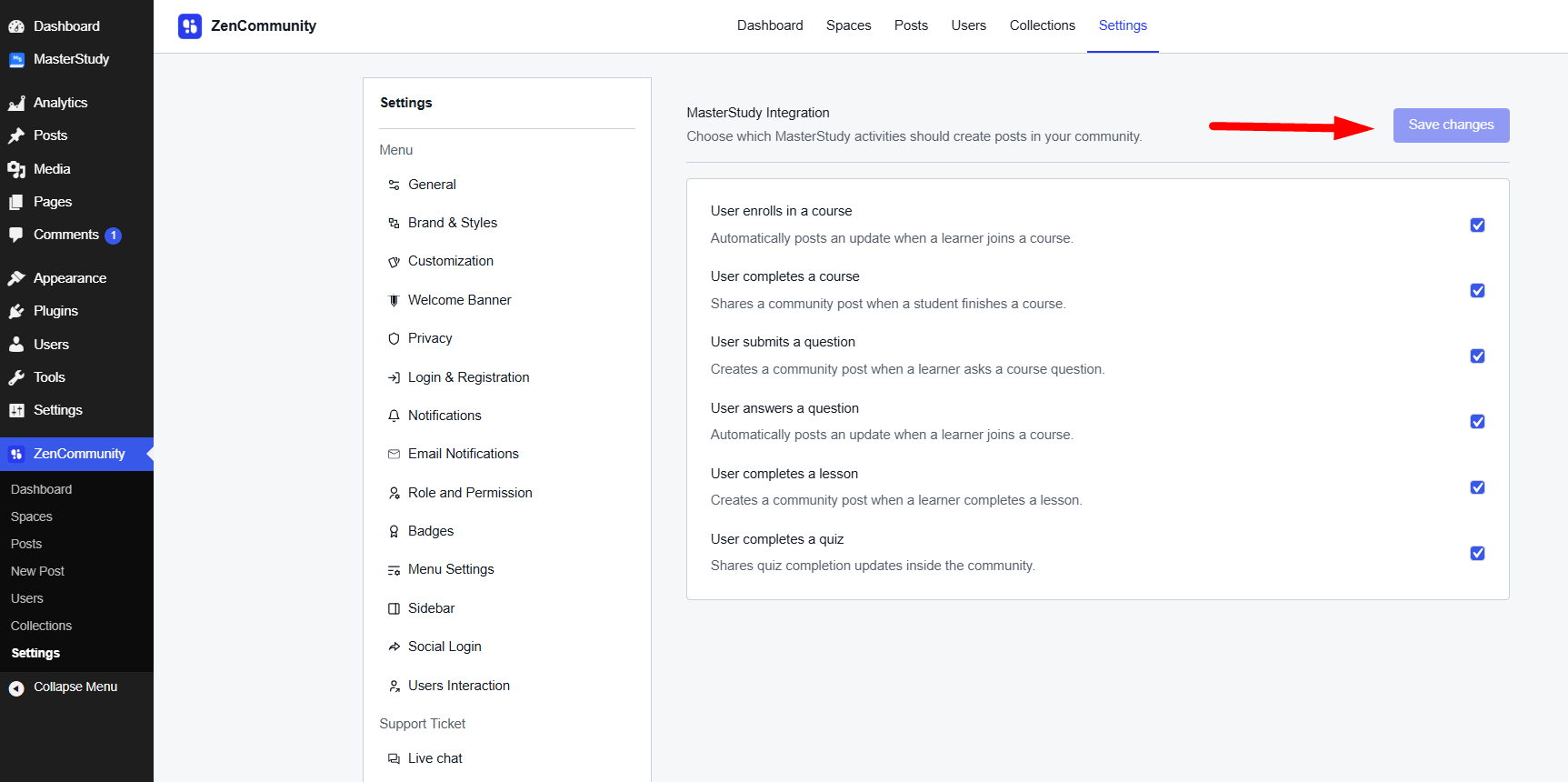
- Course Enrolled
- Course Complete
- User Question
- Question Answer
- Lesson Completion
- Quiz End
To enable your preferred events:
- Check the box beside each event name you wish to activate.
- After selecting the desired events, click on Save Changes to apply your settings.
Configure MasterStudy LMS Events in ZenCommunity Groups
Next, you’ll need to decide where these course-related events will be displayed within ZenCommunity groups.
Go to any of your preferred groups in ZenCommunity.
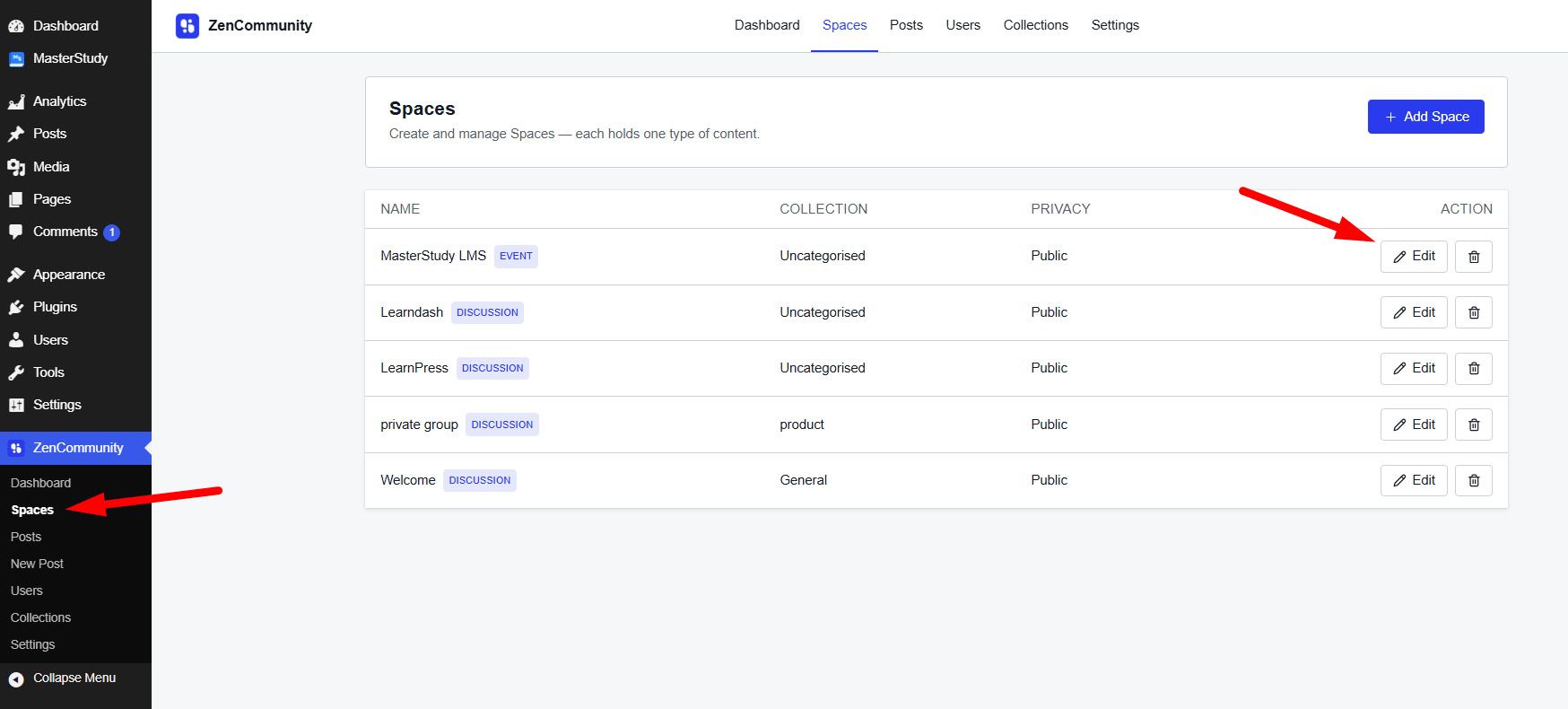
- Click on the three-dot icon (⋯) next to the group name.
- Select Group Settings from the dropdown menu.
- Scroll down until you find the Course Activities Event section.
- Choose all the events you want to display in this group.
- Select the course(s) you want these event actions to be linked with.
- Finally, click Save Changes to confirm your configuration.
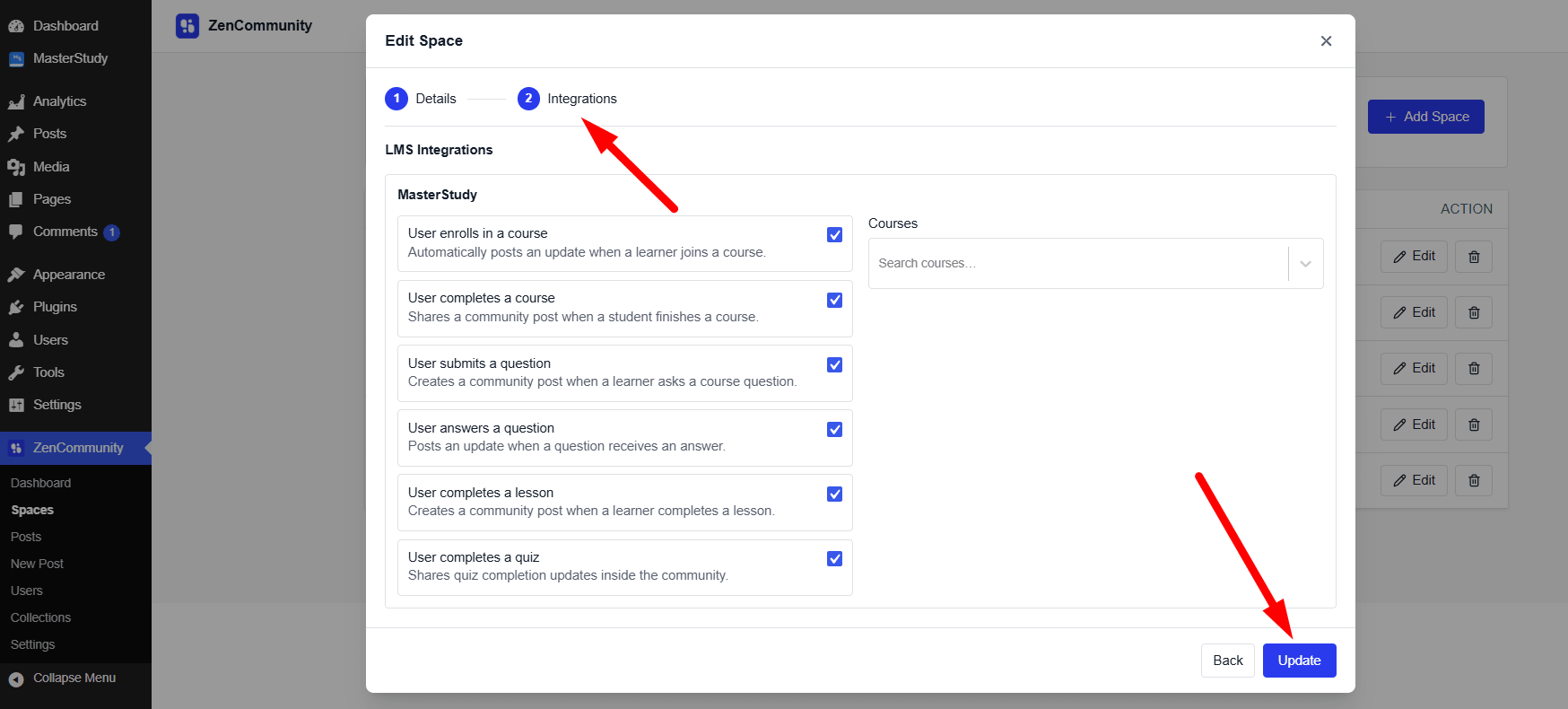
From now on, whenever a selected course event occurs—like a new enrollment, quiz start, or course completion—it will automatically post an update in the group’s activity feed.
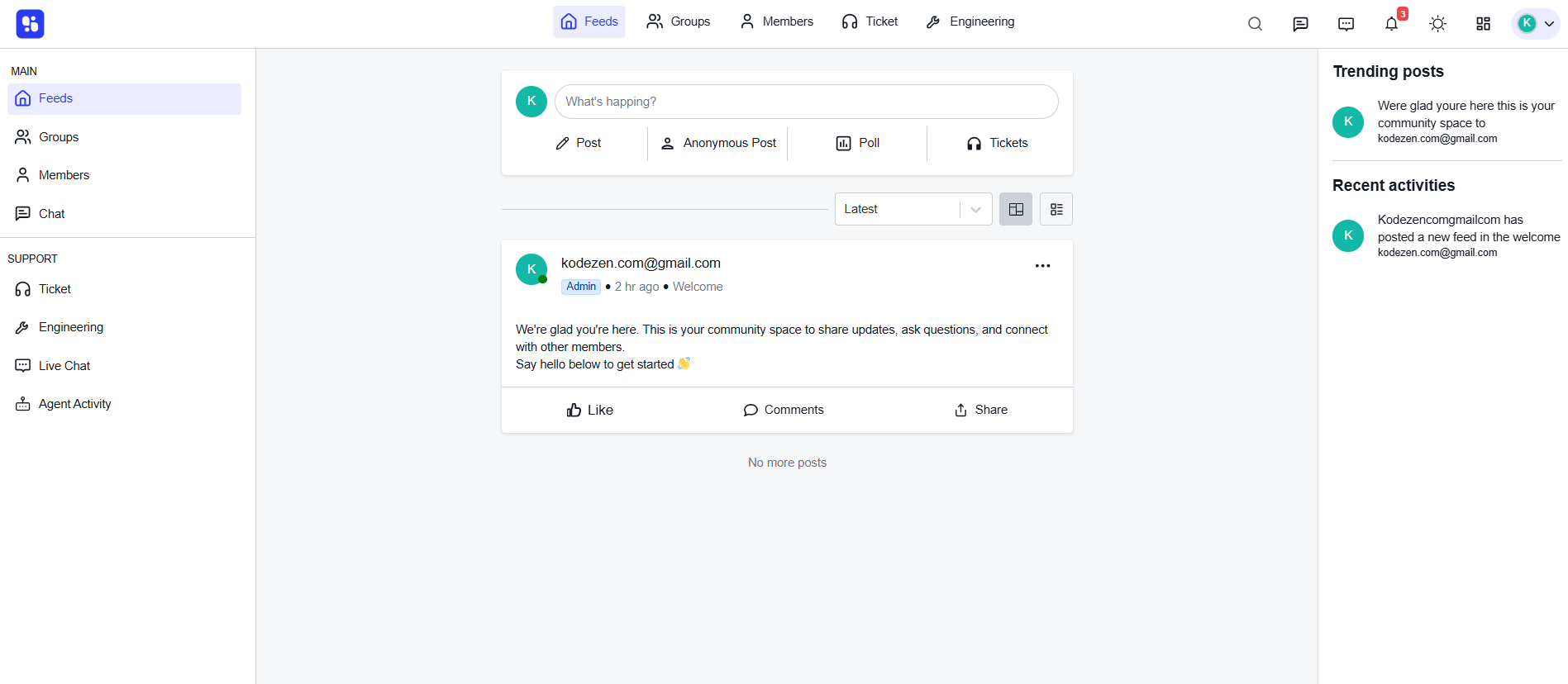
By integrating MasterStudy LMS with ZenCommunity, you can transform your eLearning platform into an engaging social learning hub. Learners can celebrate achievements, discuss lessons, and stay informed about course activities—all in real-time within your community. Make learning more interactive, effective, and engaging with the seamless MasterStudy LMS and ZenCommunity integration.