


Follow these steps to activate the ZenCommunity license:
Step 1: Login Information
Upon purchasing the ZenCommunity Pro version, you will receive an email from the Kodezen store containing your login information for your ZenCommunity account.
The video below demonstrates how to activate all Kodezen product licenses.
Step 2: Logging in and Downloading
- Log in to your ZenCommunity account using the provided login credentials.
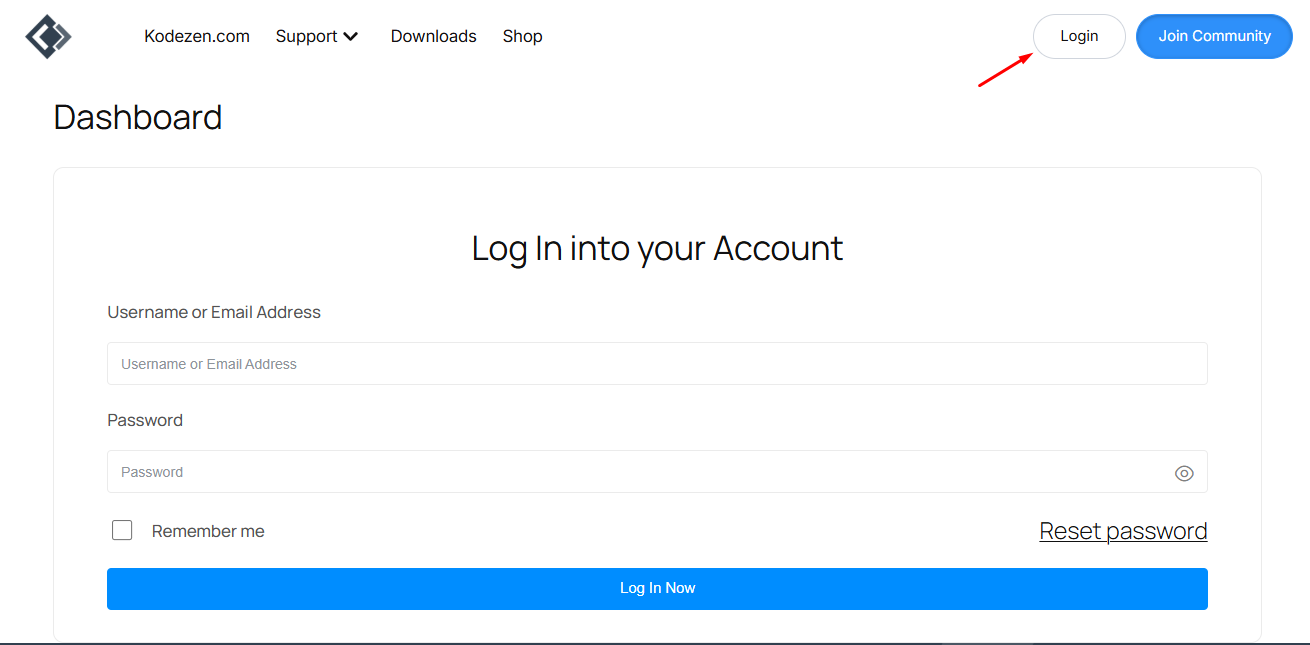
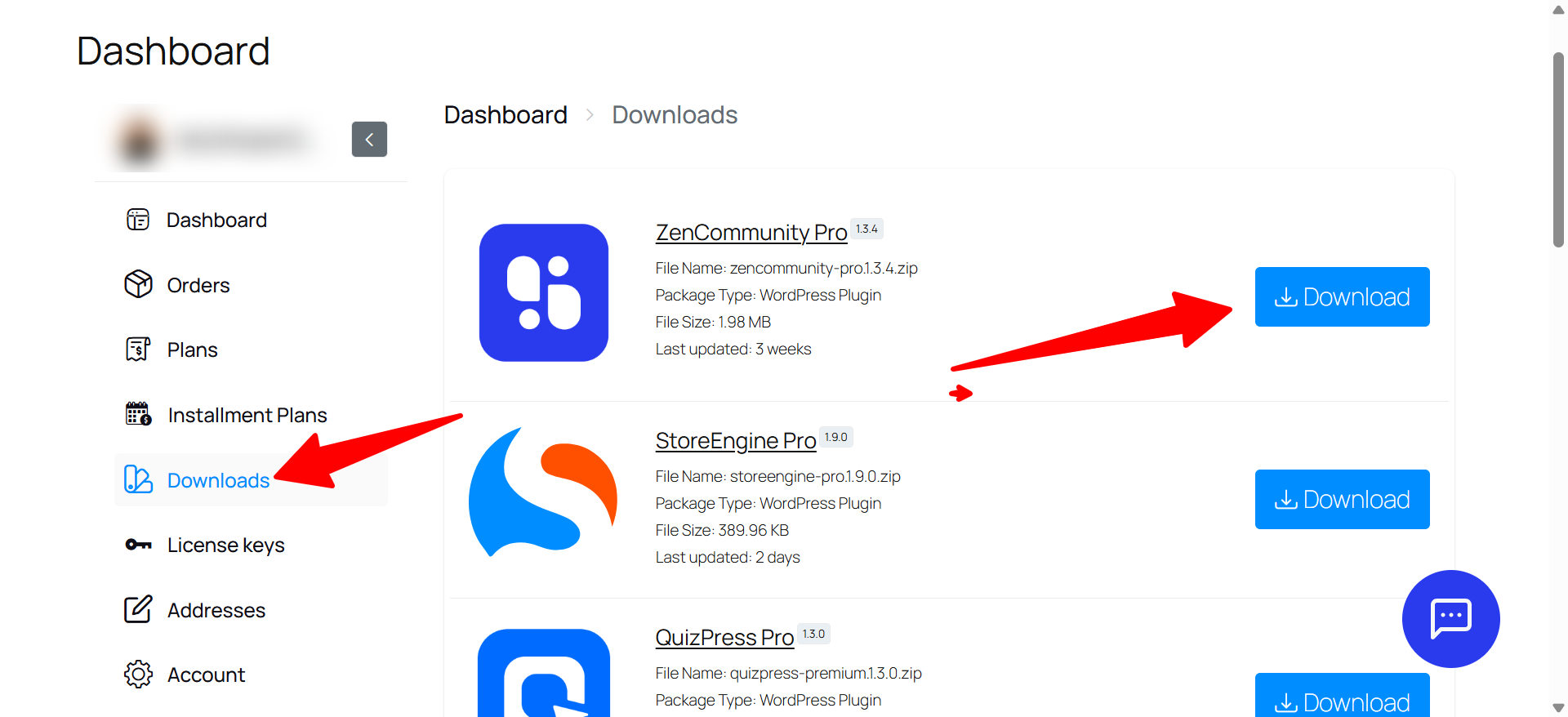
- After logging in, access the dashboard, where you will find a download option.
- Click on the download option to download the ZenCommunity Pro version.
Step 3: Installation
Once the plugin is downloaded, follow these steps to install ZenCommunity Pro successfully:
a. Go to your WordPress site dashboard.
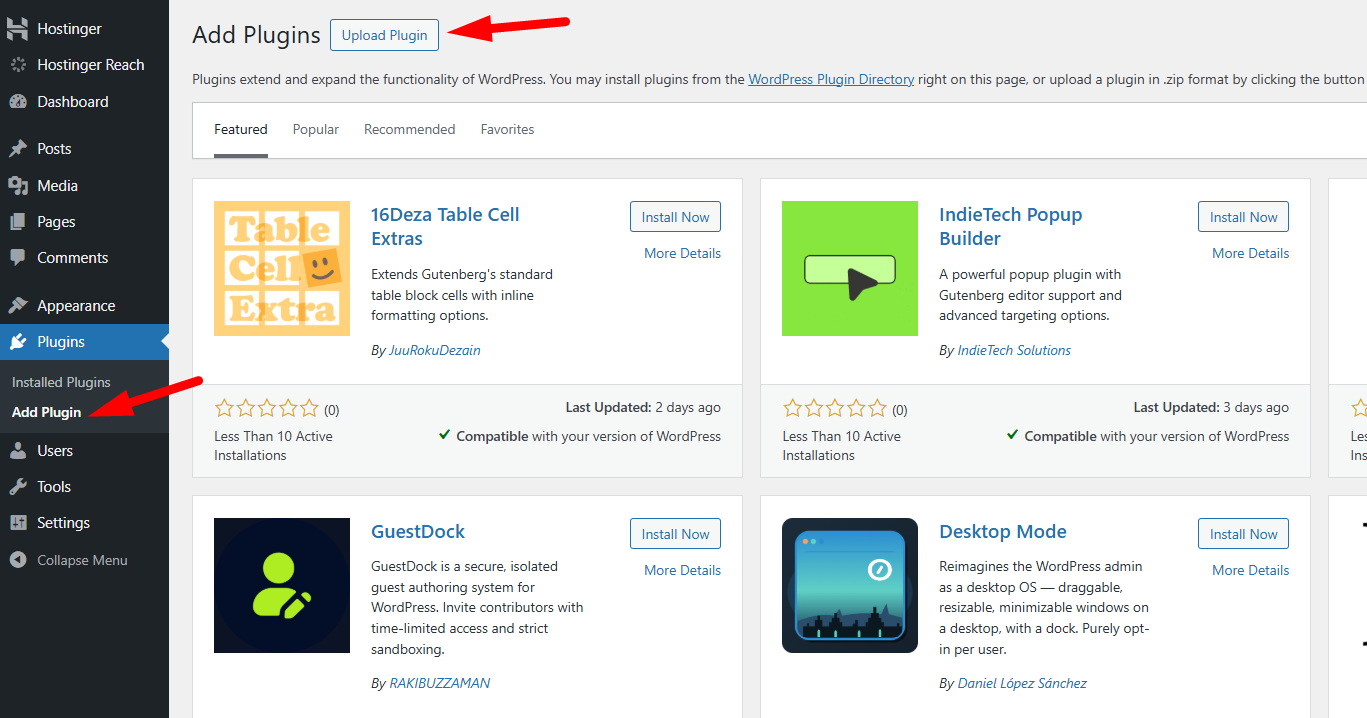
b. Navigate to Plugins > Add New.
c. Click the “Upload Plugin” button located above and next to the “Add Plugins” button.
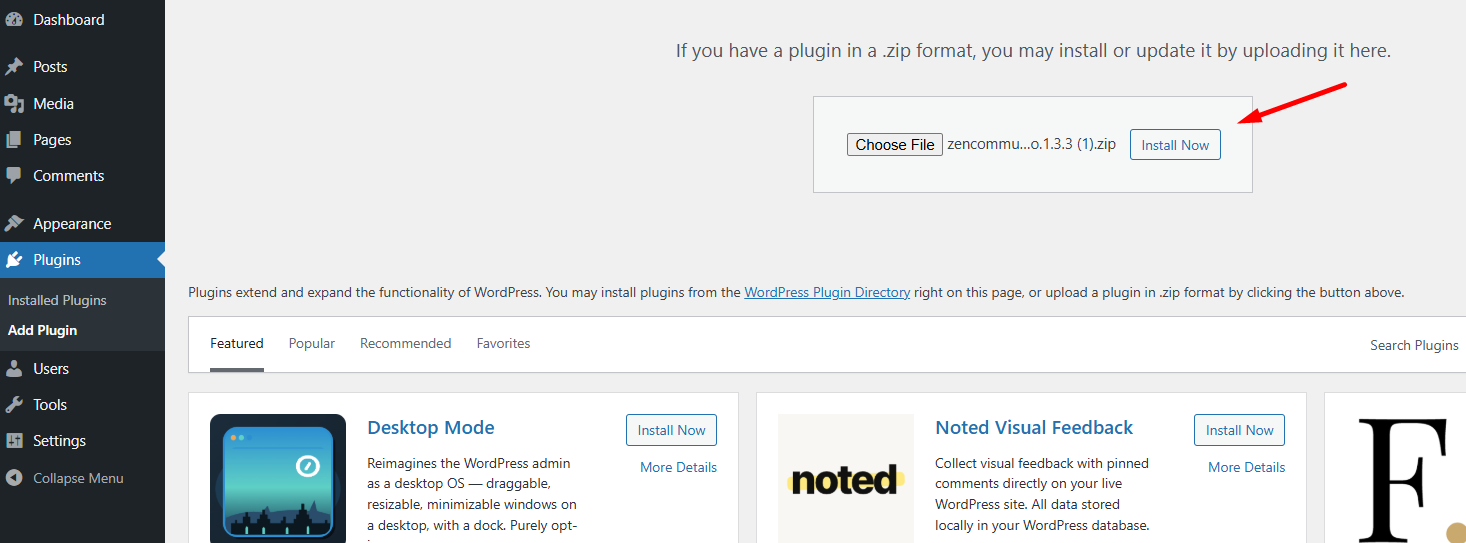
d. An upload form will appear. Click “Choose File” to select the ZIP file from your computer, or simply drag and drop the ZenCommunity Pro ZIP file, then select “Install Now.”
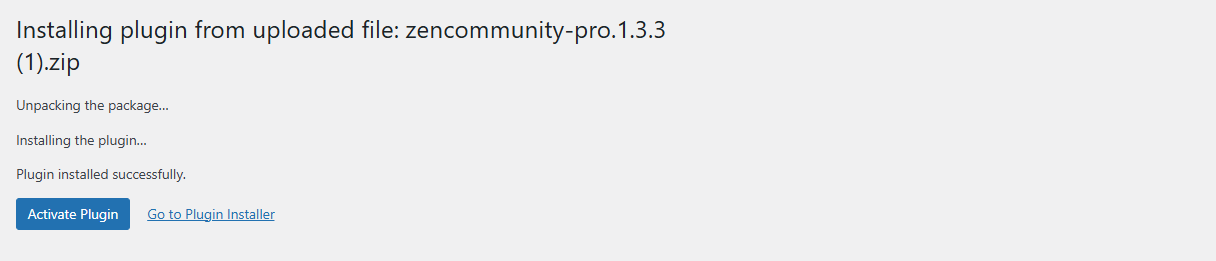
e. After successful installation, activate the plugin.
Step 4: ZenCommunity Free Version
Note that it is necessary to have the ZenCommunity free version installed to use the ZenCommunity Pro version.
Step 5: ZenCommunity License Activation
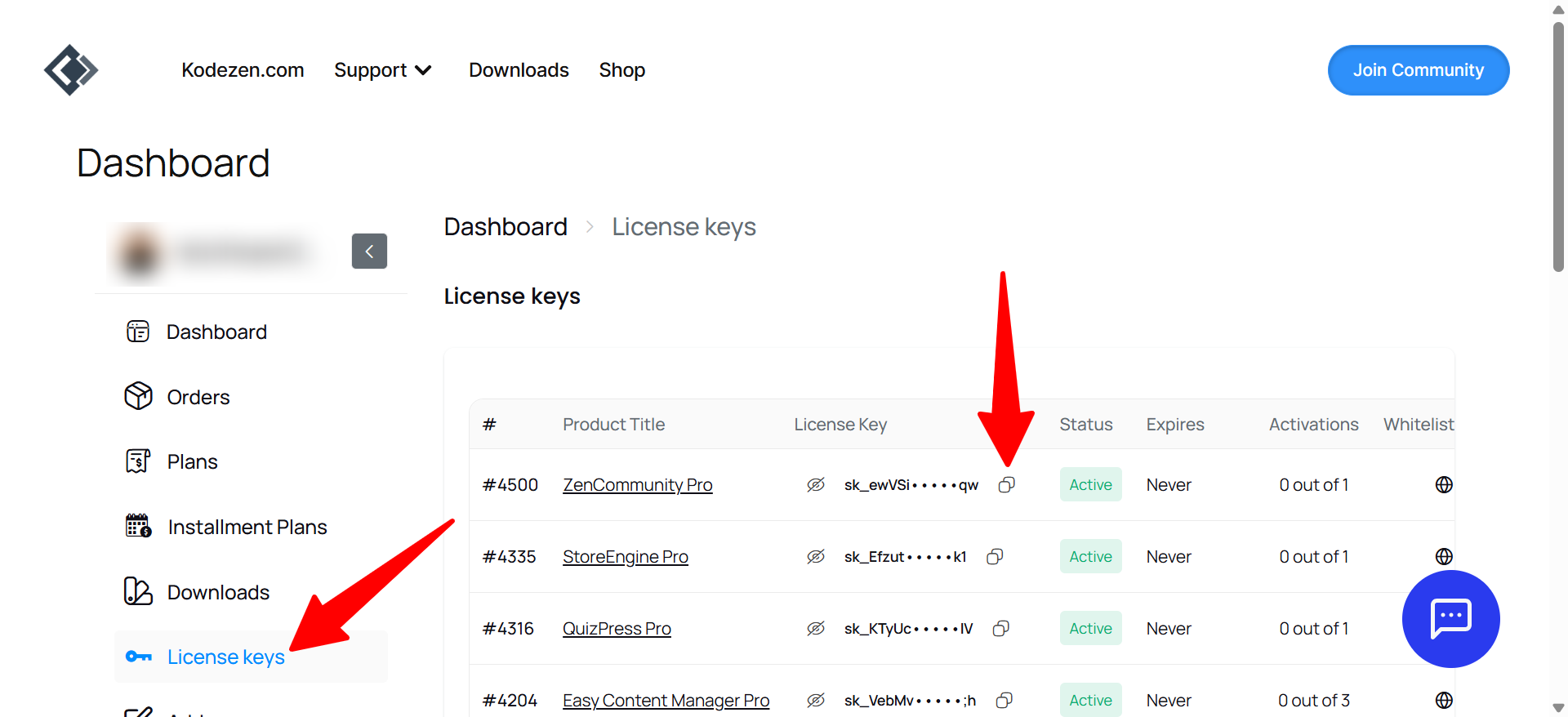
- Return to your ZenCommunity account and access the License section from the dashboard.
- In the License section, you will find your ZenCommunity Pro License key. Copy the license key.
- To activate the license, go to ZenCommunity from your WordPress dashboard.
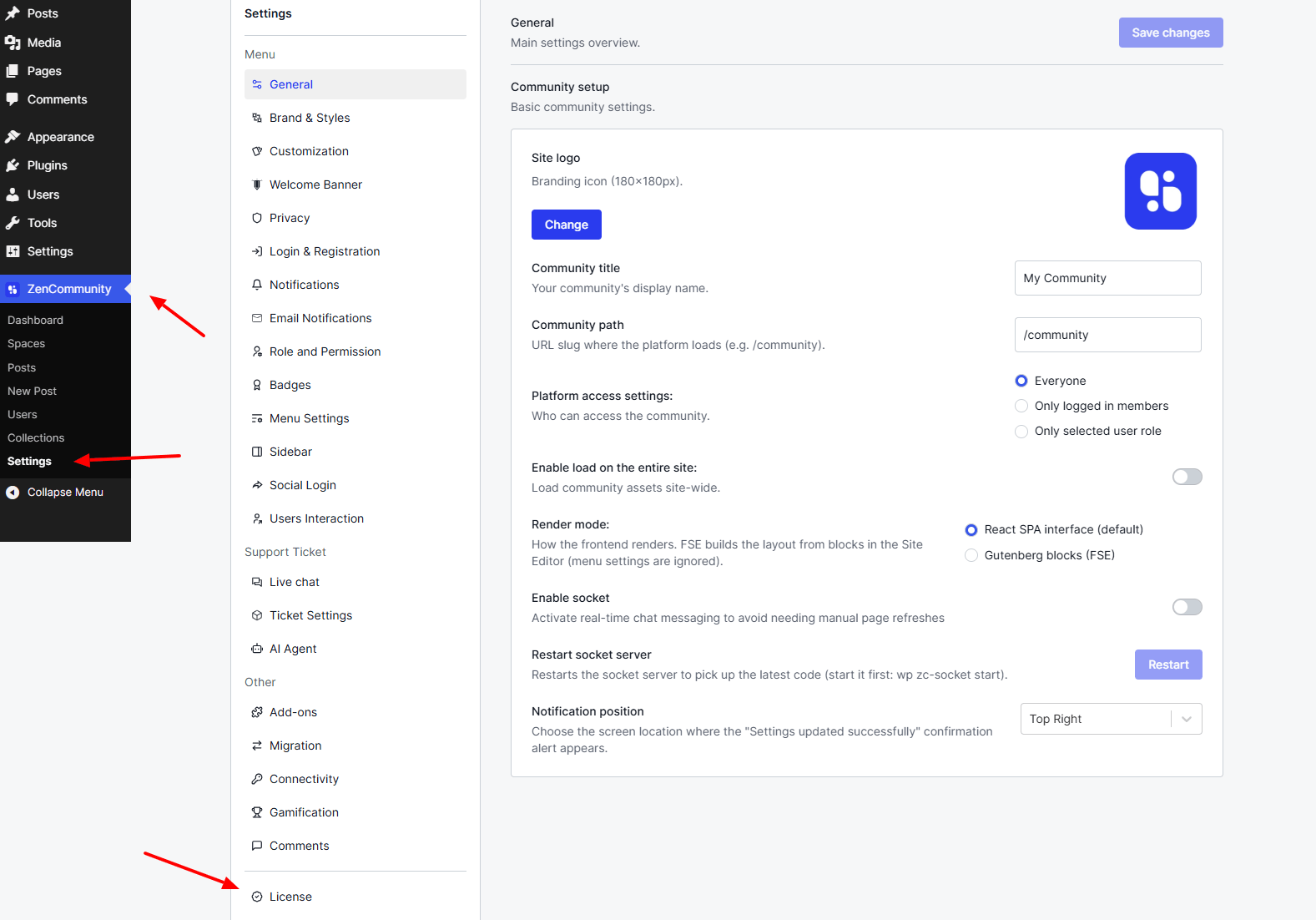
- Scroll down from the ZenCommunity menu option.
- Paste the copied license key and click “Activate License” to activate the ZenCommunity Pro license.
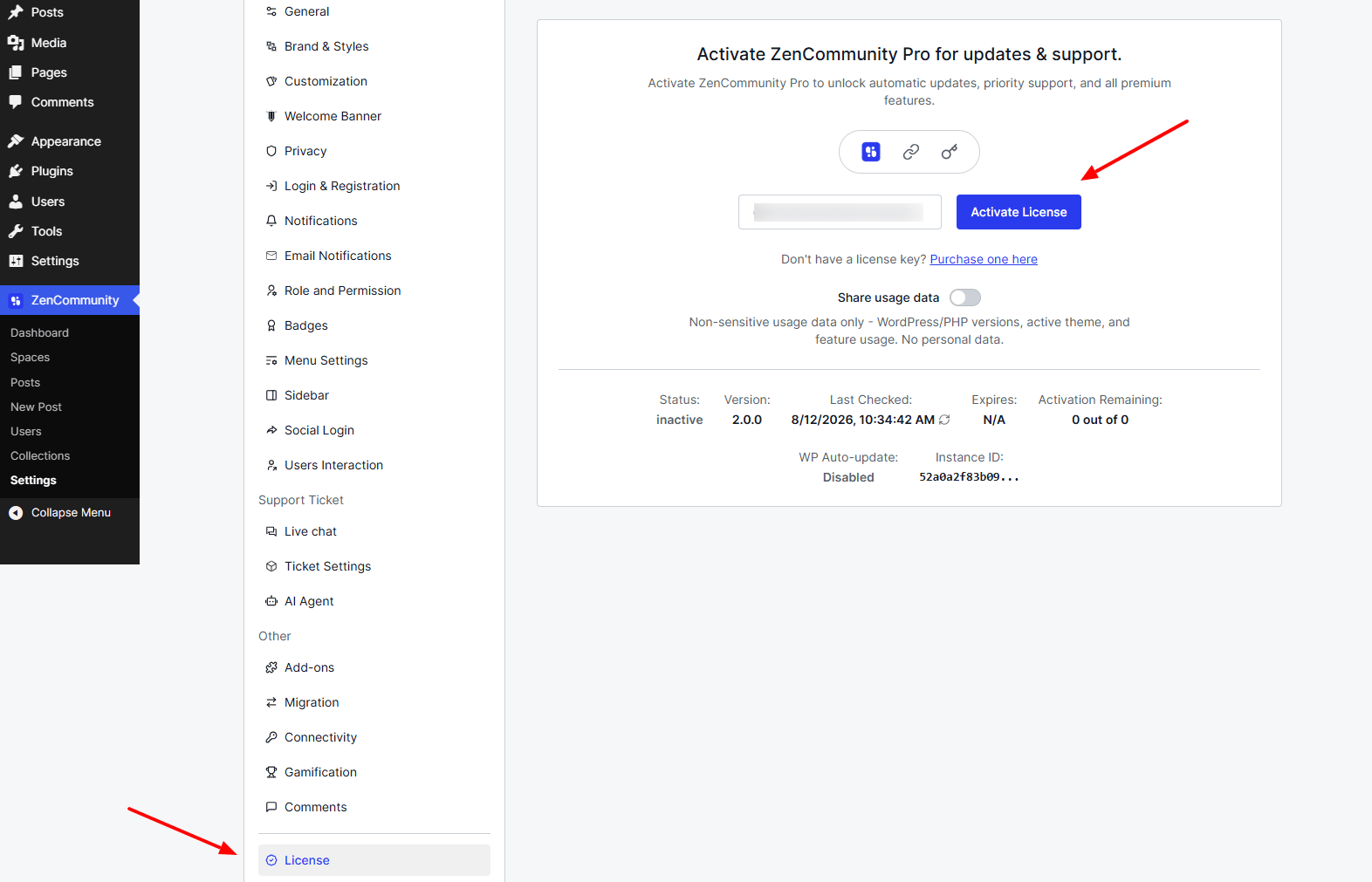
Your ZenCommunity license has now been successfully activated.
For video tutorials, subscribe to our YouTube channel. Join our Facebook community to ask questions. Stay updated with our latest news by following us on Twitter.