


Events help your community organize meetups, webinars, workshops, and more. Members can easily view upcoming sessions and respond with their availability using RSVP options.
This guide explains how to create an Event Space, add events, and manage RSVPs.
Overview
An Event Space acts as a central hub for all your community events.
Inside this space, members can:
- View upcoming and past events
- See event details (date, time, location)
- RSVP to events
Admins and moderators manage events, while all logged-in members can respond.
Before You Start
Make sure you have:
- A Space configured with Event as the content type
- Admin or moderator access to that Space
⚠️ Only admins and moderators can create, edit, or delete events.
Creating an Event Space
- Go to ZenCommunity → Spaces in your dashboard
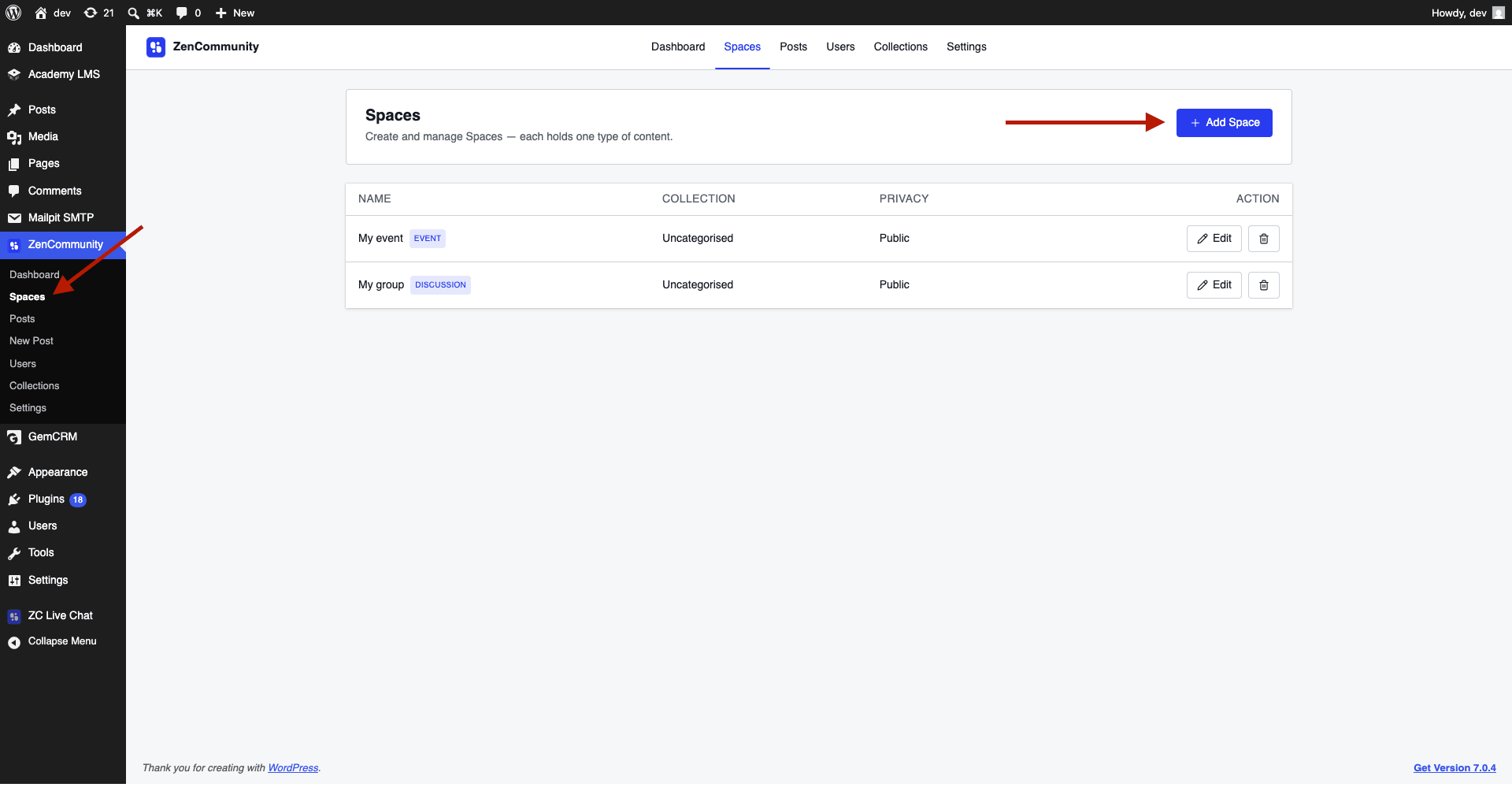
- Click Add Space
- Enter:
- Name
- Slug
- Description
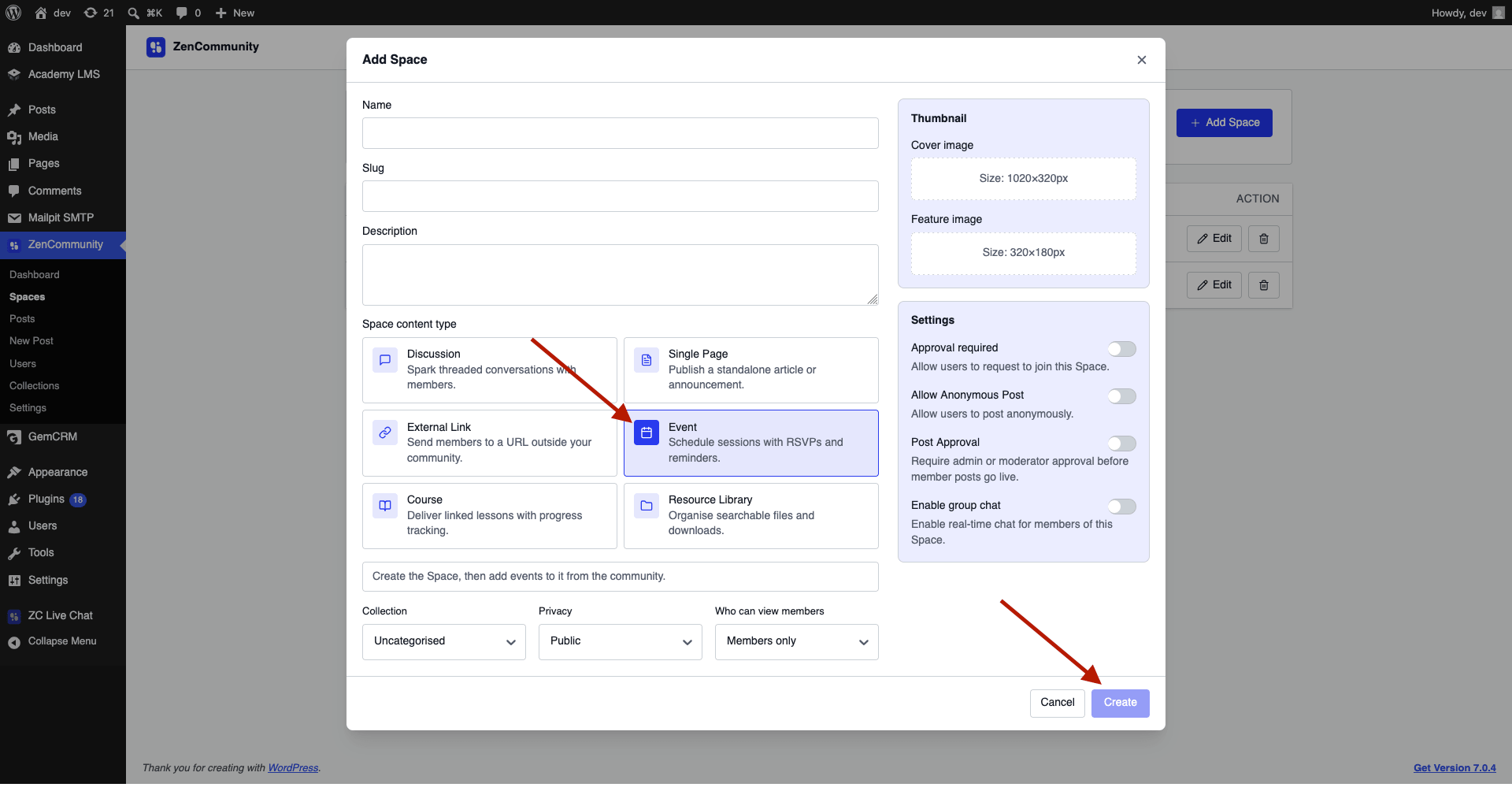
- Under Space Content Type, select Event
- Complete other settings (privacy, collection, images)
- Click Create
💡 Events are created from the frontend, not from the admin form.
Adding an Event
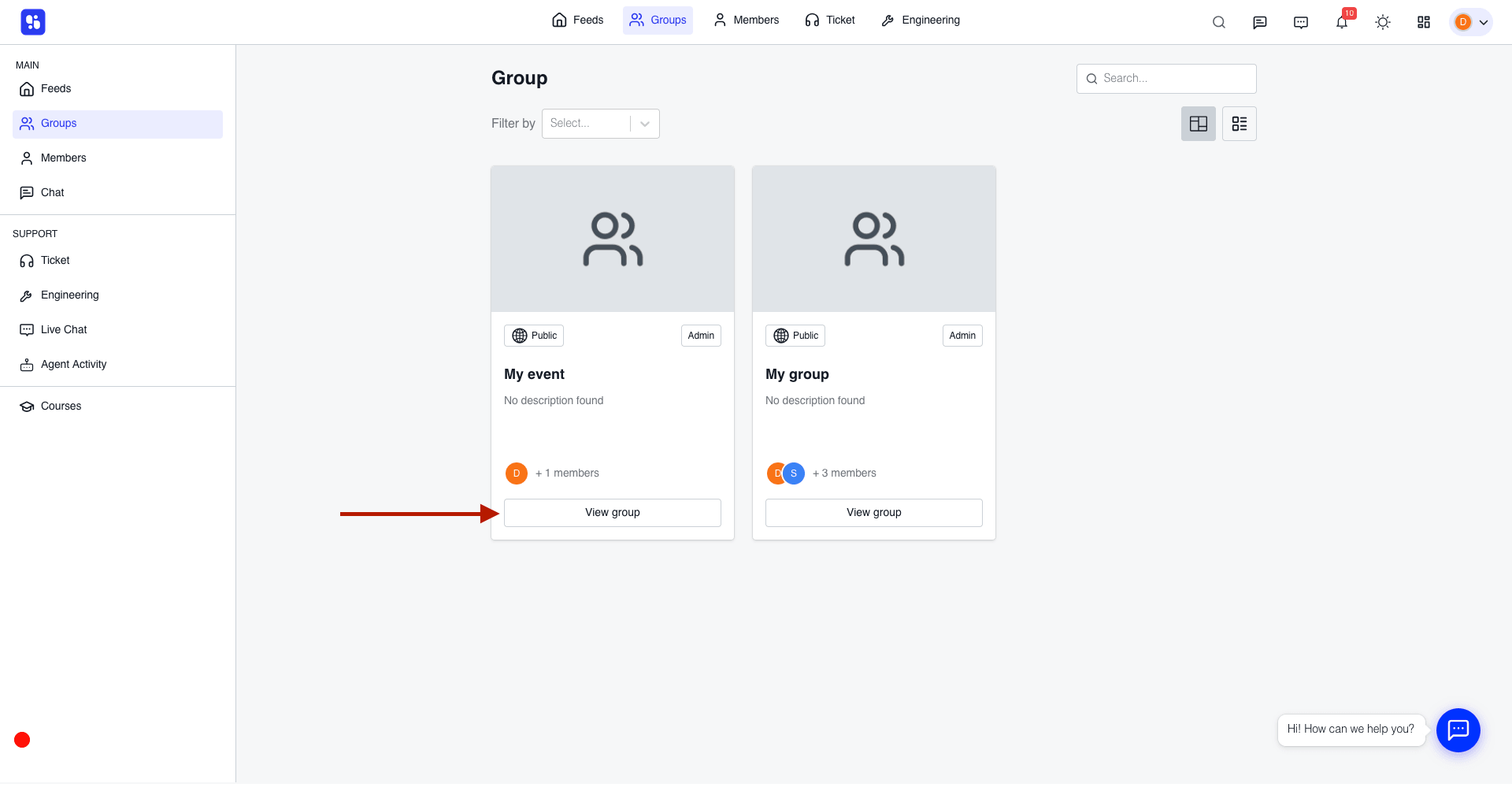
- Open your Event Space from the frontend
- Navigate to the Events tab
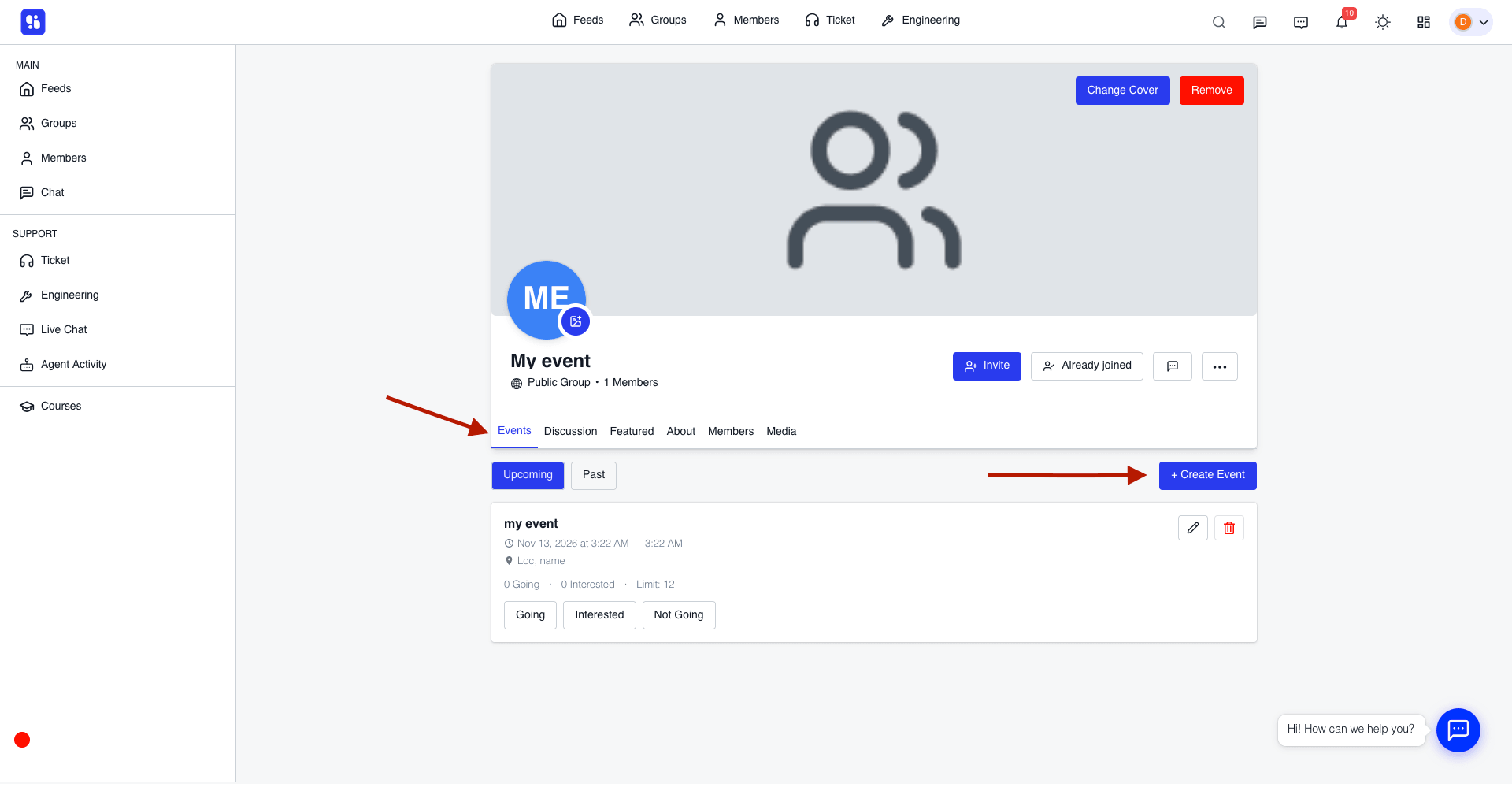
- Switch between:
- Upcoming
- Past
- Click + Create Event
- Fill in the event details:
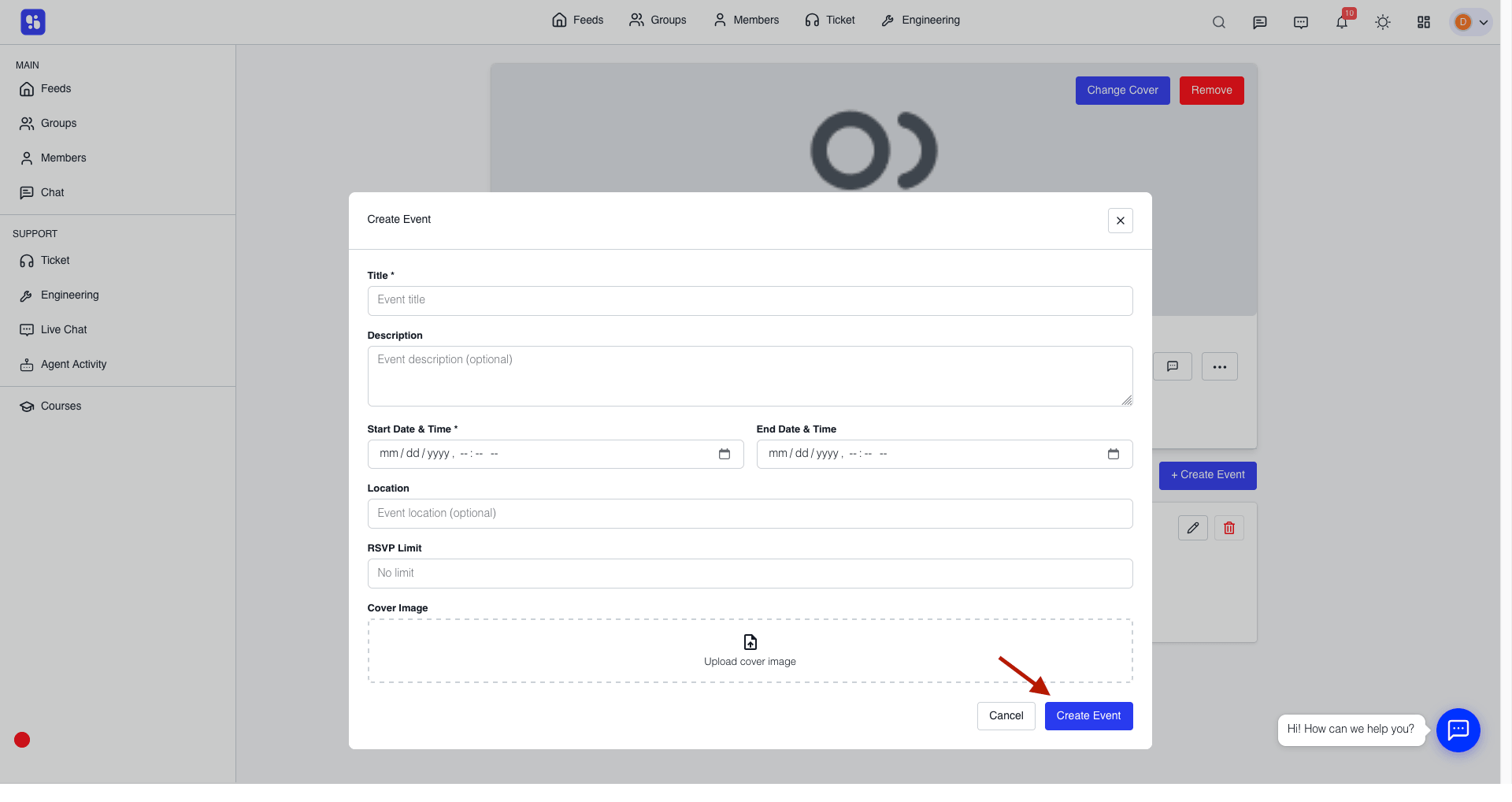
Required
- Title
- Start Date & Time
Optional
- Description
- End Date & Time
- Location
- RSVP Limit
- Cover Image
- Click Create Event
The event will appear in the Upcoming list.
Editing or Deleting Events
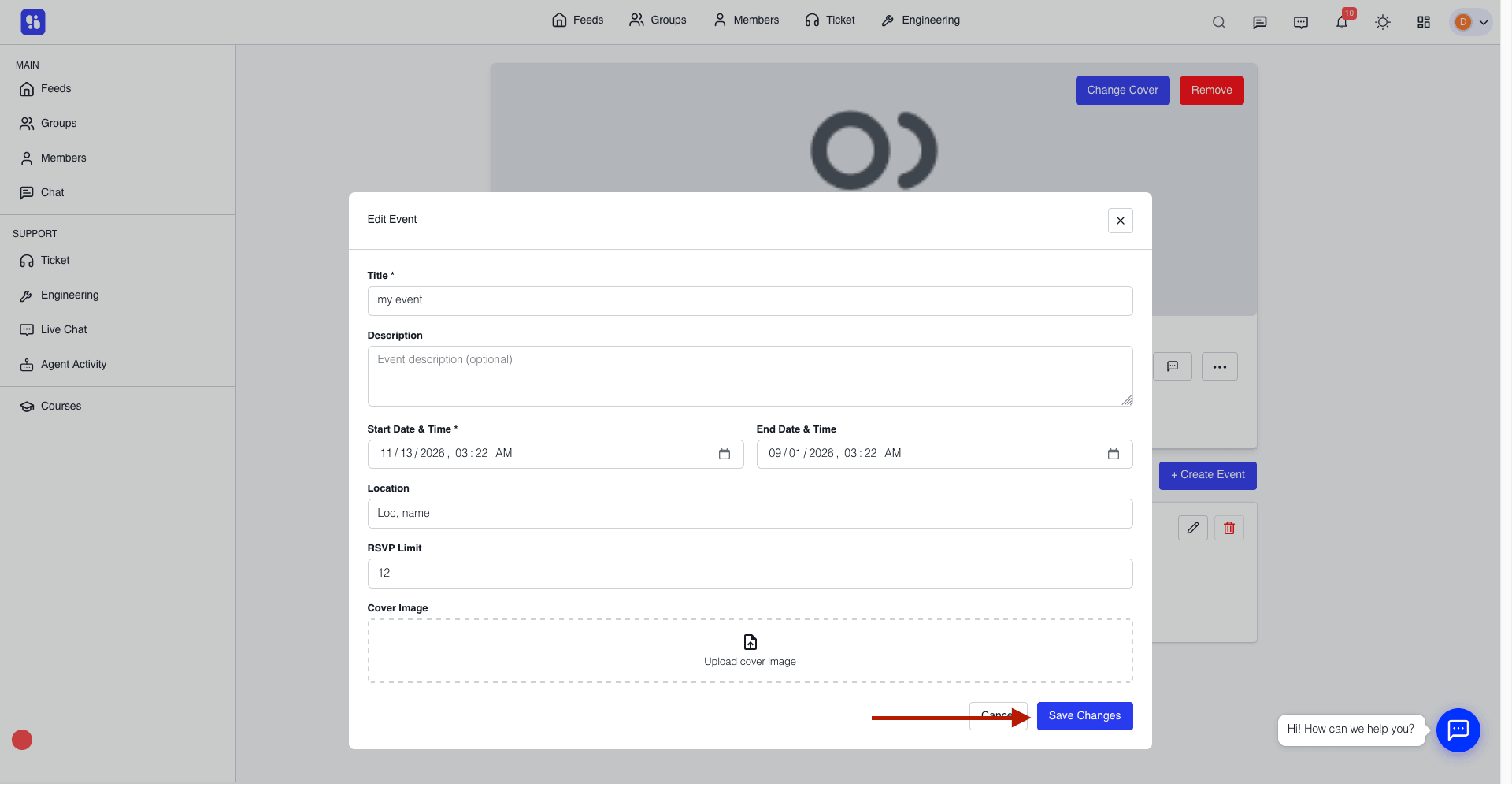
Edit an Event:
- Click the Edit (✏️) icon on the event card
- Update details
- Click Save Changes
Delete an Event:
- Click the Delete (🗑️) icon
- Confirm deletion
⚠️ Deleted events cannot be recovered.
How RSVPs Work
Members can respond using three options:
- Going
- Interested
- Not Going
Behavior:
- Clicking a button saves the response
- Clicking it again removes the response
- Selecting another option switches the response
Each event shows counts of:
- Going
- Interested
This helps members quickly understand event popularity.
RSVP Limits
You can control event capacity using the RSVP limit.
- Set a number to restrict how many members can select Going
- Once the limit is reached:
- No more “Going” responses are allowed
- Members will see a limit message
- Leave blank for unlimited RSVPs
The limit is displayed on the event card (e.g., Limit: 50).
Event Behavior
- Events appear under Upcoming before they start
- After the start time, they move to Past
- Cancelled events show a Cancelled badge
- RSVP options are disabled for cancelled events
Best Practices
- Use clear titles and descriptions
- Add cover images for better visibility
- Set RSVP limits for limited-capacity events
- Regularly update event details
- Organize events into relevant spaces
Related Documentation
- Space Content Types
- Manage Group Members
- How to Create a Group
- Resource Library