


Switching to ZenCommunity from another platform? The Migration addon helps you import your existing data—such as tickets, users, and conversations—safely and efficiently, directly from your WordPress dashboard.
This guide explains how migration works and how to run imports step by step.
Overview
The Migration system acts as a framework for importing data from external tools.
Key Concepts:
- Providers (Sources)
Data sources supplied by other plugins or add-ons (e.g., Fluent Support) - Migration Cards
Each source appears as a card showing:- What data will be imported
- Current status
- Progress tracking
- Batch Processing
Data is imported in small chunks in the background
💡 Migration does nothing until at least one provider is available.
Before You Start
Make sure:
- Migration addon is enabled
- A valid source (provider) is installed
- All prerequisites for that source are met
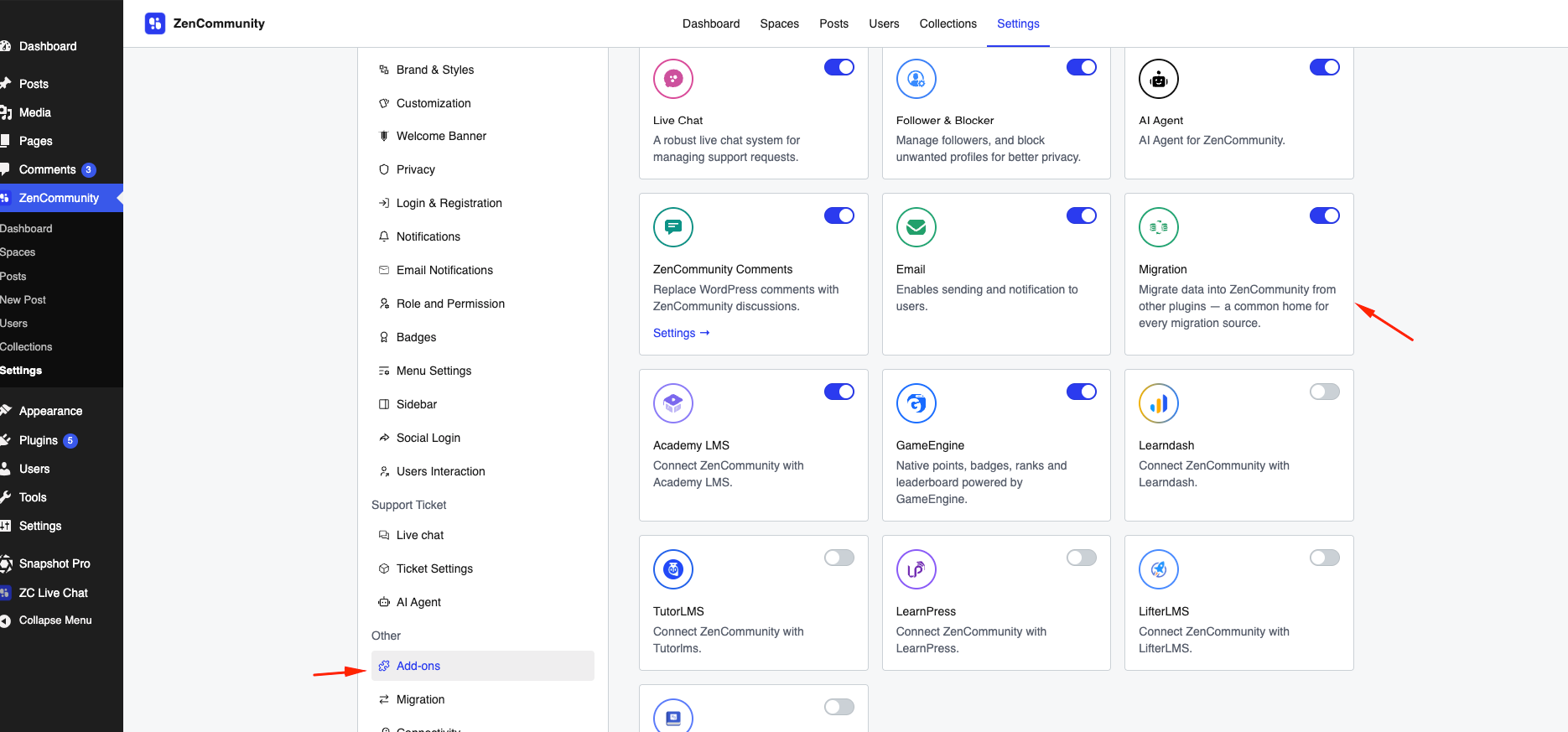
Enable Migration Addon:
- Go to ZenCommunity → Settings → Add-ons
- Enable Migration
⚠️ If a source shows “Unavailable,” check its listed requirements.
Open Migration Screen
- Go to ZenCommunity → Settings
- Click Migration from the sidebar
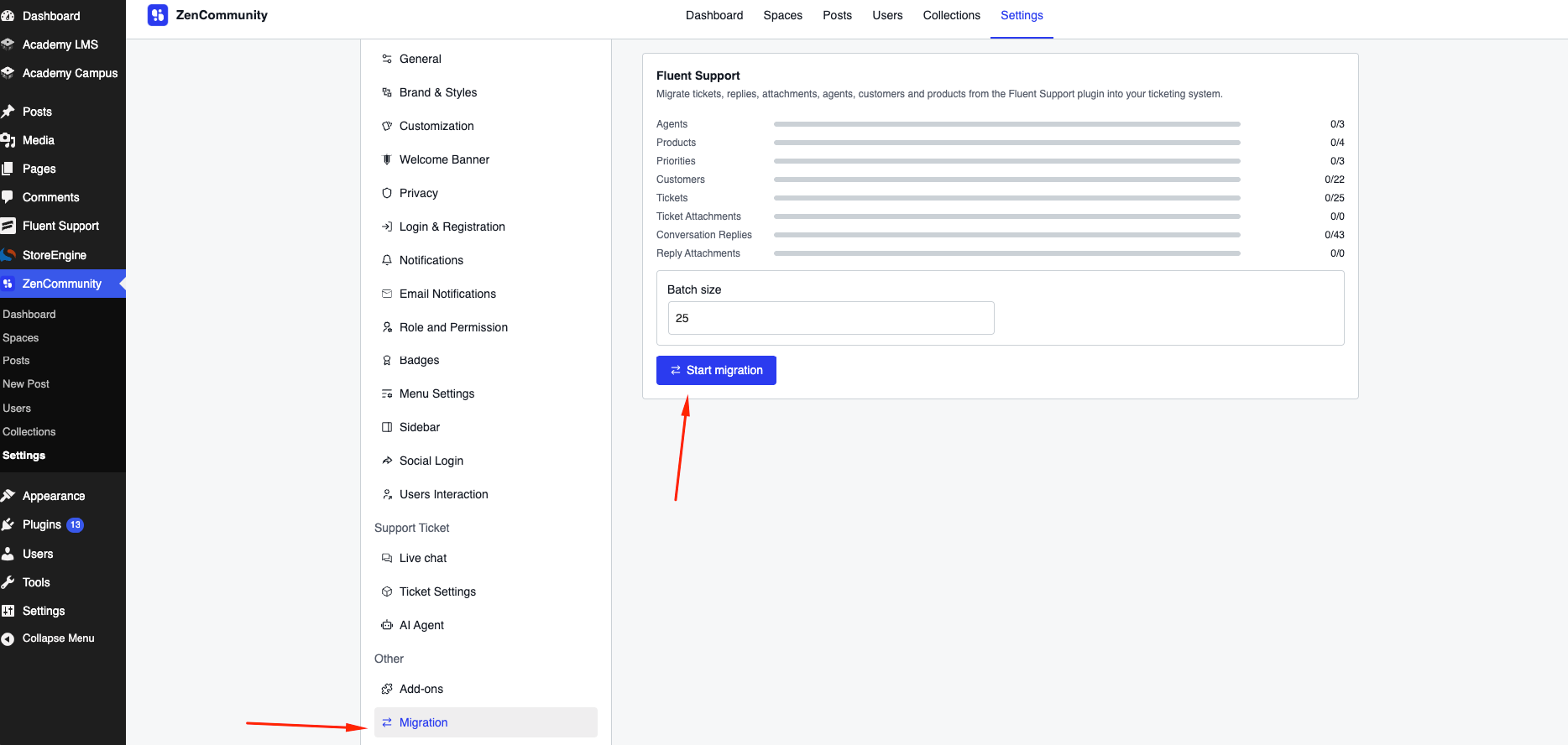
You’ll see a list of available sources (if installed).
Review Source & Preview Data
Each migration source includes a preview section.
Preview Shows:
- Record types (e.g., tickets, users)
- Total records in source
- Already imported records
This acts as a pre-check before running the migration.
Optional Settings:
- Batch size
- Other source-specific options
💡 Default settings are usually optimized for most cases.
Start Migration
- Configure options (if needed)
- Click Start Migration
What Happens:
- Import begins immediately
- Runs in the background
- Progress updates live
Progress Indicators:
- Per-item progress (e.g., 180 / 240)
- Overall status badge:
- Queued
- Running
- Paused
- Completed
- Completed with errors
- Failed
- Canceled
Migration Phases
Some providers run in multiple stages.
Example (Fluent Support):
- Tickets Phase
- Agents
- Customers
- Tickets
- Attachments
- Conversations Phase
- Replies
- Reply attachments
Each phase runs automatically in sequence.
Control the Migration
While migration is running, you can:
- Pause → Stops after current batch
- Resume → Continues from last progress
- Cancel → Stops the process
Handling Errors
If issues occur:
- Status will show Completed with errors
- Failed items are highlighted
- Use Retry Failed to reprocess only failed records
💡 No need to restart the entire migration.
What Gets Migrated (Example)
From Fluent Support, the system can import:
- Agents
- Customers
- Products
- Priorities
- Tickets
- Attachments
- Conversation replies
All data is mapped correctly to maintain relationships.
Best Practices
- Review preview data before starting
- Start with default batch size
- Monitor progress during import
- Fix errors and retry failed items
- Re-run migration if needed (safe and duplicate-free)
Important Notes
- Migration runs in the background
- You can leave the page during processing
- Re-running does not duplicate data
- Already imported records are skipped
Related Documentation
- ZenCommunity Overview
- Creating Support Tickets
- Managing Support Tickets
- License Activation