


The ZenCommunity integration with LearnPress creates a powerful connection between education and social interaction on your WordPress website. This integration enables you to foster stronger relationships among your students by displaying course-related activities directly in community group feeds.
Your learners will be able to view real-time updates including new course registrations, lesson progress, course completions, and quiz results—all within the ZenCommunity activity stream. This seamless connection promotes peer-to-peer interaction, enhances student engagement, and creates a dynamic educational ecosystem.
What You’ll Need Before Starting
Ensure the following requirements are met:
- LearnPress must be installed and running on your WordPress website.
- ZenCommunity must be installed and active on your WordPress website.
Both plugins need to be operational for the integration to work correctly.
Enable the LearnPress Add-on in ZenCommunity
To establish the connection between ZenCommunity and LearnPress, complete these steps:
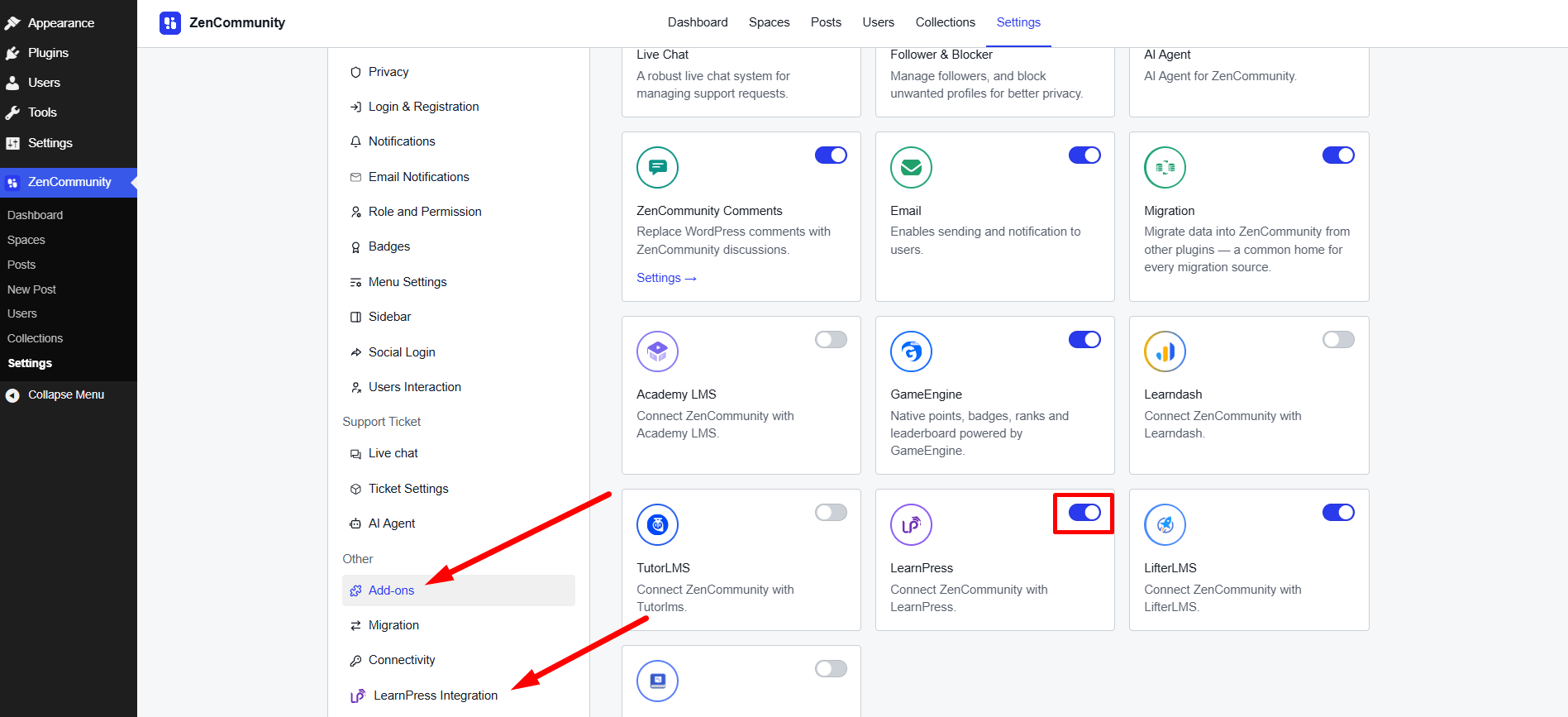
- Access your WordPress admin dashboard and navigate to ZenCommunity settings.
- Open Settings from the ZenCommunity interface.
- Find and select the Addons option in the ZenCommunity sidebar menu.
- Browse through the available addons until you locate the LearnPress Add-on.
- Activate it by switching the toggle button to the ON position.
After activation, you’ll notice a new menu item labeled LearnPress Integration appears in your ZenCommunity configuration panel. Select this menu item to continue setting up the integration.
Set Up LearnPress Activity Events in ZenCommunity
Once you’ve enabled the addon, you can select which LearnPress activities should be broadcast to your ZenCommunity activity feed.
The integration offers 7 different event types that can be synchronized between LearnPress and ZenCommunity:
- Course Enrolled
- Course Complete
- User Question
- Question Answer
- Lesson Completion
- Quiz Start
- Quiz End
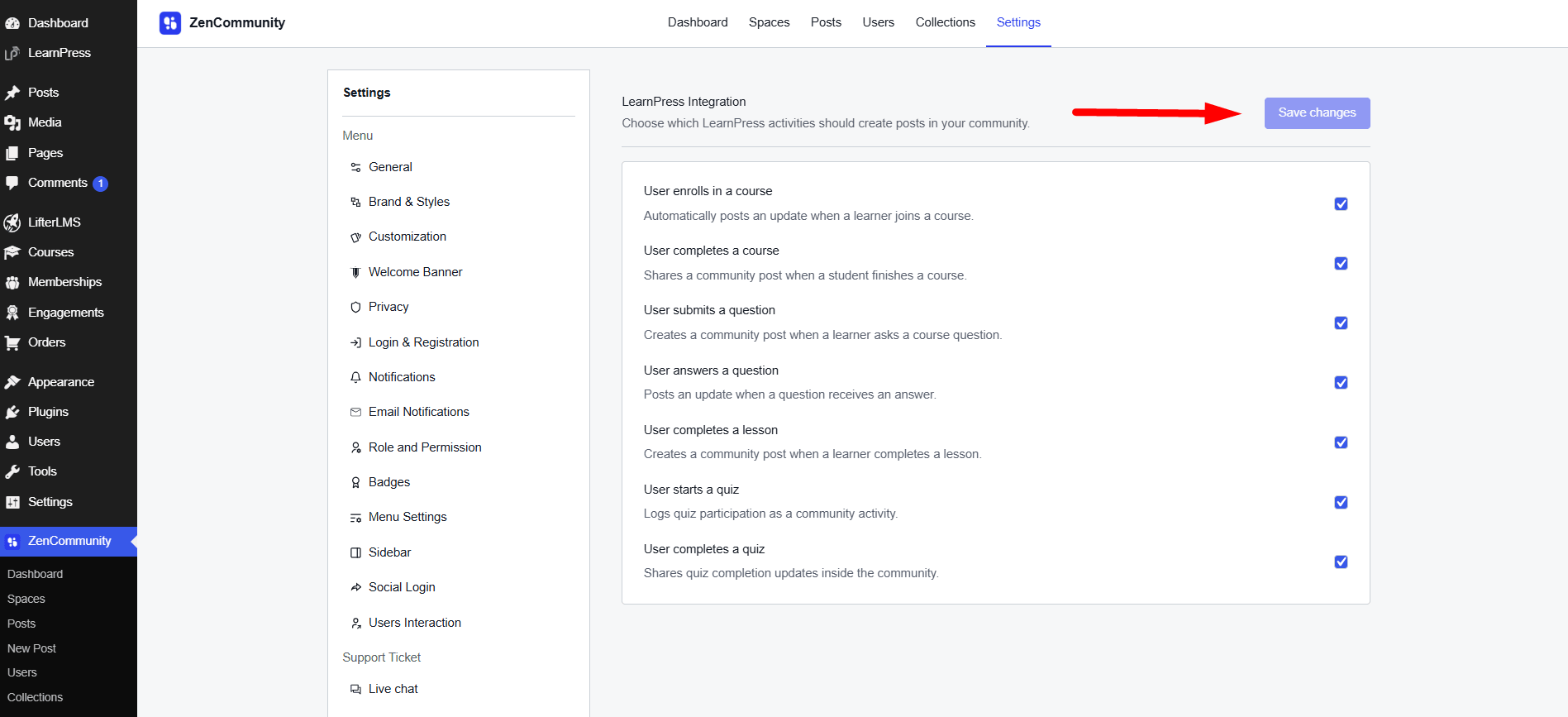
To activate your chosen events:
- Place a checkmark next to each event type you want to enable.
- Once you’ve made your selections, click the Save Changes button to update your preferences.
Customize LearnPress Events for Specific Groups
The next step involves determining which course activities will appear in individual ZenCommunity groups.
Navigate to the group where you want to display course events.
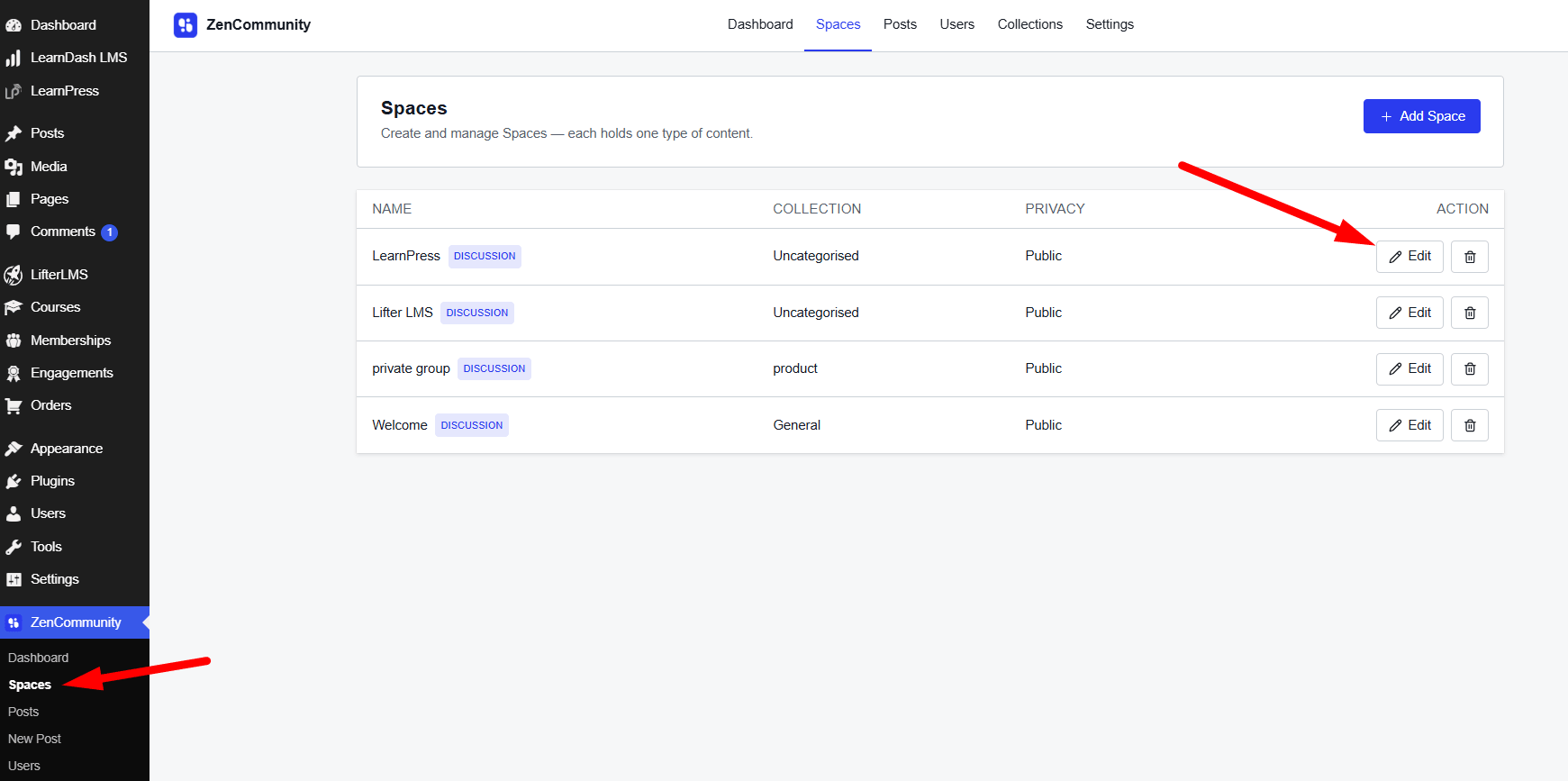
- Click the three-dot menu icon (⋯) located near the group title.
- Choose Group Settings from the available options.
- Look for the Course Activities Event configuration area.
- Select which event types should be visible in this particular group.
- Pick the specific course(s) whose activities should trigger updates in this group.
- Save your configuration by clicking the Save Changes button.
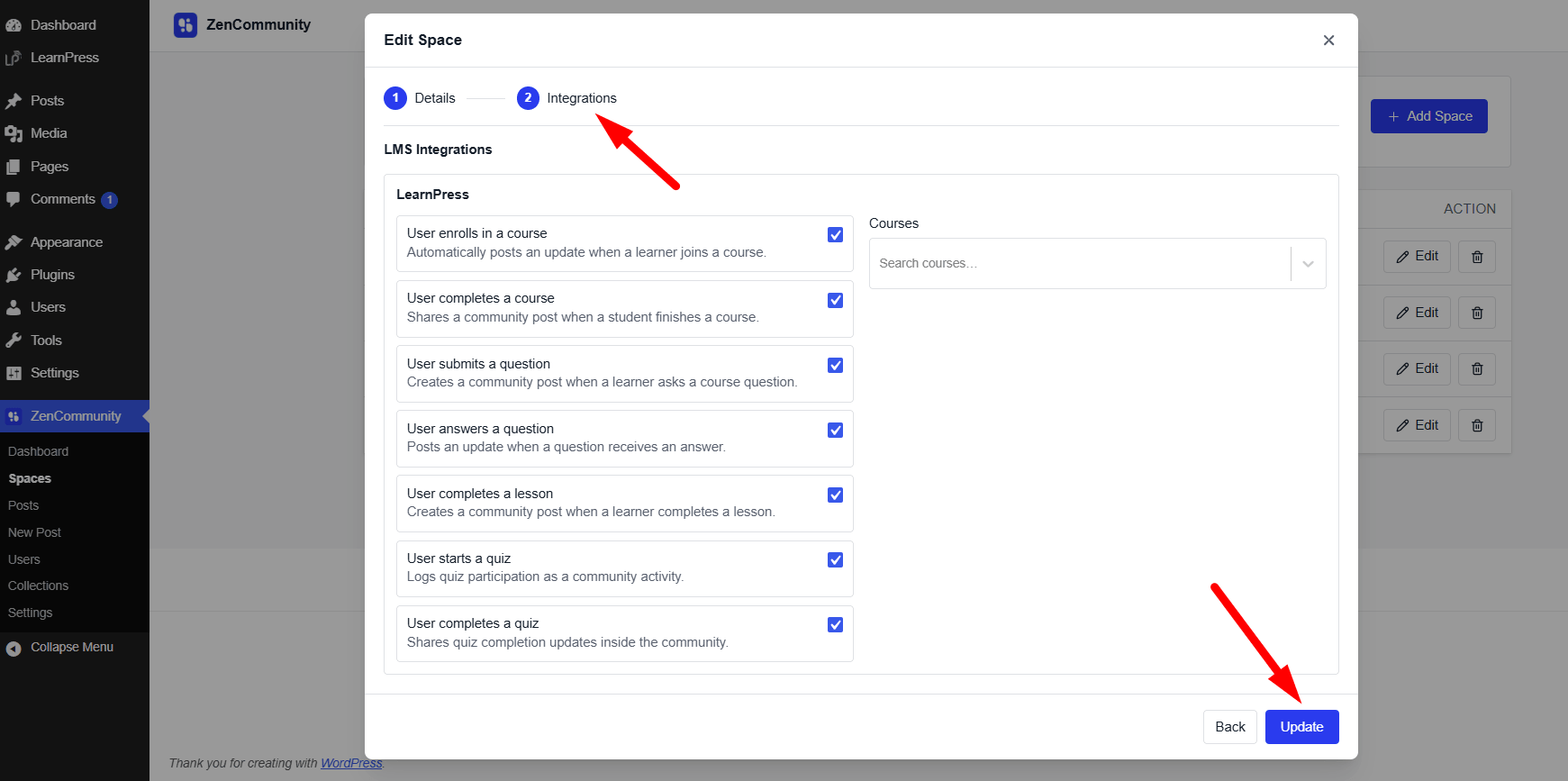
Moving forward, each time one of your selected course events takes place—such as a student enrolling, beginning a quiz, or finishing a course—an automatic update will be published in that group’s activity stream.
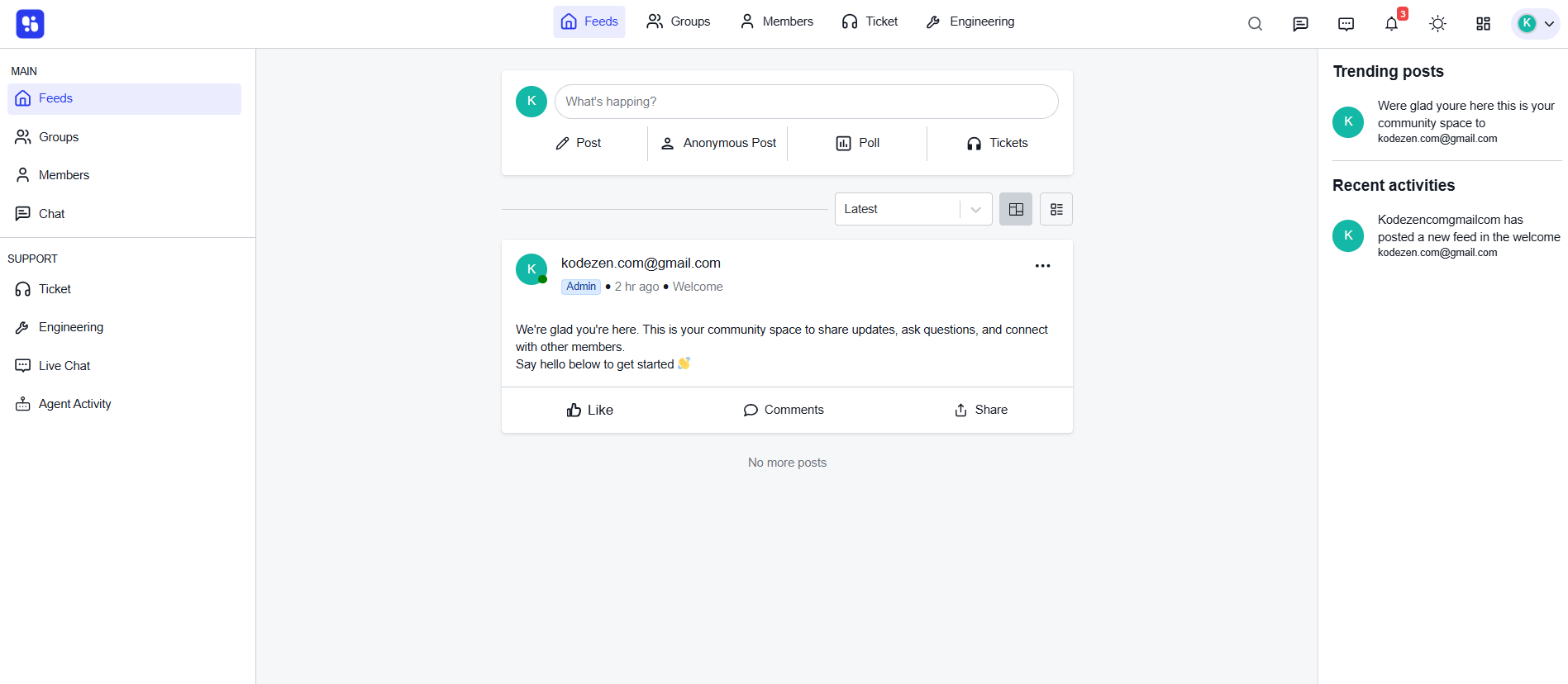
By connecting LearnPress with ZenCommunity, you can turn your online courses into a collaborative learning environment. Students can recognize each other’s progress, participate in course discussions, and receive instant notifications about educational activities—all happening within your community space. Enhance student participation, improve learning outcomes, and build a thriving educational community with the powerful LearnPress and ZenCommunity integration.