


Online communities are booming—and now more than ever, people want a private, distraction-free place to connect, learn, and belong. If you’re looking to create your own community on WordPress, you’re in the right place.
In this comprehensive guide, you’ll learn exactly how to build a thriving community using ZenCommunity — a powerful, all-in-one WordPress plugin designed for groups, member interaction, live chat, and social-style engagement.
Whether you’re building a learning community, coaching platform, membership site, gaming hub, or support ecosystem, this tutorial will guide you step-by-step… even if you’re not tech-savvy.
Why Make a Community on WordPress?
Platforms like Facebook Groups, Slack, Discord, or Circle are great, but they have limitations:
- You don’t own your audience
- You can’t customize the experience deeply
- You can’t integrate with your LMS, membership system, or shop
- You rely on someone else’s algorithm
But with WordPress, you get:
✔ Full ownership
Your data, your members, your rules.
✔ Unlimited customization
Design it however you want — from layout to features.
✔ Plug-and-play integrations
LMS, membership tools, WooCommerce, events — everything connects.
✔ No SaaS lock-in
No per-user fees or monthly community platform charges.
When paired with a social community plugin like ZenCommunity, WordPress becomes a full-fledged platform that can rival big community apps.
Meet ZenCommunity: The WordPress Plugin That Turns Your Site into a Social Platform
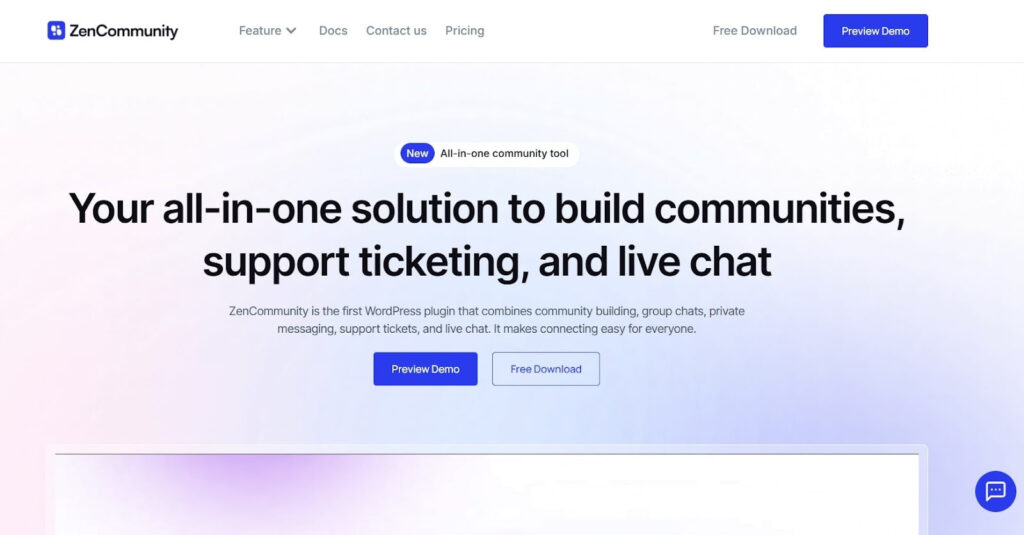
If you’ve ever wished your WordPress site could function like a modern community app — with feeds, groups, chat, and member interactions — ZenCommunity does exactly that.
Here’s what makes it stand out:
- Create unlimited groups (public, private, hidden)
- Activity feed for posts, discussions, and updates
- Real-time chat (1-to-1 and group chat)
- Member profiles and role management
- Collections to organize content
- Modern posting system with media support
- Beautiful UI that feels like a real social app
Most community plugins complicate things. ZenCommunity makes building a community feel natural.
Now let’s build your community step-by-step.
How to Make a Community on WordPress (Step-by-Step)
Step 1: Install WordPress + Choose Hosting
Before building your community, make sure you have:
✔ A domain name
✔ WordPress hosting (SiteGround, Bluehost, Hostinger, etc.)
✔ A clean WordPress installation
Once ready, log in to your WordPress dashboard.
Step 2: Install ZenCommunity
Head over to the WordPress plugin section, and there search for ZenCommunity. After it appears, click ‘Install’ and then ‘Activate’ the plugin.
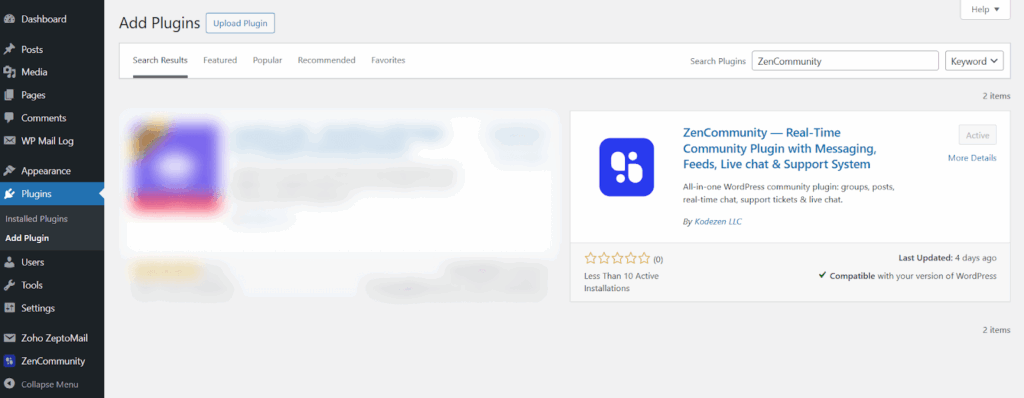
Once activated, ZenCommunity automatically creates the pages needed for the community environment — groups, profiles, feed, chat, and more.
You don’t need to configure 20 different add-ons. Everything starts working instantly.
After installation is complete, a brand-new ZenCommunity menu will appear in your WordPress dashboard.
Clicking on it opens all community-related settings.
Inside the Community Path section, you’ll notice the default slug:
/community
(for example: yoursite.com/community)
You can keep this as it is or change it to something more meaningful like:
- /support
- /members
- /hub
- /club
Once you’ve chosen the path you want, click Save Changes.
Now open that URL in your browser — this is your live, fully functional community area ready for members to join and explore.
Step 3: Create Your First Community Group
Groups are the heart of any WordPress community—whether it’s a fitness community, learning classroom, membership hub, or interest-based group.
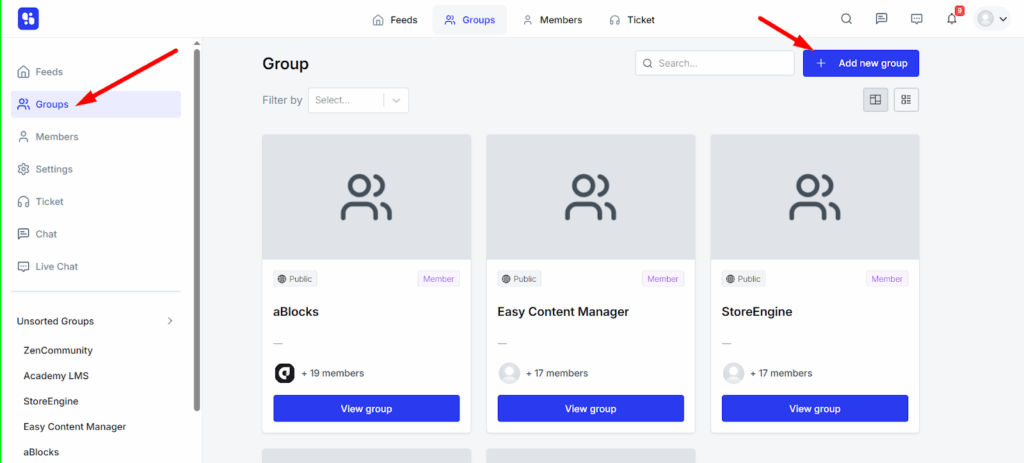
How to Create a Group in ZenCommunity:
- Navigate to ZenCommunity → Groups
- Click Add New Group
- Enter group name, description, banner, and privacy type
- Configure group settings (join rules, posting ability, moderators)
- Publish the group
You can create:
- Public groups
- Private groups
- Hidden groups
Each group has its own feed, members, and permissions—making it perfect for large or niche communities.
Full tutorial: How to create a group.
Step 4: Add Collections to Organize Content
Collections help you organize content, topics, resources, or posts inside your community. Think of it as category-based social feeds.
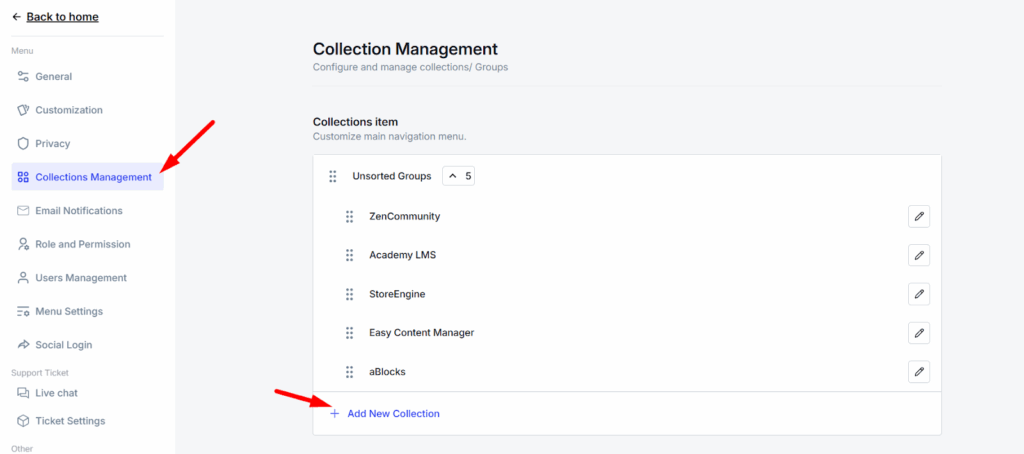
How to Create a Collection:
- Go to ZenCommunity → Collections
- Click Add New Collection
- Add title, description, and thumbnail
- Assign groups (optional)
- Save
Use cases:
- Resource libraries
- Content categories
- Announcement spaces
- Course module discussions
More details here: How to create a collection and manage it.
Step 5: Allow Members to Create Posts
Community members can share updates, photos, discussions, questions, and ideas.
Creating Posts
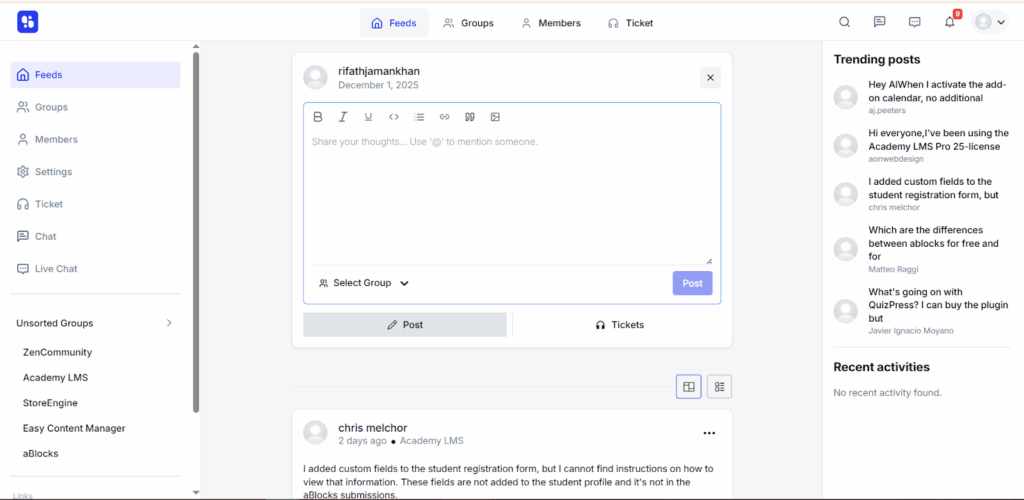
From their community profile, users can:
- Write text posts
- Add media
- Comment and reply
- React
- Tag collections or groups
Admins can moderate everything.
Learn more: Guide for creating and managing posts.
Step 6: Manage Group Members
A thriving community needs structured member management.
ZenCommunity Member Tools:
- Approve or remove users
- Assign moderators
- Manage roles
- Control posting permissions
- Restrict access
- Monitor activity
Detailed management guide: Learn how to manage group members.
Step 7: Enable Real-Time Chat
Communities with chat grow much faster than communities with only posts.
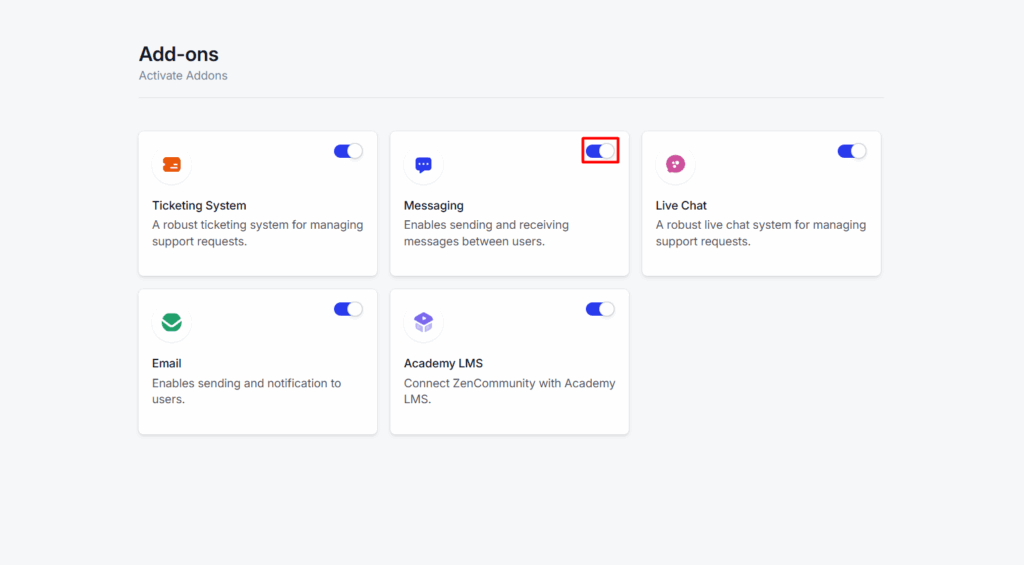
Chat adds:
- Instant connection
- Faster reply loops
- More casual discussions
- Direct relationships between members
- Real-time support
With ZenCommunity, chat works out of the box — no external service, no extra plugins.
There are two types of chat:
1. Private One-to-One Messaging
- Great for member networking, coaching, and personal support.
2. Group Chat
- Perfect for group discussions, class groups, and special interest circles.
This single feature can increase engagement by 30–60%.
Chat guide: Learn how to use chatting.
Step 8: Launch Your Community the Smart Way
Before you open the doors, make sure you have:
✔ A welcome post
Tell members who you are and what this community is about.
✔ Clear community rules
People behave according to expectations.
✔ A starter topic in each group
An empty community scares new users.
✔ Invite your first 20–50 members
They will be the “founding group” who shape the early culture.
✔ Engage daily
Ask questions, reply to posts, celebrate wins — stay visible.
A community grows through interaction, not installation.
More Powerful Features You Get with ZenCommunity
What makes ZenCommunity truly stand out is that it’s not just a “community plugin.”
It’s becoming a complete social ecosystem for WordPress — with practical features that help you support users, engage members, and create deeper connections across your entire website.
Here are some of the additional features you’ll love:
Built-in Support Ticketing System
Every community needs a reliable way to handle questions, issues, and requests.
ZenCommunity includes a full support ticketing tool that lets your users:
- Submit support requests directly inside your community
- Track ticket status
- Communicate easily with admins or support agents
- Receive faster, more organized responses
This transforms your community from a simple discussion space into a complete engagement and support hub.
Website Live Chat Widget
Need a fast way to talk to your visitors?
ZenCommunity comes with a live chat widget that you can enable anywhere on your site. This gives your users a direct channel to:
- Ask pre-purchase questions
- Reach out for support
- Get instant help
- Communicate without leaving your website
A simple feature — but a powerful driver of conversions, trust, and user satisfaction.
Native Integration with Academy LMS
If you run online courses, Academy LMS users get a major advantage.
ZenCommunity integrates directly with Academy LMS, allowing you to:
- Build course-specific groups
- Create student communities
- Enable discussions tied to lessons
- Organize group learning and peer interaction
- Offer instant chat-based support for students
- Creating courses and views from ZenCommunity features are coming soon
This completes the social learning experience inside WordPress.
Coming Soon: Gamification Features
No modern community is complete without gamification.
ZenCommunity will soon include:
- Badges
- Points
- Achievements
- Leaderboards
- Member reputation scores
These features help motivate your users, increase participation, and make your community feel fun, lively, and rewarding.
Coming Soon: StoreEngine & WooCommerce Integrations
Ecommerce communities are about to get even more powerful.
With StoreEngine and WooCommerce integrations, you’ll be able to monetize your community and earn money directly through your website.
Paid groups, premium memberships, exclusive product communities — all will become effortless.
Conclusion: Your WordPress Community Starts Today
Building an online community is no longer just a “nice-to-have” — it’s one of the most powerful ways to create engagement, loyalty, and long-term growth for your brand, business, or learning platform.
And with WordPress paired with ZenCommunity, you don’t need a complex SaaS tool or an expensive setup. You get:
- A beautiful, modern social experience
- Groups, feeds, posts, chat, and member management
- Support ticketing and live website chat
- Academy LMS integration for course communities
- Upcoming StoreEngine, WooCommerce, and gamification features
Whether you want to build a learning community, a membership hub, a customer support space, or a niche social network — ZenCommunity gives you everything you need to launch and scale it under your full control.
Your community is more than just a feature — it’s your future.
And the best time to build it is right now.
👉 Start your WordPress community today.
Create the space where your people belong — and watch your community grow, thrive, and make an impact.