


Many online learners thrive when they can talk, share, and connect with others. A community Online learning works best when students don’t feel alone. When learners can talk, share ideas, and help each other, they stay more active and motivated. A strong community turns simple courses into a complete learning experience. Tutor LMS does a great job with course creation and management, but to bring real interaction into your platform, a community plugin is essential.
ZenCommunity is built for this exact need. It integrates smoothly with Tutor LMS and adds discussion, activity feeds, messaging, and group features directly inside your WordPress site. You don’t need extra tools, third-party services, or complicated setups to get started.
With ZenCommunity, learners can discuss lessons, follow course updates, and connect with instructors in one place. Course activity and community interaction stay connected, which makes learning feel more natural and engaging.
In this guide, you’ll learn why ZenCommunity is the best community plugin for Tutor LMS and how you can use this integration to build a community-based eLearning platform that keeps students involved from the first lesson to course completion.
What Is a Community-based eLearning Platform?
A community-based eLearning platform lets learners do more than just watch lessons.
With community support, students can:
- Connect with classmates
- Discuss course topics
- See course updates in feeds
- Share progress and tips
This keeps learners engaged and helps them learn faster.
What Is ZenCommunity?
ZenCommunity is a WordPress community plugin built for learning platforms. It helps you turn your website into an active social space where learners and instructors can connect easily.
It works closely with Tutor LMS, so course activity and community discussion stay in one place. Unlike basic forum plugins, ZenCommunity is made for education-focused use cases.
With ZenCommunity, you can create:
- Course-based communities
- Student discussion spaces
- Instructor-led groups
- Private or public learning hubs
It also adds key community features such as:
- Group-based feeds
- Activity streams
- Real-time messaging
- Live chat support
- Support tickets
- Course activity syncing
This means important Tutor LMS actions like course enrollment, quiz start or completion, and course completion can appear directly inside community feeds. Learners don’t have to switch pages or tools to stay updated.
Everything runs inside your WordPress site, giving your learners a connected and social learning experience.
Why ZenCommunity Is the Best Fit for Tutor LMS
1. Native Tutor LMS Integration
ZenCommunity connects directly with Tutor LMS. You don’t need third-party bridges or custom code.
It can:
- Link communities with specific courses
- Control access based on enrollment
- Keep learning and discussion in one place
This creates a smooth experience for both students and instructors.
2. Course-Based Groups
Each course can have its own community group.
Students enrolled in a course can:
- Join course discussions
- Post questions
- Share resources
- Help each other
This keeps conversations focused and relevant.
3. Clean Student Profiles
ZenCommunity adds profile pages for learners.
Profiles can show:
- Activity updates
- Group participation
- Community posts
This makes learning feel more personal and social.
4. Activity Feed for Engagement
The activity feed shows what’s happening in the community.
Students can see:
- New posts
- Comments
- Group updates
This encourages regular visits and interaction.
5. Simple Setup and Control
ZenCommunity is easy to manage from the WordPress dashboard.
Admins can:
- Create and manage groups
- Set privacy rules
- Moderate posts
- Control user roles
No technical knowledge required.
How ZenCommunity Works with Tutor LMS
ZenCommunity extends Tutor LMS instead of replacing anything.
The flow looks like this:
- Tutor LMS manages courses, lessons, and enrollment
- ZenCommunity adds discussion and interaction
- Students learn and communicate in one system
This reduces confusion and improves user experience.
Required Plugins & Prerequisites
To create a community-based learning site, you need:
- Tutor LMS (Free)
- ZenCommunity plugin
Before starting, make sure both plugins are installed and active on your WordPress site. Both must be active for the integration to work properly.
Step-by-Step: Setup ZenCommunity with Tutor LMS
1. Activate ZenCommunity
- Go to Plugins → Add New
- Upload or install ZenCommunity
- Activate the plugin
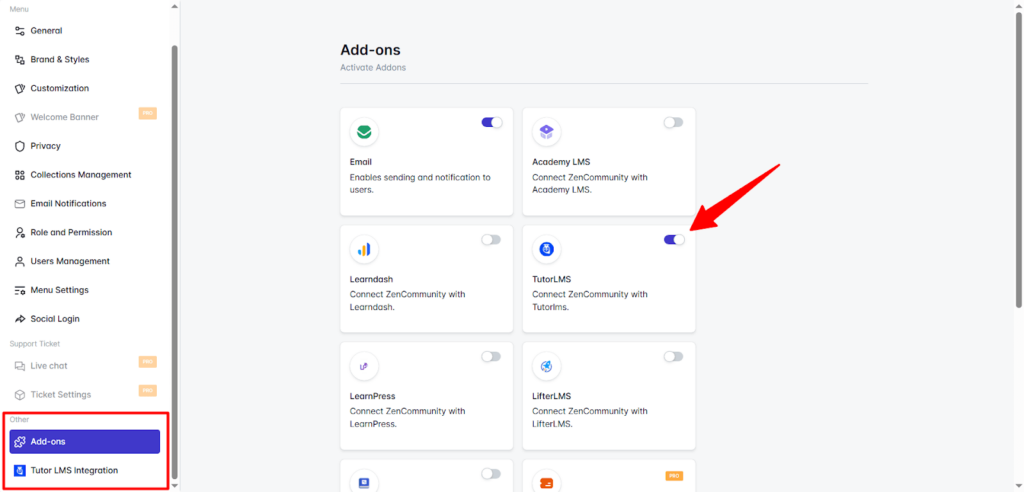
2. Turn On Tutor LMS Add-on
- Open ZenCommunity settings
- Enable Tutor LMS integration option
ZenCommunity will now detect Tutor LMS courses.
3. Pick Course Events to Show
After activating the Tutor LMS add-on in ZenCommunity, you can choose which course activities should appear in your community groups. This ensures learners see relevant updates and stay engaged with ongoing course events.
To set up your preferred events:
- Go to the Tutor LMS Events section in ZenCommunity.
- Check the boxes next to the course actions you want to display in group feeds, such as:
- Course Enrolled
- Topic Complete
- Course Complete
- Quiz Start
- Quiz End
- After selecting the desired events, click Save Changes to apply your settings.
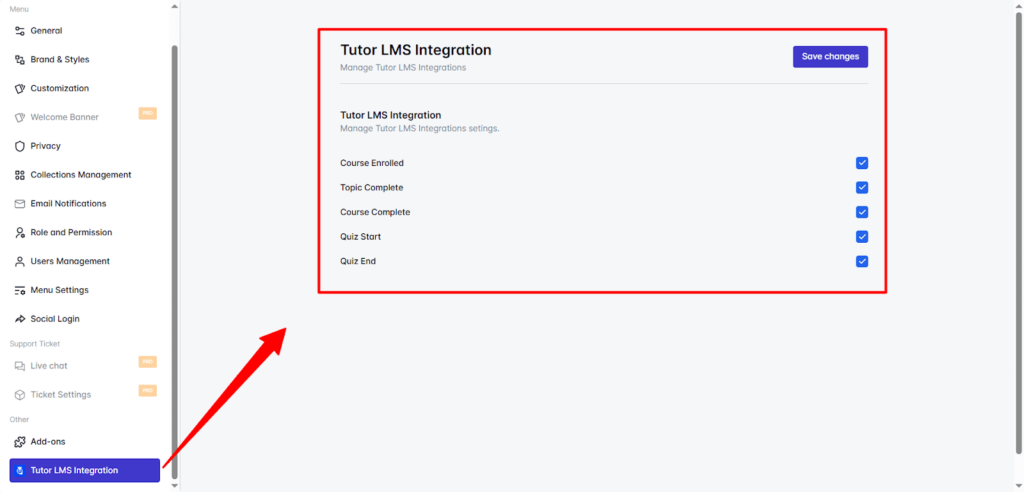
Once saved, these events will automatically appear in the selected groups, keeping learners updated about enrollments, quiz progress, and course completions in real-time.
This simple setup helps create a more interactive and connected learning experience inside your WordPress LMS.
4. Select Where Tutor LMS Events Appear in ZenCommunity Groups
Once you’ve activated the Tutor LMS add-on in ZenCommunity, the next step is to decide where course-related events will appear within your community groups. This ensures students stay informed and engaged with important course activities in real-time.
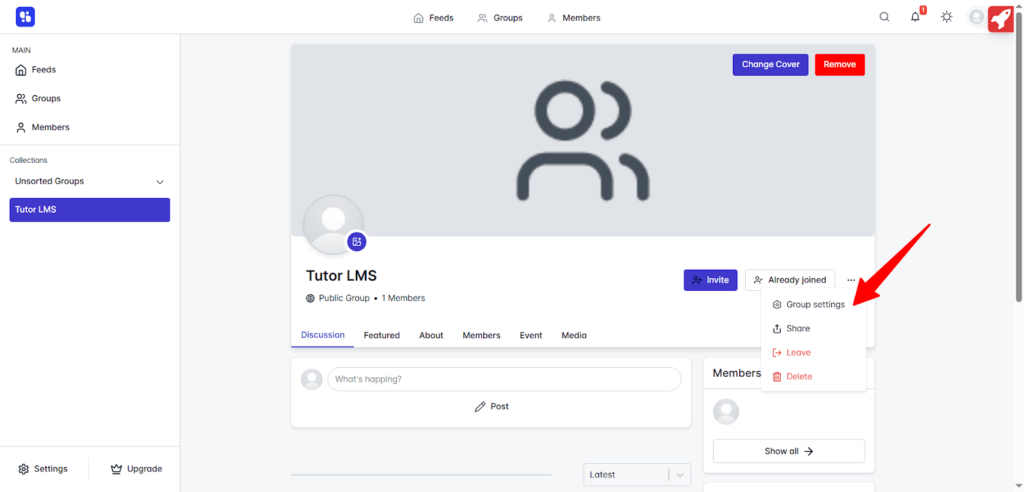
Follow these steps to configure events for any group:
- Open the community group you want to configure in ZenCommunity.
- Click the three-dot icon (⋯) next to the group name and select Group Settings.
- Scroll down to the Course Activities Event section.
- Pick the course events you want to show in this group by checking the boxes next to:
- Course Enrolled
- Topic Complete
- Course Complete
- Quiz Start
- Quiz End
- Course Enrolled
- Select the course(s) these events should be linked to.
- Click Save Changes to apply your settings.
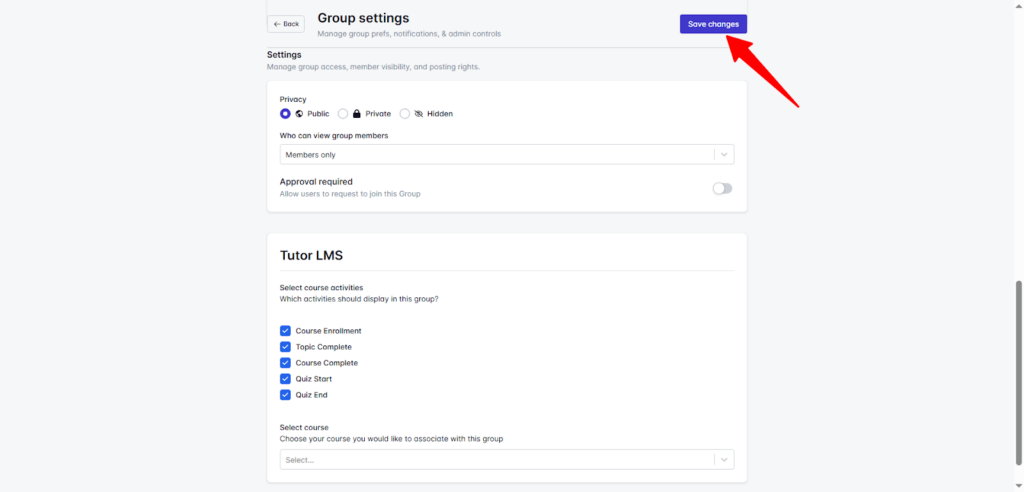
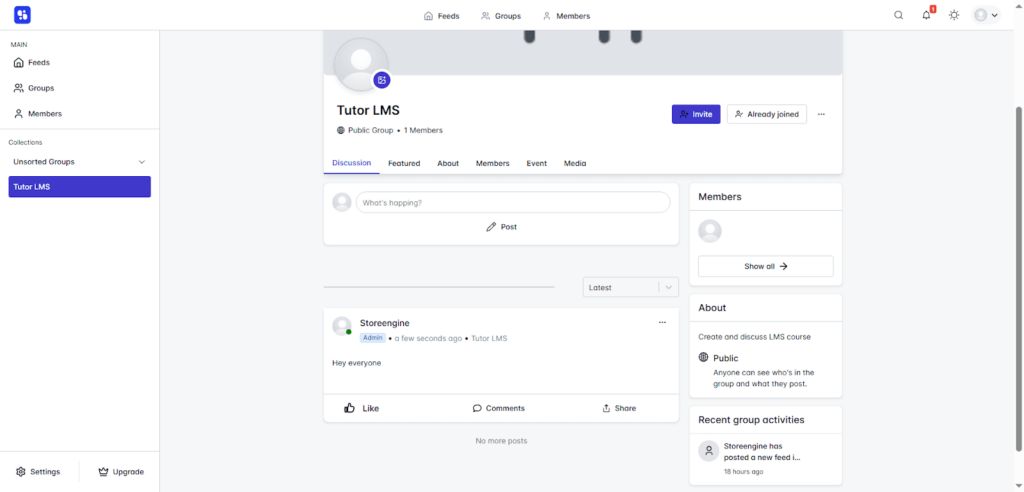
From this point forward, whenever a selected course event occurs—such as a new enrollment, quiz start, or course completion—it will automatically appear in the group’s activity feed.
By setting up course events in ZenCommunity groups, your eLearning platform becomes a vibrant social hub. Students can:
- Celebrate milestones
- Ask questions and share ideas
- Follow lessons and updates in real-time
This seamless integration keeps learners engaged, encourages interaction, and makes learning more collaborative and enjoyable.
How It Helps Your Learners
Once setup is complete, your site will:
- Show real learning activities
- Encourage students to comment and share
- Keep learners engaged longer
- Build a stronger social learning loop
This experience is closer to a social network but stays inside your WordPress LMS.
Final Thoughts
Community learning makes courses more effective. Tutor LMS handles course creation and delivery, while ZenCommunity adds the social space that keeps learners active and connected. When course updates and discussions stay in one place, learning feels more engaging and natural.
Start using this integration today to help learners stay longer, interact more, and complete courses with confidence. If you need any help, feel free to contact our support team.